Swapping a service users room with another service user
Last updated: February 3, 2026
Pro feature: This feature is available on Pro plans only. If you’d like to upgrade your plan, please contact our support team.
Overview
Room swapping in Found allows you to exchange room assignments between two service users on a specified date. This is useful when service users need to change rooms but you want to keep both placements active without creating new bookings.
When you perform a room swap:
Both service users remain in their current rooms until the swap date
On the swap date, they exchange rooms automatically
All booking details remain intact - only the room assignments change
This feature is available for permanent and respite bookings only (not daycare).
Why room swapping is useful
Room swapping helps in several common scenarios:
Resident preferences: A service user requests a room with better lighting, a different view, or closer proximity to facilities
Care requirements: A service user's needs change and they require a room on a different floor or closer to nursing stations
Compatibility: Two service users would be better suited to each other's current rooms based on their routines or social preferences
Room upgrades: When a more suitable room becomes available through another service user wanting to move
Rather than ending bookings and creating new ones, room swapping preserves the booking history and simplifies the administrative process.
How to swap rooms
Step 1: Open the booking
Navigate to Operations > Bookings
Find and select the booking for the service user whose room you want to swap
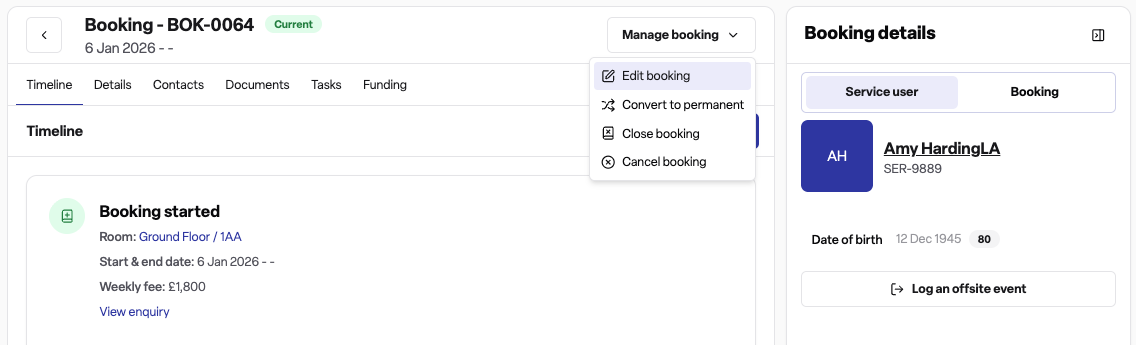
Click Manage booking drop down > then Edit booking in the booking details page
Step 2: Select swap rooms
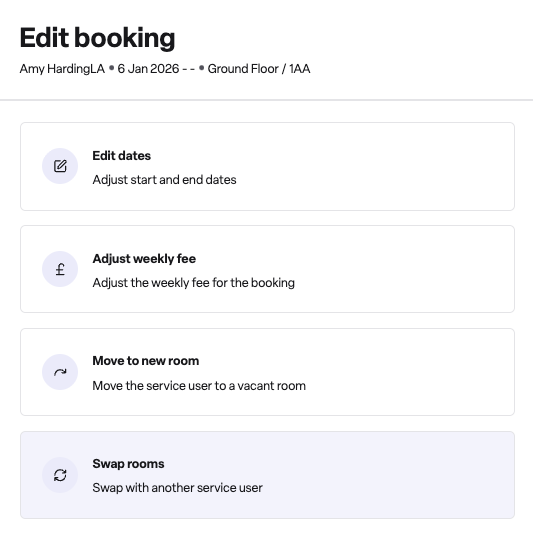
From the edit booking menu, select Swap rooms
Step 3: Choose the swap date
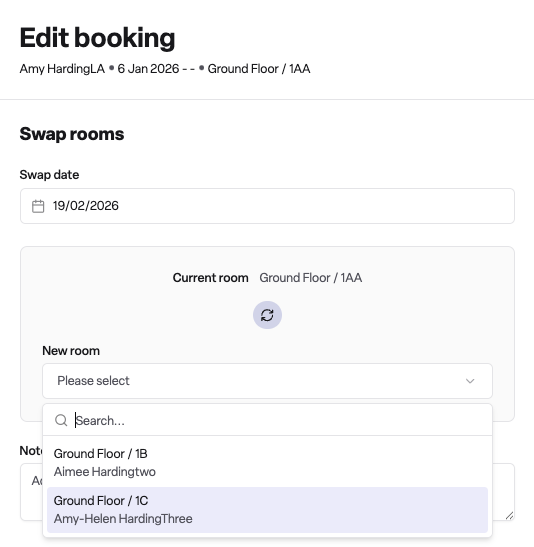
Select the date when the room swap should take effect
The swap date must be:
On or after the booking start date
Before the end date of the booking
Step 4: View current room and select the room to swap with
The form displays the current room assignment for the selected swap date, showing you which room the service user is currently in.
Browse the list of available room assignments from other service users
Select the room assignment you want to swap with
Step 5: Add a note (optional)
Enter a note explaining the reason for the room swap. This note will be stored on both new room assignments for future reference.
Example: "Swap requested by family - service user prefers room with garden view"
Step 6: Confirm the swap
Click Confirm to complete the exchange. Both service users will have their room assignments updated from the swap date onwards.
Frequently asked questions
Q: What happens to the room assignments before the swap date?
A: The original room assignments remain in place until the swap date. Both service users stay in their current rooms until then, and the swap only affects assignments from the swap date onwards.
Q: Can I swap rooms if one of the target rooms has a closure scheduled?
A: No, the system checks for room availability before allowing a swap. If either room has an active closure (such as maintenance or refurbishment) that overlaps with the swap period, the swap will be blocked.
Q: Can I undo a room swap?
A: You cannot directly undo a swap, but you can perform another swap to return both service users to their original rooms. Simply follow the same process and swap them back.
Q: Can I swap rooms between service users at different locations?
A: No, room swaps occur between room assignments within the same location. Both service users must have active room assignments that you can exchange.
Q: Who can see that a room swap occurred?
A: The room assignment history on each booking will show the change. The system records who made the swap and when, maintaining a full audit trail.