Editing booking dates
Last updated: February 27, 2026
Pro feature: This feature is available on Pro plans only. If you’d like to upgrade your plan, please contact our support team.
Overview
The edit booking dates feature in Found allows you to adjust the start and end dates of a service user's booking after it has been created. This is useful when care arrangements change, admission dates shift, or you need to extend or shorten a stay.
When you edit booking dates, Found automatically:
Updates room assignments to match the new dates
Checks for conflicts with other bookings for the same service user
Verifies room availability for the new period
Maintains data integrity across related records
How to edit booking dates
Navigate to the booking you want to edit Operations > Bookings > Click into your desired booking
Open the Manage booking drop down menu and select Edit booking

Adjust the Start date by clicking the Edit start date option
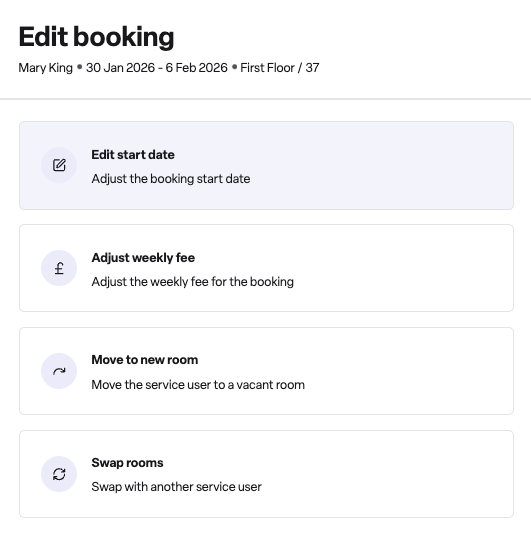
For respite bookings, you can also adjust the End date and choose whether it is Fixed or Provisional
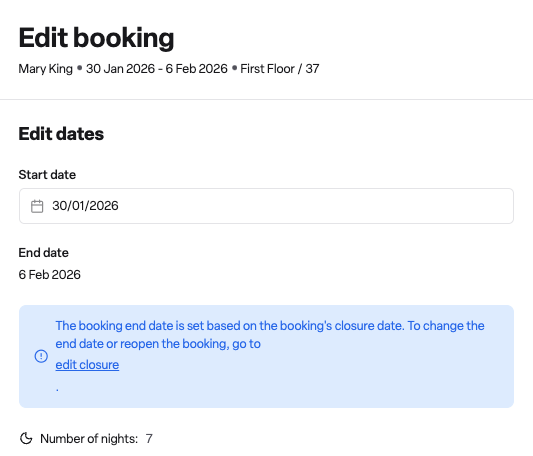
Review the number of nights displayed to confirm the duration
Click Confirm to apply your changes
End date types explained
For respite bookings, you can set the end date type:
Fixed: The service user's booking ends on this date, and they will be automatically moved out of the room. You will still need to close the booking manually.
Provisional: The service user will continue to occupy the room until the booking is closed.
What you can edit by care type
Care type | Start date | End date |
Permanent | Yes | Yes |
Respite | Yes | Yes |
Day care | Yes | No |
Frequently asked questions
Q: Why can't I edit the end date for a day care booking?
A: Day care bookings are single-visit appointments rather than overnight stays, so they don't have a separate end date. You can change the visit date by editing the start date.
Q: What happens if I change the dates and there's a room conflict?
A: Found checks room availability before saving. If the room is not available for the new dates, you'll see an error message and the changes won't be saved. You'll need to either choose different dates or reassign the room first.
Q: Can I edit dates for a closed booking?
A: For closed bookings, you can only edit the start date. If you need to change the end date, you'll need to edit the booking closure instead.
Q: What happens to room assignments when I change booking dates?
A: Found automatically adjusts room assignments to match the new dates. Assignments outside the new date range are removed, and existing assignments are updated to fit within the new period.
Q: Why am I seeing an overlap error?
A: This means the service user already has another booking during the dates you've selected. A service user cannot have overlapping bookings. Check their other bookings and adjust the dates accordingly.
Q: Who can edit booking dates?
A: Users with permission to edit bookings at that location can edit booking dates. If you don't have access, contact your administrator.
Q: What's the difference between fixed and provisional end dates?
A: A fixed end date means the service user will be automatically moved out of the room on that date. A provisional end date means they'll continue to occupy the room until you manually close the booking, giving you flexibility if the stay might be extended.