Cancelling a booking
Last updated: February 27, 2026
Pro feature: This feature is available on Pro plans only. If you’d like to upgrade your plan, please contact our support team.
Overview
Cancelling a booking in Found allows you to end a booking that has not yet started or is due to start on the current day.
This is different from closing a booking, which is used when an active booking needs to end. When you cancel a booking, Found automatically removes any future room assignments and cancels associated fees, ensuring your records and funding remain accurate.
Cancellation is useful when:
A service user or their family changes their mind before the booking begins
Funding is not approved or falls through before the start date
The service user finds alternative care arrangements
Personal or family circumstances change before the booking commences
How to cancel a booking
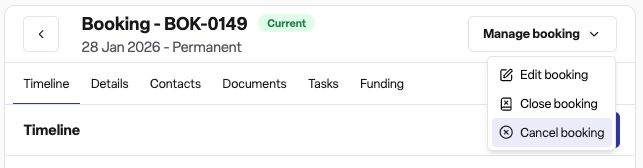
Navigate to the booking you wish to cancel Operations > Bookings > Click into your desired booking
Click the Manage booking drop down on the booking
Select Cancel booking from the dropdown menu
In the cancellation panel, enter the following details:
Ending date: The date of cancellation (must be on or before the booking start date)
Reason: Select a reason category from the dropdown (e.g., Service user initiated, Found alternative care, Funding/admin, Dissatisfaction)
Specific reason: Select a more detailed reason from the second dropdown
Additional details (optional): Add any notes or context about the cancellation
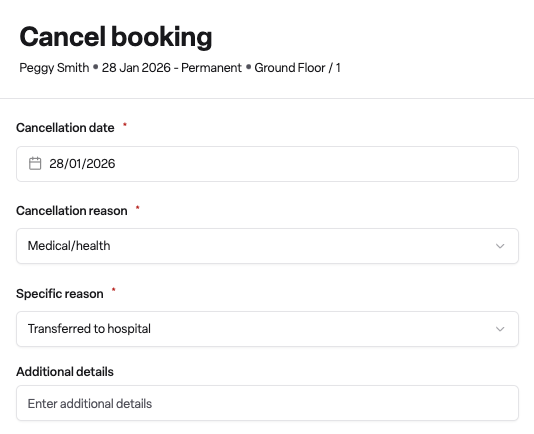
Click Cancel booking to complete the cancellation
Once cancelled, the booking status changes to Cancelled and appears in your cancelled bookings list for reporting purposes.
What happens when you cancel a booking
The booking status is updated to Cancelled
All future room assignments linked to the booking are removed
Any agreed fees for the cancelled period are automatically cancelled
A record of the cancellation reason and details is stored for reporting and audit purposes
Important notes
You cannot cancel a booking if the service user currently has an active offsite event
Once a booking is cancelled, it cannot be reopened (unlike closed bookings which can be reopened in certain circumstances)
Only users with edit permissions for the booking's location can perform cancellations
Frequently asked questions
Q: What is the difference between cancelling and closing a booking?
A: Cancelling is used when a booking ends before or on its start date (the service user never moved in). Closing is used when an active booking needs to end (the service user has been receiving care and is now leaving). The system automatically determines which option is appropriate based on the booking dates.
Q: Can I cancel a booking after the service user has already moved in?
A: No. If the booking has already started and the service user has begun receiving care, you need to close the booking rather than cancel it. The cancellation option is only available for bookings that have not yet commenced.
Q: What reasons can I select when cancelling a booking?
A: Found provides several reason categories including: Service user initiated, Found alternative care, Funding/admin issues, Dissatisfaction, Medical/health reasons, Transfer/move, Home initiated, and Other. Each category has specific sub-reasons to help you record accurate information.
Q: Can I undo a booking cancellation?
A: No. Unlike closed bookings, cancelled bookings cannot be reopened. If the service user decides to proceed with care after a cancellation, you will need to create a new booking.
Q: Why can I not see the cancel option on some bookings?
A: The cancel option may not appear if: the booking has already been ended, the service user is currently marked as offsite, or you do not have edit permissions for that location.
Q: Is there a record kept of why bookings were cancelled?
A: Yes. Found stores the cancellation reason, specific reason, additional details, the date of cancellation, and who performed the cancellation. This information is available for reporting and audit purposes.