Moving a service user to a new room
Last updated: February 3, 2026
Pro feature: This feature is available on Pro plans only. If you’d like to upgrade your plan, please contact our support team.
Overview
In Found, service users are assigned to rooms through their bookings. When a service user needs to change rooms during their stay, you can move them to a different vacant room within the same location. This creates a new room assignment record while preserving the history of where the service user has stayed.
The move process:
Ends the current room assignment on the selected move date
Creates a new room assignment in the selected room starting from that same date
Records the change in the service user's timeline for audit purposes
Note: Room moves are not available for daycare bookings.
How to move a service user to a new room
Step 1: Open the booking
Navigate to the service user's booking. This can be found through the service user's profile or via the bookings list under the Occupancy tab.
Step 2: Select "Move to new room"
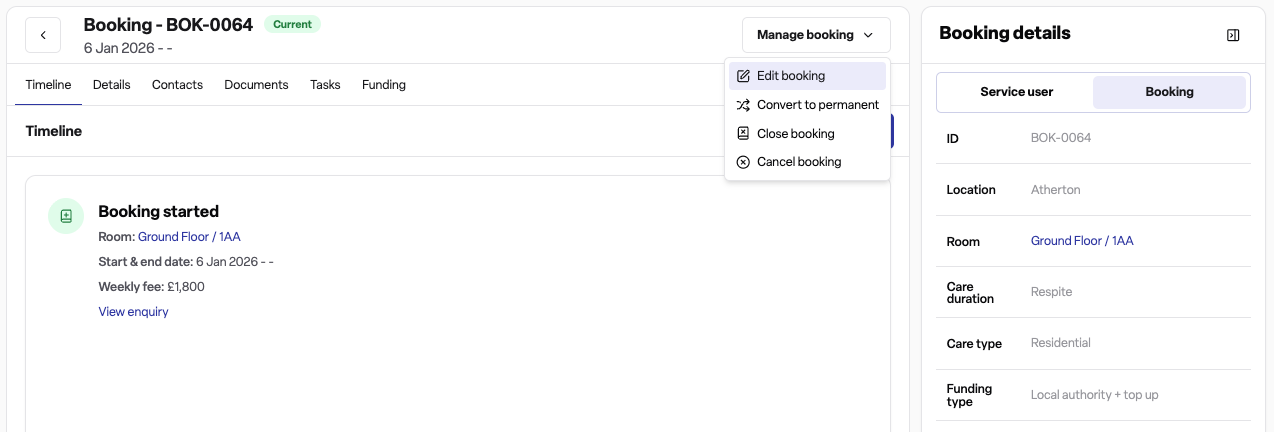
From the Manage booking dropdown menu select Edit booking
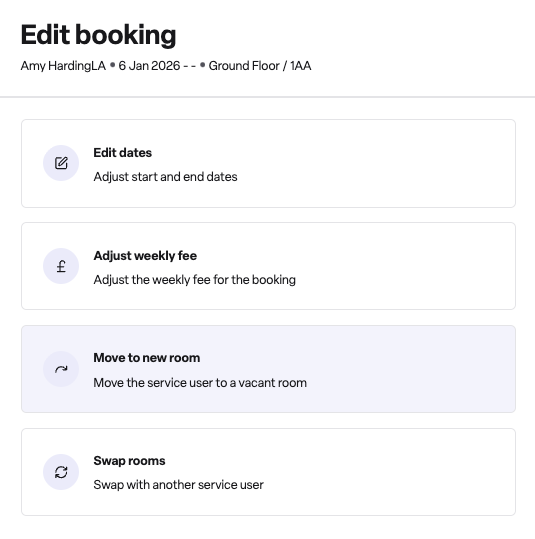
Then select Move to new room. This opens the room move form.
Step 3: Complete the move form
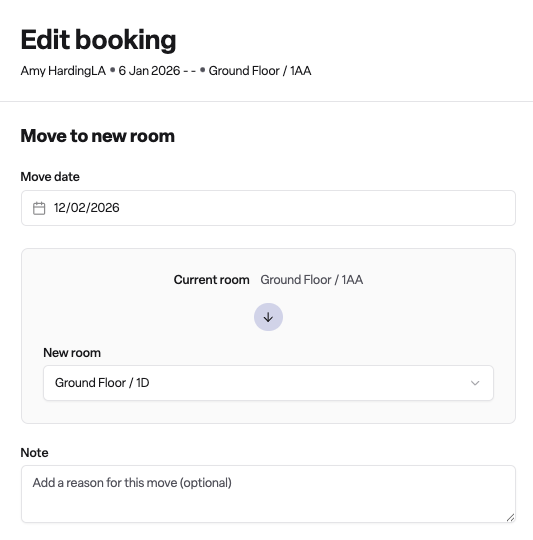
Fill in the required fields:
Move date - Select when the move will happen. This date must be:
On or after the booking start date
On or before the booking end date (if the booking has a fixed end date)
New room - Select the new room from the dropdown. Only vacant rooms that are available for the specified timeframe will appear in this list.
Note (optional) - Add context about why the move is happening.
Step 4: Confirm the move
Click the Confirm button to complete the room move. You'll see a confirmation message: "Room changed successfully".
Why this is useful
Operational flexibility
Service users may need to move rooms for various reasons during their stay - care needs change, they request a different room type, or capacity management requires adjustments.
Accurate occupancy tracking
By recording room moves properly, the room diary and occupancy reports reflect the true status of each room at any given time.
Audit trail
Each room move is captured in the service user's timeline, showing who made the change and when. This supports compliance and care continuity.
Availability management
The system automatically checks for room conflicts and closures, preventing double-bookings when moving service users.
Frequently asked questions
Q: What happens if the room I want is not showing in the list?
A: The room selector only shows vacant rooms that are available for the specified timeframe. Check that the room is not already assigned to another service user, closed, or otherwise unavailable on your selected move date.
Q: What if there are future room assignments already scheduled?
A: You cannot create a new room move if there are already future room assignments on the booking. You would need to remove or modify those first.
Q: Can I swap rooms between two service users instead?
A: Yes. Found has a separate "Swap rooms" feature that allows you to exchange room assignments between two service users directly.
Q: Where can I see the history of room moves?
A: Room moves appear in the booking timeline, room timeline and in the room assignments table. Each entry shows the previous room, new room, move date, and who made the change.
Q: What if I select a room that becomes unavailable?
A: If the selected room is not available for the specified timeframe (due to another assignment or a room closure), you'll see an error message: "The selected room is not available for the specified timeframe". Select a different room or date.