How to close a room
Last updated: August 4, 2026
Overview
Closing a room in Found records a period during which a room cannot be used — for example while it's being refurbished, repaired, or taken out of service for health and safety reasons. Found doesn't mark a room "closed" as a simple switch — instead you add a room closure, a record with a start date, an optional end date, and a reason. While a closure is active, the room shows as Closed on the Rooms list and can't be booked or assigned to a resident for that period.
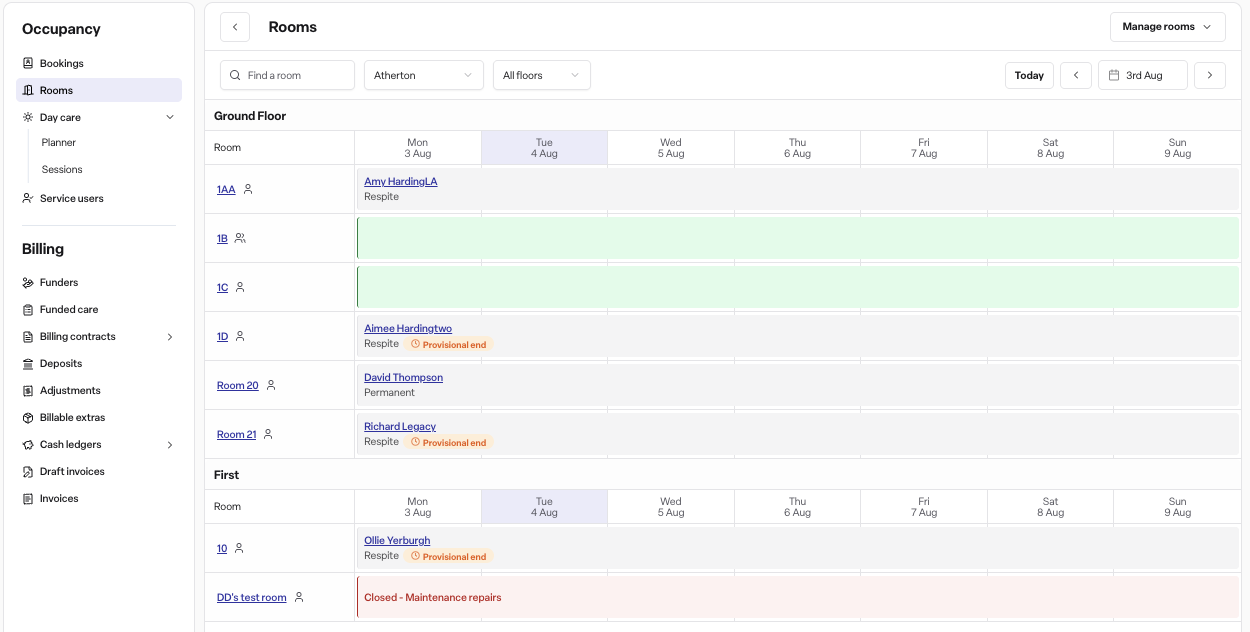
Where to find it
Go to Operations in the sidebar.
Select Rooms.
Navigate to the room you want to close, by clicking on the name.
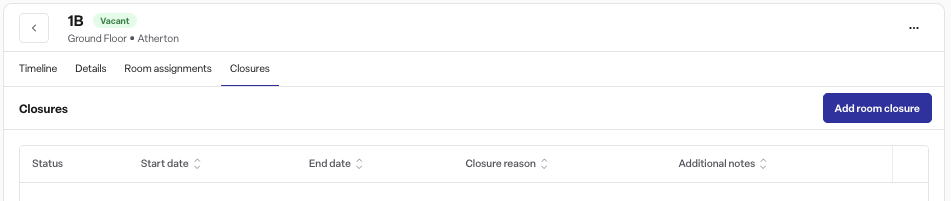
Open the Closures tab on the room's page.
How to close a room
From the room's Closures tab, click Add closure.
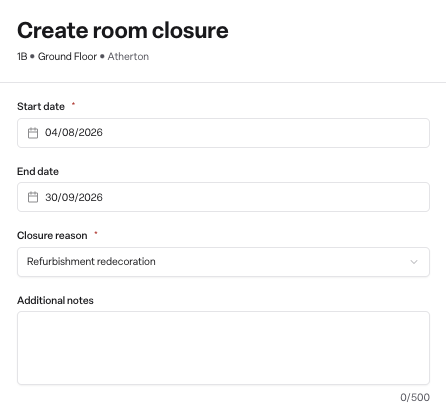
Enter a start date (required).
Enter an end date, or leave it blank for an open-ended closure.
Choose a reason from the dropdown:
Conversion to alternative use
Health and safety issue
Maintenance or repairs
Refurbishment or redecoration
Regulatory compliance
Other (if selected, you must also type a short description)
Optionally add notes (up to 500 characters).
Save the closure.
The room's status updates automatically to Closed for the dates you've set. It reverts to Vacant or Occupied once the closure ends or is cancelled.
Rules
The end date must be after the start date.
If you choose "Other" as the reason, you must enter a description.
A closure can't overlap a room that already has an active booking, or another active closure, for the same dates. Found will block the save and show a conflict message if it does.
Changing or cancelling a closure
To edit a closure's dates, reason, or notes, open it from the Closures tab and choose Edit.
To reopen a room early, cancel the closure. Open the closure and choose Cancel closure, then confirm. This makes the room available again immediately. A cancelled closure can't be edited afterwards, but it stays visible in the room's history.
Every closure — scheduled, started, completed, or cancelled — appears automatically in the room's timeline, along with who created or changed it.
Permissions
Requires the Found Pro plan, with the Occupancy module enabled for your workspace.
Admins and managers can add, edit, and cancel room closures.
Staff users can view closures but cannot create, edit, or cancel them.
Frequently asked questions
Q: Where do I go to close a room? A: Operations > Rooms > select the room > Closures tab > Add closure.
Q: Can I close a room that already has a resident booked into it? A: No. If there's an active booking that overlaps your chosen dates, Found will block the closure with a conflict message. You'll need to move or end the booking first.
Q: Do I have to give an end date? A: No. Leave the end date blank to create an open-ended closure — it stays closed until you edit it with an end date or cancel it.
Q: How do I reopen a room before its planned end date? A: Open the closure from the room's Closures tab and select Cancel closure, then confirm. The room becomes available again straight away.
Q: Who can close or reopen a room? A: Admins and managers only. Staff users can see closures but can't create, edit, or cancel them.
Q: Why can't I see the Rooms or Closures tab at all? A: Your workspace needs the Occupancy module, which is part of the Found Pro plan. If it isn't enabled, you'll see an upgrade prompt instead of the Rooms page.
Q: Will closing a room notify anyone or send an email? A: No. Found doesn't send notifications when a closure is created, edited, or cancelled — it's a manual record you and your team can see on the room's page and timeline.
Q: What reasons can I select when closing a room? A: Conversion to alternative use, health and safety issue, maintenance or repairs, refurbishment or redecoration, regulatory compliance, or other (with a required description).