How to log an offsite event
Last updated: July 27, 2026
Pro feature: This feature is available on Pro plans only. If you’d like to upgrade your plan, please contact our support team.
Overview
An offsite event records that a resident is temporarily away from the care setting — for example, a hospital stay, personal leave, or an appointment. Logging it keeps the booking record accurate, shows on the booking's timeline, and — where the workspace has offsite discount rules set up on the billing contract — automatically triggers the right billing adjustment so funders aren't charged for time the resident wasn't in the home.
Where to find it
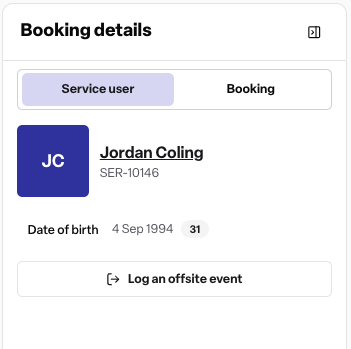
Operations > Bookings > Open a booking > Booking details side panel > "Log an offsite event"
How to log an offsite event
Open the resident's booking and go to the Booking details side panel on the right hand side.
Click Log an offsite event.
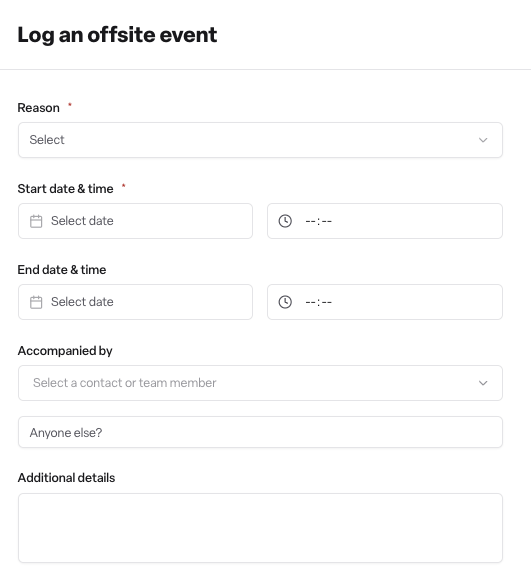
Choose a reason: Hospital, Personal leave, Appointment, or Other (add specific details if you select Other).
Enter a start date and time. Leave the end date and time blank if the resident hasn't returned yet — you can add it later.
Optionally record who accompanied the resident: search for a contact or team member, or add free text for anyone not on record.
Add any additional details.
If a billing adjustment preview appears, review it before continuing.
Select Log offsite to save.
Once saved, the event appears on the booking timeline and can be edited or cancelled from the same screen at any time while it's still active.
How it works and the rules that apply
Offsite events can't be logged against day care bookings.
Offsite events can't be logged while the booking is locked.
The start and end date must fall within the booking's start date and planned end date.
An offsite event can't overlap with another active offsite event already logged on the same booking — you'll see a warning if the dates conflict.
If the workspace has offsite discount rules configured on the billing contract and the reason matches an eligible reason on that rule, the system calculates a billing adjustment (a discount against the funder's contribution) once the offsite event has an end date. This is shown as a preview before you save.
If you try to close a booking while the resident is currently marked offsite, you'll see a warning. Update the offsite end date first if the resident has returned.
Permissions
Found Pro: the automatic billing discount is part of the Pro Billing add-on. Without it, offsite events can still be logged, but no billing adjustment is calculated.
Module: requires the Occupancy module to log the event, and the Billing module for the discount to apply.
User role: Admin, Manager and Staff users can log, edit and cancel offsite events.
Frequently asked questions
Q: What counts as an offsite event? A: Any period a resident is temporarily away from the care setting — for example a hospital admission, personal leave, or an appointment.
Q: Can I log an offsite event without knowing when the resident will return? A: Yes. Leave the end date and time blank and add it later once the resident is back.
Q: Does logging an offsite event automatically change billing? A: Only if the billing contract has offsite discount rules set up for that reason. If it does, a discount adjustment is calculated once the event has an end date. If not, logging the event has no billing effect on its own.
Q: Can I log an offsite event for a day care booking? A: No, offsite events are only available for non-day-care bookings.
Q: What happens if I try to close a booking while a resident is offsite? A: You'll see a warning telling you the resident is currently marked offsite. Update the offsite end date first if they've returned.
Q: Can I edit or cancel an offsite event after saving it? A: Yes, from the same Offsites tab, as long as it hasn't already been cancelled.
Q: Who can log an offsite event? A: Admin, Manager and Staff users, provided the workspace has the Occupancy module enabled.