Subscribing a booking to a billing contract template (Occupancy users)
Last updated: February 27, 2026
Pro feature: This feature is available on Pro plans only. If you’d like to upgrade your plan, please contact our support team.
Overview
Billing contract templates in Found allow you to track the funding of service users bookings.
By subscribing a booking to a billing contract template, you link a funder's funding arrangement to a predefined billing structure. This ensures consistent funding practices across your organisation, reduces manual data entry, and provides clear visibility of funding arrangements for each booking.
What is a billing contract template?
A billing contract template defines the standard funding configuration for a type of funding arrangement.
There are two main types of billing contract templates:
Individual contracts - For self-funding service users or their families
Organisation contracts - For funding organisations such as local authorities, CCGs, or NHS trusts
Why subscribe a booking to a billing contract template?
Subscribing a booking to a billing contract template provides several benefits:
Consistency - All bookings using the same template follow identical funding rules
Reduced errors - Predefined settings mean less manual configuration and fewer mistakes
Clear audit trail - Contribution history is tracked automatically
Flexible management - You can adjust contributions or end them as circumstances change
Reporting - Easily filter and export funding data by contract type, funder, or location
How to subscribe a booking to a billing contract template
Step 1: Navigate to the booking
Open the booking you want to configure: Operations > Bookings > Click into your booking
Once in your booking go to the Funding tab at the top
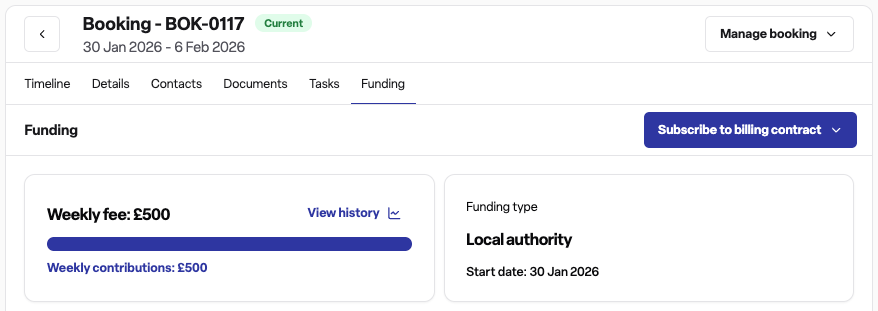
Step 2: Add a billing contract subscription
Select Add billing contract subscription
Choose whether this is an individual or organisation subscription
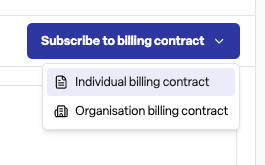
Step 3: Select the funder
For individual subscriptions: Select the person responsible for payment from the booking's existing funders
For organisation subscriptions: Select the funding organisation, or create a new organisation funder if needed
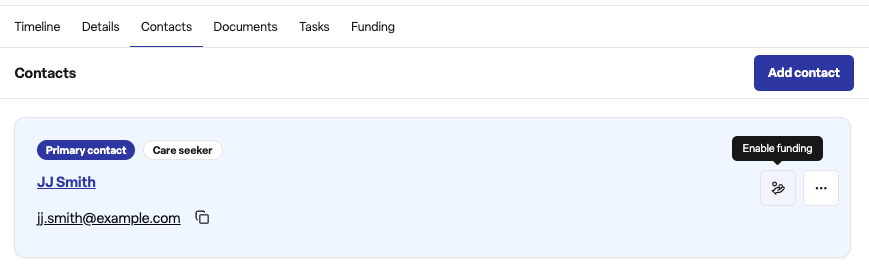
⚠ Make sure to Enable funding for the individual Funder under the Contacts tab of the booking and add a reference (optional).
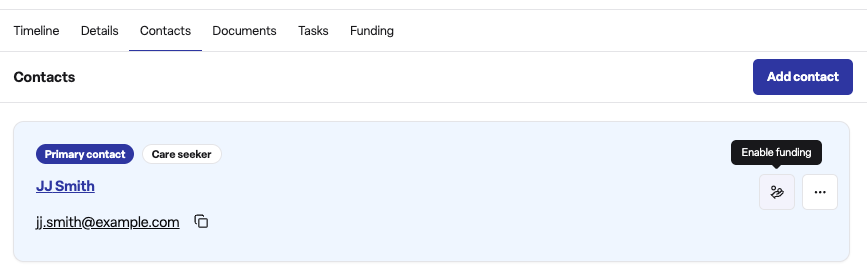
Step 4: Choose the billing contract template and billing source
Select from available billing contract templates that match:
The contract type (individual or organisation)
The booking's location
The booking's care duration type
Select the billing source that applies to this funder's contribution
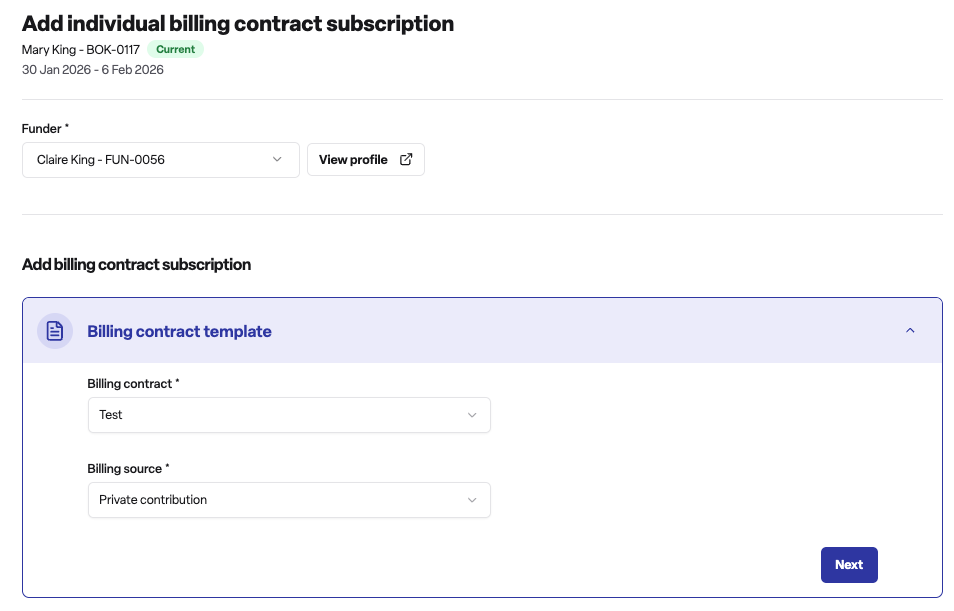
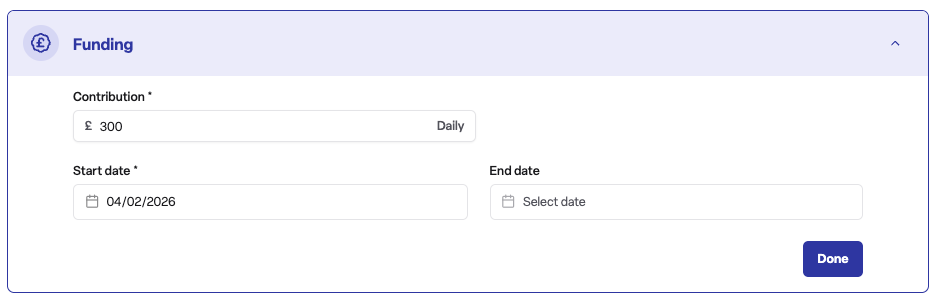
Step 5: Set funding details
Enter the contribution amount (displayed per day or per week depending on the contract's contribution unit)
Set the subscription start date (must be on or after the booking start date)
Optionally set an end date (must be on or before the booking end date or planned end date)
Step 6: Review and confirm
Review all entered information
Press Subscribe to billing contract to create the subscription
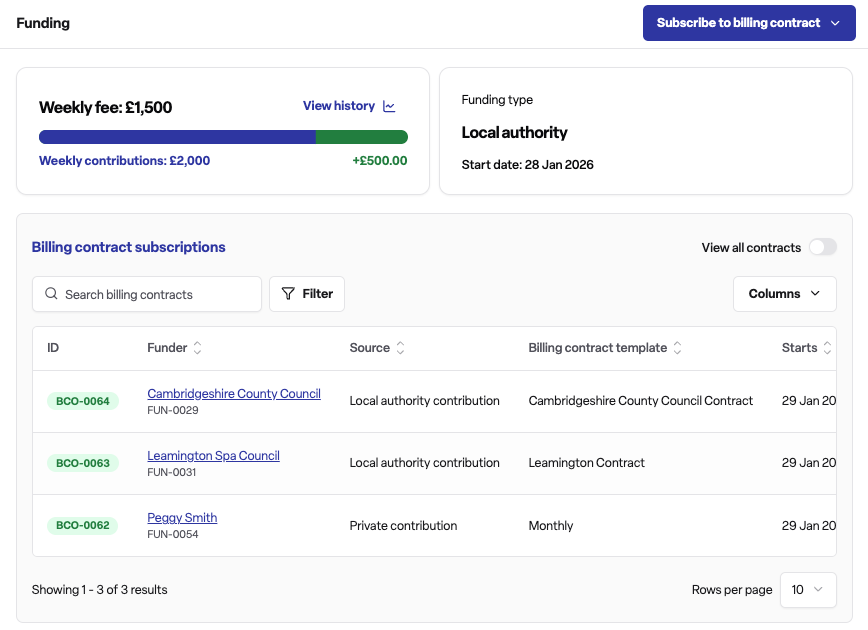
The subscription will now appear in the billing contract subscriptions list, showing the funder, contribution amount, dates, and current status.
Managing subscriptions
Once a subscription is created, you can:
View contribution history - See all contribution changes over time
Adjust contribution - Change the contribution amount for future billing periods
End contribution - Set an end date for the subscription
Cancel - Remove the subscription entirely
Frequently asked questions
Q: Can I subscribe the same booking to multiple billing contract templates?
A: Yes. A booking can have multiple funders, and each funder can be subscribed to their own billing contract template. This is common when funding is split between sources, such as a local authority and a self-funding top-up.
Q: What happens if the billing contract template I need isn't available?
A: Templates are filtered based on the booking's location and care duration type. If you cannot see an appropriate template, check that the template has been configured to include your location and care duration type, or contact your administrator to create a new template.
Q: Can I change the contribution amount after creating a subscription?
A: Yes. Use the Adjust contribution action to change the amount. The new amount will apply from the date you specify, and Found maintains a full history of all contribution changes.
Q: What is the difference between ending and cancelling a subscription?
A: Ending a subscription sets a date when funding stops but preserves the subscription record and history.
Cancelling removes the subscription entirely. Use ending when funding genuinely concludes, and cancelling only if the subscription was created in error.
Q: How do I know the status of a subscription?
A: Each subscription displays a status indicator showing whether it is active, future (not yet started), ended, on hold, or cancelled. You can also filter the subscriptions list by status to find specific subscriptions.