Creating a booking
Last updated: March 10, 2026
Pro feature: This feature is available on Pro plans only. If you’d like to upgrade your plan, please contact our support team.
Overview
The bookings feature in Found lets you record and manage resident placements directly within the system. When an enquiry progresses to the point of a confirmed placement, you can create a booking to capture all the key details - the service user, their primary contact, care type, funding arrangements, room assignment, and agreed fee - in one place.
Bookings are accessed and managed from Operations > Bookings in the main navigation. There are two views:
Permanent & respite - for long-term and short-term residential placements
Day care - for day care session visits
Creating a booking ensures that everyone in the team has a clear, shared record of who is moving in, when, where they are staying, how their care is funded, and how much has been agreed.
How to create a booking
Step 1: Update the enquiry stage
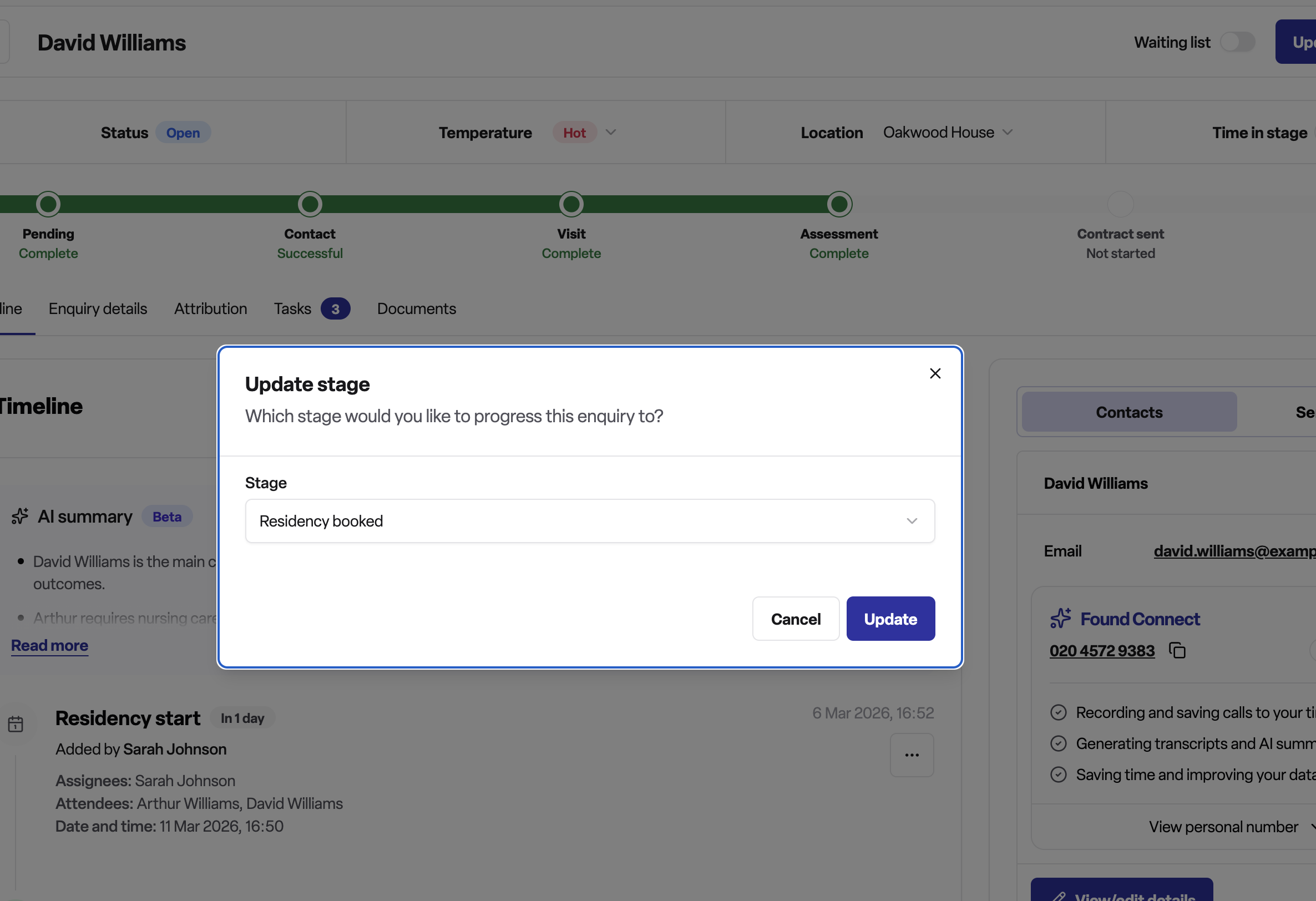
On the Enquires tab, open the relevant enquiry and click the Update stage button in the top right of the page.
Select either:
Residency booked - for a confirmed placement that has not yet started
Residency started - for a placement that has already begun
Click Update to save the stage change.
Step 2: Create a booking
After the stage is updated, Found will ask: "Would you like to create a new booking?"
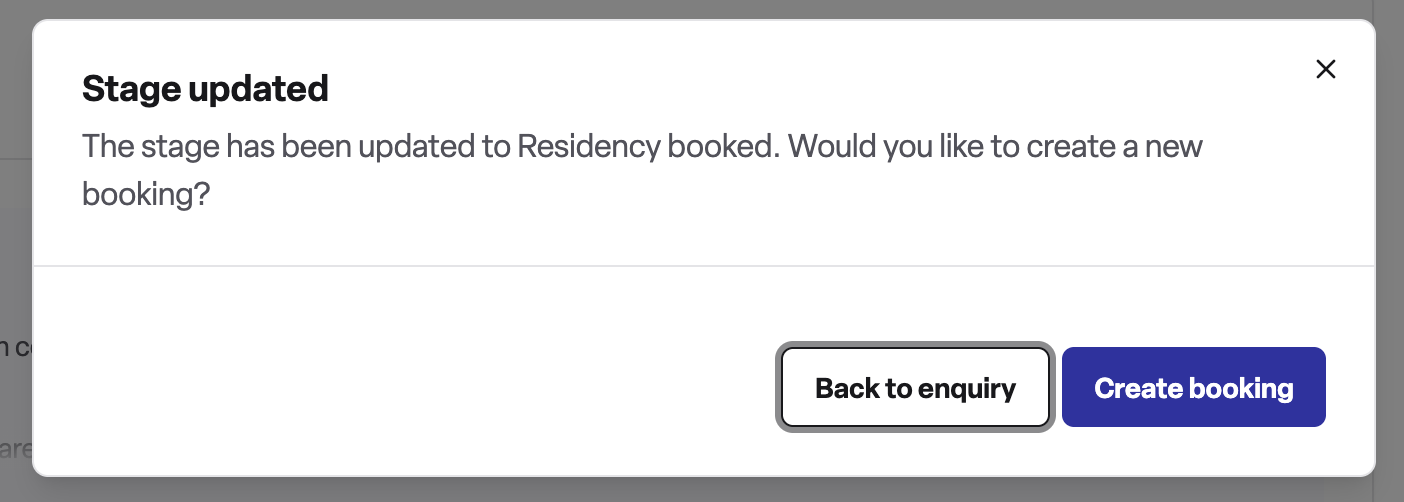
To continue, click Create booking to open the booking form.
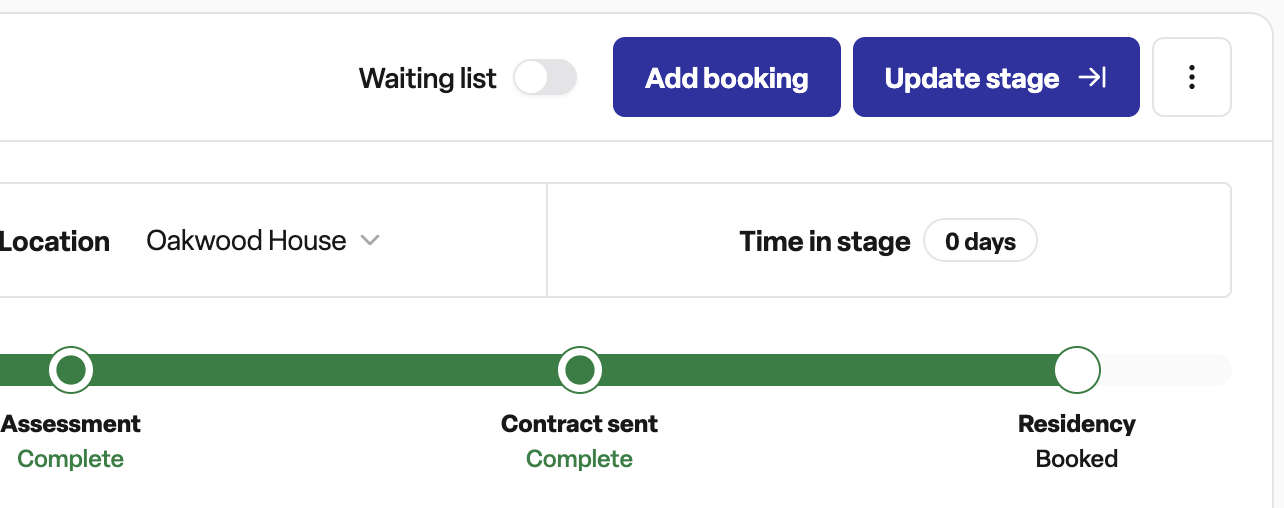
If you are not ready to create the booking yet, click Back to enquiry - you can return to create it later using the Add booking button that appears on the enquiry page once the stage is at residency booked or residency started.
Step 3: Service user
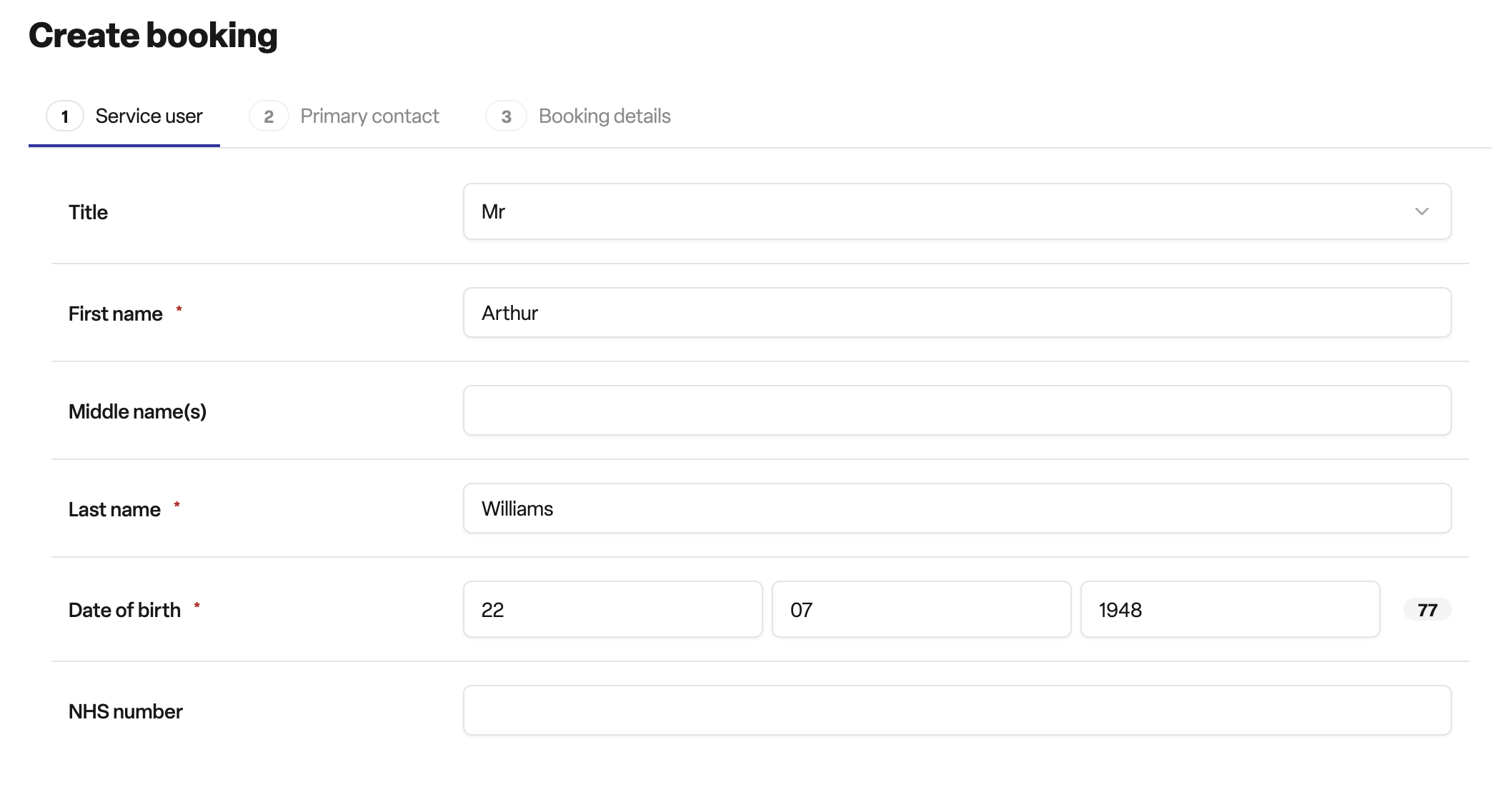
Check and confirm the details of the person moving into the home. These are pre-filled from the enquiry where available:
First name and last name (required)
Date of birth (required)
Title and middle name (optional)
NHS number (optional - validated automatically if entered)
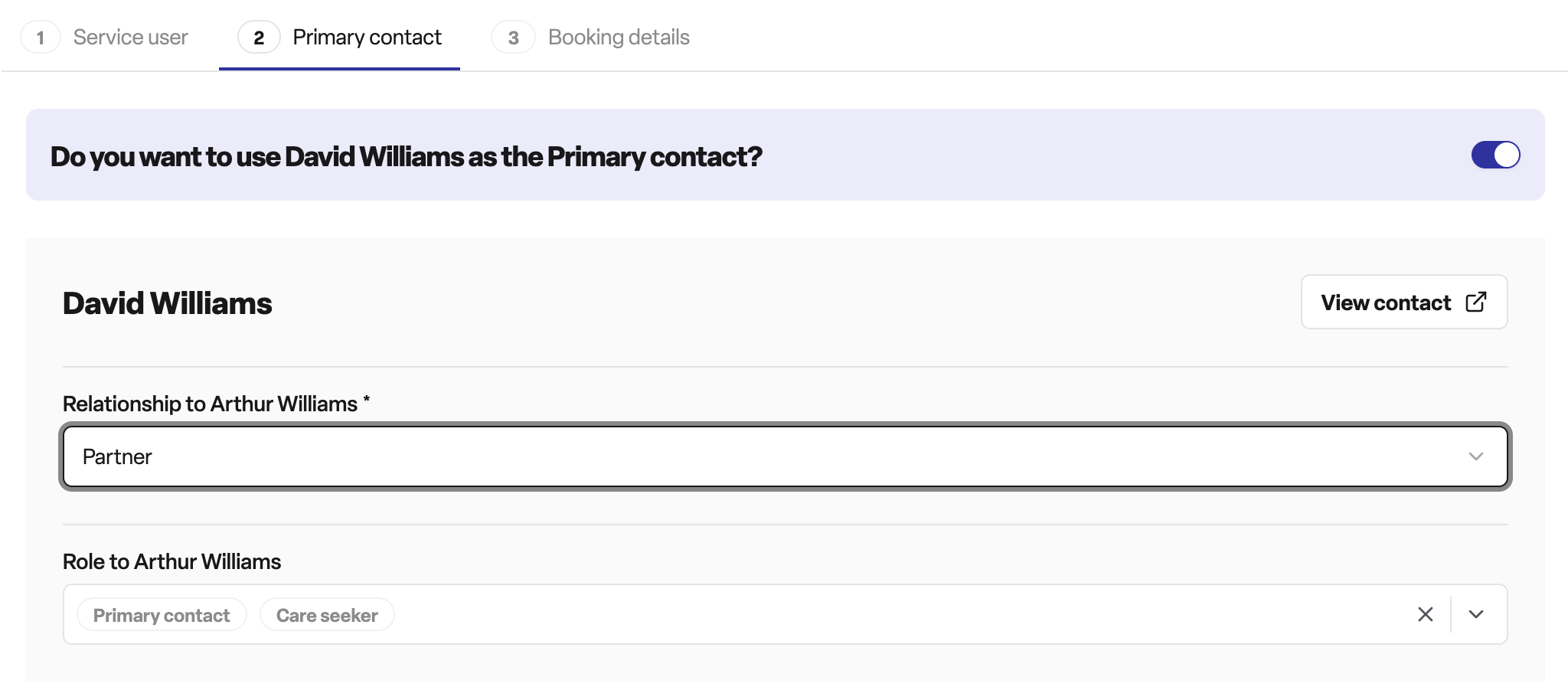
Step 4: Primary contact
Review or add the primary contact for this booking. This is pre-filled from the enquiry contact where available. You can use an existing contact or create a new one.
Fields include:
Contact type - personal or professional
First name and last name
Email address and phone number
Address
Relationship to the service user
Contact roles (e.g. next of kin, power of attorney for finance or health)
Marketing and consent preferences
Step 5: Booking details
This step differs depending on the type of booking.
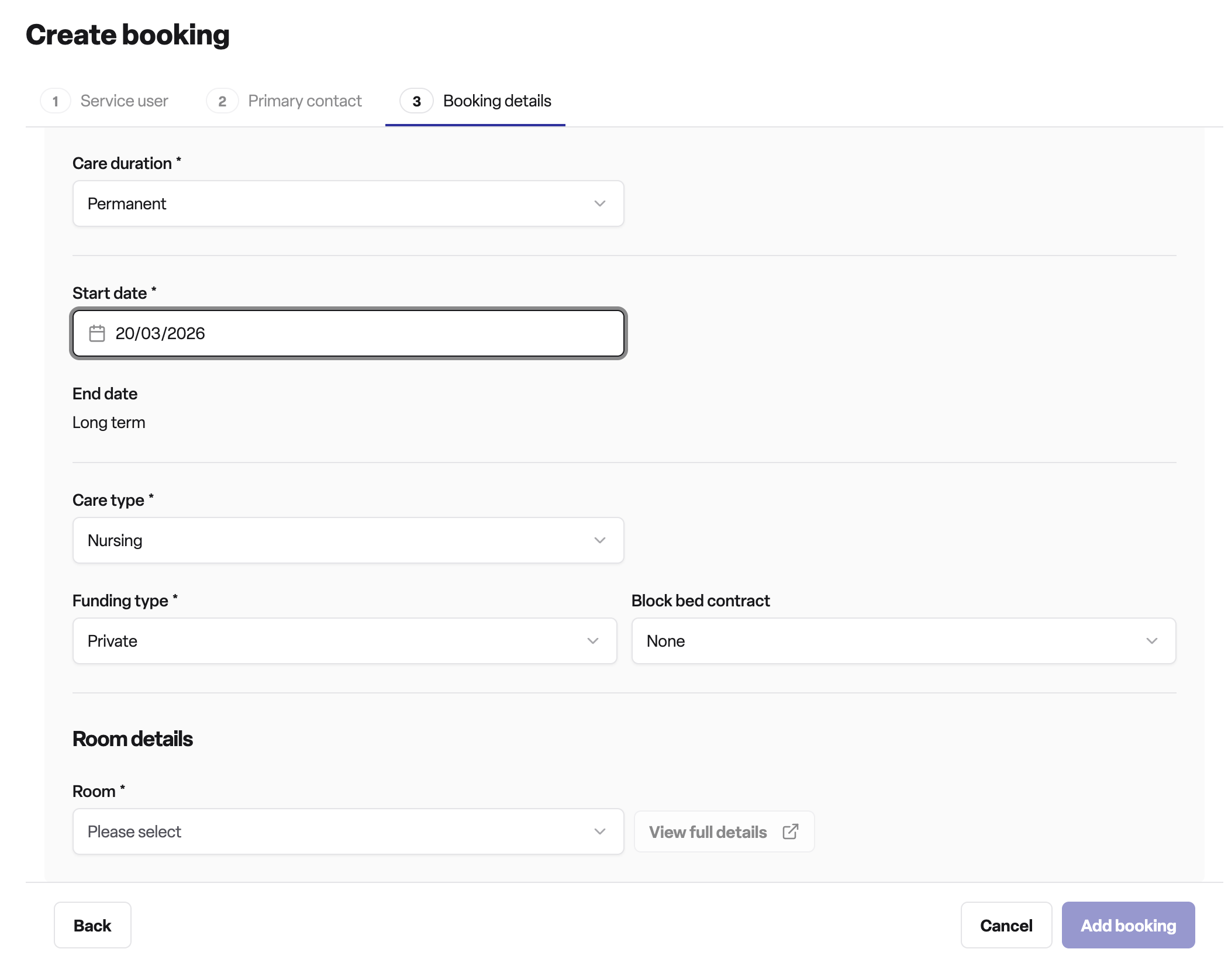
For permanent or respite bookings:
Care duration: permanent or respite
Start date (required)
Planned end date: required for respite; optional for permanent
End date type: fixed or provisional (respite only)
Care type: residential, residential dementia, nursing, or nursing dementia (pre-filled from enquiry where available)
Funding type: private, local authority, local authority top-up, NHS, other, or not known (pre-filled from enquiry where available)
Block bed contract: available for NHS and local authority funding types
Room: must be available for the selected dates
Agreed weekly fee
For day care bookings:
Visit date (required)
Care type
Funding type
Day care session: must have capacity on the selected date
Agreed daily fee
Click Add booking to create the booking. You will be taken directly to the new booking record.
What happens when a booking is saved
A booking record is created and linked to the service user and the originating enquiry
The selected room is assigned for the booking period and marked as unavailable for those dates
The agreed fee is recorded against the booking
Care type and funding type records are created and tracked over time (these can be updated later if they change)
A timeline entry is created showing the booking details at the point of creation
Any files previously attached to the enquiry are automatically linked to the new booking
The booking appears in the relevant Operations view (permanent & respite or day care)
Frequently asked questions
Q: Where do I go to create a booking?
A: You can create bookings directly from an enquiry page when the enquiry is at the right stage (residency booked or residency started).
Q: Can I create a booking without an enquiry?
A: No. Bookings must be created directly from an enquiry.
Q: What is the difference between permanent and respite?
A: Permanent bookings are for long-term placements with no fixed end date. Respite bookings are for temporary stays and require a planned end date, which can be either fixed (a specific date) or provisional (an approximate date).
Q: What is a day care booking?
A: Day care bookings are for residents who attend sessions during the day but do not stay overnight. These are linked to a day care session rather than a room, and require that the session has available capacity on the selected date.
Q: What funding types are available?
A: The available options are: private, local authority, local authority top-up, NHS, other, and not known. If the funding has not been confirmed at the time of booking, you can select "not known" and update it later.
Q: What is a block bed contract?
A: A block bed contract is a pre-agreed arrangement with a local authority or NHS body to reserve beds at set rates. If a block bed contract applies, you can select it during booking creation, and the agreed fee will be populated automatically from the contract's fee definition.
Q: Can I assign any room?
A: No - the room selector only shows rooms that are available for the dates you have selected. A room that is already assigned to another resident or marked as closed during that period will not appear as an option.
Q: What if I do not know the funding type yet?
A: Select "not known" at the point of creation. Funding type is tracked over time within the booking and can be updated once confirmed.
Q: What happens to the enquiry when a booking is created from it?
A: The booking is linked back to the originating enquiry. Files attached to the enquiry are automatically associated with the new booking. The enquiry history is preserved and remains accessible.
Q: Can I edit the booking details after creation?
A: Yes. Most booking details - including care type, funding type, agreed fee, room assignment, and contact information — can be updated from the booking record after it has been created.