Changing a resident's location
Last updated: March 19, 2026
Pro feature: This feature is available on Pro plans only. If you’d like to upgrade your plan, please contact our support team.
Overview
When a resident needs to move from one location to another within your organisation, this is managed by creating a new enquiry at the new location and linking the existing service user to it. This keeps the resident's full history intact while accurately reflecting their new placement.
The process involves the Enquiries tab, the Operations tab, and a final step to close the original booking.
How to move a current resident to a new location
Step 1: Create a new enquiry
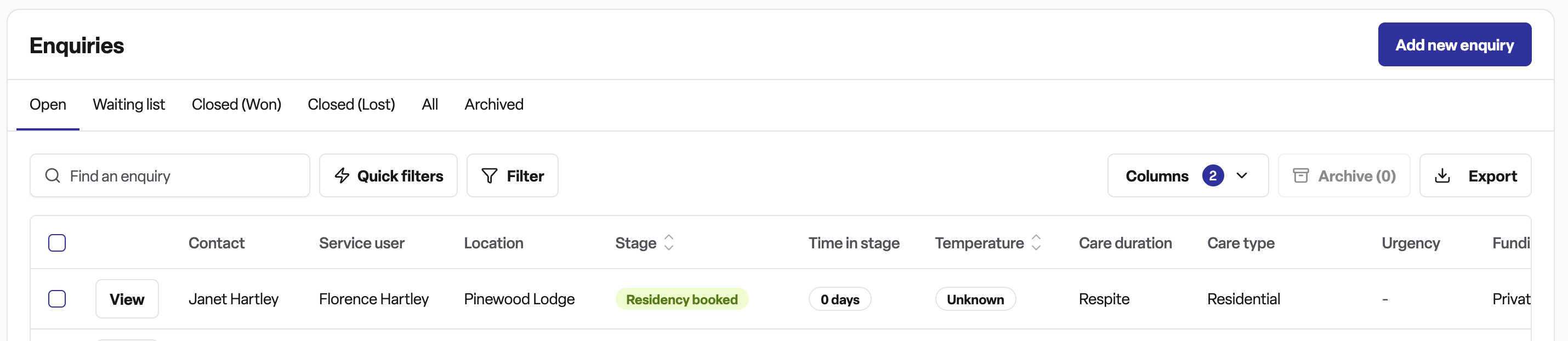
Go to the Enquiries tab and create a new enquiry by clicking Add new enquiry in the top left corner.
Step 2: Fill in the enquiry details
When prompted, select the new location the resident is moving to.
Complete the key contact details and service user details
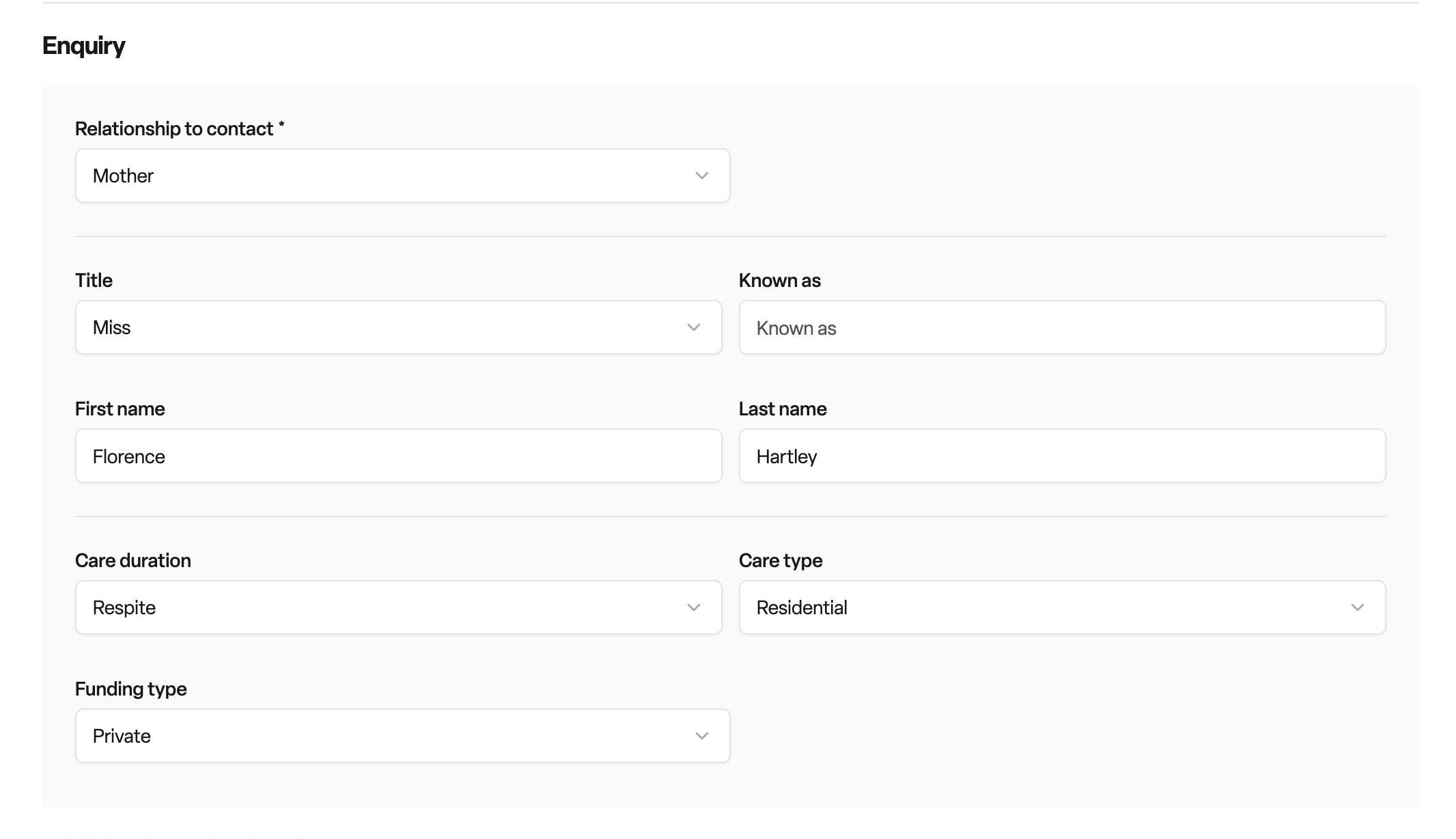
Important: you do not need to fill out the Additional enquiry details as you can link the service user details after you have created the enquiry.
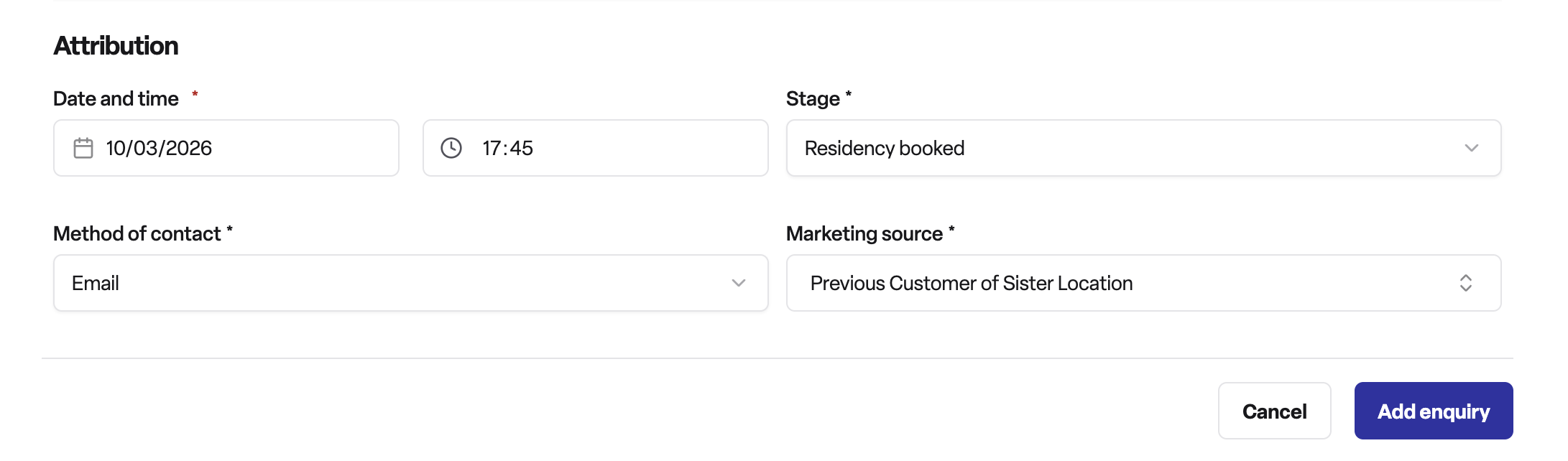
Step 3: Fill in the Attribution details
Complete the attribution fields and ensure to mark your Marketing source as Previous customer > Previous customer sister location
Step 4: Submit the new enquiry
Click Add enquiry to create the new enquiry and save it to the system.
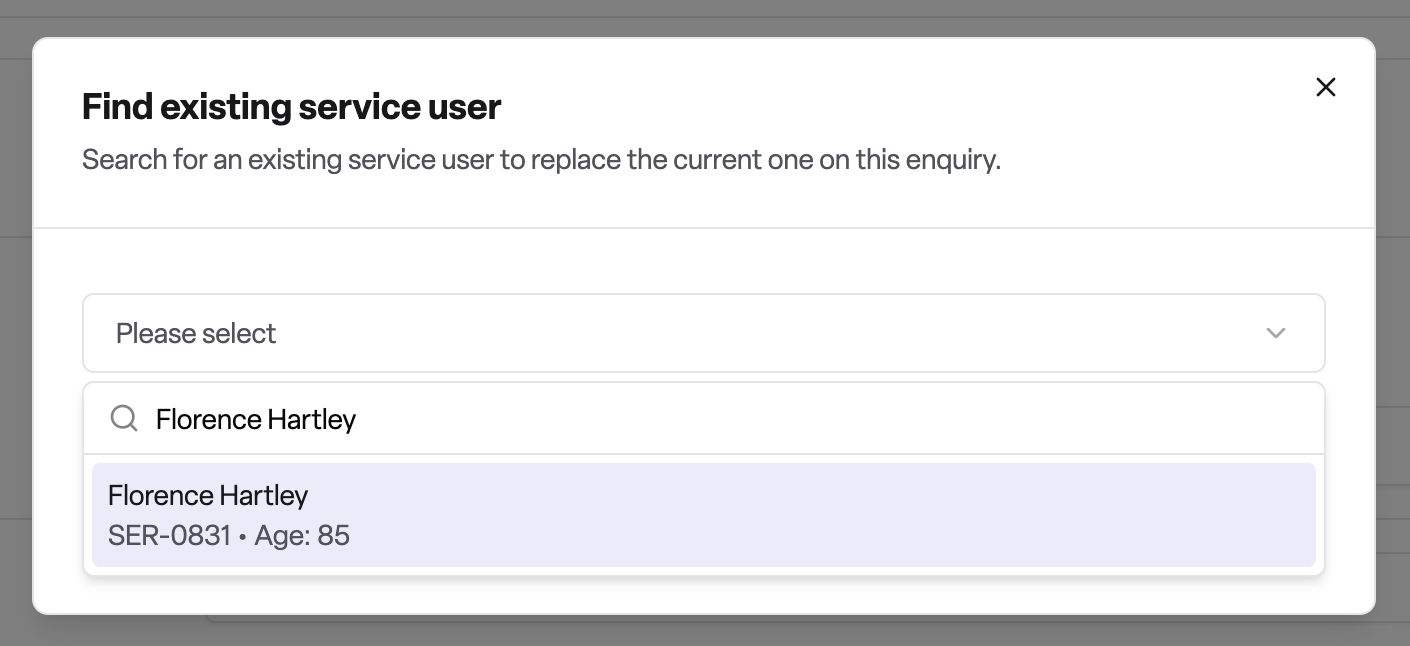
Step 5: Link the existing service user
Navigate to the Enquiry details tab on the newly created enquiry page
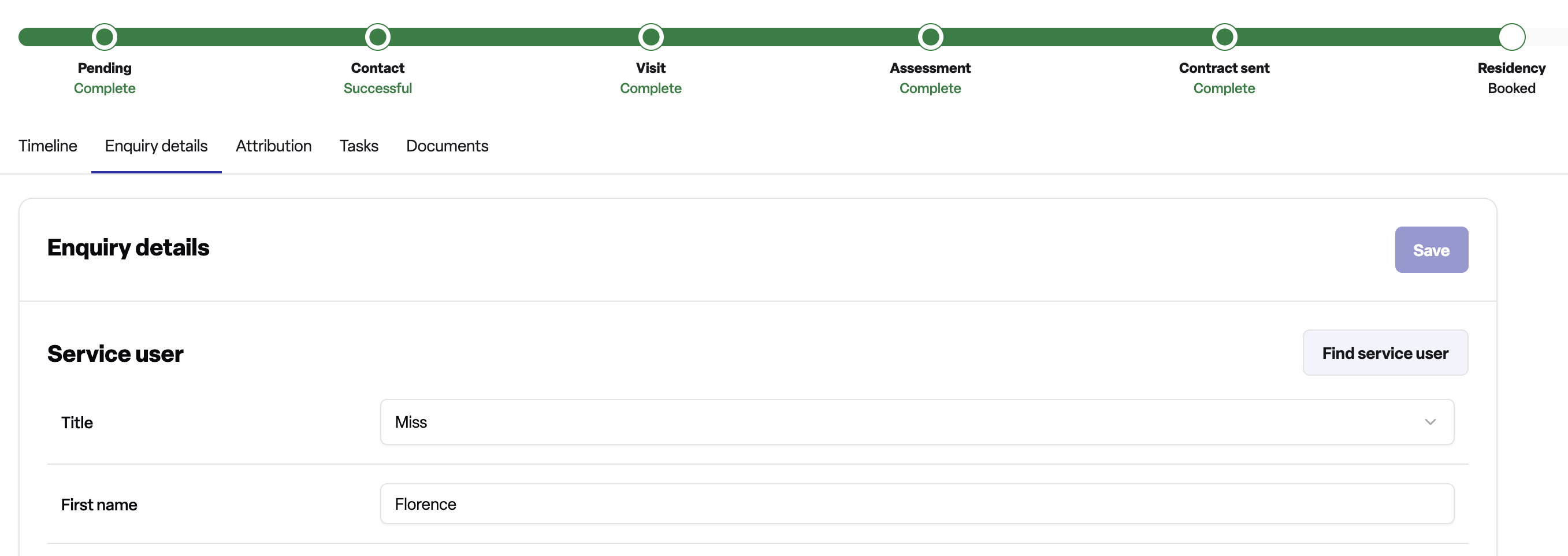
Then and click Find service user and search for the service user you want to link, then click Replace service user and confirm.
Step 5: Add a new booking at the new location
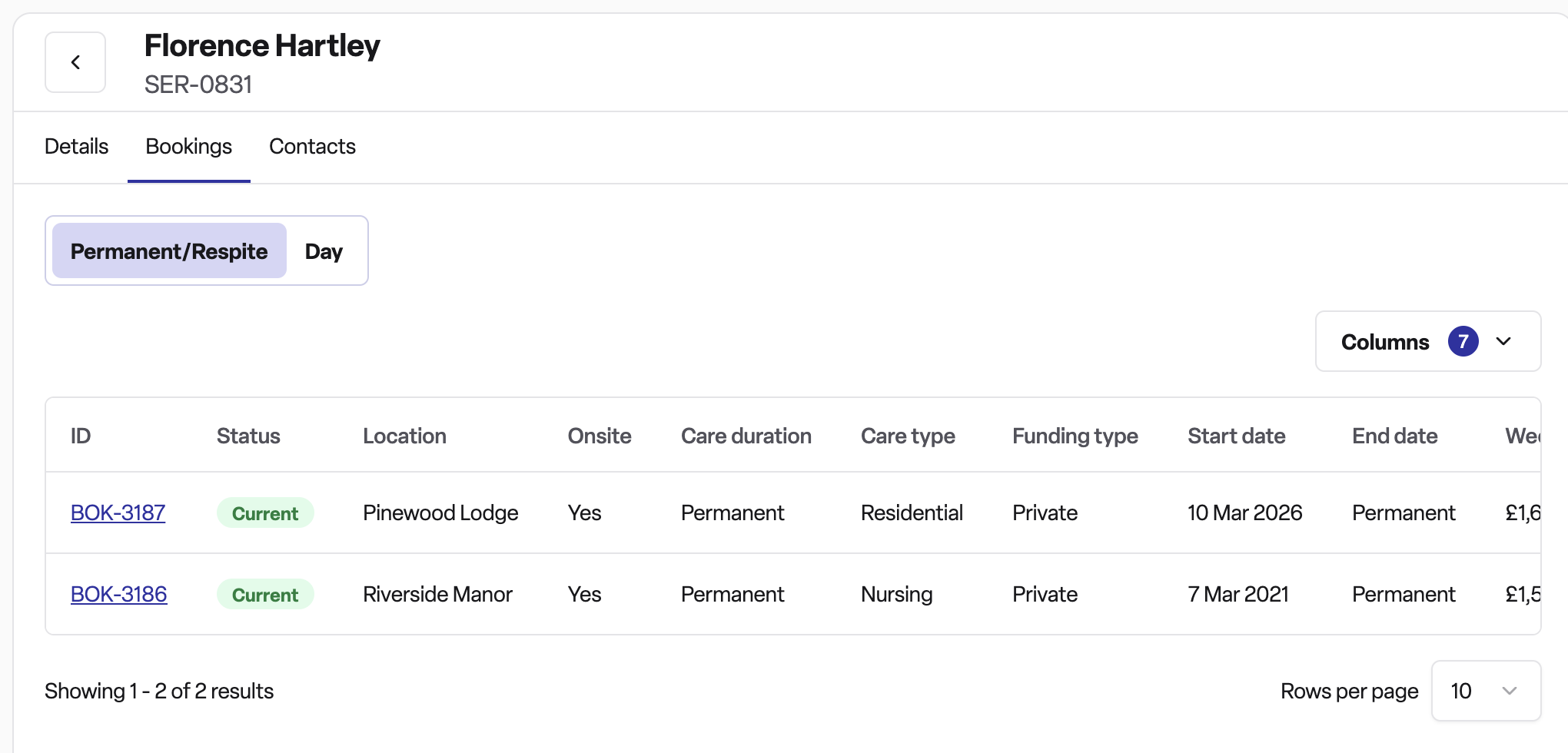
Create a new booking on the new enquiry for the new location. Once the booking is in place and the service user is linked, you can navigate to Operations → Service users and open the resident's Bookings tab to see all bookings associated with them across both locations.
Frequently asked questions
Q: Why do I need to create a new enquiry rather than just updating the existing one?
A: Each enquiry is tied to a specific location. Creating a new enquiry at the new location ensures that the placement is recorded accurately, the correct team is notified, and reporting reflects the new location correctly.
Q: Will I lose the resident's history when I create a new enquiry?
A: No. By using the "Replace service user" function to link the existing service user to the new enquiry, you retain the full service user record and can view all their bookings across both locations from the Operations tab.
Q: Where do I find all bookings for a resident across locations?
A: Go to Operations, navigate to the Service users section, open the relevant service user, and select the Bookings tab. This will show all bookings associated with that resident regardless of location.
Q: What if the service user does not appear in the search when I click "Find service user"?
A: Ensure the service user has been created in the system and that you are searching by the correct name. If they still do not appear, check with your system administrator.