Closing a booking
Last updated: February 27, 2026
Pro feature: This feature is available on Pro plans only. If you’d like to upgrade your plan, please contact our support team.
Overview
Closing a booking in Found is the process of formally ending a resident's or service user's stay when their care period has concluded. This is different from cancelling a booking, which is used when a booking is cancelled before the start date.
When you close a booking, Found automatically:
Records the end date and reason for closure
Updates room assignments to reflect the end of stay
Cancels any future agreed fees
Sends relevant email notifications to stakeholders
Updates the booking status to "Closed"
Closing bookings accurately helps your organisation maintain proper records, track occupancy rates, and understand the reasons why residents leave your care.
How to close a booking
Step 1: Navigate to the booking
Go to Operations > Bookings
Find and select the booking you want to close
Open the booking details page
Step 2: Open the close booking form
Click the Manage booking dropdown menu on the booking page
Select Close booking
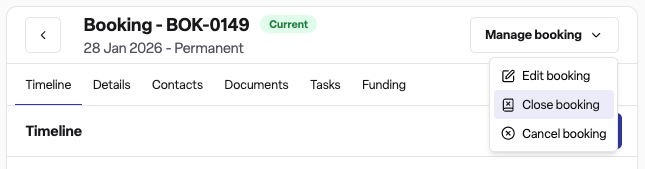
A side panel will open with the closure form
Step 3: Complete the closure details
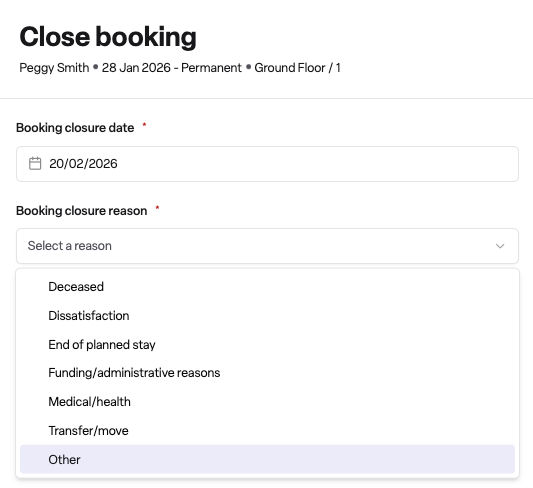
Enter the closure date
Select the date when the booking ended. This date:
Must be on or after the booking start date
Cannot be after a fixed planned end date (if set)
Cannot be after the latest room assignment end date
Select a closure reason
Choose the main reason for closure from the dropdown. Available categories include:
Deceased
Dissatisfaction
End of planned stay
Funding/administrative reasons
Medical/health
Transfer/move
Other
After selecting a main reason, you will be prompted to select a more specific reason to provide additional detail.
Add additional details (optional)
Enter any extra information about the closure in the additional details field. If you select "Other" as the reason and enter notes, Found may suggest a more appropriate closure category based on your description.
Complete death information (if applicable)
If the closure reason is "Deceased", you will need to provide:
Date of death
Cause of death
Step 4: Submit the closure
Click Close booking to confirm. The booking status will change to "Closed" and appear in the closed bookings list.
Editing a closure
If you need to update closure details after submitting:
Open the closed booking
Click the Manage booking drop down menu
Select Edit closure
Update the end date, reason, or additional details as needed
Click Update
Note: You can only edit closures, not cancellations.
Reopening a closed booking
If a booking was closed in error or circumstances have changed:
Open the closed booking
Click the Manage bookings drop down menu
Select Edit closure > Choose Reopen booking located in the bottom left corner of the side panel
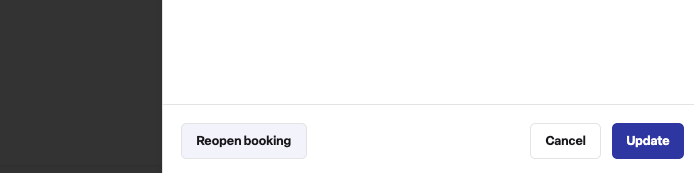
Enter Reopen reason and Confirm the action
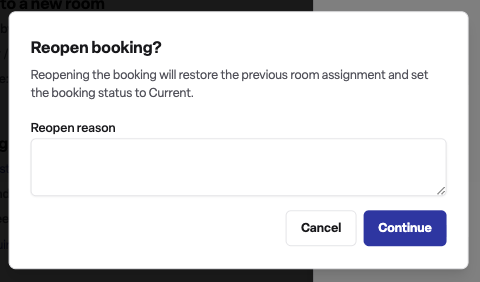
The system will check that the room is still available before allowing the booking to be reopened. A note will be added to the booking documenting the reopening and the previous closure details.
Why closing bookings is useful
Accurate occupancy tracking
Closed bookings remove residents from active occupancy counts, giving you an accurate picture of current capacity.
Reporting and analysis
Recording closure reasons allows you to analyse trends and understand why residents leave in the move-in and move-out report, helping you improve service quality.
Compliance and audit
Proper closure records provide an audit trail for regulatory compliance and internal reviews.
Room availability
Closing a booking releases the room for new admissions, helping your admissions team manage availability.
Frequently asked questions
Q: What is the difference between closing and cancelling a booking?
A: Closing a booking is used when a resident's stay has ended after they have been admitted. Cancelling a booking is used when a booking is cancelled before the resident starts or shortly after the start date. Use "Close" for completed stays and "Cancel" for bookings that did not proceed as planned.
Q: What happens to future room assignments when I close a booking?
A: Future room assignments are automatically removed when you close a booking. Current room assignments are updated to end on the closure date.
Q: Can I change the closure reason after submitting?
A: Yes. Use the "Edit closure" option from the actions menu to update the end date, reason, or additional details.
Q: What if I closed a booking by mistake?
A: You can reopen a closed booking using the "Reopen booking" option in the actions menu. The system will check room availability before allowing the booking to be reopened.
Q: Why do I need to provide death information when the reason is deceased?
A: This information is required to update the service user's record accurately and ensure proper documentation for compliance purposes.
Q: Can I close a booking before the start date?
A: No. If the booking has not yet started, you should cancel it instead of closing it.
Q: Where can I view all closed bookings?
A: Go to Operations > Bookings and select the Closed tab to view all bookings with a closed status.
Q: Will stakeholders be notified when I close a booking?
A: Yes. Found sends notifications to relevant stakeholders when a booking status changes to closed.