Funded care tracking
Last updated: June 9, 2026
Overview
Funded care tracking in Found is the workflow for managing Funded Nursing Care (FNC), Free personal and nursing care (FPNC) and Free personal care (FPC) applications attached to nursing bookings. It records the lifecycle of each application — from "not applied" through to "awarded" or "not awarded" — so operations teams can see which residents have submitted applications, how long decisions are taking, and where the open backlog sits. Regional variants are supported for England, Scotland, and Wales.
What it is
Funded care tracking manages FNC, FPNC & FPC applications per nursing booking. Each application has:
A type (regional variant): funded nursing care (England), free personal and nursing care (Scotland), or free personal care (Wales).
A current status: not applied, submitted, awarded, or not awarded.
A "not applicable" flag for residents who should be excluded from the workflow.
A linked organisation (the funder used at submission, optional).
A full audit log of status changes, including effective date and notes (up to 1000 characters).
Applications are created automatically when a booking gains a nursing care type (nursing or nursing dementia). Removing the qualifying care type does not delete the application.
Where it is
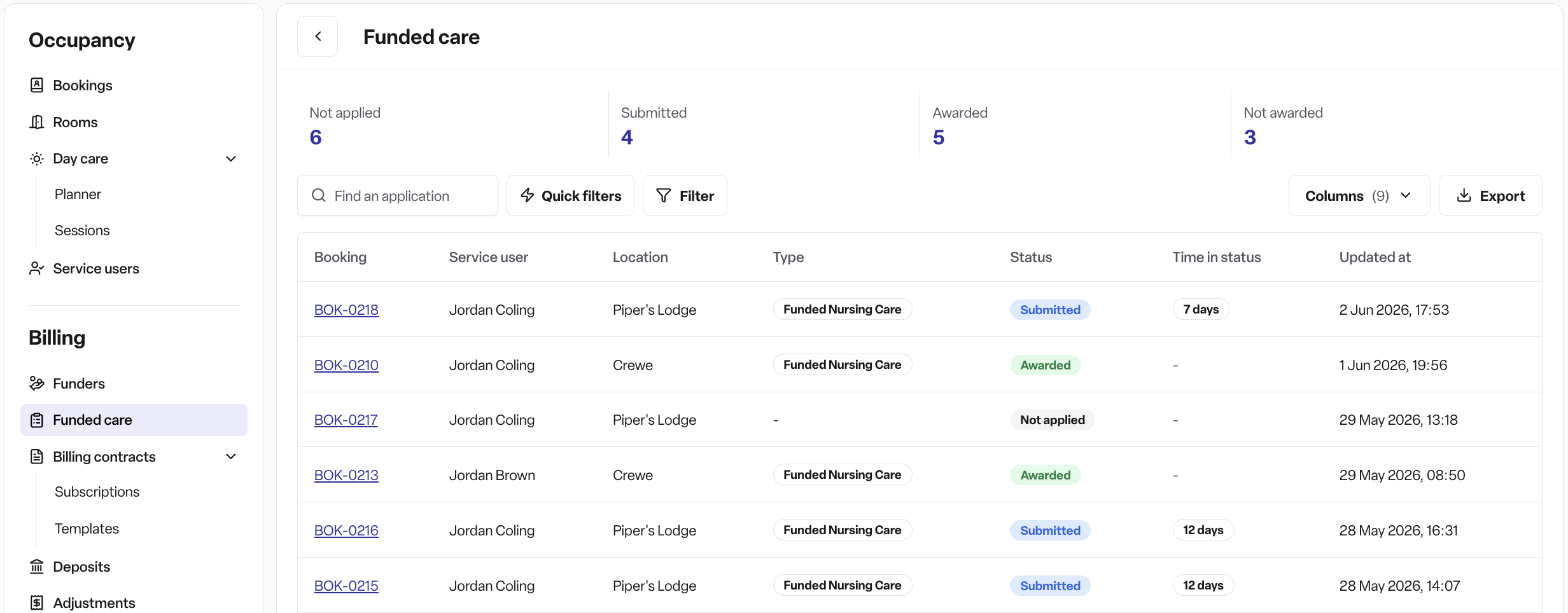
Operations → Funded care — the working list used day-to-day to progress applications.
How to use it
Find your applications
In the left sidebar, click Operations.
Click Funded care.
The table opens with status tiles across the top showing counts for Not applied, Submitted, Awarded, and Not awarded
Use the search box to find a resident or booking, or click the Submitted quick filter to jump straight to applications awaiting a decision.
Click Filters to filter by status, type, location, booking status, category, or funder organisation.
Click the columns control to show or hide extra columns such as organisation, notes, care type, booking status, care duration, start date, end date, approval date, or rejection date.
Update an application's status
Open the booking — either from the funded applications table or from anywhere else in the system.
Find the application badge on the booking. Click the pencil (edit) icon next to it.
In the form that opens, choose the new status from the Next status dropdown:
Submitted — also select the Application type (regional variant) and, if known, the Funder. Pick the Submission date and add Notes if helpful.
Approved — pick the Approval date and add Notes if helpful.
Not eligible — pick the Rejection date and add Notes if helpful.
Click Save. A "Status updated" confirmation appears.
The status flow is enforced:
Not applied → submitted
Submitted → approved, or submitted → not eligible
Approved and not eligible are terminal — no further changes can be made from these states.
Start a new application
If a booking's previous application reached approved or not eligible and the resident needs a fresh one:
Open the booking and click the pencil icon next to the funded care application.
Confirm in the dialog that you want to start a new application.
A new application is created in the Not applied state. A "New application started" confirmation appears.
Progress it through the statuses as above.
Mark an application as not applicable
If a resident should be excluded from the funded care workflow:
Open the booking and click the pencil icon next to the funded care application.
From the status dropdown, choose Not applicable.
Confirm in the dialog. A "Marked as not applicable" confirmation appears. The booking is opted out of the workflow until a new application is explicitly started.
Frequently asked questions
Q: Do I need to create an application manually for every nursing resident?
A: No. An application is created automatically when a booking gains a nursing or nursing dementia care type.
Q: What happens to the application if the resident's care type changes away from nursing?
A: The application is not deleted. It stays on the record so the history is preserved.
Q: Can I change an application after it has been approved or marked not eligible?
A: No. Approved and not eligible are terminal statuses. If something changes, start a new application against the booking from the pencil icon on the booking page.
Q: Can I add notes when I update a status?
A: Yes. Notes up to 1000 characters can be added on any status transition, along with an effective date.