Bulk updating weekly fees
Last updated: March 10, 2026
Pro feature: This feature is available on Pro plans only. If you’d like to upgrade your plan, please contact our support team.
Overview
The Adjust weekly fees tool lets you to update weekly fees across multiple bookings in a single action, rather than editing each booking one by one. It is accessed from the Operations tab in Found.
This is useful when you need to apply fee increases across your home at the start of a new financial year, or align fees across a group of locations - all with a single effective date.
How to bulk update weekly fees
Go to the Operations tab.
Click the Manage booking dropdown button and choose Adjust weekly fees.
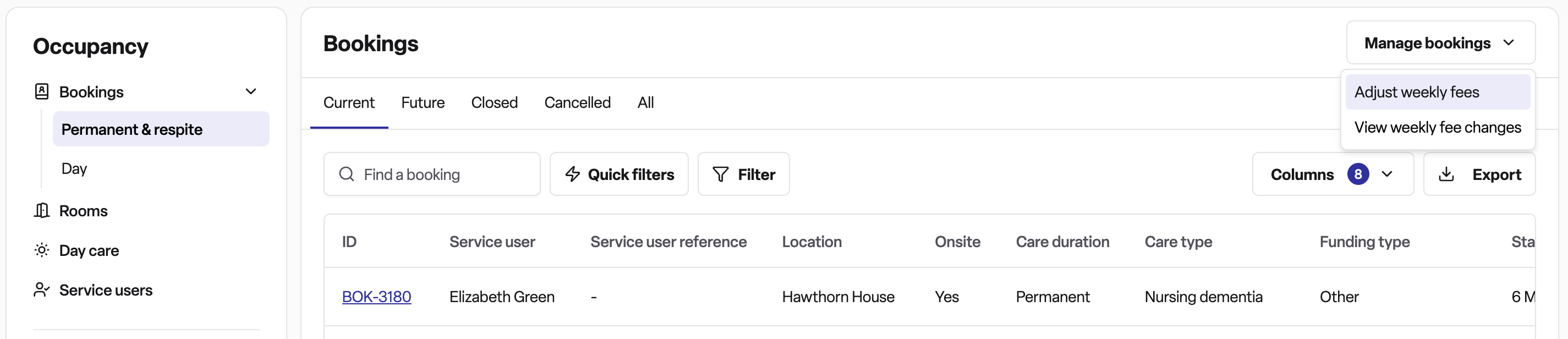
A slide-out panel will open. Select the effective date - this is the date from which the new fees will apply.
Use the location filter to narrow down which bookings you want to update. You can select one or more locations.
The bookings matching your filters will appear in a table, showing each bookings weekly fee.
Enter new fees for the bookings you want to change. You can:
Type a new amount directly into each booking input field, or
Use the adjustment controls to apply a formula to all bookings at once — for example, increase all fees by a fixed percentage, increase by a fixed £ amount, decrease by a fixed percentage, decrease by a fixed £ amount, or set a single new amount across all bookings.
The table will show the calculated difference for each booking (both as a £ amount and as a percentage) so you can review the impact before confirming.
Click Save changes to confirm. A summary will confirm how many fees were updated.
Frequently asked questions
Q: Where do I find this feature?
A: Go to the Operations tab, click the Manage bookings dropdown, and select Adjust weekly fees.
Q: What is a weekly fee?
A: The weekly fee is the fee set against a booking and represents the gross rate for care.
Q: What does the effective date mean?
A: The effective date is the date from which the new fees apply. Any existing fee set for the same date will be replaced when you confirm your changes.
Q: Can I update fees for bookings across multiple locations at once?
A: Yes. You can select multiple locations in the filter step. All bookings matching your selected locations will appear in the table for you to update.
Q: Do I have to update every booking shown in the table?
A: No. You only need to enter a new fee for the bookings you want to change. Bookings you leave blank will not be updated.
Q: What adjustment methods are available?
A: You can set a new fixed amount, increase by a percentage, increase by a fixed £ amount, decrease by a percentage, or decrease by a fixed £ amount. These adjustments apply to all bookings in the table at once, though you can still override individual bookings manually.
Q: Can I add a note to explain why fees are changing?
A: Yes. There is an optional note field on the confirmation step where you can record the reason for the update, such as "Annual increase"
Q: Will I be able to see what changed before I confirm?
A: Yes. The table shows the current fee, your proposed new fee, and the difference in both £ and percentage for every booking you have changed, so you can review the full impact before saving.
Q: What happens if I make a mistake after confirming?
A: You will need to run the bulk update again with the corrected fees and the same effective date. The new submission will replace the previous fees for that date.