Enabling Organisations and Contacts as funders (Occupancy users)
Last updated: March 26, 2026
Pro feature: This feature is available on Pro plans only. If you’d like to upgrade your plan, please contact our support team.
Overview
A funder in Found is an entity - either an Organisation or an individual Contact - that is responsible for paying for a resident's care. Enabling an organisation or contact as a funder creates a funding profile for them, which can then be assigned to billing contract subscriptions on individual bookings.
Each funder profile stores:
The organisation or contact it belongs to
An optional reference number
Once a funding profile has been created it cannot be removed, so ensure the correct organisation or contact is selected before enabling funding.
Who can use this feature?
The Funders feature is available to Found customers on the Pro Occupancy plan. If you see an upsell screen when navigating to Operations > Funders, contact your account manager to have this enabled.
Enabling an Organisation as a funder
Navigate to Contacts > Organisations and open the organisation's profile page.
If the organisation does not yet have a funding profile, an Enable funding button is displayed in the page header.
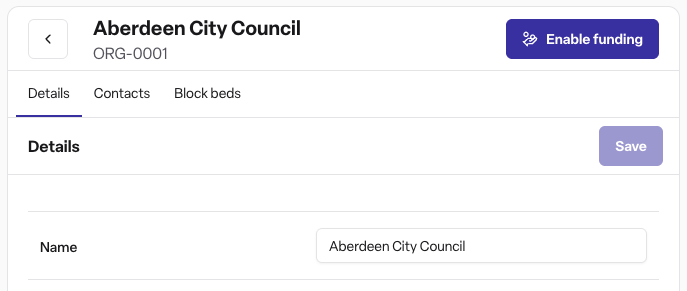
Click Enable funding and enter the Organisation funder reference (optional):
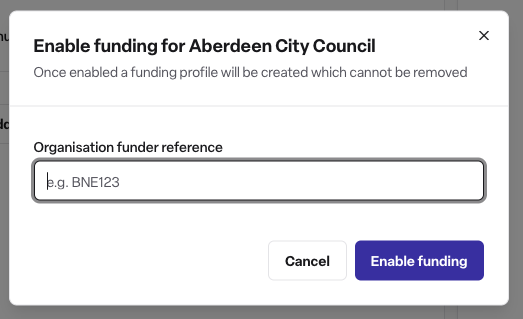
Click Enable funding in the pop up window to confirm. A funding profile is created and the button is replaced with a funder badge on the organisation's record.
Note: An organisation can only have one funding profile. If you need to set up multiple billing arrangements for the same organisation (e.g. different reference numbers per service user), speak to your account manager about how to structure this.
Enabling a Contact as a funder
Contacts are enabled as funders from within a booking, when setting up a billing contract subscription.
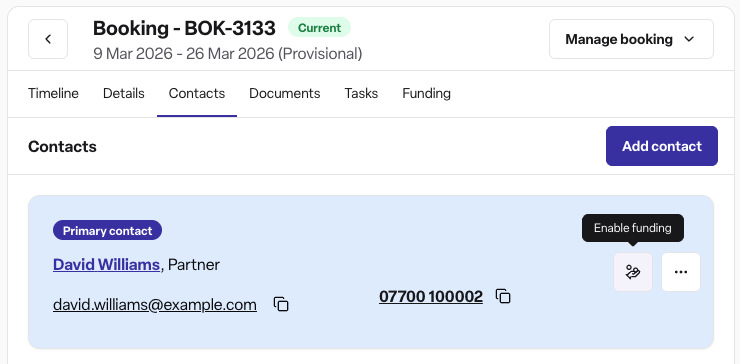
Open the relevant booking Operations > Bookings > click relevant booking and go to the Contacts tab.
Locate the contact you want to enable as a funder and select the option to enable funding for them.
(Optional) Enter Reference number for contact
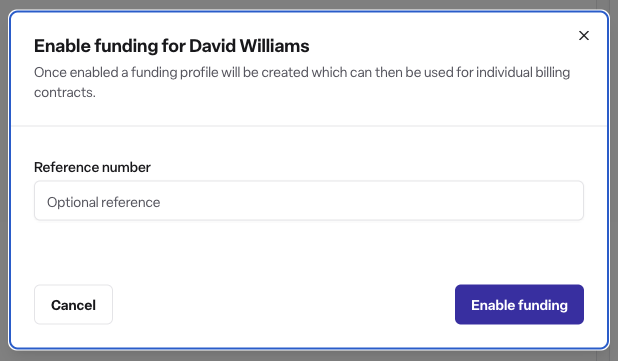
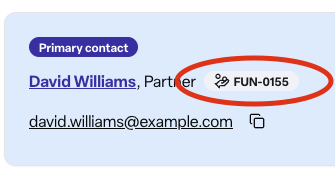
Confirm by clicking Enable funding to create the funding profile. The contact is immediately associated as a funder on that booking.
If the contact has already been enabled as a funder previously, you can instead select their existing funder ID rather than creating a new one.
Viewing all funders
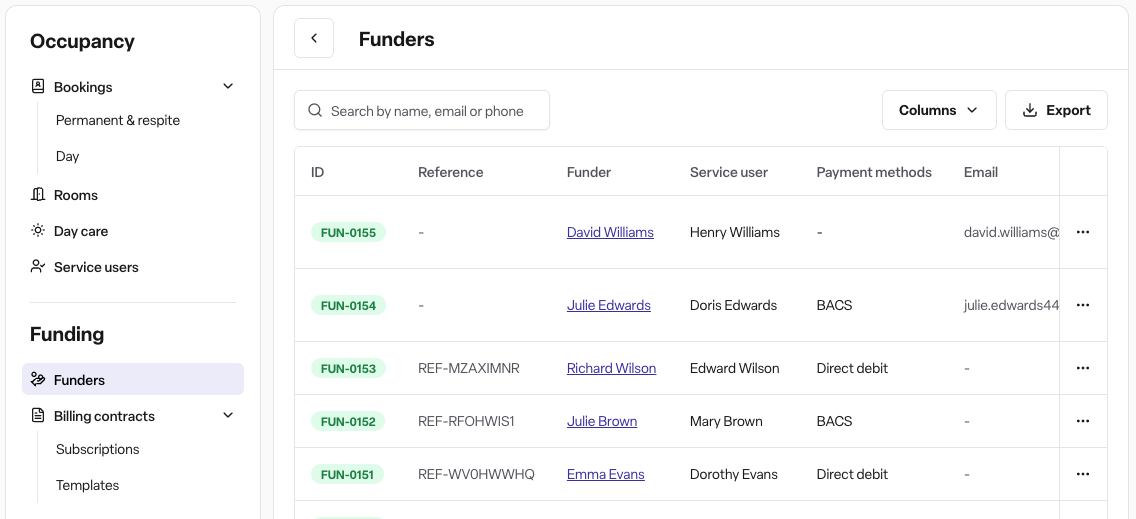
All funder profiles across your workspace can be viewed in Operations > Funders. The table is searchable by funder name, reference number, funder ID, email address, phone number, and associated service user names.
You can also view an organisation's funders directly on their organisation profile page (if the Organisation funders tab is enabled on your account).
Editing a funder's details
To update a funder's reference number, email address, or postal address after the profile has been created:
Navigate to Operations > Funders and find the funder.
Open the funder's record and edit the relevant fields.
The funder's linked organisation or contact cannot be changed after creation.
Frequently asked questions
Q: Can I remove a funder once it has been created?
A: No. Once a funding profile has been created it cannot be deleted.
Q: Can an organisation have more than one funding profile?
A: No. Each organisation can have one funding profile. The Enable funding button is hidden once a profile exists.
Q: Can a contact have more than one funder ID?
A: Yes. If a contact is used as a funder on multiple bookings or across multiple service users with different reference numbers, additional funder IDs can be created for them. When enabling funding on a booking, you can either create a new funder ID or select an existing one for that contact.
Q: What happens if the reference number I enter already exists?
A: Reference numbers must be unique across your entire workspace. If you enter a reference number that is already in use, you will see a validation error asking you to use a different value.
Q: I don't see the "Enable funding" button on the organisation profile. Why?
A: There are a few reasons this button may not appear:
The organisation already has a funding profile — the button is replaced by a funder badge once enabled.
Your user role does not have the Enable organisations as funders permission.
The Funders feature is not enabled on your account — contact your account manager.
Q: Does enabling a funder automatically attach them to a booking?
A: For organisations, enabling funding creates the profile but does not automatically assign it to any booking. The funder must then be selected when setting up a billing contract subscription on a booking. For contacts, enabling funding during the booking contacts workflow creates the profile and links it to that booking in one step.
Q: Can staff members enable funders?
A: Yes. By default, all roles (Admin, Manager, and Staff) have permission to enable both organisation and contact funders. A workspace administrator can restrict this in Settings > Roles if needed.