Bulk updating billing contract subscription contributions
Last updated: March 10, 2026
Pro feature: This feature is available on Pro plans only. If you’d like to upgrade your plan, please contact our support team.
Overview
The Adjust contributions feature in Found allows you to update the contribution amounts across multiple billing contract subscriptions at once. Instead of opening each subscription individually to change a rate, you can apply a single adjustment - such as an annual fee increase - to all relevant subscriptions in one action.
This is particularly useful when care fees change across a location or group of residents at the same time, such as at the start of a new financial year or following a local authority rate review.
You can choose to apply a fixed new amount, increase or decrease contributions by a percentage, or adjust by a fixed amount - across weekly or daily contribution types separately.
How to bulk update billing contract subscription contributions
Step 1: Navigate to subscriptions
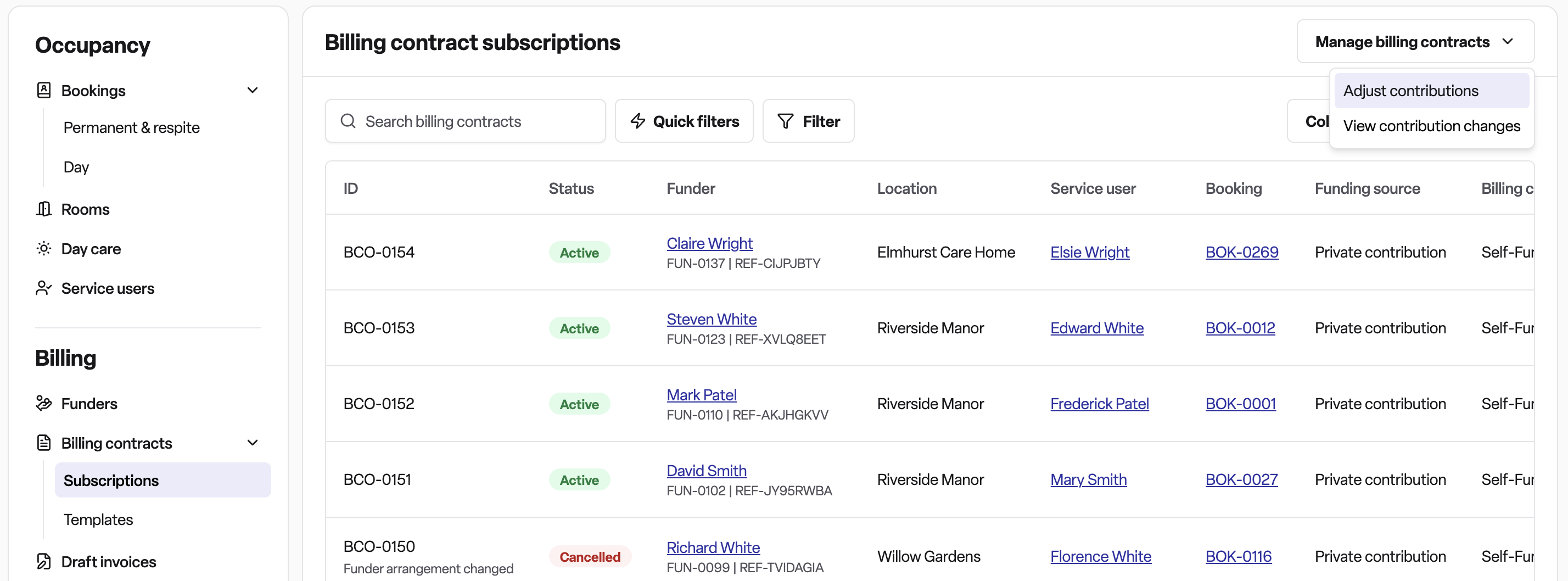
Go to Operations in the top navigation, then select Billing contracts → Subscriptions from the left-hand menu.
Step 2: Open the adjustment panel
Click the Manage billing contracts menu (the dropdown button in the top-right area of the page) and select Adjust contributions.
Step 3: Set filters
You must provide two required fields before the subscription list will load:
Effective date - the date from which the new contribution rate applies
Locations - one or more care home locations to include
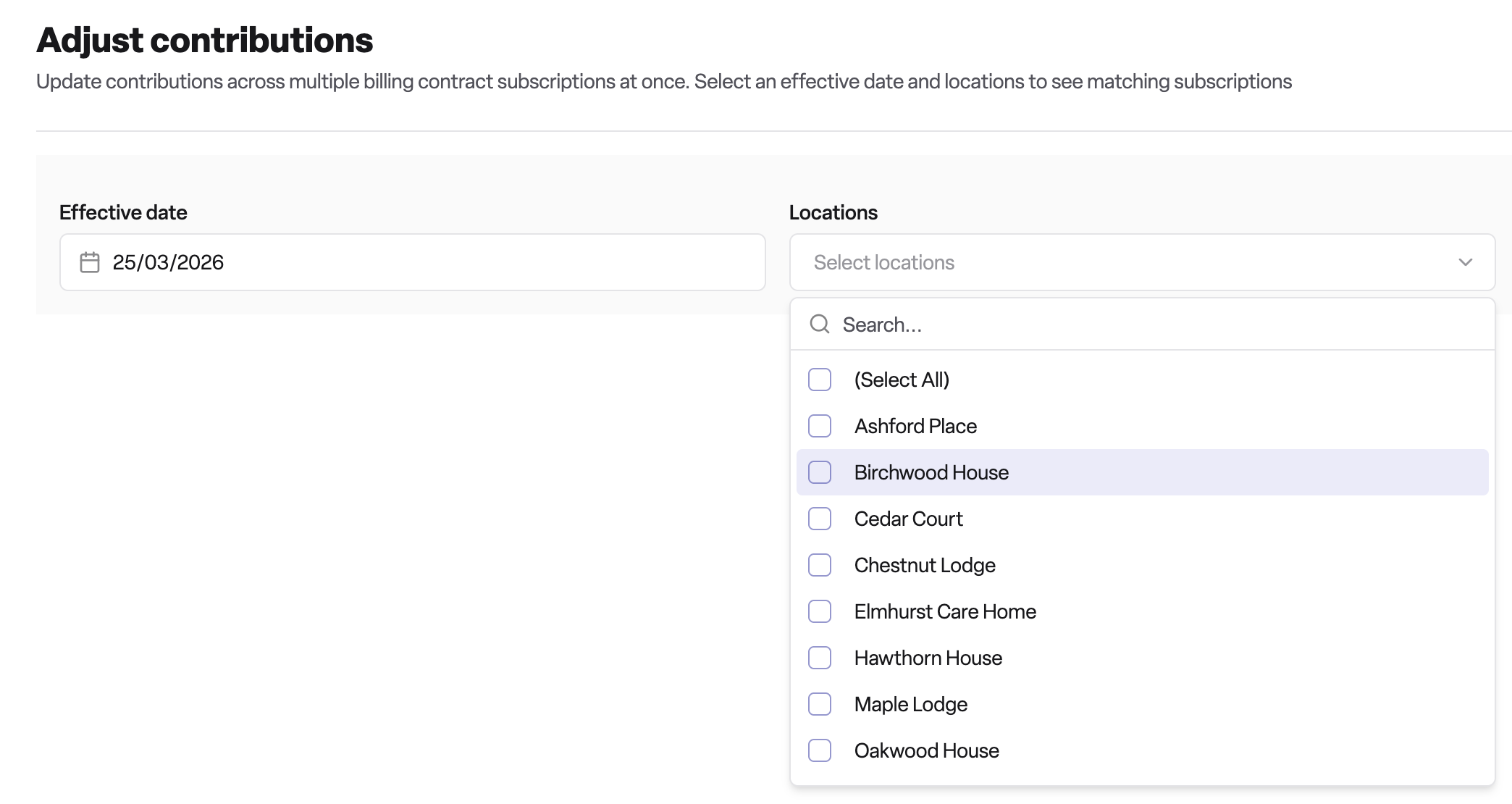
You can also apply optional filters to narrow the selection further:
Care duration type (e.g. permanent, respite)
Care type
Funding type
Funding source (e.g. local authority contribution)
Billing contract type (organisation or individual)
Specific funders or organisations
Subscription status
Step 4: Review the subscription table
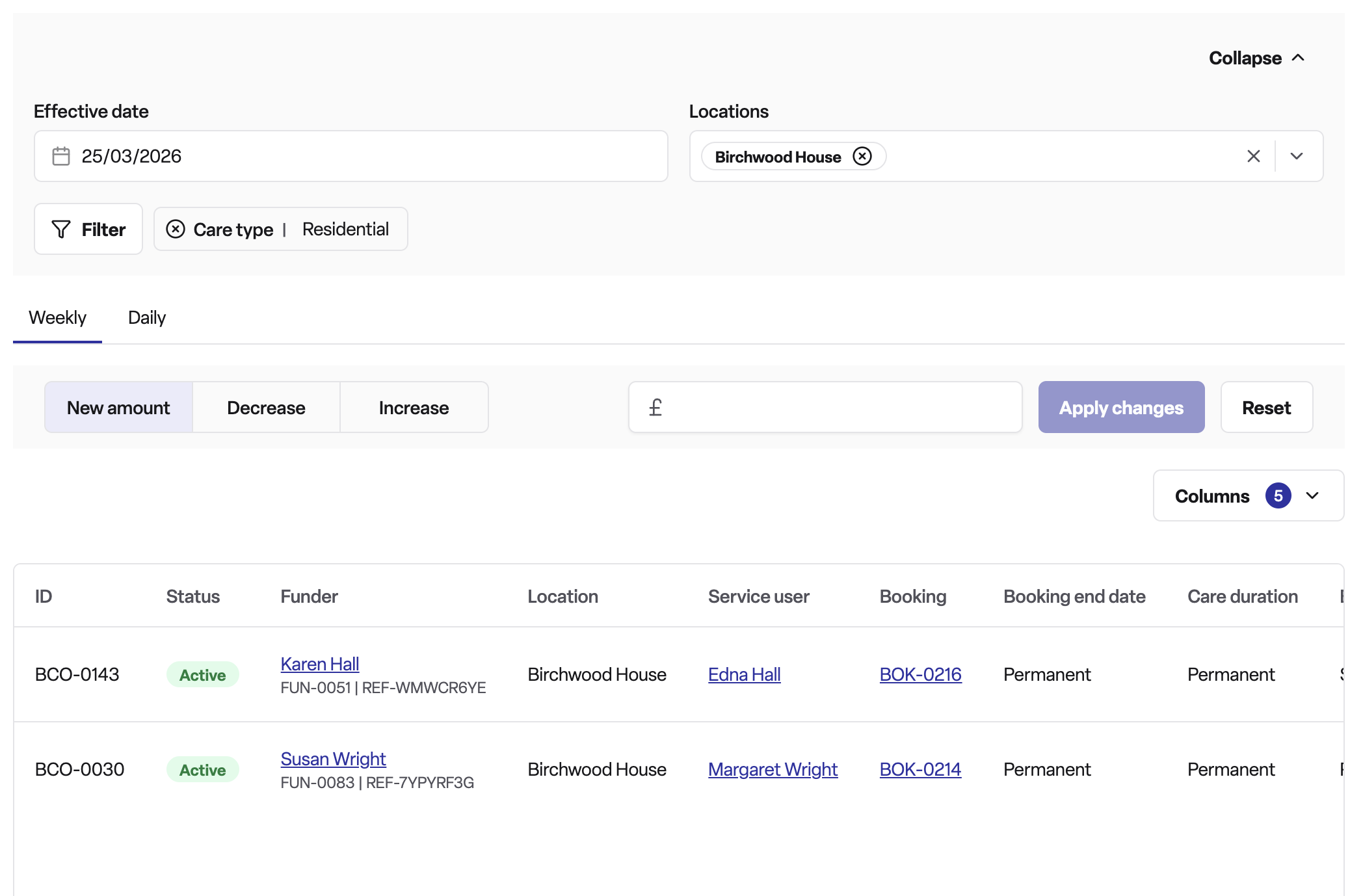
Once your filters are set, a table of matching subscriptions is displayed. Subscriptions are shown in two tabs - weekly and daily - based on their contribution unit. Each row shows the current contribution amount and provides an input field for the new amount.
Step 5: Apply an adjustment
Use the adjustment controls panel to set how contributions should change. You can choose:
New amount - sets all selected contributions to a specific value
Increase - adds to the current value, either by a percentage or a fixed amount
Decrease - subtracts from the current value, either by a percentage or a fixed amount
Once configured, click Apply changes to populate the new amounts in the table. You can review and manually override individual rows if needed.
Step 6: Preview the changes
Before confirming, a preview dialog shows you:
Each subscription's old and new contribution amount
The backdating adjustment amount (if the effective date falls within an already-billed period)
Any linked subscriptions that will also be updated
Total adjustment amounts
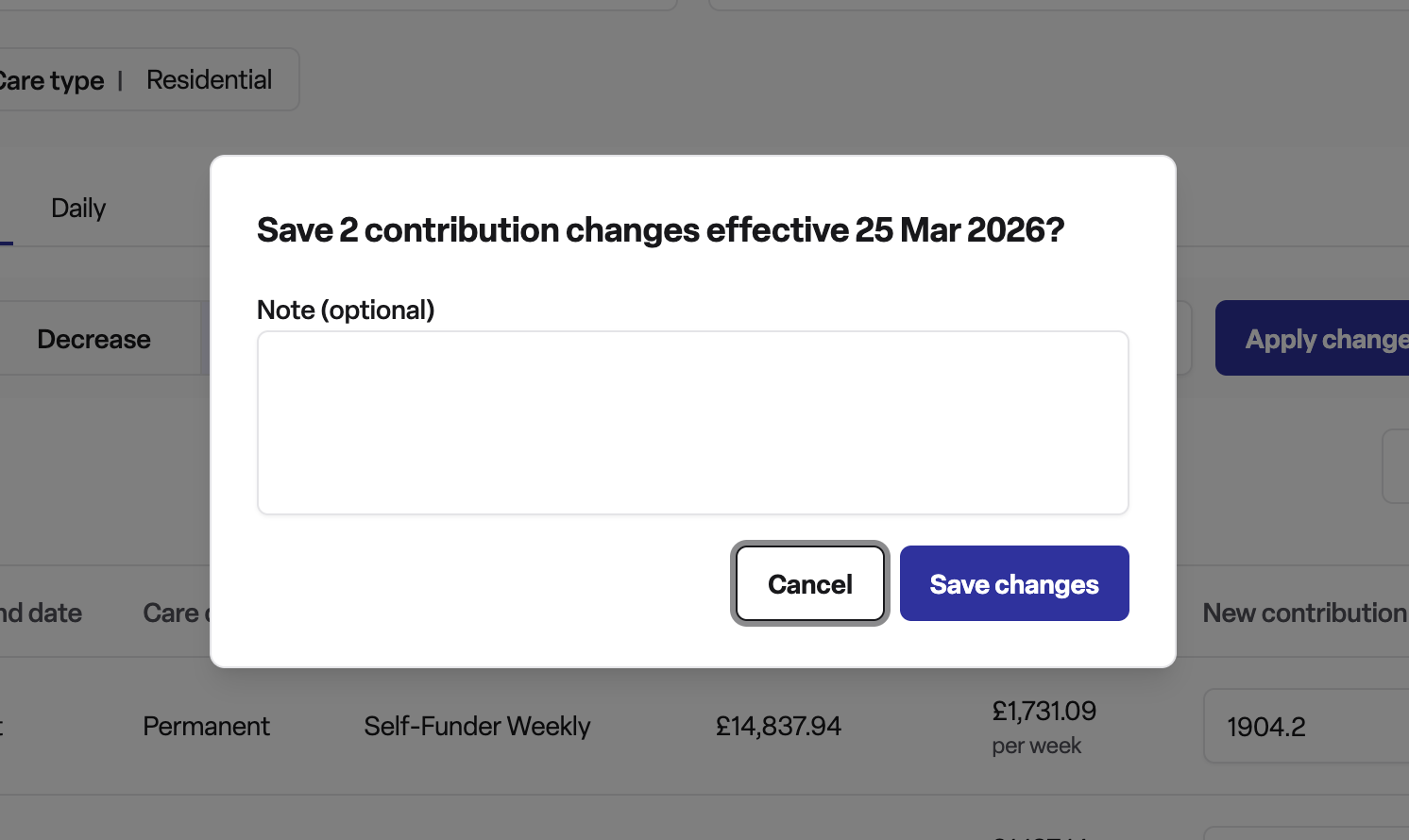
You can also add optional notes to be recorded against the adjustment.
Step 8: Confirm
Click Save changes to apply all changes. Found will create new contribution records from the effective date, calculate any backdating adjustments, and (if selected) generate invoices.
Frequently asked questions
Q: Can I adjust weekly and daily contributions at the same time?
A: Yes, but they are handled separately. The table is split into two tabs — one for weekly contributions and one for daily contributions. You apply your adjustment controls within each tab independently.
Q: What happens if the effective date is before a subscription's start date?
A: Found will not allow an adjustment to be applied with an effective date that falls before the subscription's own start date. Those subscriptions will be excluded or flagged during validation.
Q: Can I undo a bulk adjustment once it has been confirmed?
A: The adjustment is applied by creating new contribution records from the effective date forward. You would need to create a further adjustment to reverse the change.
Q: Can I adjust contributions for a single subscription using this tool?
A: Yes. Although the feature is designed for bulk use, you can filter down to a single subscription and use the same workflow. For individual changes, it may be quicker to update the subscription directly from the billing contract.