Creating a block bed contract
Last updated: March 10, 2026
Pro feature: This feature is available on Pro plans only. If you’d like to upgrade your plan, please contact our support team.
Overview
A block bed contract is a formal agreement between your care home and an external organisation - typically a local authority or NHS trust - in which the organisation reserves a set number of beds for a defined period. Rather than paying only for occupied beds, the contracting organisation pays for the reserved capacity, regardless of whether all beds are in use.
Block bed contracts are managed in Found under the relevant organisation's profile. To access them, go to the Contacts tab > Organisations, open the organisation record, and select the Block beds tab.
Using block bed contracts in Found helps you:
Accurately track which beds are reserved and for whom
Apply the correct fee structure to bookings covered by the contract
Monitor capacity, occupancy, and voids over time
Maintain a full history of fee changes and contract documents
Assign incoming bookings directly to a contract for simplified billing
How to create a block bed contract
Step 1: Navigate to the organisation
Go to Contacts in the left-hand navigation.
Select Organisations and open the relevant organisation (e.g. a local authority or NHS trust).
Click the Block beds tab.
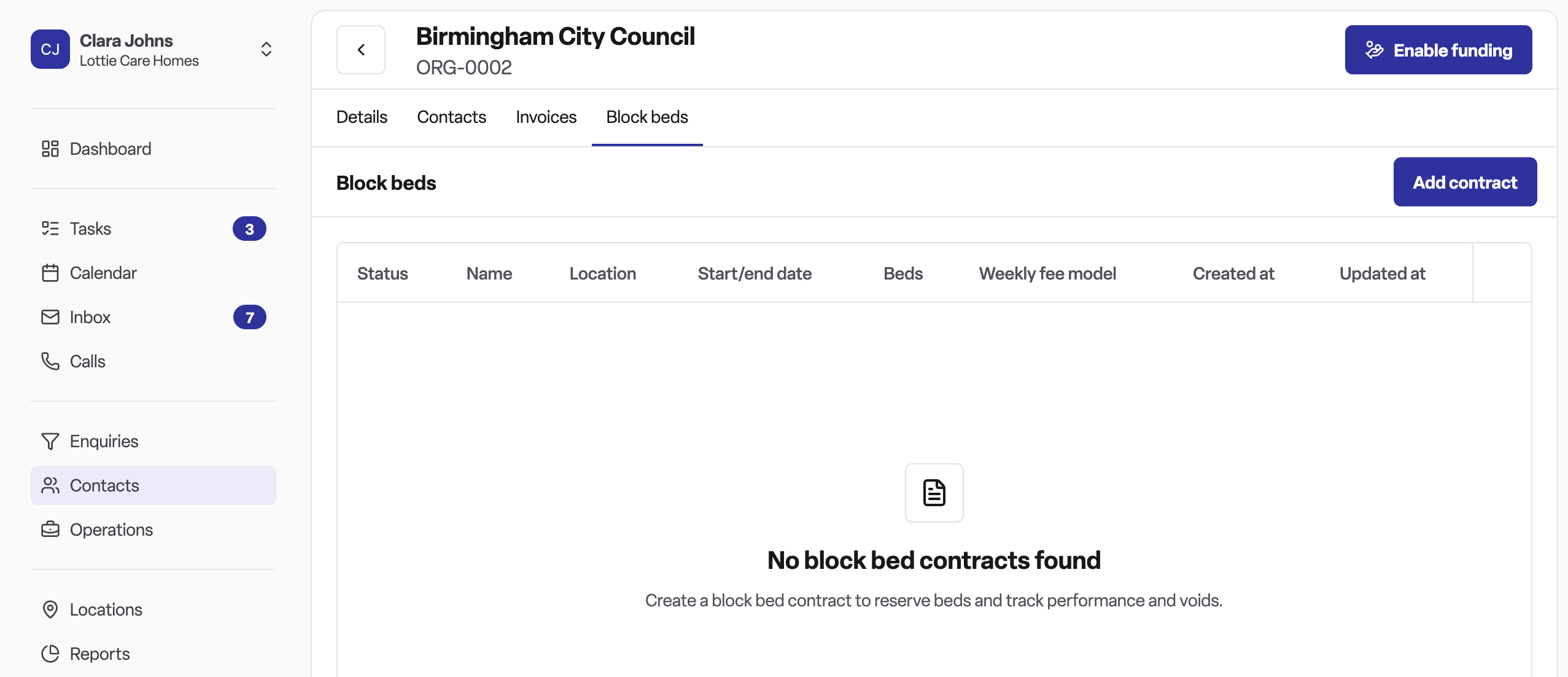
Click Add contract to open the creation form.
Step 2: Overview
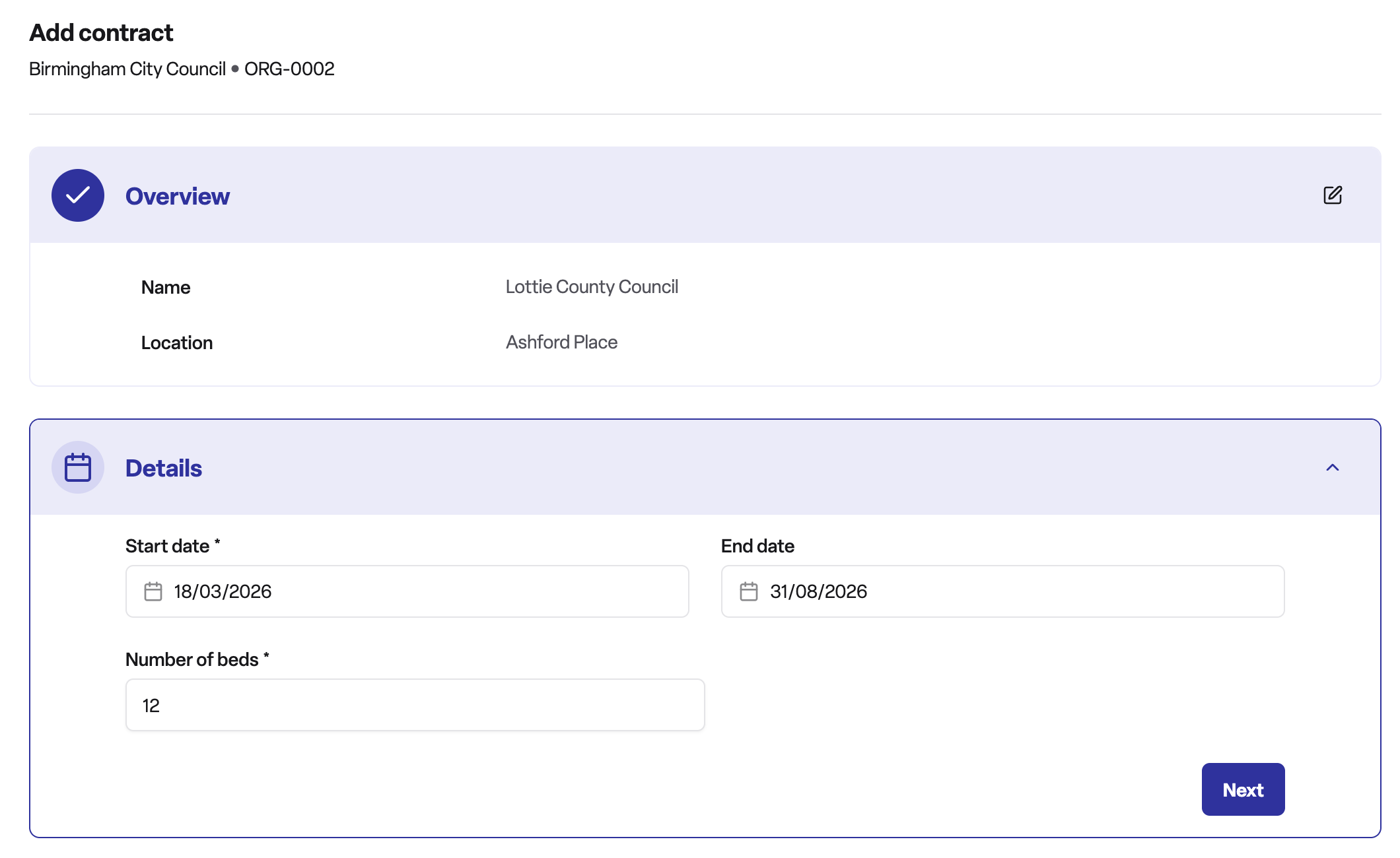
Enter the contract details:
Contract name a clear, identifiable name (e.g. "Surrey County Council Block Bed 2025").
Location: select the care home location that is covered by this contract.
Start date: the date the contract becomes active.
End date: the date the contract expires (optional at creation).
Number of beds: enter the number of beds reserved under the contract. You can update this later with a new effective date if the capacity changes e.g. increases over the winter
Step 3: Pricing
Choose the fee structure:
Fixed: a single flat weekly fee applies to all reserved beds, regardless of occupancy. This is the simplest model and is common for block arrangements where the funder pays a set rate per bed per week.
Variable: separate fees are defined for occupied beds and void beds (unoccupied but still reserved). This allows the funder to pay a lower rate for void capacity.
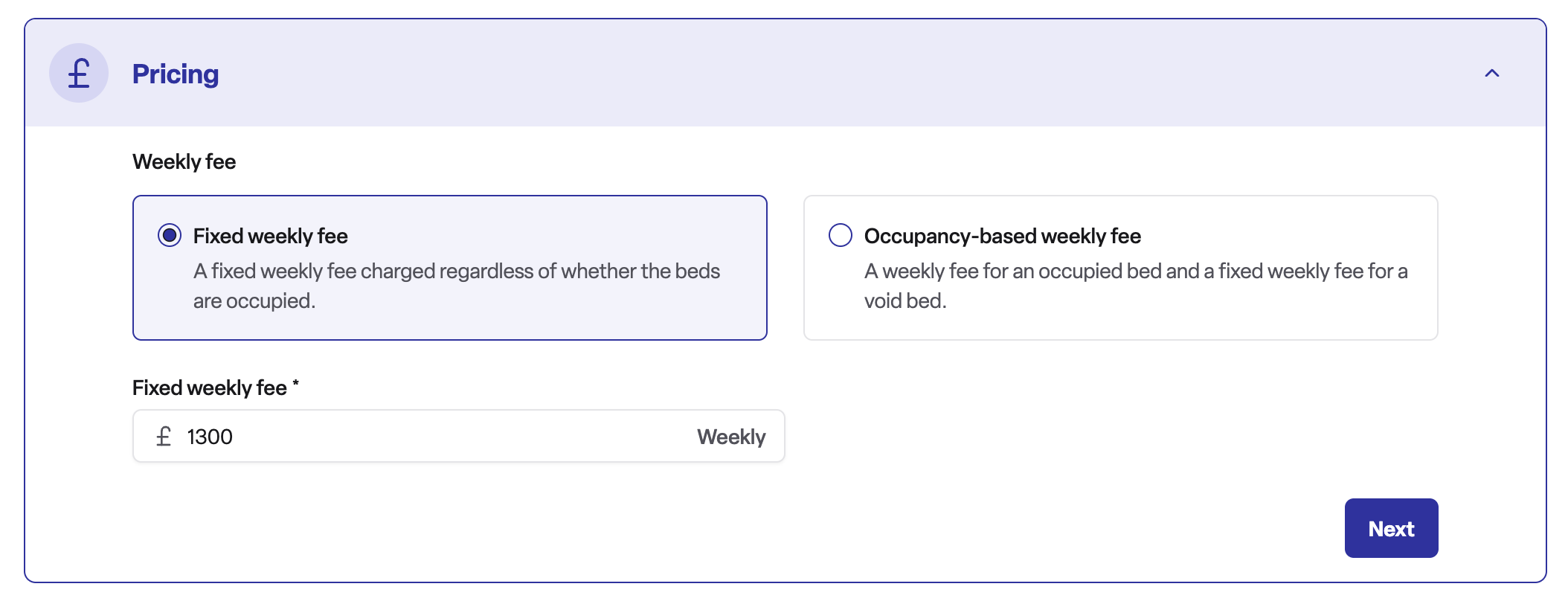
Enter the applicable fee amounts. These can be updated at any point, and Found maintains a full history of all fee changes with their effective dates.
Once complete, click Create contract. The contract will appear in the block beds table with a status of Future (if the start date is upcoming) or Current (if it is already active).
Managing a contract after creation
Once created, the contract record has four tabs:
Tab | What it shows |
Details | Contract name, dates, locations, capacity history, and fee definitions |
Assignments | All bookings currently assigned to this contract |
Calendar | A visual month-by-month view of occupancy, voids, and capacity |
Documents | Uploaded files and supporting paperwork for the contract |
Updating capacity
If the number of reserved beds changes during the contract period, go to Details and add a new entry under Capacity history with the revised number and the date the change takes effect. Found retains the full history so you can see how capacity evolved over time.
Updating fees
To record a fee change, go to Details, select the relevant fee type, and add a new fee value with an effective date. The previous fee is retained in the history. A chart on the fee history screen visualises how fees have changed over the life of the contract.
Assigning a booking
When creating or editing a booking, you can link it to a block bed contract. Found will apply the contract's fee rates to that booking automatically. You can view all assigned bookings from the Assignments tab on the contract record.
Cancelling a contract
Open the contract, click the actions menu (three dots), and select Cancel contract. Note: contracts that already have booking assignments cannot be cancelled until those assignments are removed.
Contract statuses
Status | Meaning |
Future | The contract start date has not yet been reached |
Current | The contract is active today |
Complete | The contract end date has passed |
Cancelled | The contract was manually cancelled |
Frequently asked questions
Q: Which types of organisations can have block bed contracts?
A: Block bed contracts are typically used with local authorities and NHS trusts. These are the organisations that commonly reserve beds in bulk rather than funding individual placements.
Q: Can one contract cover multiple care home locations?
A: No, currently it's 1 location per contract, if you have contracts that span across 2 or more locations can in contact with out support team.
Q: What is the difference between a fixed and variable fee structure?
A: A fixed structure applies one weekly fee to all reserved beds regardless of whether they are occupied. A variable structure lets you define separate rates for occupied beds and void beds (reserved but unoccupied), which some funders use to reflect reduced cost for unused capacity.
Q: Can I change the number of beds mid-contract?
A: Yes. Rather than editing the original figure, you add a new capacity entry with the updated number and the date it takes effect. Found keeps the full capacity history so you have an accurate record of how the arrangement evolved.
Q: What happens when I update a fee?
A: Found creates a new fee value record with the effective date you specify. The previous fee is marked as past and retained in the history. This gives you a complete audit trail of all fee changes.
Q: How do I see which residents are covered by a contract?
A: Go to the contract record and open the Assignments tab. This lists all bookings linked to the contract, including the resident name, room, and assignment dates.
Q: Can I view occupancy visually?
A: Yes. The Calendar tab on the contract record shows a week-by-week view of how many beds are occupied, void, and unassigned across the contract period.
Q: What happens if I need to attach the signed contract document?
A: Use the Documents tab on the contract record to upload the signed agreement and any supporting paperwork. These are stored against the contract and accessible to anyone with the appropriate permissions.
Q: Can a contract be deleted?
A: Contracts can be cancelled but not deleted. This preserves the historical record and protects the integrity of any bookings that were assigned to the contract.
Q: What if a funder's block bed arrangement covers only part of a year?
A: Set the start and end dates accordingly when creating the contract. Found will mark the contract as complete once the end date passes.