Dual occupancy
Last updated: October 9, 2026
Overview
Dual occupancy lets you mark a room as having two effective beds, so two residents can be booked into the same room at the same time. It is designed for partners or couples who share a room.
Before this feature, you could not show a shared room accurately. The usual workaround was to set up two separate rooms to represent one physical room (1a an 1b). With dual occupancy, one room can hold two bookings, and occupancy reporting counts beds correctly.
Key points
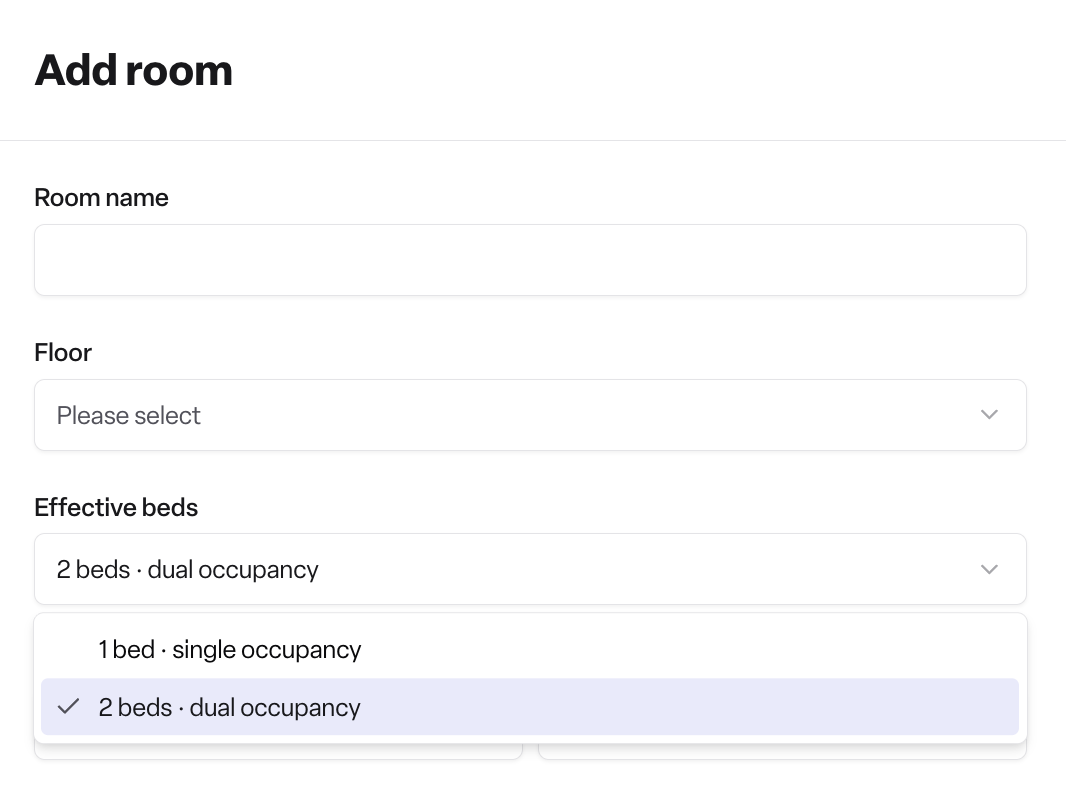
Each room has an effective beds setting of 1 bed (single occupancy) or 2 beds (dual occupancy).
Every change to effective beds is kept as a dated bed history, so you can record beds being moved into or out of a room from a set date.
A room with 2 effective beds can hold two bookings at once.
Occupancy rates are calculated against effective beds over time, using the bed history.
Billing does not change. Each booking keeps its own billing and funding setup.
Where to find it
What you want to do | Where to go |
|---|---|
Set effective beds when adding a room | Locations → select a location → Rooms → Add room |
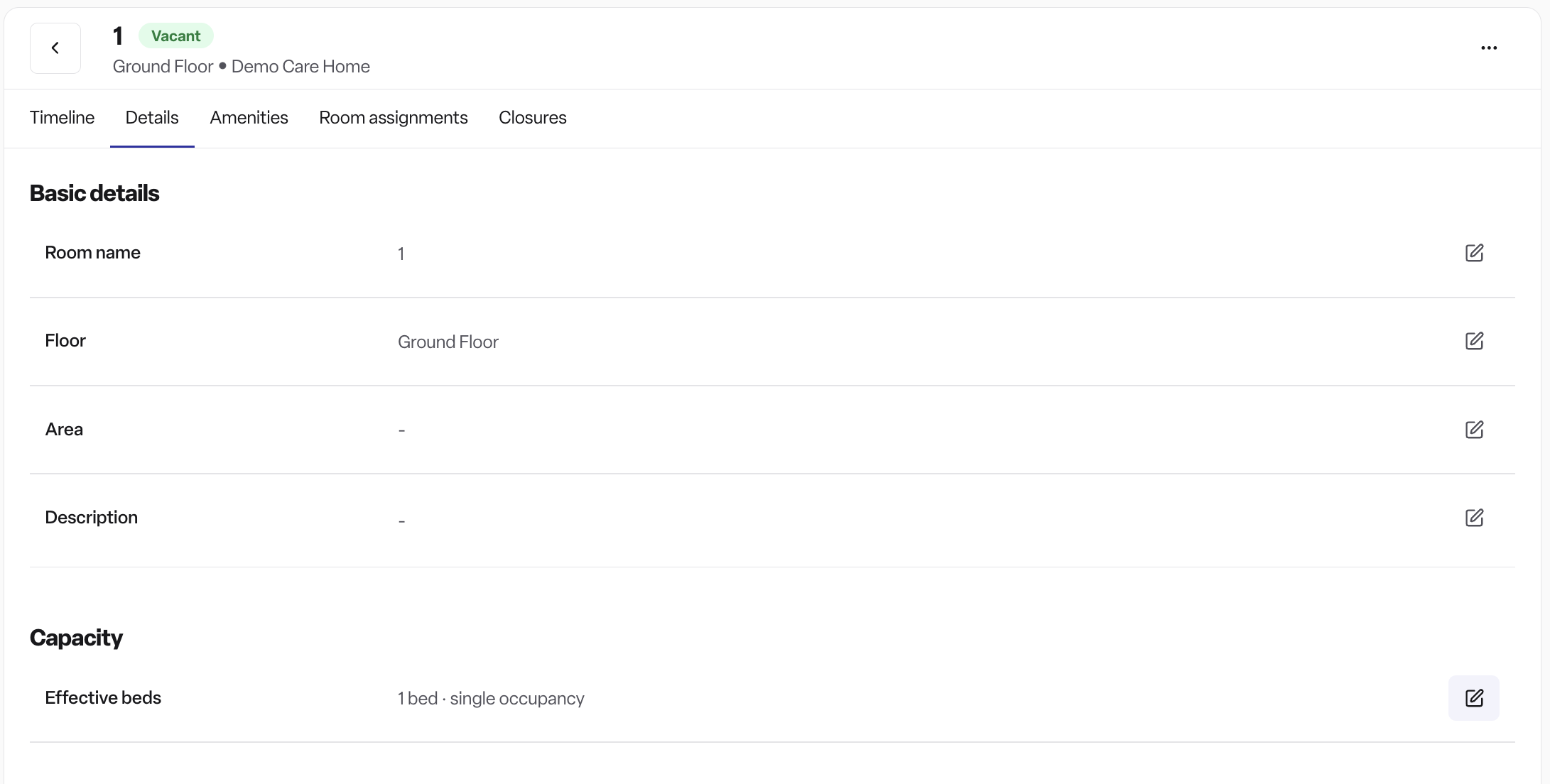
Change effective beds on an existing room | Open the room → Details tab → Capacity section → Effective beds |
See bed history and scheduled changes | Room → Details → Capacity (under Bed history) |
See effective bed changes on the room's audit trail | Room → Timeline |
See which rooms are shared or partially occupied | Operations → Rooms (Diary and Availability tabs) |
Report on occupancy against effective beds | Reports → Occupancy rates |
See effective beds on the dashboard | Dashboard (effective beds and occupancy widgets) |
How it works
Effective beds and bed history
Every room has a number of effective beds, either 1 bed · single occupancy or 2 beds · dual occupancy.
Each change is saved with an effective date, which builds up the room's bed history.
If the effective date is in the future, the change shows a Scheduled label and the room shows an alert: "Effective beds will change to X from [date]".
Each change is recorded on the room's Timeline, for example "Effective beds changed from 1 to 2".
Room status
With dual occupancy, a room can have one of these statuses:
Vacant: no one is in the room.
Partially occupied: a 2-bed room with one resident, so one bed is still free.
Occupied: every effective bed is taken.
Closed: the room is closed.
A partially occupied room still shows as available for a new booking.
Booking into a shared room
When you choose a room for a booking, the room picker shows each room's bed tag (1 bed or 2 beds).
If someone is already in a 2-bed room, the picker shows "Sharing with [resident name]".
After you select that room, a notice confirms: "This room will be shared with [resident name]".
A room is shown as full when its occupied beds match its effective beds.
Occupancy reporting
Occupancy rates compare occupied beds with effective beds for each day, using the bed history. A room that changes from 1 to 2 beds partway through a period is counted correctly before and after the change.
The occupancy rates report includes Average effective beds and Average occupied beds, plus a chart of occupied beds against effective beds.
Target fees
Target weekly fees are set per bed. A room with two beds has a target of twice the per-bed amount.
How to set up a dual occupancy room
Add a new 2-bed room
Go to Locations, select the location, then open Rooms.
Select Add room.
Fill in the room details. Under Effective beds, choose 2 beds · dual occupancy.
Save. The room starts with 2 effective beds from today.
Change an existing room to 2 beds (or back to 1)
Open the room and go to the Details tab.
In the Capacity section, select the edit icon next to Effective beds.
In the Change effective beds panel, choose the number of beds.
Set the Effective date. This can be today or a future date for a planned change.
Select Save. The change appears in Bed history and on the room Timeline.
Book two residents into the same room
Create or edit the booking as usual.
In the room picker, choose a room tagged 2 beds. A room that already has one resident shows "Sharing with [name]".
Confirm the room. Set up funding and billing for the booking as normal.
Repeat for the second resident's booking.
Rules
A room can have 1 or 2 effective beds, no more.
You can't reduce a room to 1 bed while two bookings share it on or after the date you choose. Found blocks the change and asks you to end or move one of the bookings, or pick a later effective date.
If both shared bookings have no end date, the room can't go back to 1 bed. While that's the case, the edit button for effective beds is locked.
Changes can be scheduled for a future date. The current effective beds update automatically on that date.
Billing is always per booking. Set up funding for each resident separately.
Permissions
Plan: Found Pro (Pro Occupancy). The billing module is needed to set up funding and billing for each booking.
Admin and Manager: can add rooms, edit rooms (including effective beds) and book residents into rooms.
Staff: can view rooms, effective beds and bed history but can't add or edit rooms by default.
Frequently asked questions
Q: What problem does dual occupancy solve?
A: It lets two residents, such as partners, share one room in Found. Before, homes had to create two rooms to represent one physical room.
Q: What are "effective beds"?
A: The number of beds a room has on a given date: 1 (single occupancy) or 2 (dual occupancy). Found keeps a dated history of changes.
Q: Can a room have more than 2 beds?
A: No. A room can have 1 or 2 effective beds.
Q: Can I schedule a change for a future date?
A: Yes. Set a future effective date. The change shows as Scheduled in the bed history and applies automatically on that date.
Q: Why can't I change a room back to 1 bed?
A: Two bookings share the room on or after the date you picked. End or move one of the bookings, or choose a later date when only one resident is in the room.
Q: How do I know a room is already shared?
A: Its status shows Partially occupied (one bed free) or Occupied (both beds taken). In the booking room picker, it shows "Sharing with [name]".
Q: Does dual occupancy change how residents are billed?
A: No. Each booking keeps its own funding and billing setup, and each resident is invoiced separately as before.
Q: How does dual occupancy affect occupancy rates?
A: Occupancy rates use effective beds over time. A 2-bed room counts as two beds from the date it changed, and each resident counts as one occupied bed.
Q: How do target weekly fees work for a 2-bed room?
A: Target fees are per bed, so a 2-bed room's target is twice the per-bed amount.
Q: Who can change a room's effective beds?
A: Admin and Manager users. Staff users can view rooms but can't edit them by default.
Q: Where can I see the history of bed changes?
A: On the room's Details tab under Capacity → Bed history, and on the room's Timeline tab.