Adjusting the weekly fee
Last updated: February 10, 2026
Pro feature: This feature is available on Pro plans only. If you’d like to upgrade your plan, please contact our support team.
Overview
Weekly fees represent the gross amount of a booking and the total cost of care. Found allows you to adjust these fees over time to reflect rate changes, annual uplifts, or negotiated adjustments.
You can adjust weekly fees in two ways:
Individual adjustment — Update the fee for a single booking
Bulk adjustment — Update fees across multiple bookings at once
All fee changes are tracked with a full history, showing when each fee was applied, who made the change, and any notes added.
How to adjust a weekly fee for a single booking
Step 1:
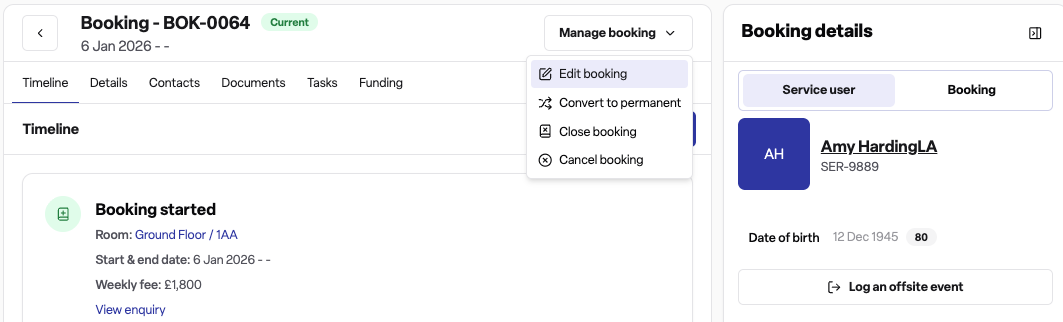
Navigate to Occupancy > Bookings
Select the booking you want to update
Click the Manage booking dropdown > Edit booking > Adjust weekly fee
Step 2:
Enter the following:
Effective date — The date from which this fee will apply
New weekly fee — The updated fee amount
Notes (optional) — Any relevant context for the change
Click Confirm
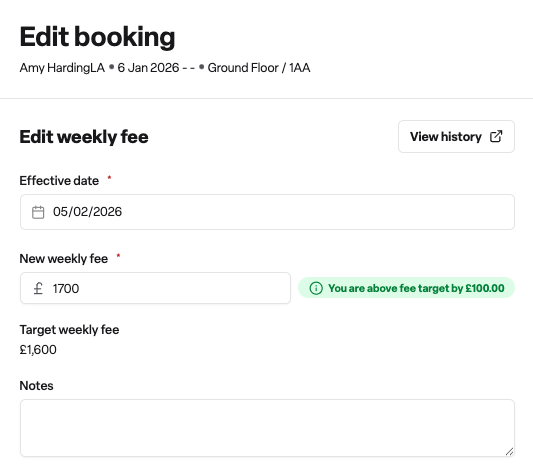
The new fee will automatically become current on the effective date. Previous fees are retained in the history for audit purposes.
Fee comparison badge
When entering a new fee, Found displays a badge showing whether your fee is:
Above target — Higher than the room's target weekly fee
On target — Matches the target weekly fee
Below target — Lower than the target weekly fee
This helps you quickly identify whether the agreed fee meets your expected rates.
How to bulk adjust weekly fees
Use bulk adjustment when you need to apply fee changes across multiple bookings, such as annual rate increases.
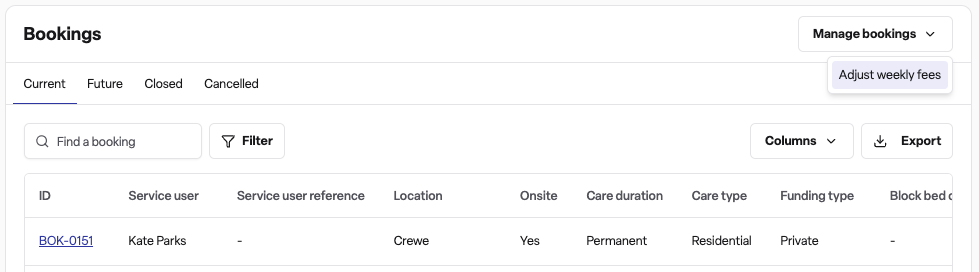
Navigate to Occupancy > Bookings
Click Manage bookings > Adjust weekly fees to open the bulk adjustment panel
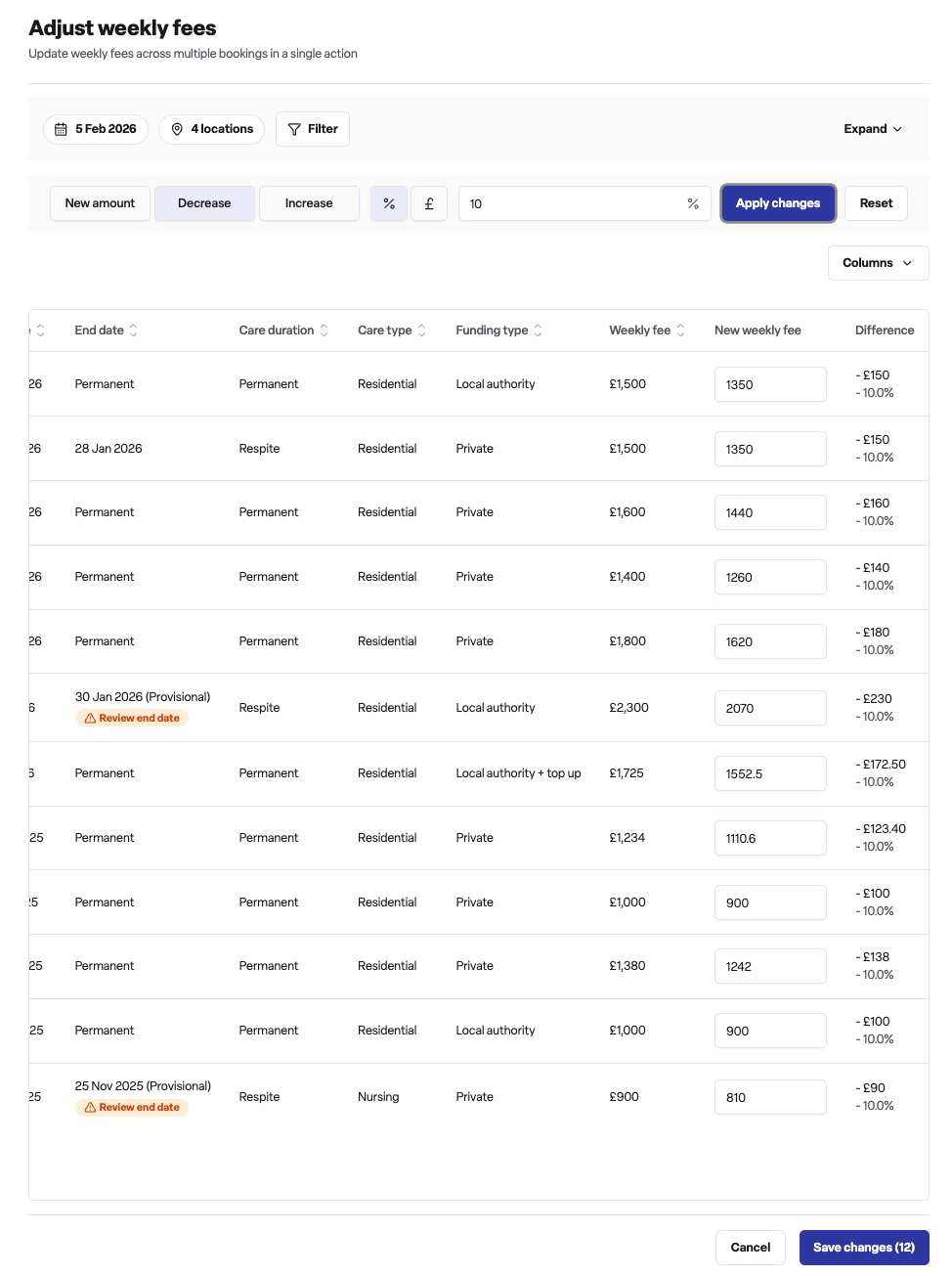
Set your filters:
Effective date — When the new fees should apply
Locations — Which locations to include
Care type, Funding type, Care duration (optional filters)
Choose your adjustment method:
New amount — Set a specific fee for all selected bookings
Increase — Add a fixed amount or percentage to current fees
Decrease — Reduce fees by a fixed amount or percentage
Review the preview table showing current fees, new fees, and the difference
Edit individual fees in the table if needed
Add optional notes to record the reason for the change
Click Save changes to apply changes
Found will process all updates and display a summary showing how many fees were successfully updated.
Block bed contracts
If a booking is part of a block bed contract with a fixed rate, you cannot manually edit the weekly fee for dates within the contract period. The fee is locked to the contracted rate.
For bookings with block bed contracts that allow rate selection, you can choose from the available rates defined in the contract.
Frequently asked questions
Q: What happens to the old fee when I add a new one?
A: The previous fee remains in the booking's fee history but is marked as past. The new fee becomes current from its effective date. This maintains a complete audit trail of all fee changes.
Q: Can I set a fee to start from a future date?
A: Yes. When you set an effective date in the future, the fee is marked as future and will automatically become current when that date arrives.
Q: What if I enter the same effective date as an existing fee?
A: Found will warn you about the conflict. If you proceed, the existing fee on that date will be cancelled and replaced with your new entry.
Q: Can I edit a fee after it has been created?
A: Yes. You can edit the amount and notes on existing fee entries by clicking the edit button in the fee history table.
Q: Why can't I edit the fee for certain dates?
A: If the booking is within a block bed contract period with a fixed rate, the fee is locked to the contracted amount. You will need to select a different effective date outside the block bed assignment period.
Q: What's the difference between agreed fee and target fee?
A: The target weekly fee is the expected rate for a room, set at the room level. The agreed fee is the actual amount negotiated with the funder for a specific booking. Comparing these helps identify bookings that may be under or over the expected rate.
Q: Can I adjust fees for day care bookings?
A: Day care bookings use daily fees rather than weekly fees. The fee adjustment process works the same way, but amounts are shown as daily rates.
Q: How do percentage increases work in bulk adjustment?
A: When you select increase by percentage, Found calculates the new fee by adding the percentage to each booking's current fee. For example, a 3% increase on a £1,000 weekly fee results in a new fee of £1,030.
Q: What happens if some bookings fail during bulk adjustment?
A: Found processes all valid bookings and reports which ones succeeded and which failed. Failed bookings will show an error message explaining why the update could not be applied.
Q: Who can see the fee change history?
A: All users with access to the booking can view the complete fee history, including who made each change and when.