Adding and removing a service user from a block bed contract
Last updated: March 10, 2026
Pro feature: This feature is available on Pro plans only. If you’d like to upgrade your plan, please contact our support team.
Overview
A block bed contract is an agreement between your care home and a commissioning organisation (such as a local authority or NHS trust) to reserve a set number of beds at a contracted rate. Assigning a service user's booking to a block bed contract means their occupancy is tracked under the contract's fee structure rather than individually agreed fees.
You can add or remove a block bed contract assignment directly from a booking's details. This is useful when a service user moves onto or off a block contract mid-booking - for example, if a council decides to fund a resident under a new agreement part-way through their stay.
How to add a service user to a block bed contract
New booking
Update the enquiry stage to Residency Booked or Residency Started to enable the option to add a new booking.
Create a new booking.
On page 3 of the Add Booking journey, locate the Block Bed Contract field
Select the appropriate contract from the dropdown list.
Once all other mandatory fields have been populated, create the booking
Existing booking
Go to Operations in the main navigation.
Open the relevant booking from the bookings list.
Select the Details tab on the booking.
Scroll to the Funding requirements section.
Locate the Block bed contract row and click the edit (pencil) icon.
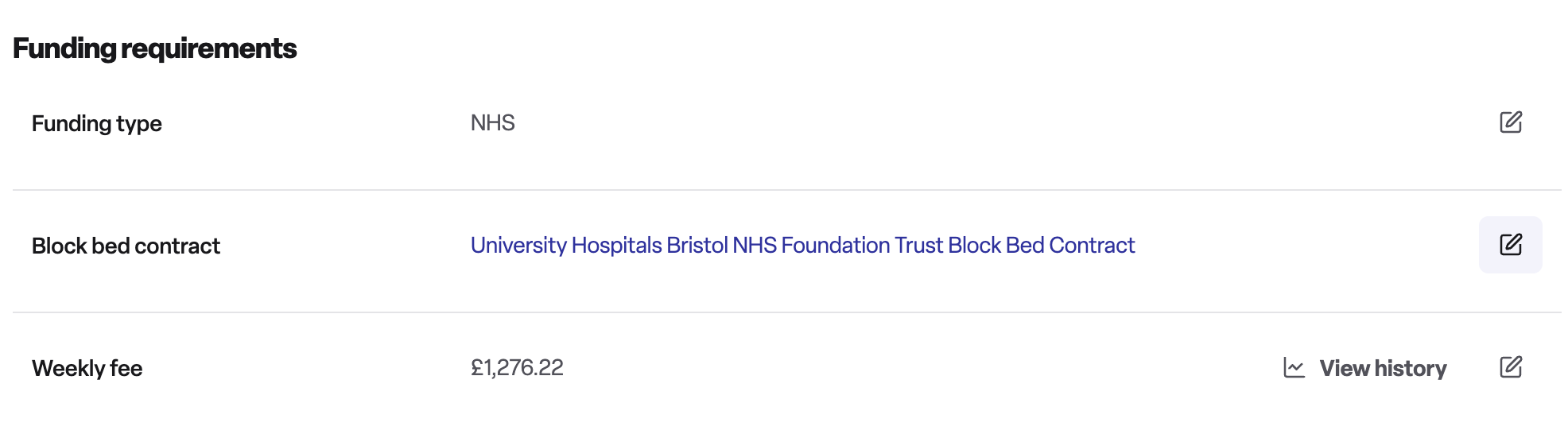
Select the appropriate contract from the dropdown list.
If the contract uses variable fees, select the applicable fee type from the Select fee type dropdown.
Set the Change effective from date - this is the date the assignment takes effect. It must fall within the booking dates.
Click Save.
A confirmation message will appear once the block contract has been updated successfully.
Note: This section is not available for day-care bookings, as block bed contracts apply to permanent and respite care only.
How to remove a service user from a block bed contract
Follow steps 1–5 above to open the block bed contract edit form.
Select No block contract from the dropdown.
Enter the new weekly fee that will apply once the contract is removed. This field is required when removing a contract assignment.
Set the Change effective from date.
Click Save.
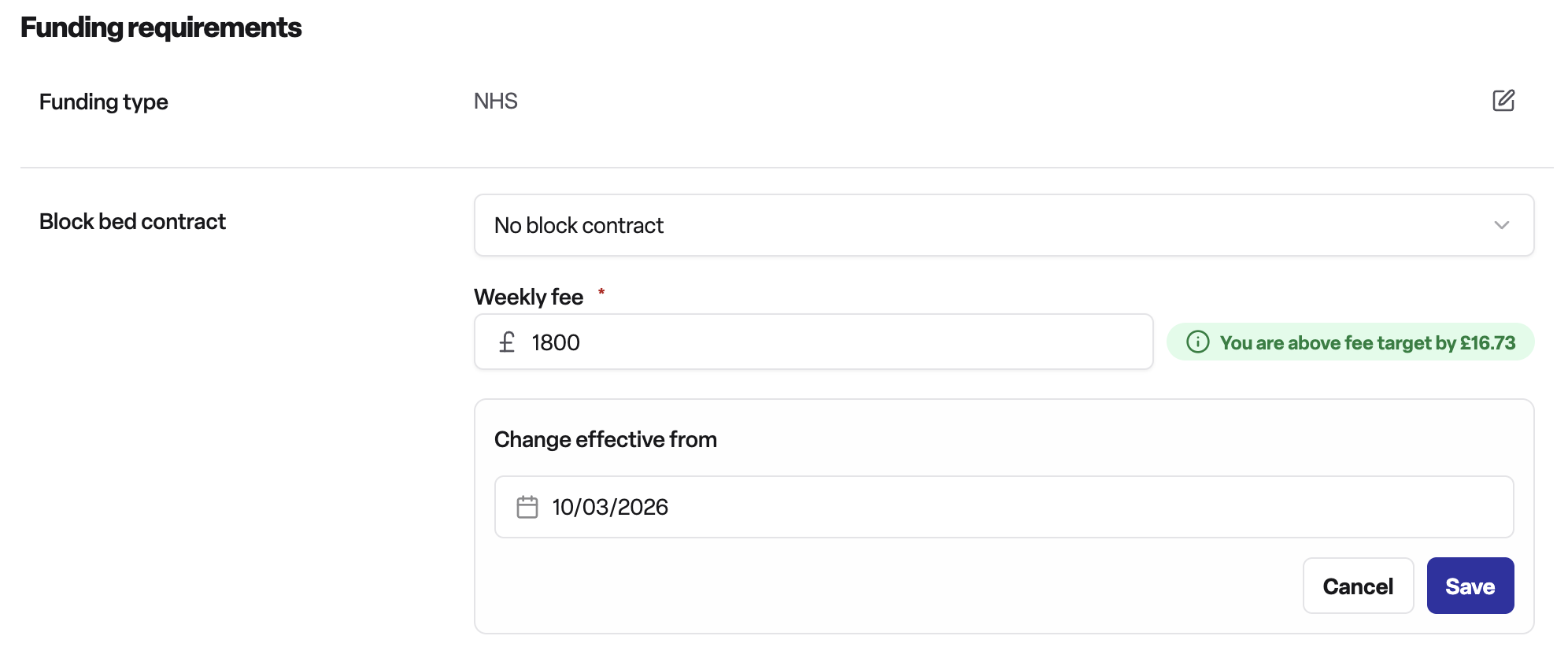
The service user's booking will revert to a manually set fee from the effective date onwards.
Why this is useful
Accurate tracking: Ensures funding arrangements are correctly tracked for each period of a stay.
Mid-stay changes: Handles situations where a funding arrangement changes during a booking without requiring a new booking to be created.
Future-dated changes: The effective date field allows you to schedule a contract change in advance, so the transition happens automatically on the right date.
Audit trail: All assignment changes are date-stamped and visible in the booking's details, supporting transparent financial reporting.
Frequently asked questions
Q: Where do I find the block bed contract section on a booking?
A: It is on the Details tab of a booking in Operations, within the Funding requirements section.
Q: Can I assign any booking to a block bed contract?
A: No. Block bed contracts only apply to permanent and respite care bookings. The block bed contract section is hidden for day-care bookings.
Q: What happens if there is already a future assignment scheduled?
A: If a future contract change is already pending, the edit option will be hidden and an information banner will show the upcoming change and its effective date.
Q: What effective date should I use?
A: Use the date from which the new funding arrangement applies. The date must fall within the booking start and end dates. It defaults to today but can be set to a future date to schedule the change in advance.
Q: Do I need to enter a fee when removing a block bed contract?
A: Yes. When removing a contract assignment, you must enter the weekly fee that will apply from the effective date. This ensures the booking always has a valid fee in place.
Q: Where can I see all service users currently assigned to a block bed contract?
A: Go to the organisation that holds the contract, open the relevant block bed contract, and select the Block bed assignments tab. This lists all assignments with their status (future, current, or complete), booking details, room, and care type.
Q: Can I assign the same booking to multiple block bed contracts at the same time?
A: No. A booking can only have one active block bed contract assignment at any given time. You can schedule a future change to a different contract using the effective date.
Q: What fee types are available for variable-rate contracts?
A: This depends on how the contract was set up. Variable-rate contracts may offer fee types such as fixed, void, or occupied rates. The available options will appear in the fee type dropdown when you select a variable-rate contract.