Setting up day care sessions
Last updated: May 12, 2026
Pro feature: This feature is available on Pro plans only. If you’d like to upgrade your plan, please contact our support team.
Overview
Day care sessions in Found allow you to define the timed care slots your location offers on a day-by-day basis. Once sessions are set up, your team can view real-time availability, manage sessions against each slot, and track fees and capacity changes over time. This article explains where to find the session configuration, what each field means, and how sessions flow into the day care schedule.
Where to find day care sessions
Day care sessions are configured at the location level, not in the Operations tab directly. To reach the settings page:
Navigate to Locations in the main sidebar.
Select the relevant location.
Open the Day care tab within that location.
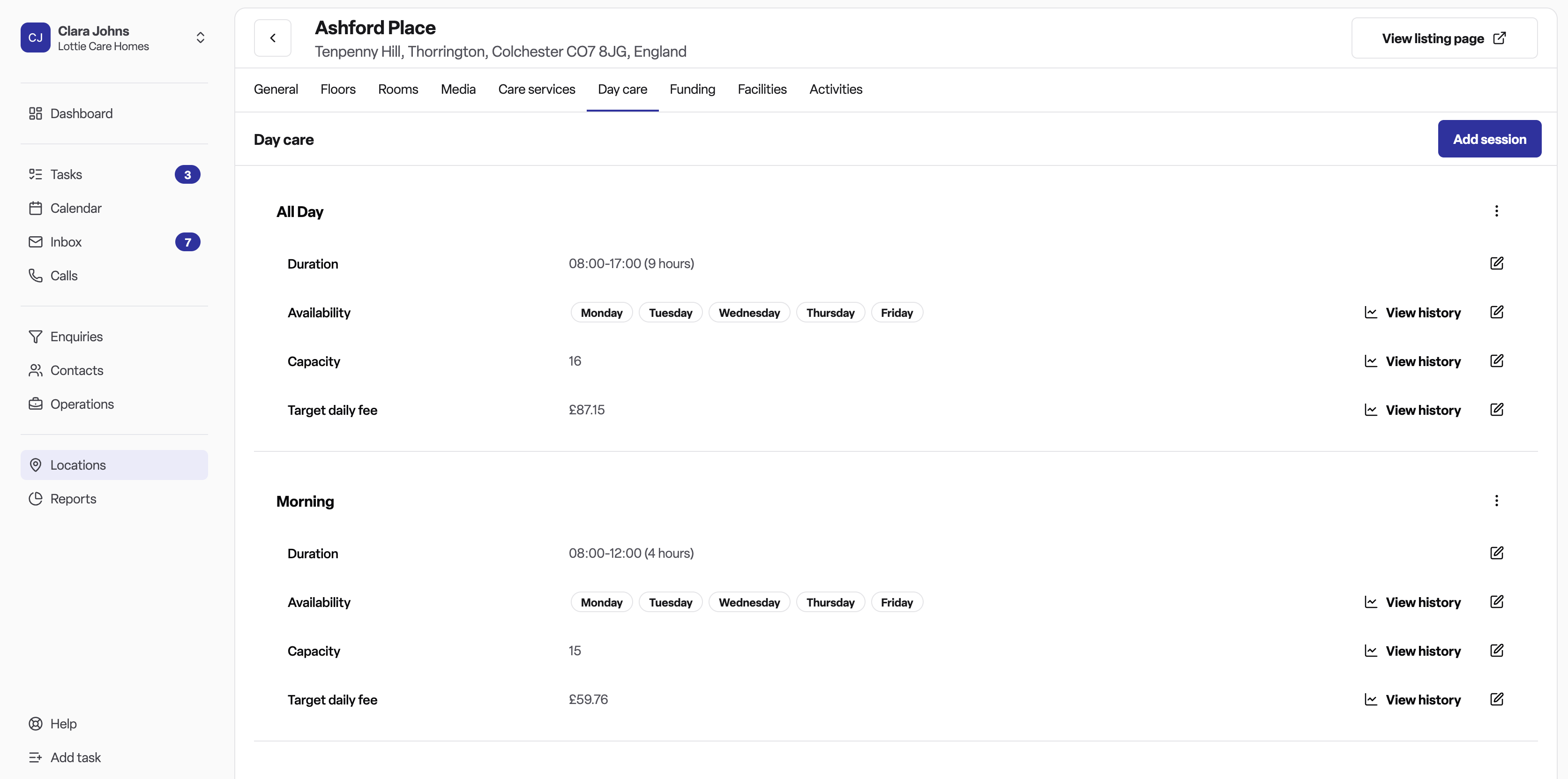
The Operations > Day care page is where you view and manage live bookings against your configured sessions. Sessions themselves are defined in the location record.
How to add a session
From the Day care tab on a location record, click Add session. A side panel will open with the following fields:
Field | Description |
Name | A label for the session (e.g. "Morning session", "Full day"). This appears on the schedule view. |
Start time | The time the session begins. Must be before the end time. |
End time | The time the session ends. |
Availability | The days of the week the session runs. Select one or more days. |
Capacity | The maximum number of service users that can be booked into this session on any given day. |
Target daily fee | The standard fee (£) charged per service user per day for this session. |
Effective from | The date from which these settings apply. |
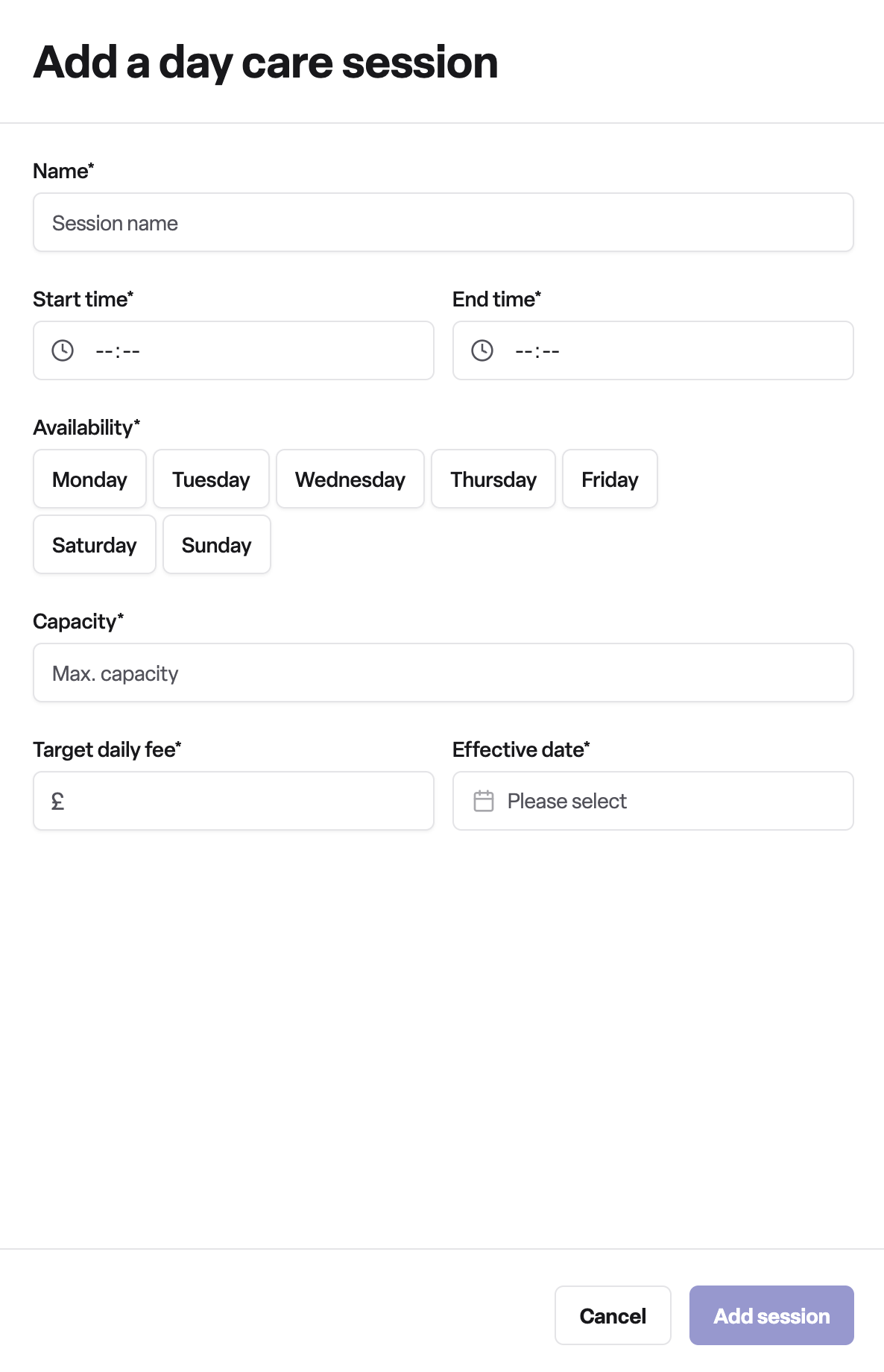
All fields are required. Click Add session to save.
Managing an existing session
Each session card on the Day care tab displays the current values for duration, availability, capacity, and target daily fee. Any of these can be edited inline by clicking the edit icon next to the relevant field.
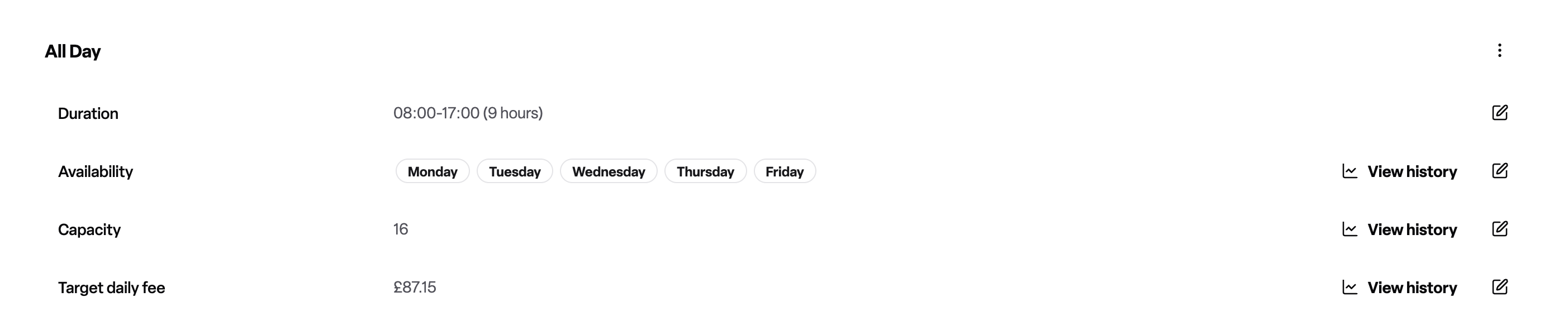
Important: Changes to duration, availability, capacity, and fee are all effective-dated. When you save a change, you must specify the date from which the new value applies. This preserves a full audit history of what changed and when.
You can view the history of capacity, availability, and fee changes by clicking View history next to the relevant field.
A future fee change or future capacity change will be highlighted with a badge on the session card, so your team can see upcoming changes before they take effect.
Viewing the day care planner
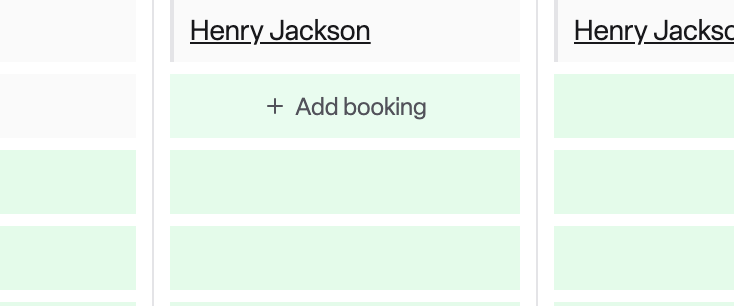
Once sessions are configured, go to Operations > Day care > Planner and select the location from the drop down to see the weekly schedule. This view shows:
Each session as a row, with the session name and time range.
Columns for each day of the week (Monday to Friday by default; weekends appear if any session runs on those days).
Available slots and current bookings for each session per day.
A location selector at the top — if your organisation has multiple locations, choose the relevant one from the dropdown.
Week navigation to move forwards and backwards through the calendar.
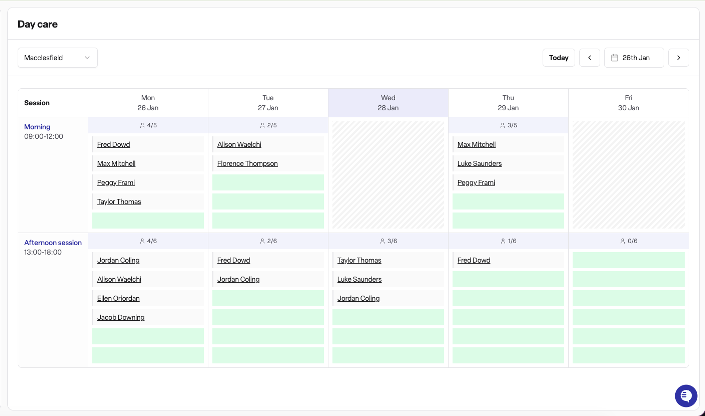
To add a session from this view, click on a cell in the schedule. The booking form will open with the session and date pre-filled.
If no sessions have been configured yet, the schedule will display:
"No day care sessions set up — You haven't set up any sessions for this location. Go to Locations > Day Care to create your first one."
Why this is useful
Operational visibility - your team can see at a glance how many spaces are available in each session on any given day, without needing to manually track them.
Accurate fee records - effective-dated fees mean you can schedule a fee increase in advance and the history is automatically recorded against each session.
Flexible scheduling - sessions can run on any combination of days, with different start and end times, so part-day and full-day options can coexist.
Bookings integration - the schedule connects directly to the booking workflow, so adding a day care booking pre-fills the relevant session and date.
Frequently asked questions
Q: I can't see the "Add session" button on the Day care tab. Why?
A: The button only appears if the Day care feature is enabled for your workspace and if "Day" is set as an accepted care duration on the location. Check the Care services tab on the location record, or contact your administrator.
Q: Can I set up different sessions for weekdays and weekends?
A: Yes. When creating or editing a session's availability, you can select any combination of days including Saturday and Sunday. The schedule view will automatically expand to show weekend columns if any session runs on those days.
Q: What happens if I need to increase target fees from a future date?
A: Edit the target daily fee on the session card and set the effective date to the future date. The current fee remains in place until that date. A future fee change badge will appear on the session card to alert your team.
Q: Can I change the capacity of a session if demand increases?
A: Yes. Edit the capacity field on the session card and provide an effective date. The change will take effect from that date and the previous capacity value is recorded in the history.
Q: What is the difference between target daily fee and the fee charged to a service user?
A: The target daily fee is the standard rate used as a reference when creating bookings. The actual fee agreed with a service user or funder may differ and is set at the booking level.
Q: How do I book a service user into a day care session?
A: Navigate to Operations > Day care > Planner and click on the relevant cell. Note that only service users with an existing booking can be added from the schedule view — first-time bookings must be converted from an enquiry.
Q: I see "No location selected" on the Operations > Day care page. What do I do?
A: Use the location selector dropdown at the top of the page to choose a location. If only one location exists, it will be selected automatically.