How to bulk update your pricing
Last updated: April 14, 2026
Overview
The bulk update function allows Admins to efficiently update pricing and availability information for multiple locations at once using a CSV file. This feature is available on the Locations tab and is designed for care home and home care location types.
Who can use this feature?
This feature is only available to users with:
Admin role in the workspace
Location pricing feature enabled for your organisation - Care Home and Home Care, bulk updates are not available for Retirement Living partners.
How to use bulk update
Step 1: Prepare your CSV file
Download your current data first – Export your locations to get the correct UUIDs and current pricing from the Locations tab in Found
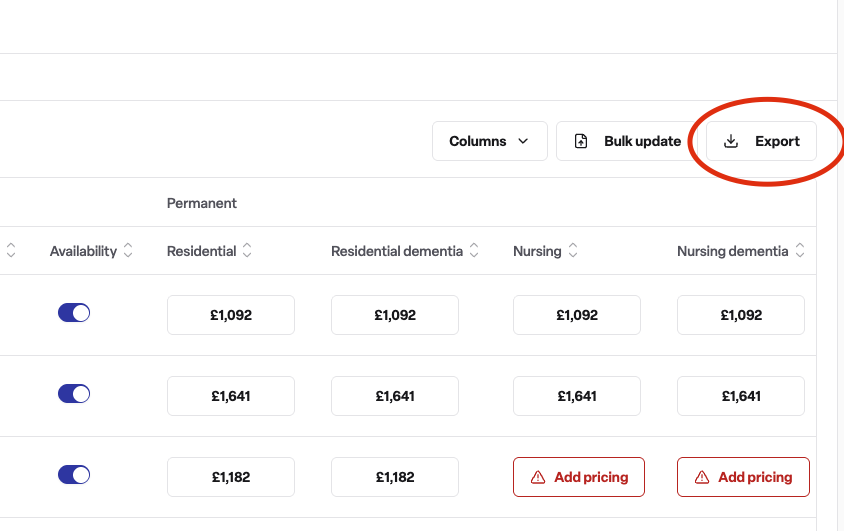
Update your pricing as necessary
Save as an updated CSV file
Example CSV format:
Name | Brand | Priority Locations | Availability | Residential(permanent) | Residential dementia (permanent) | Nursing (permanent) | Nursing dementia (permanent) | Residential (respite) | Residential dementia (respite) | Nursing (respite) | Nursing dementia (respite) | Location UUID |
Lottie Care Home | Lottie Provider | active | TRUE | 1000 | 1000 | 1000 | 1000 | afcfc829-212c-xxxx | ||||
Lottie Care Home | Lottie Provider | inactive | FASLE | 1000 | 1000 | 1000 | 1000 | afcfc829-212c-xxxx |
⚠ Please Note: Pricing will be deleted in Found if cells in the csv upload are left empty.
File requirements:
Maximum file size: 5 MB
Price values must be between £100 and £10,000
The Found Location UUID column must be the last column in the CSV
Pricing field requirements:
For care home locations:
Column name | Description |
Residential | weekly price |
Residential dementia | weekly price |
Nursing | weekly price |
Nursing dementia | weekly price |
For home care locations:
Column name | Description |
Hourly care | Price per hour |
Live-in care | Price per day |
Overnight (sleeping) | Price per night (sleeping) |
Overnight (Awake) | Price per night (awake) |
Step 2: Upload your file
Navigate to the Locations tab
Click the Bulk update button (visible to Admins only)
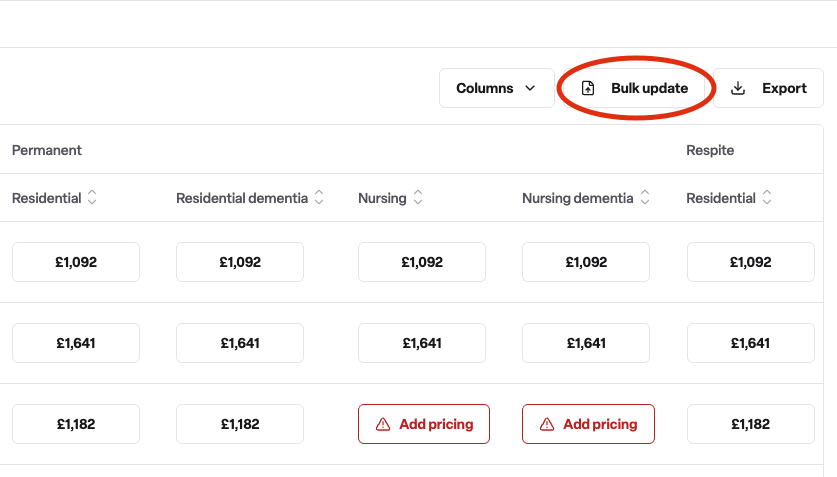
A side panel will open with a file upload area
Drag and drop your CSV file, or click to browse and select it
Step 3: Review the preview
Before any changes are applied, Found will show you a preview of:
How many locations will be updated
How many pricing or availability field changes will be made
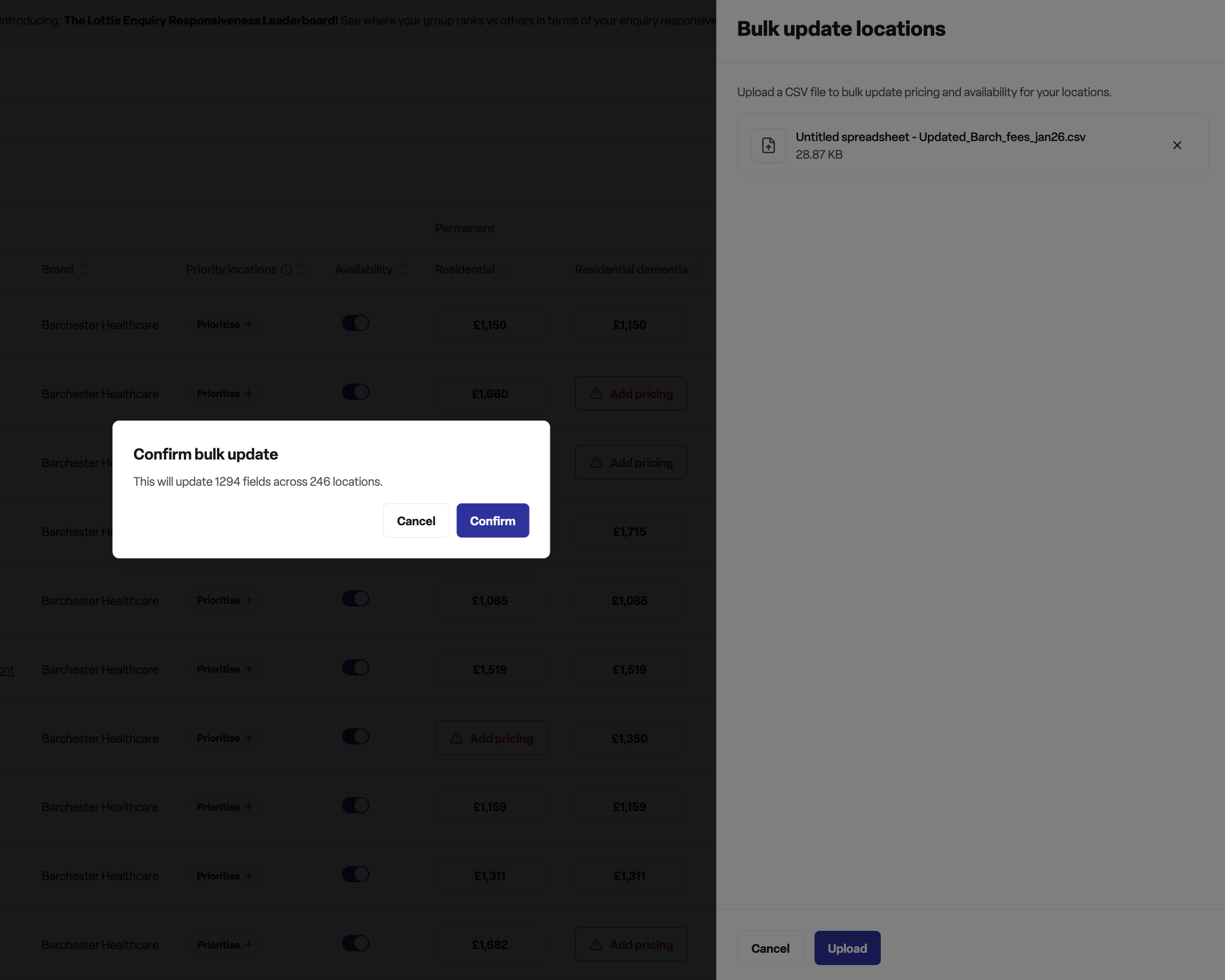
This preview step ensures you can verify changes before they take effect.
Step 4: Confirm and apply changes
Review the change summary carefully
Click Confirm to apply the changes
Found will process each location and update the pricing
Please note: this may take a few minutes depending on the number of fields being updated.
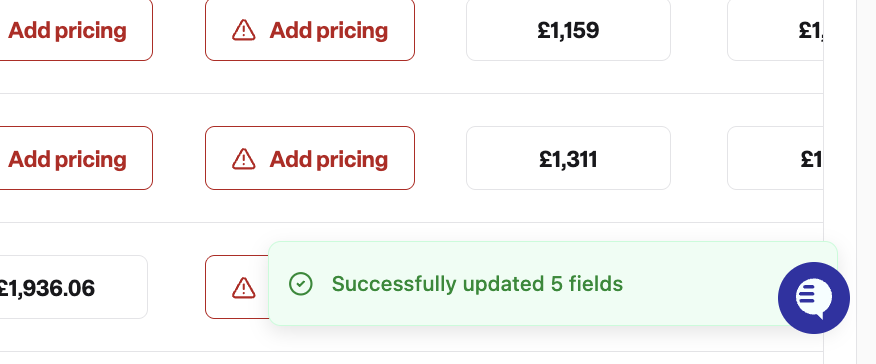
You will see a success message when complete, or error details if any updates failed
Upload Errors
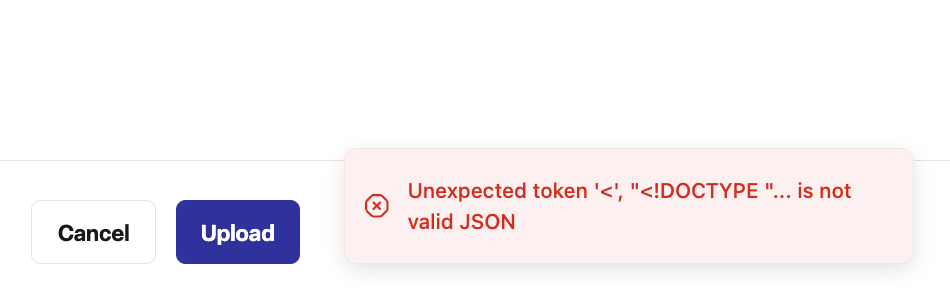
If you receive the error
Unexpected token '<', ,!DOCTYPE"... is not valid JSONthis means one of your pricing values does not match our criteria and may be too big or small. Please double check the updated pricing in your CSV.
Availability updates
You can also update location availability in your CSV file:
Add an Availability column
Use "yes", "true", or "available" to mark a location as available
Use "no", "false", or "unavailable" to mark a location as unavailable
Tips for success
Download your current data first – Export your locations to get the correct UUIDs and current pricing
Check column names – Column headers must match exactly as shown above
One location type per file – Care home and home care locations have different pricing columns
Test with a small batch – Try updating a few locations first to confirm your file format is correct
Leave a cell empty to remove pricing - If you want to remove certain care types pricing, export your Found pricing data, delete the cells and re-upload.
Frequently asked questions
Q: Why can't I see the bulk update button?
A: The bulk update button is only visible to workspace Admins. If you are a manager or have a different role, you will not see this option. Contact your organisation's admin if you need pricing updated in bulk.
Q: Can I update both pricing and availability in the same file?
A: Yes. You can include both pricing columns and an availability column in the same CSV file.
Q: What happens if I leave a price cell empty?
A: Empty cells will clear the existing price for that care type, setting it to no price listed.
Q: Can I use this feature for retirement living locations?
A: No. Bulk pricing updates are only available for care home and home care location types. Retirement living locations are not supported.
Q: What if my upload fails part way through?
A: Found processes locations individually. If some updates fail, you will see an error message. You can then fix the issues and re-upload the file.
Q: Is there a limit to how many locations I can update?
A: Yes. Each CSV file can contain a maximum of 500 locations. If you need to update more locations, split them across multiple files.
Q: What price range is allowed?
A: Prices must be between £100 and £10,000. Values outside this range will be rejected.
Q: Can I undo changes after applying them?
A: There is no automatic undo function. If you need to revert changes, you will need to prepare another CSV file with the original values and upload it.
Q: Why do I see a conflict error when applying changes?
A: If another user updates the same location between when you previewed and when you confirmed, Found will detect this conflict to prevent overwriting their changes. Refresh your preview and try again.