How to update your care home listing information
Last updated: April 22, 2026
Overview
This guide explains how to update and manage your care home listing information in Found. You can update details about your facilities, services, activities, funding options, and media to ensure your care home listing is accurate and up-to-date.
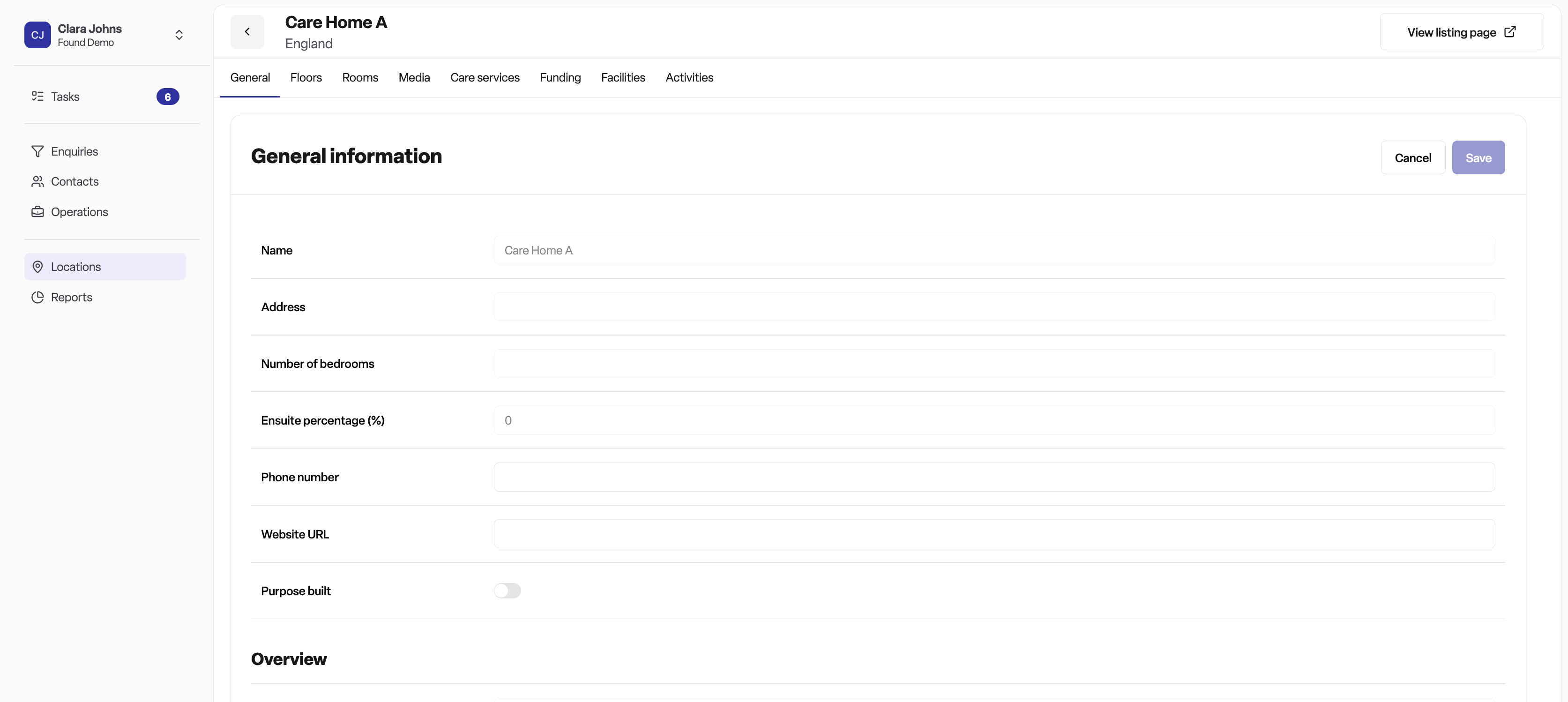
Navigating to your care home listing
Step 1: Access the Locations section
From the main menu, click on Locations
Select the Care home tab
You'll see a table showing all care homes
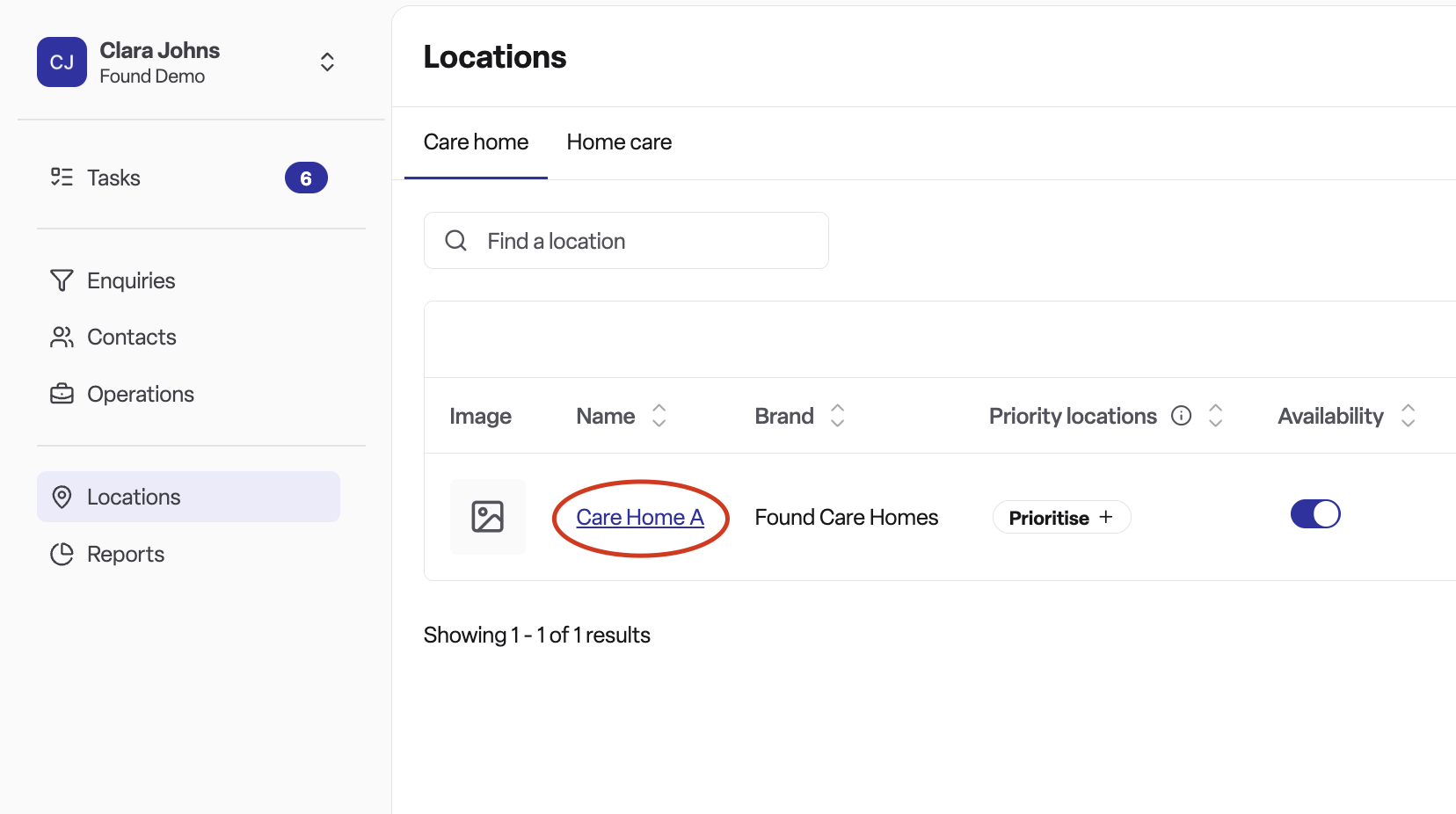
Step 2: Find your care home
Use the search box to find your care home by name
Or scroll through the list to locate it
Click on the care home name to open the editing interface
Step 3: Navigate between sections
Once you've opened a care home, you'll see multiple tabs at the top:
General - Contact information and basic details
Care Services - Types of care and specialisms offered
Funding - Accepted payment methods
Facilities - Available amenities and features
Activities - Activities and programmes offered
Media - Photos, videos, and virtual tours
Click on any tab to edit that section of information.
What you can update
1. General information
What you can edit:
Phone number - Your main contact number
Website URL - Link to your care home's website
Purpose built - Toggle to indicate if your facility was purpose-built as a care home
What you cannot edit: The following information is display-only and cannot be changed through this interface:
Care home name (note: "Care Home" is automatically added as a suffix to all listing names for SEO purposes and cannot be changed)
Address
Number of bedrooms
Ensuite percentage
CQC Rating ID
Overall rating
Overview description (120-word limit)
Care home logo (contact support with high‑resolution PNG file to update)
Funding types accepted
Special Offers
If you would like to update this information please contact our support team.
2. Care services
This section defines the types of care you provide.
Minimum age
Enter the minimum age for residents (0-100 years)
Care duration
Permanent care - Always included
Respite care - Tick if you offer short-term respite stays
Day care - Tick if you offer day services
Accepted care types Select all that apply:
Residential care
Nursing care
Dementia care
Minimum respite stay If you offer respite care, select the minimum stay period from the dropdown (options range from 1 day to 12 weeks)
Pre-bookable respite Indicate whether respite care can be booked in advance:
Toggle to "No" if respite cannot be pre-booked
Select "Contact home for more info" if arrangements need to be made
Or choose how far in advance respite can be booked (options from 1 week to 12 months)
Care specialisms Toggle each specialism your care home offers:
Dementia/Alzheimer's disease
Substance abuse
Physical disability
Mental health
Challenging behaviour
Rehabilitation services
Sensory disability
3. Funding
This defines the funding types you accept for each location:
Private - Self-funded residents
Local authority - Council-funded placements
Local authority + top up - Part council-funded with private top-up
NHS/Care Commissioning Groups - NHS-funded placements
To update which funding types your care home accepts, please email support@app.lottie.org with your requested changes, this cannot be updated in Found.
4. Facilities
Predefined facilities Click the dropdown to select from available facilities:
Activity room, Bar, Café/Restaurant, Cinema, Computer room
Dining area, Family room, Gardens, Gym
Hair & beauty salon, Library, Lift, Meditation area
Own furniture allowed, Pets allowed, Pets can live with residents
Pets can visit, Private dining area, Quiet area, Spa
Terrace area, WiFi
Additional facilities Add custom facilities not in the predefined list:
Type the facility name in the text box
Click "Add" or press Enter
Repeat for each additional facility
Click the X next to any facility to remove it
5. Activities
Predefined activities Click the dropdown to select from available activities:
Arts & crafts, Baking/Cooking, Beer/Cocktail/Wine
Birthday & holiday celebrations, Book & poetry
Children visits, Dance & music, Exercise & fitness
Gardening & flower arranging, Hair & beauty treatments
Meditation & yoga, Wellbeing classes
Additional activities Add custom activities not in the predefined list:
Type the activity name in the text box
Click "Add" or press Enter
Repeat for each additional activity
Click the X next to any activity to remove it
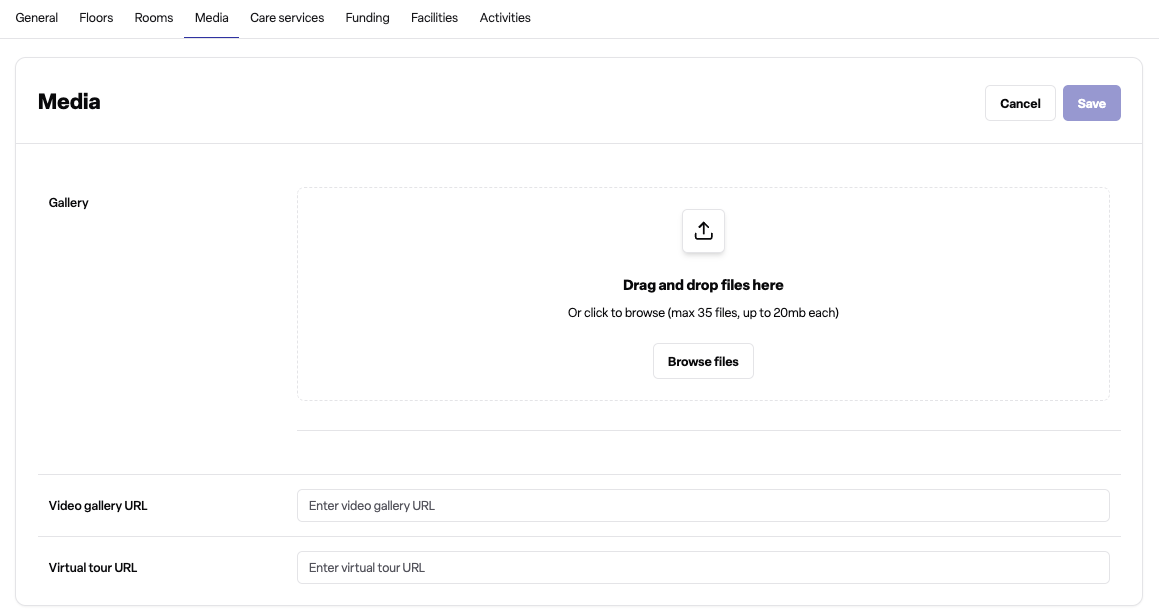
6. Media
Photo gallery
Click the Upload button to add new photos
Select one or multiple photos from your computer
Drag and drop photos to reorder them
Click the delete icon on any photo to remove it
Please note you can only add images in PNG or JPG format up to 20GB
Video gallery URL
Enter the link to your video gallery (YouTube or Vimeo)
Leave blank if you don't have a video gallery
Virtual tour URL
Enter the link to your virtual tour
Leave blank if you don't have a virtual tour
Current limitations
Award logos cannot be added to listing pages
FAQs are standardised across all listings and cannot be customised for individual care homes
How to save your changes
Each section works independently:
Make your changes in any section
Click the Save button
Wait for the confirmation message
If you want to discard changes, click Cancel to reset the form
Important: Changes are only saved when you click the Save button. If you navigate away without saving, your changes will be lost.
Tips for completing your listing
Photos
Use high-quality, well-lit photos
Show a variety of spaces (bedrooms, communal areas, gardens)
Put your most representative photo first (it appears at the top)
Custom facilities and activities
Be specific when adding custom items
Use clear, simple language
Keep information current
Review your listing regularly
Update information as your services change
Complete all relevant sections
Fill in all sections that apply to your care home
Use the predefined options where available
Frequently asked questions
Q: Why can't I edit the care home name or address?
A: These details are managed through external data sources and cannot be edited through this interface.
Q: Can I add photos later if I don't have them now?
A: Yes, you can return to the Media section at any time to add, remove, or reorder photos.
Q: What if I make a mistake?
A: Navigate back to the relevant section, make your corrections, and click Save again.
Q: Do I need to fill in every section?
A: Only fill in sections that are relevant to your care home. However, more complete information provides a better listing.