Calendar scheduler: Syncing your Outlook availability
Last updated: July 28, 2026
Overview
When your team uses the calendar scheduler in Found to book viewings, assessments and other events, you can connect Microsoft Outlook so that each host's existing Outlook calendar is taken into account when working out availability. This stops Found offering slots when a host already has a meeting, viewing or appointment in Outlook — and avoids double bookings.
The sync is read-only: Found reads each host's busy times from Outlook but does not create or change anything in Outlook itself.
Outlook syncing is part of the wider Microsoft 365 integration in Found, which is also used for sending and receiving emails. Connecting Outlook switches both on. Calendar availability syncing is currently in beta — if you don't see Outlook listed under integrations or you don't see the sync indicator in the scheduler, speak to your admin or account manager.
How to use it
Connect an Outlook account
This is done by an admin once per workspace. You can connect more than one Microsoft account if your team uses different tenants.
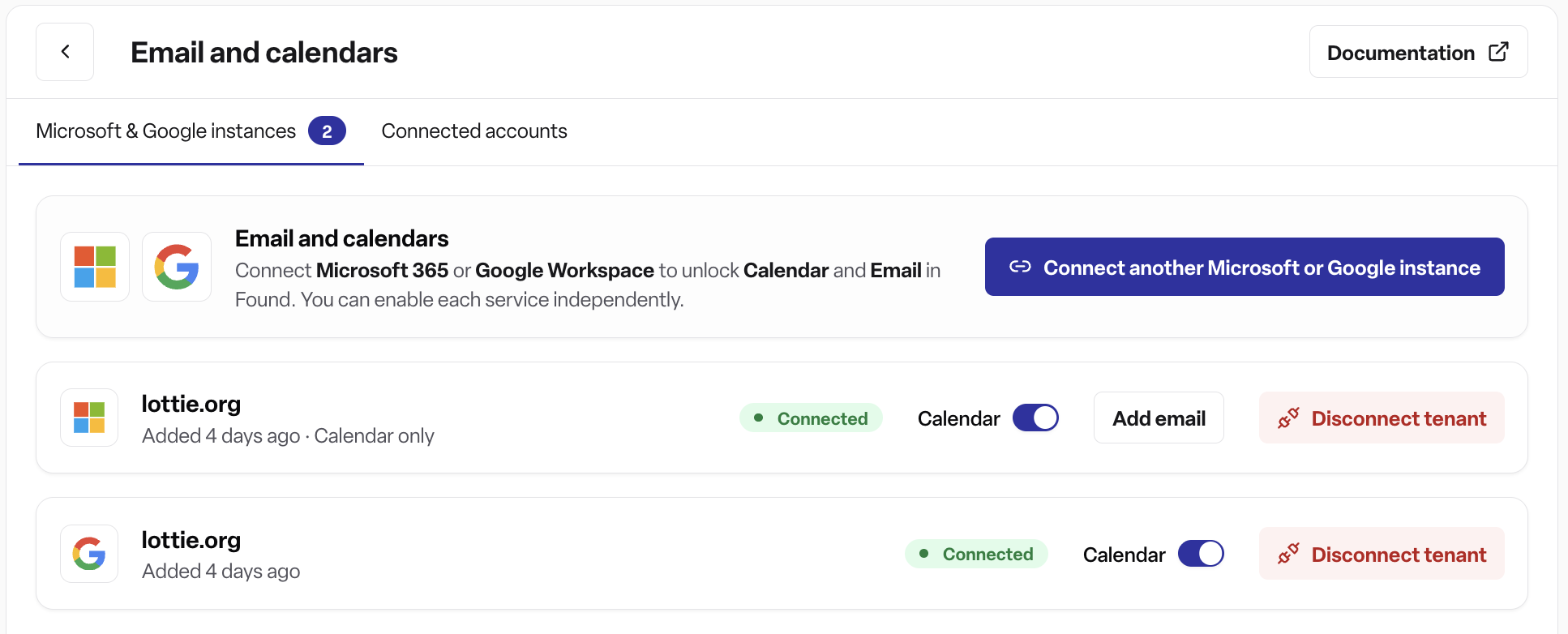
Go to Settings → Integrations → Email and calendars. The page is titled Microsoft Outlook and includes a short description: "Connect your Microsoft and or Google instance" to send and receive emails directly from Found."
If no account is connected, click Connect account.
You'll be redirected to Microsoft to sign in and authorise Found. While the connection is being set up, the button shows Connecting… with a spinner.
Once you return, the connected account is shown with:
The display name or email of the connected account
A sync status badge
The email address
The last time the account synced (for example "Last synced 5 minutes ago")
Check sync status
The badge next to the connected account tells you the state of the connection:
Active — green, the account is syncing normally
Syncing — grey, an initial sync is in progress
Pending — grey, the account has been added but hasn't synced yet
Error — red, something went wrong with the sync
Disconnected — red, the connection has been lost
If you see Error or Disconnected, disconnect and reconnect the account.
Disconnect an Outlook account
On the same page, click Disconnect next to the connected account.
A confirmation dialog appears titled Disconnect email account with the message: "Are you sure you want to disconnect [email]? You will no longer be able to send or receive emails from this account."
Click Disconnect to confirm, or Cancel to keep the connection.
Disconnecting also turns off the calendar availability sync for any hosts using that account.
Use the sync when scheduling an event
The sync runs automatically whenever someone schedules an event — there's nothing extra for the person booking to switch on.
When you're in the New event step of the schedule event modal:
Hosts whose Outlook calendar has been checked have a small calendar icon next to their name, with the tooltip "Availability synced from Microsoft calendar".
Above the time slot list, you'll see a short status line:
"Checking Microsoft calendar availability…" while Found is fetching the data
"Availability synced from Microsoft calendars" when at least one host's Outlook was successfully read
"No Microsoft calendars synced" if no Outlook data is being used (for example, none of the selected hosts have a connected Outlook account)
Slots where one or more selected hosts have an Outlook event are removed automatically, so you only see times when everyone is genuinely free.
If a host's Outlook is not connected, the scheduler simply falls back to checking that host's events in Found — they can still be picked, they just won't be checked against Outlook.
Override mode
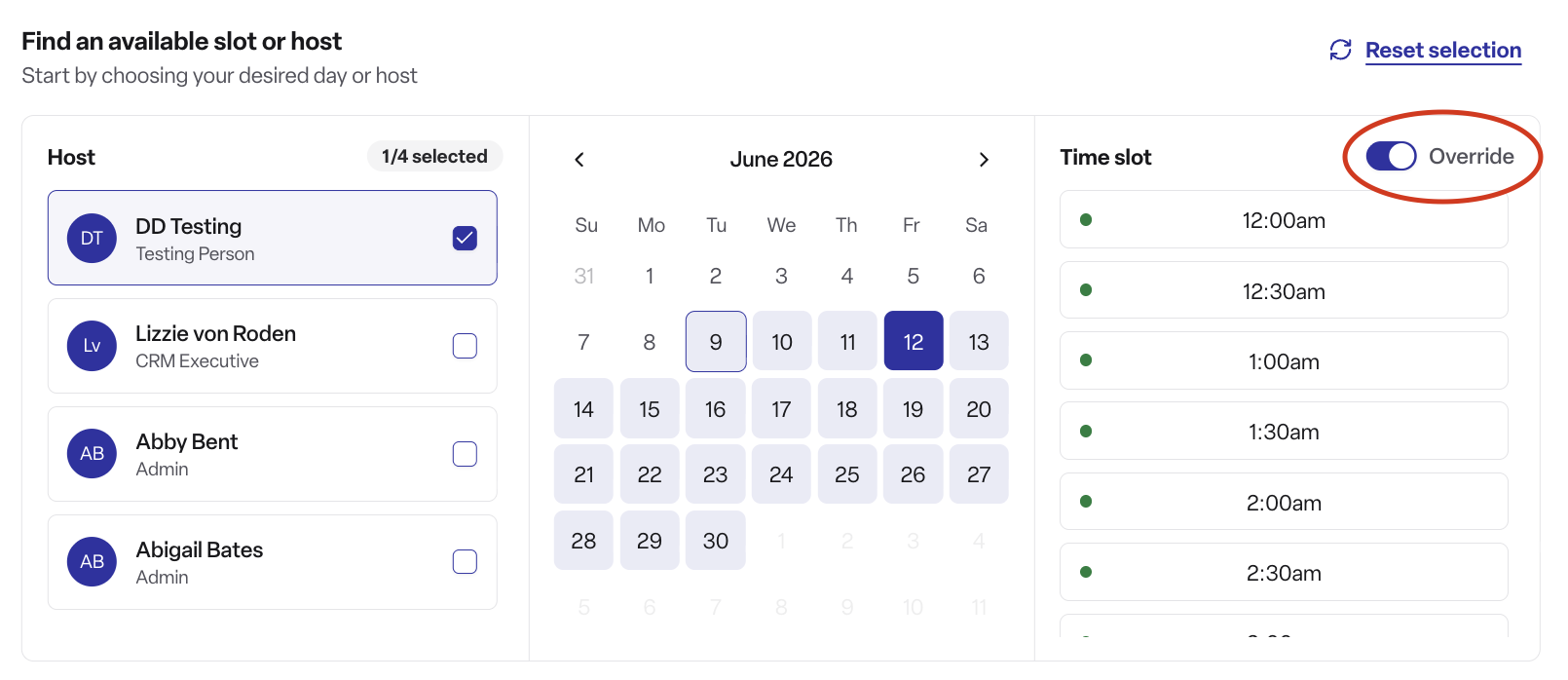
If you turn on Override in the new event step — or if you pick a past date, which switches override on automatically — the Outlook sync note is hidden and every 30-minute slot is offered. Use override when you need to record an event that's already happened or book outside the normal available hours.
How the sync works
The sync is triggered on demand each time someone uses the scheduler — there's no fixed polling schedule.
Found only reads busy intervals — it doesn't read the title, attendees or notes of the events in Outlook.
The sync is per host: each host's Outlook calendar is queried individually using the workspace's connected Microsoft account.
The sync is read-only: Found never creates, edits or deletes anything in Outlook.
Multiple Microsoft accounts can be connected to the same workspace, so different parts of your team can be on different tenants.
Rules and things to know
The Outlook integration is shared with email — connecting it enables both email send/receive and (where the scheduler feature is available) calendar availability syncing.
Calendar availability is read-only. Events booked in Found do not show up in Outlook.
A host needs to have an active mailbox on a connected Microsoft account for their availability to be cross-referenced.
If the sync status is Error or Disconnected, availability for that account's hosts falls back to Found events only until the connection is restored.
Disconnecting an Outlook account stops all syncing for that account immediately. It does not delete events that have already been booked in Found.
Who can do this
Connecting or disconnecting an Outlook account — requires the integrations permission. Admins have this by default.
Viewing the integration settings page — requires the email integration view permission.
Setting hosts on event types (so they show up in the scheduler in the first place) — admins and managers, from Settings → Scheduling.
Using the sync when scheduling an event — anyone scheduling an event automatically benefits from it; no extra permission is needed.
Frequently asked questions
Q: What does syncing Outlook availability do? A: It lets Found check each host's Outlook calendar when working out available slots, so the scheduler won't offer times when a host is already busy in Outlook.
Q: Where do I connect Outlook? A: Settings → Integrations → Outlook, then click Connect account.
Q: Does Found create events in my Outlook calendar? A: No. The connection is read-only — Found reads busy times from Outlook but never writes anything back.
Q: What does Found read from my Outlook? A: Only busy intervals — the times you are busy. Found doesn't read event titles, attendees or notes.
Q: How often does it sync? A: There's no fixed schedule. The sync runs on demand each time someone uses the scheduler, so the data is always fresh.
Q: Can we connect more than one Microsoft account? A: Yes. Multiple Microsoft accounts can be connected to the same workspace.
Q: How do I know a host's Outlook is being used? A: In the new event step of the schedule event modal, hosts with a connected Outlook have a small calendar icon next to their name, with the tooltip "Availability synced from Microsoft calendar". The status line above the time slots also confirms when sync is active.
Q: What does "No Microsoft calendars synced" mean? A: It means none of the hosts you've picked have Outlook data available for this booking, so the scheduler is using only the events recorded in Found.
Q: What if a host doesn't have Outlook connected? A: They can still be picked as a host — the scheduler just uses their Found events to work out availability for them.
Q: The status badge shows "Error" — what should I do? A: Disconnect and reconnect the account. If the error persists, contact your account manager.
Q: What happens if I disconnect Outlook? A: Email syncing stops, and calendar availability syncing also stops for that account. Events already booked in Found are not affected. You can reconnect at any time.
Q: Will events I book in Found appear in my Outlook calendar? A: No — the sync only runs one way (Outlook → Found). Found events stay in Found.
Q: Who can connect or disconnect Outlook? A: Admins, from Settings → Integrations → Outlook.
Q: Do staff who book events need their own Outlook connected? A: Only if their availability needs to be checked as a host. People who book events for others don't need their own Outlook connected.