Understanding the Calendar tab
Last updated: June 8, 2026
Pro feature: This feature is available on Pro plans only. If you’d like to upgrade your plan, please contact our support team.
Overview
The Calendar tab in Found provides a centralised view of all your care-related activities, events, and important dates across your organisation. It helps you track visits, assessments, care start dates, service user birthdays, and booking starts in one convenient location.
The Calendar is designed to help care teams stay organised by displaying upcoming events and milestones, filtered by location and team member. Whether you're managing a single location or multiple sites, the Calendar gives you visibility into what's happening and when.
Key features
Multiple view options
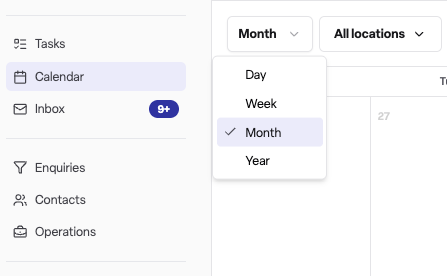
The Calendar offers four different ways to view your schedule:
Day view: Shows a single day with an hourly timeline, ideal for detailed daily planning
Week view: Displays a 7-day grid with hourly timelines and multi-day events, perfect for weekly planning
Month view: A traditional calendar grid showing event badges for each day, useful for getting an overview of the month ahead
Year view: A compact 12-month overview with event indicators, helpful for long-term planning
Event types
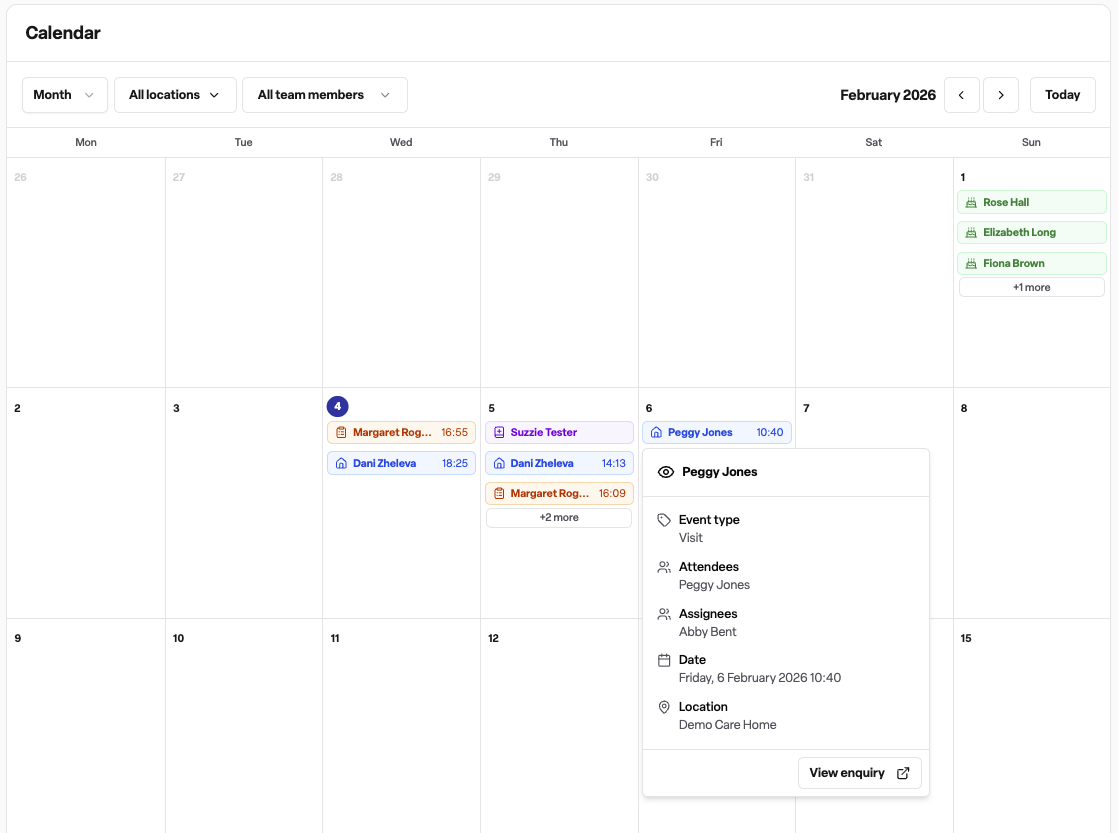
The Calendar displays several types of events, each colour-coded for easy identification:
Visits (blue): Scheduled visits with service users
Assessments (orange): Planned assessment appointments
Birthdays (green): Service user birthdays, showing the age they're turning
Booking starts (purple): Dates when new bookings commence
Filtering options
You can filter the Calendar to show only what's relevant to you:
By location: Select one or more locations to view events from specific sites
By team member: Choose specific team members to see their assigned events, or view all team members' events
How to use the Calendar
Navigating the Calendar
Click on the Calendar tab in the main navigation
Use the filter dropdown's to configure your view
Use the arrow buttons to move forward or backward through dates
Click the Today button to jump back to the current date
Filtering events
Click the Location dropdown to select which locations you want to view
Click the Team member dropdown to filter by specific assignees
Your selections are applied immediately to the Calendar view
Viewing event details
Click on any event badge or block in the Calendar
A popover will appear showing the full event details including:
Event type and title
Date and time
Location
Attendees (service users and contacts)
Assigned team members
Description
Click the link in the popover to navigate to the related record (enquiry, booking, or service user profile)
Why the Calendar is useful
Centralised scheduling: See all your care events, visits, and milestones in one place rather than checking multiple screens
Team coordination: View what colleagues are doing and when, helping prevent scheduling conflicts
Multi-location visibility: Managers can view events across multiple sites simultaneously
Never miss important dates: Birthdays and care start dates are automatically displayed, ensuring you're prepared for key milestones
Quick access to records: Click through from any event to view the full details in the related record
Frequently asked questions
Q: How do I change the Calendar view?
A: Click the view selector dropdown at the top of the Calendar and choose from day, week, month, or year view. Each view offers a different level of detail to suit your planning needs.
Q: Can I filter the Calendar to show only my events?
A: Yes. Use the team member dropdown to select your name, and the Calendar will display only events assigned to you. You can also select multiple team members if needed.
Q: What do the different colours on the Calendar mean?
A: Each event type has its own colour for easy identification. Blue represents visits, orange represents assessments, purple represents care starts and booking starts, and green represents service user birthdays.
Q: How do I view events for a specific location?
A: Click the location dropdown at the top of the Calendar and select one or more locations. The Calendar will update to show only events from those selected locations.
Q: Can I create events directly from the Calendar?
A: Events are typically created from within enquiry or booking records to ensure they're properly linked. The Calendar serves as a viewing and navigation tool to help you see and access all your scheduled activities.
Q: Why can't I see the Calendar tab?
A: The Calendar tab is a Found Pro feature that may not be enabled for your workspace. If you don't see the Calendar tab in your navigation and you would like to upgrade, please contact your Found administrator.
Q: How do I see more details about an event?
A: Click on any event in the Calendar to open a details popover. From there, you can see full information including attendees, assignees, and location. You can also click through to view the complete record.
Q: Does the Calendar show birthdays automatically?
A: Yes. The Calendar automatically displays birthdays for service users who have active bookings. Birthdays appear as green all-day events and show the age the service user is turning.
Q: Can I view events across all locations at once?
A: Yes. By default, the Calendar shows events from all locations you have access to. You can then use the location filter to narrow down to specific sites if needed.
Q: How far ahead can I view events?
A: You can navigate to any date using the arrow buttons or by selecting dates in the Calendar. The year view provides a helpful overview for longer-term planning.
Q: Does the Calendar integrate with my work calendar?
A: Currently, Calendar is a standalone product and does not integrate with external providers such as Gmail or Outlook.