Automations in Found
Last updated: December 11, 2025
Pro feature: This feature is available on Pro plans only. If you’d like to upgrade your plan, please contact our support team.
Overview
Automations help you streamline repetitive tasks and ensure consistent follow-ups without manual intervention. When specific events occur in your CRM, like receiving a new enquiry or booking a visit, automations can automatically create tasks for your team members.
Automations are found in Settings > Automations and consist of three main components:
Trigger: The event that starts the automation (e.g., when a new enquiry is created)
Conditions: Optional filters that must be met (e.g., only for phone enquiries)
Action: What happens automatically (e.g., create a phone call task)
Currently, automations can create tasks automatically. Email, SMS, and alert actions are coming soon.
How to set up an automation
Follow these steps to enable and configure an automation:
Step 1: Navigate to automations
Go to Settings in the main navigation
Click on Automations
Step 2: Choose a category
Select either tab:
Enquiries: Automations related to enquiry management
Bookings: Automations related to booking management
Step 3: Browse available automations
Automations are organised into sections:
External messaging: Email and SMS communications (coming soon)
Internal messaging: Team alerts (coming soon)
Tasks: Automatically create tasks for your team (available now)
Step 4: Enable an automation
Find the automation you want to use
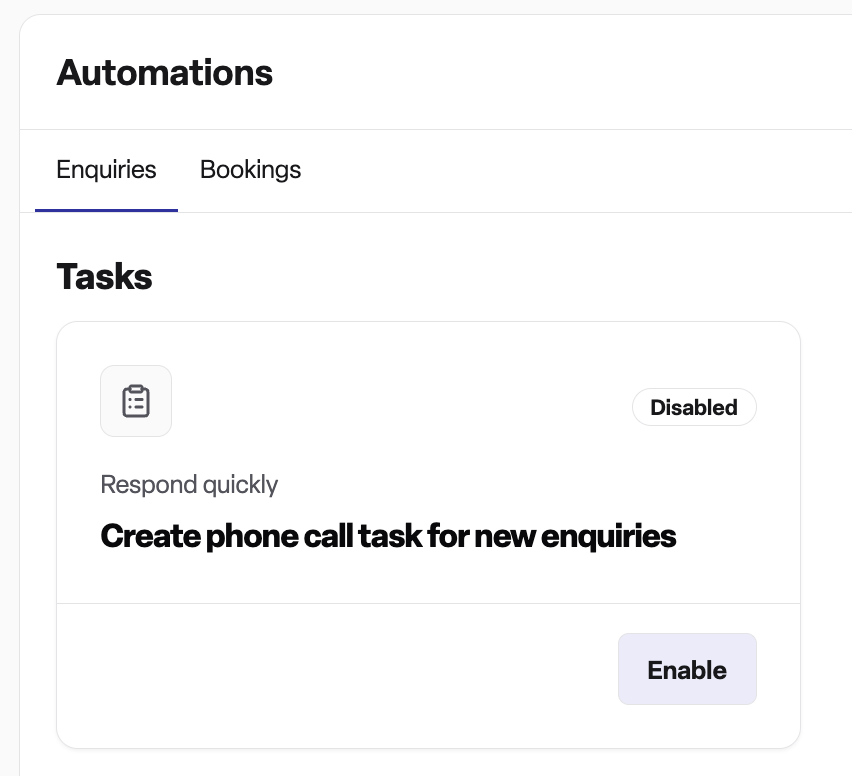
Click the Enable automation button
You'll be taken to the configuration page
Step 5: Configure location assignees
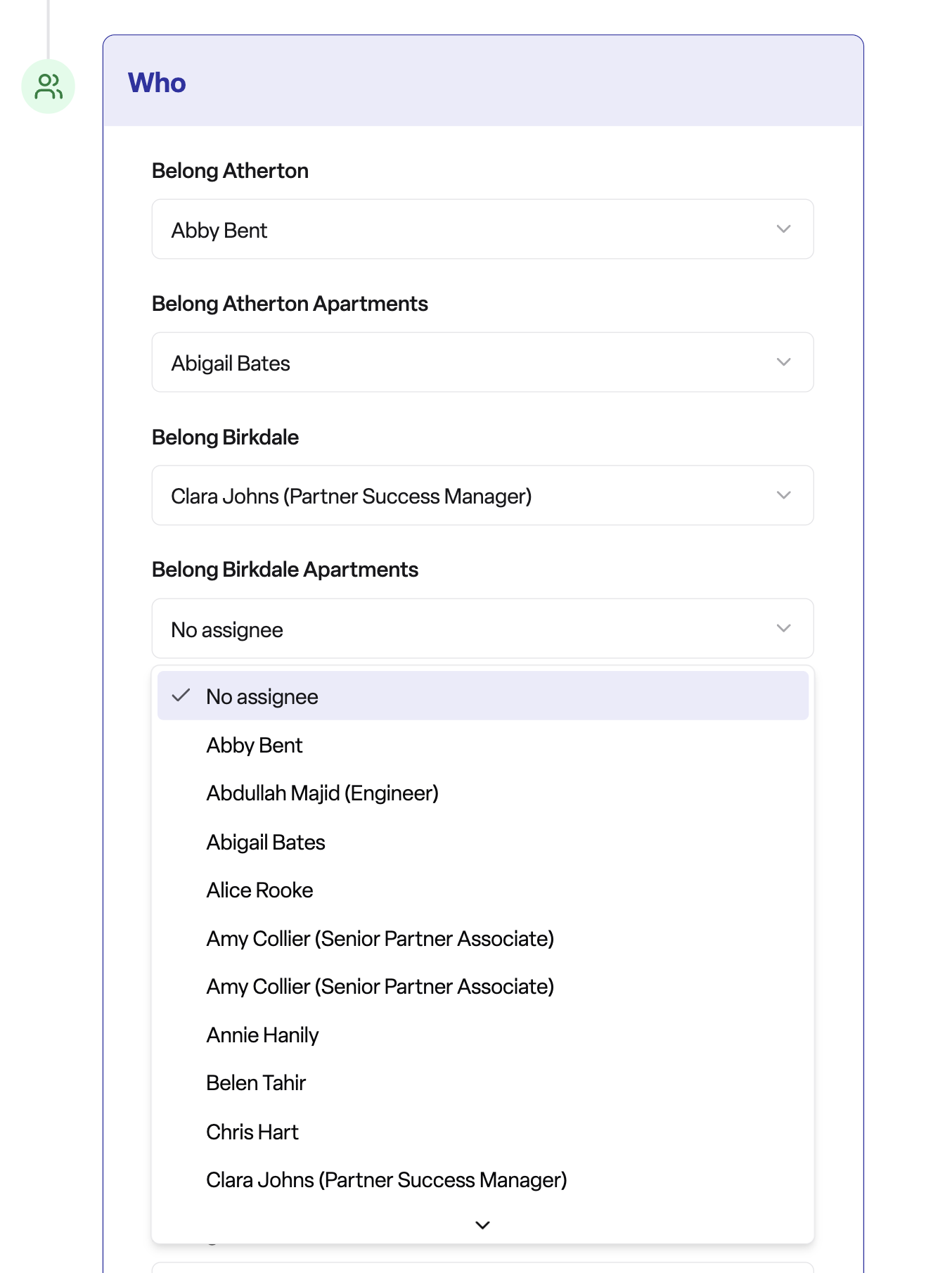
For the automation to work, you must assign team members by location:
Select a location from the dropdown
Choose which team member should receive or own the automated task
Repeat for additional locations if needed
At least one location must have an assignee before you can save
Step 6: Save your automation
Click Save to activate the automation. It will now run automatically when the trigger conditions are met.
How to manage existing automations
Edit an automation
Navigate to Settings > Automations
Find the automation you want to change
Click Manage on the automation card
Update location assignees as needed
Click Save
Disable an automation
Open the automation you want to disable
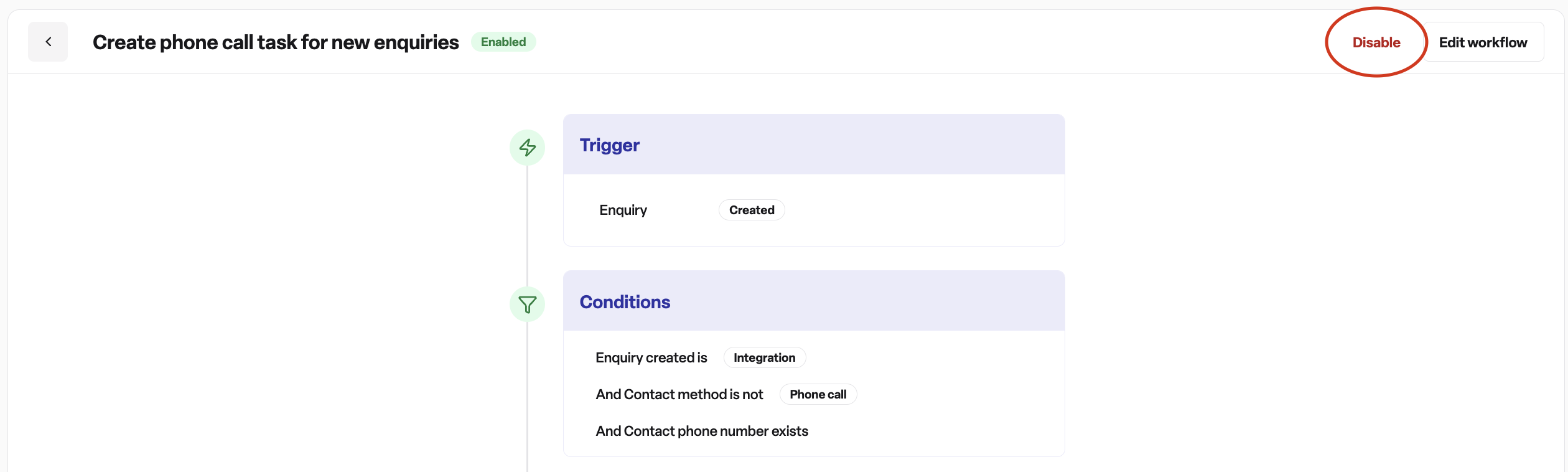
Click Edit workflow in the top right
Select Disable automation
Confirm your choice
The automation will stop processing new events but will remain in your system. You can re-enable it at any time.
Available automations
Enquiry automations
Tasks:
Create brochure task for new enquiries: Automatically reminds your team to send brochures when enquiries come in
Create phone call task for new enquiries: Automatically creates a phone call task for new enquiries
Create a phone call task after a missed call or voicemail: Ensures missed calls are followed up promptly
External messaging:
Send acknowledgement email when enquiries come in
Send confirmation email when visits are booked
Send confirmation email when assessments are booked
Send reminder email 24 hours before a visit
Send reminder email 24 hours before an assessment
Send an SMS after a missed call or voicemail
Internal messaging:
Alert team when enquiries go unattended
Alert finance team when residency is booked
Booking automations:
Review respite booking when provisional end date passes: Creates a review task when provisional respite bookings reach their end date
Close respite booking when fixed end date passes: Automatically closes respite bookings on their fixed end date
Frequently asked questions
Q: What happens when an automation is triggered?
A: When an event matches your automation's trigger and conditions, the system automatically performs the configured action. For example, if you've enabled "Create phone call task for new enquiries," a task will be created and assigned to the team member you specified for that location.
Q: How do I know which automations are enabled?
A: Enabled automations display a green background and an "Enabled" badge on the automation card. You'll also see how many locations have been configured (e.g., "3 of 5 locations configured").
Q: Can I customise the trigger or conditions?
A: Not at this time. Each automation template has pre-defined triggers and conditions designed for common workflows. You can only configure which team members receive the automated tasks at each location.
Q: What does "coming soon" mean?
A: Automations marked as "coming soon" are planned features that haven't been released yet. These include email, SMS, and alert actions. You can upvote these features to help prioritise their development.
Q: Do I need to configure all locations?
A: No, you only need to configure at least one location to save an automation. You can add more locations later by clicking "Manage" on the automation card.
Q: Who can set up automations?
A: Users with permission to edit automations in your workspace can enable, configure, and disable automation templates.
Q: When are tasks created by automations?
A: Tasks are created immediately when the trigger event occurs and all conditions are met. The due date is typically set to 24 hours after the triggering event.
Q: What priority level are automated tasks given?
A: Automated tasks are created with high priority by default.
Q: Can I see which automation created a task?
A: Yes, tasks created by automations are linked to the entity that triggered them (such as the enquiry or booking) and are shown in the relevant timeline.
Q: What happens if I change my mind after enabling an automation?
A: You can disable any automation at any time. Once disabled, it will stop processing new events but won't affect tasks that were already created.
Q: Can an automation create multiple tasks?
A: Each automation template creates one task per trigger event. If you want multiple tasks for the same event, you'll need to enable multiple automations.
Q: Do automations work for all enquiry types?
A: Some automations have conditions that filter when they run. For example, "Create a phone call task after a missed call or voicemail" only triggers for enquiries created via phone calls. Check the automation details to see any conditions.
Q: Can I test an automation before enabling it?
A: There's no test mode, but you can enable an automation for a single location initially, verify it works as expected, and then add additional locations.