Contact segments
Last updated: May 7, 2026
Pro feature: This feature is available on Pro plans only. If you’d like to upgrade your plan, please contact our support team.
Overview
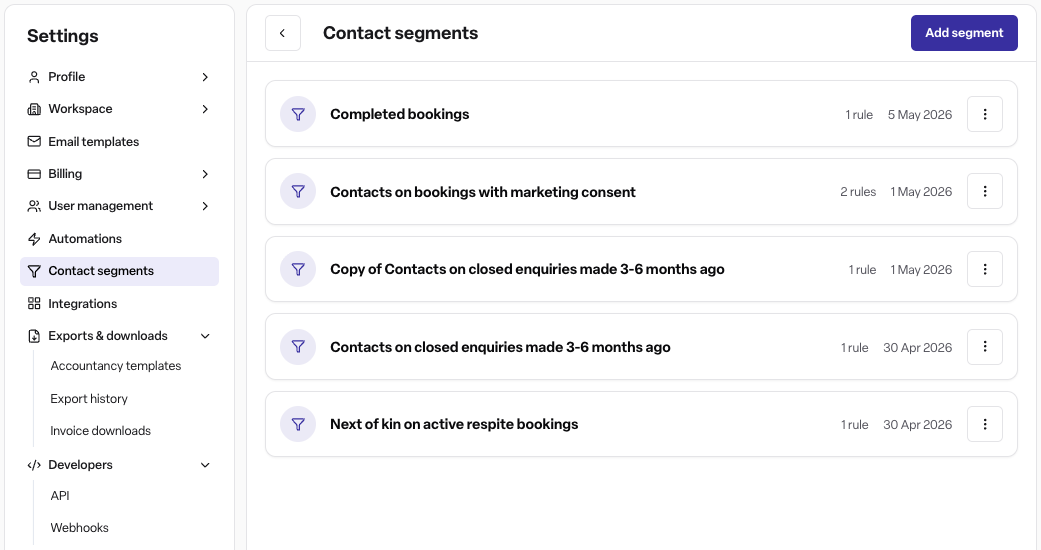
Contact segments are saved, reusable filter definitions that let you group contacts based on a set of rules. Rather than recreating the same filter each time, you build a segment once and apply it whenever you need to narrow down your contacts list. Contact segments are available on the Found Pro CRM and Found Pro Occupancy modules.
Segments work by evaluating every contact in your workspace against the rules you define. Only contacts that match all of the rules are included. This makes segments useful for targeted lists — for example, contacts who have an active booking and have opted in to marketing communications.
What you can filter by
The rule types available to you depend on which modules your workspace has enabled.
Contact details (available to all)
Name, title, and job role
Contact type
Address fields (city, county, postcode, country)
Communication preferences (marketing emails, enquiry emails, SMS, phone, post)
GDPR and privacy settings
Date the contact was created
Enquiry rules (Found Pro CRM)
Whether the contact has enquiries (or has none)
Number of enquiries
Enquiry status, temperature, stage, and location
Enquiry closure reason and referral source
Booking rules (Found Pro Occupancy)
Whether the contact has bookings (or has none)
Number of bookings
Booking status, care type, funding type, and location
Booking start and end dates
Service user rules
Whether the contact has associated service users (or has none)
Number of service users
Service user demographics (gender, religion, ethnicity, nationality, marital status)
Current residence type and location links (Pro CRM / Pro Occupancy gated)
How rules work
All rules within a segment are combined using AND logic — a contact must satisfy every rule to be included. Sub-conditions within a single rule (for example, multiple enquiry filters) are also ANDed together.
There is no OR logic between rules. If you need two separate groups of contacts, create two separate segments and apply each independently.
Creating a segment
Go to Settings > Contact segments.
Select Add segment.
Enter a name (required) and an optional description.
Add at least one rule using the rule builder.
Save the segment.
The segment is then available to apply as a filter on the contacts table.
Editing and deleting segments
Select the actions menu (⋯) on any segment card to edit or delete it.
Deleting a segment is permanent from the user's perspective, though the name becomes available for reuse immediately.
Editing a segment updates the filter definition for anyone who applies it going forward.
Applying a segment to the contacts table
On the contacts table, use the Contact segment filter to select a saved segment. The table will display only contacts that match all the segment's rules. One segment can be applied at a time.
Access and permissions
Action | Who can do it |
|---|---|
View and apply segments | All workspace users |
Create, edit, or delete segments | Only Admins |
Segments are workspace-scoped — they are not shared across workspaces.
If your workspace does not have the Pro CRM or Pro Occupancy module enabled, segment rules that require those modules will not appear in the rule builder. Any existing segment containing unavailable rules will be hidden from the list.
Frequently asked questions
Q: What is a contact segment? A: A contact segment is a saved filter made up of one or more rules. When applied, it shows only the contacts who match every rule in that segment.
Q: How is a segment different from a manual filter on the contacts table? A: A manual filter is temporary and is lost when you navigate away. A segment is saved and can be reused by anyone in the workspace at any time.
Q: Can I use OR logic between rules? A: No. All rules within a segment are ANDed — contacts must meet every rule to be included. If you need two different groups, create two separate segments.
Q: How many rules can a segment have? A: There is no set maximum. You can add as many rules as needed, but each additional rule narrows the results further because all rules must be satisfied.
Q: Can two segments have the same name? A: No. Segment names must be unique within your workspace. Names are limited to 100 characters. If you delete a segment, its name becomes available for reuse straight away.
Q: Can I apply more than one segment at the same time on the contacts table? A: No. Only one segment can be applied as a filter at a time.
Q: What happens if my workspace loses access to a module (e.g. Pro CRM)? A: Any segment containing rules that require that module will be hidden from the list. The segment data is not deleted — if access is restored, the segment becomes visible again.
Q: Who can create or edit segments? A: Admins and managers with the relevant permissions can create, edit, and delete segments. All users can view and apply existing segments.
Q: Can I use segments to export a list of contacts? A: Yes. Apply the segment as a filter on the contacts table and then run your export from the filtered view.
Q: Do segments update automatically? A: Yes. Segments are dynamic — the contacts they return are recalculated each time you apply the segment, based on the current data in your workspace. They are not static snapshots.