Single sign-on & provisioning
Last updated: September 4, 2026
Overview
Single sign-on (SSO) lets your team sign in to Found using your organisation's existing identity provider — such as Microsoft Entra ID, Okta, or Google Workspace — instead of a one-time passcode. Once configured, users whose email address matches your verified domain are automatically routed to your identity provider when they sign in.
SSO is configured at the workspace level. Only users with the Admin role can view or manage SSO settings.
How to set up SSO
Before you start
You must have the Admin role in Found.
You will need admin access to your organisation's identity provider (e.g. Microsoft Entra ID, Okta, or Google Workspace) to complete the configuration.
SSO must be enabled for your workspace — if the SSO section is not visible under Settings > Security & access, contact your Found account manager.
Getting started
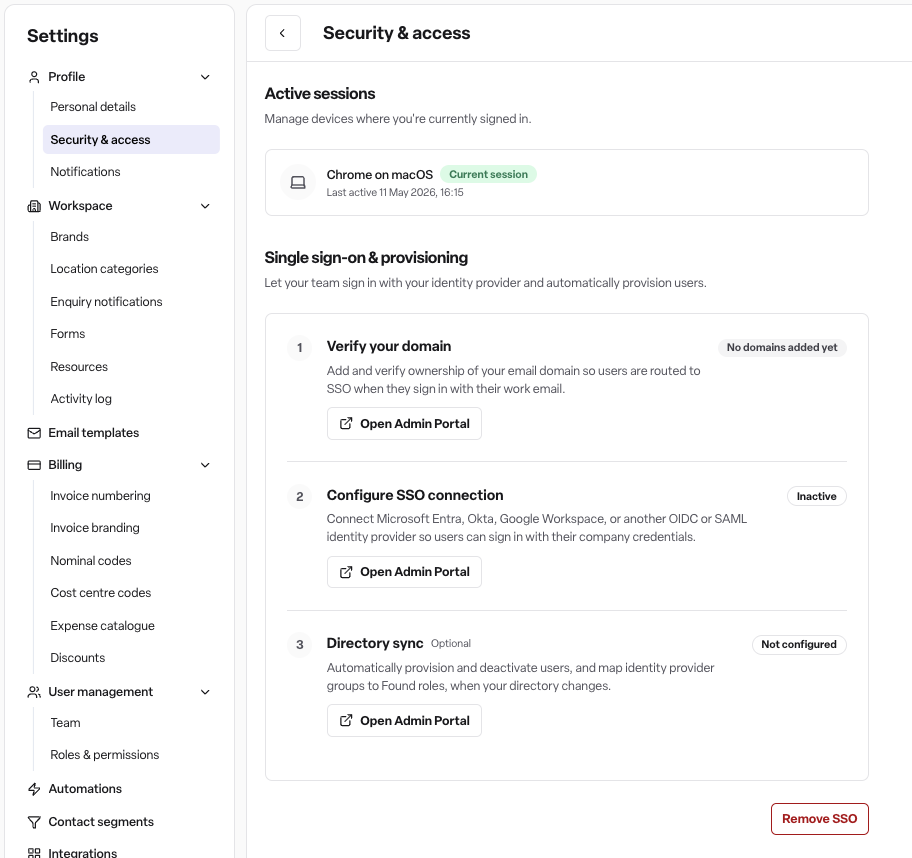
Go to Settings > Security & access. You will see one of two screens:
If you see a "Set up SSO" button — click it. This is a one-time step that registers your workspace and reveals the three-step configuration below.
If you already see the three steps — SSO has already been initialised for your workspace. Skip straight to the steps below.
Step 1: Verify your domain
Under Verify your domain, click Open Admin Portal. A new tab will open.
In the portal, add your organisation's email domain (e.g.
yourcompany.com).Follow the instructions to add a DNS record to your domain to prove ownership. This is done in your domain registrar or DNS provider (e.g. Cloudflare, GoDaddy, Route 53).
Once the DNS record has propagated, the domain status in Found will update to Verified.
You can add more than one domain if your organisation uses multiple email domains.
Step 2: Configure the SSO connection
Under Configure SSO connection, click Open Admin Portal. A new tab will open.
Select your identity provider and follow the on-screen instructions to create a SAML or OIDC application in your identity provider and paste the configuration details into the portal.
Once complete, the connection status in Found will move from Draft through Validating to Active.
Step 3: Set up directory sync (optional)
Under Directory sync, click Open Admin Portal. A new tab will open.
Follow the on-screen instructions to connect your directory (e.g. Microsoft Entra ID, Okta, Google Workspace).
Once connected, user accounts will be automatically provisioned and deactivated in Found as your directory changes.
How sign-in works once SSO is active
A user goes to the Found sign-in page and enters their work email address.
Found checks whether the email domain matches a verified SSO domain on the workspace.
If it does, the user is redirected to your identity provider to authenticate with their company credentials.
On successful authentication, the user is signed in to Found.
Users whose email domain is not on a verified SSO domain continue to sign in with a 6-digit one-time passcode sent to their email, or via Continue with Google.
Rules and restrictions
Admin only — Only Admin users can configure or remove SSO. Managers and Staff do not have access to Security settings.
One configuration per workspace — Each workspace has a single SSO configuration.
Domain-based routing — SSO routing applies to all users whose email matches a verified domain. It cannot be applied to individual users selectively.
Removal stops provisioning — Removing SSO disconnects the identity provider, stops directory sync, and reverts affected users to one-time passcode sign-in.
Frequently asked questions
Q: Who can set up SSO in Found? A: Only users with the Admin role can access Security settings and configure or remove SSO.
Q: Which identity providers does Found support? A: Found supports Microsoft Entra ID, Okta, Google Workspace, and any other identity provider that supports OIDC or SAML 2.0.
Q: How do users sign in if SSO is not configured on their domain? A: They enter their email address on the sign-in page and receive a 6-digit one-time passcode by email. They can also use "Continue with Google" as an alternative.
Q: Is directory sync required for SSO to work? A: No. Directory sync is optional. SSO sign-in works without it. Directory sync adds the ability to automatically create and deactivate user accounts and map groups to Found roles when your directory changes.
Q: What happens if I remove SSO? A: The identity provider connection is removed, directory sync stops, and users on the SSO domain revert to one-time passcode sign-in. Existing user accounts are not deleted.
Q: Can SSO apply to only some users in my workspace? A: No. SSO routing is based on email domain, not individual users. Every user whose email matches a verified domain will be routed through SSO at sign-in.
Q: My domain shows "Pending verification" — what do I do? A: Open the Admin Portal from Settings > Security, go to the domain verification step, and confirm the required DNS record has been added to your domain. DNS propagation can take up to 24 hours depending on your provider.
Q: My SSO connection shows "Draft" or "Inactive" — is something wrong? A: A Draft status means the connection has been started but not fully configured in the Admin Portal. An Inactive status means the connection exists but has not been activated. Open the Admin Portal and complete or activate the connection.
Q: The SSO section isn't showing in my Security settings — why? A: SSO must be enabled for your workspace. Contact your Found account manager to have it enabled.