Enquiry notifications
Last updated: April 23, 2026
Overview
Found automatically sends email notifications to your team when new enquiries arrive or when activity is added to existing enquiries. This ensures everyone stays informed without having to constantly check the system.
This guide explains how notifications work, who receives them, and how to manage your notification settings.
What are enquiry notifications?
Enquiry notifications are automated emails sent when:
A new enquiry is created – When someone submits an enquiry through your website, booking engine, or other integrated systems
Activity is added to an enquiry – When someone responds to or updates an existing enquiry
Important: Notifications are only sent for enquiries created automatically through integrations. Enquiries created manually by your team do not trigger notifications.
Types of email recipients
There are three types of email recipients for enquiry notifications:
1. Subscribed users
Who they are:
Team members who have opted in to receive enquiry notifications
These are staff with Found accounts who have chosen to enable email notifications
What they receive:
Notifications for enquiries at locations they have access to
They will only be notified about locations they're assigned to work with
How they manage settings:
Each user controls their own preferences in Settings > Profile > Notifications
Users can turn notifications on or off for different event types
2. Unsubscribed users
Who they are:
Team members who have opted out of receiving enquiry notifications
These users have Found accounts but have chosen not to receive emails
What they receive:
No email notifications
They can still view enquiries in the system when logged in
How to change:
Unsubscribed users can re-enable notifications at any time in their personal settings (Settings > Profile > Notifications)
3. External inboxes
What they are:
Email addresses that are not linked to a Found user account
Used to forward enquiry notifications to external systems or team members without Found access
Common uses:
Forwarding to a central operations email (e.g., reservations@yourhotel.com)
Sending to external CRM or booking systems
Copying external partners or contractors who don't need full system access
What they receive:
Notifications for new enquiries and enquiry activity
Limited contact details for privacy reasons
Central enquiry inboxes vs location-level external inboxes
Central enquiry inboxes
Purpose: Receive notifications for all enquiries across all locations in your organisation
Best for:
Head office teams monitoring all properties
Central reservations teams
CRM systems that manage enquiries organisation-wide
Example: reservations@caregroup.com receives notifications for enquiries from all hotel locations
Who can manage: Workspace administrators only
Location-level external inboxes
Purpose: Receive notifications for enquiries at a specific location only
Best for:
Location-specific teams (e.g., one hotel's front desk)
Property managers responsible for individual sites
Location-specific booking systems
Example: info@londoncarehome.com only receives notifications for the London location
Who can manage: Workspace administrators only
How to manage your personal notification settings
If you're a team member with a Found account:
Click on your profile icon in the top right corner
Select Settings
Navigate to Notifications in the left sidebar
You'll see a table with different notification types:
Enquiry created
Enquiry activity added
Task assigned
Task daily reminder (for overdue or due-today tasks)
Use the toggle switch to turn each notification type on or off
Changes are saved automatically
Note: You'll only receive notifications for locations you have access to, even if notifications are enabled.
How to manage organisation-wide notification settings (Admins only)
If you're a workspace administrator, you can configure organisation-wide settings:
Accessing settings
Go to Settings in the main navigation
Select Workspace from the sidebar
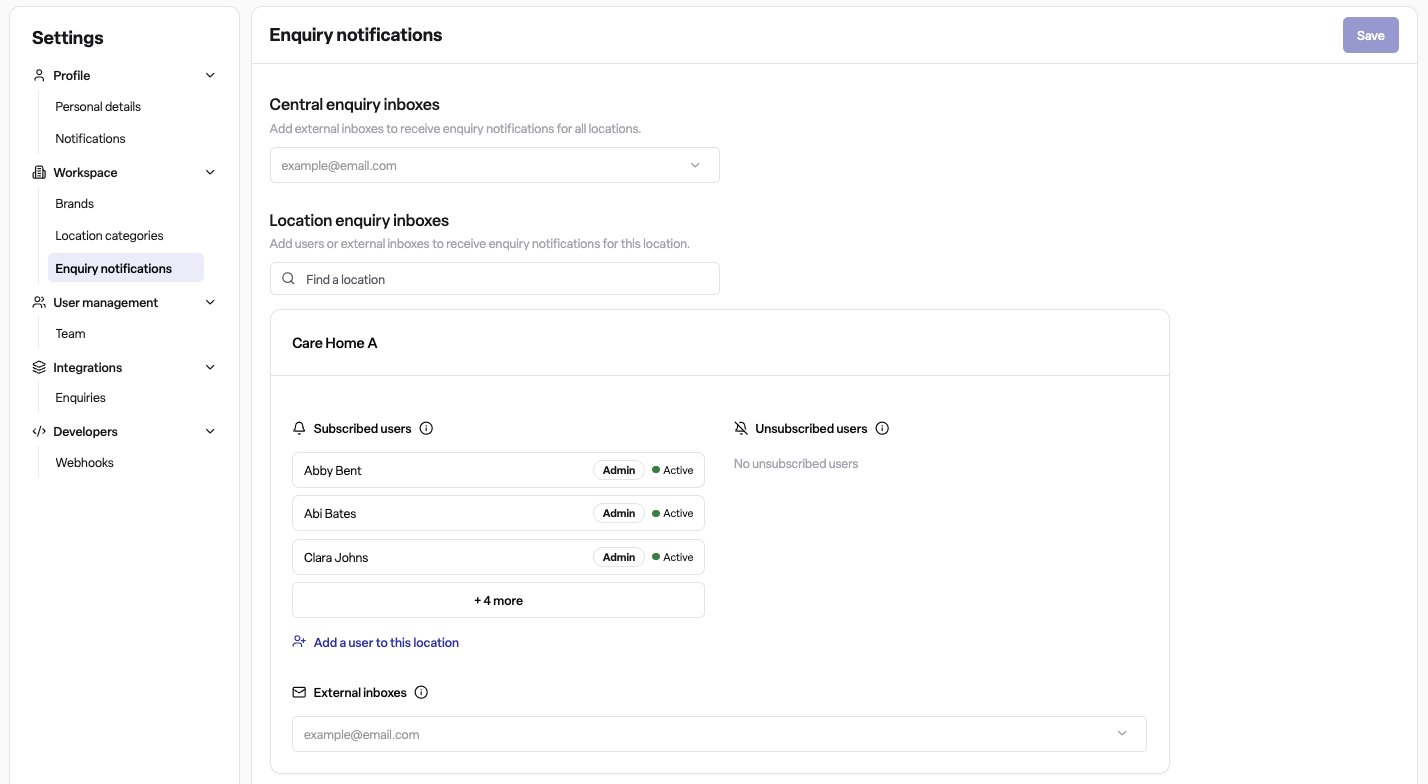
Click on Enquiry Notifications
Configuring central enquiry inboxes
At the top of the page:
Look for the "Central enquiry inboxes" section
Add or remove email addresses that should receive notifications for all locations
These emails will receive notifications for every enquiry across your entire organisation
Click Save to apply changes
Configuring location-level settings
For each location, you'll see three sections:
Subscribed users
Team members who have opted in to receive notifications for this location
Shows their name, role (Staff/Manager/Admin), and status
You cannot change individual subscriptions here – users manage their own preferences
Unsubscribed users
Team members who have opted out of notifications for this location
These users can re-enable notifications in their personal settings
Shows who's missing notifications (so you can remind them if needed)
External inboxes
Email addresses (not linked to Found accounts) that receive enquiry notifications for this location only
Add email addresses to forward enquiries to external systems or team members
Click Add email to include new addresses
Click the delete icon to remove addresses
Click Save to apply changes
Adding users to locations to receive enquiry notifications
If you need to add team members to a location so they can receive enquiry email notifications:
Navigate to Settings > Workspace > Enquiry Notifications
Find the location in question
Click "Add a user to this location" link
Follow the prompts to assign the user to the location with the appropriate role permissions
The user will then appear in the Subscribed section and will receive enquiry notifications moving forwards.
Understanding who gets what
Scenario 1: New enquiry arrives
Event: A customer submits an enquiry through your website
Who receives notifications:
✅ All subscribed users with access to that location
✅ All external inboxes configured for that location
✅ All central enquiry inbox addresses (organisation-wide)
Who does NOT receive notifications:
❌ Unsubscribed users
❌ Users without access to that location
❌ Users who haven't enabled the "Enquiry created" notification type
Scenario 2: Activity added to existing enquiry
Event: A staff member responds to an enquiry or adds notes
Who receives notifications:
Same as Scenario 1 (if the activity qualifies as an update)
Scenario 3: User manually creates an enquiry
Event: A staff member creates an enquiry directly in Found
Who receives notifications:
❌ Nobody – manual enquiries do not trigger notifications
Best practices
For team members
Keep notifications enabled for enquiries if you're responsible for responding to them
Disable notifications only if you don't need to be in the response workflow
Check your location access – if you're not receiving expected notifications, you may not be assigned to that location
Use the system – Notifications are a backup; log in regularly to check for enquiries
For administrators
Use central inboxes sparingly – Only add addresses that truly need all enquiries organisation-wide
Use location-level inboxes for property-specific systems or teams
Review subscribed/unsubscribed users regularly – Ensure the right people are getting notifications
Don't rely solely on external inboxes – Ensure at least some Found users are subscribed to each location
Test your setup – After making changes, submit a test enquiry to verify notifications arrive as expected
For email management
Avoid personal email addresses in external inboxes – Use team or role-based addresses (e.g., reservations@, not jane.smith@)
Document external inboxes – Keep a record of which external systems are receiving notifications
Regularly audit – Remove old or unused email addresses to reduce notification spam
Frequently Asked Questions
Q: I'm not receiving notifications. What should I check?
A: Check the following:
Personal settings: Go to Settings > Profile > Notifications and ensure notifications are enabled
Location access: Verify you're assigned to the location(s) you expect notifications from
Spam folder: Check if notification emails are being filtered as spam
Organisation settings: Ask an admin to verify you appear in the "Subscribed users" section for your locations
Q: An external inbox is not receiving notifications. How do I fix this?
A: Try these steps:
Check spelling: Verify the email address is entered correctly in Settings > Workspace > Enquiry Notifications
Check spam filters: External systems may be blocking automated emails
Verify location: Ensure the inbox is added to the correct location (or central inboxes for organisation-wide)
Check if enquiry is manual: Manually created enquiries don't send notifications
Q: I'm receiving too many notifications. How can I reduce them?
A: You have several options:
Disable specific types: Go to Settings > Profile > Notifications and turn off notification types you don't need (e.g., "Task daily reminder")
Remove from locations: Ask an admin to remove your access from locations you don't work with
Use filters: Set up email rules to organise Found notifications into a dedicated folder
Q: Someone left the team but is still receiving notifications. How do I stop this?
A: Do one of the following:
Ask an admin to deactivate the user's account in Found
Remove their email from any external inbox lists they may have been added to