Shared mailboxes (Outlook)
Last updated: July 9, 2026
Pro feature: This feature is available on Pro plans only. If you’d like to upgrade your plan, please contact our support team.
Overview
Shared mailboxes connect a team inbox (for example, a location's enquiries address) directly to Found. Once connected, incoming emails appear alongside your enquiries, and you can send and reply to emails without leaving the enquiry you're working on - so the whole team has a single, shared view of every conversation.
This article covers enabling the integration, configuring a mailbox for each location, linking emails to enquiries, and sending or replying to emails from an enquiry.
Before you start
You'll need:
Admin access on Found to enable the integration and configure mailboxes.
Admin access to your Microsoft organisation - authorising the integration is a one-off action, so you may need your IT admin to approve it.
Enabling the Shared mailboxes integration
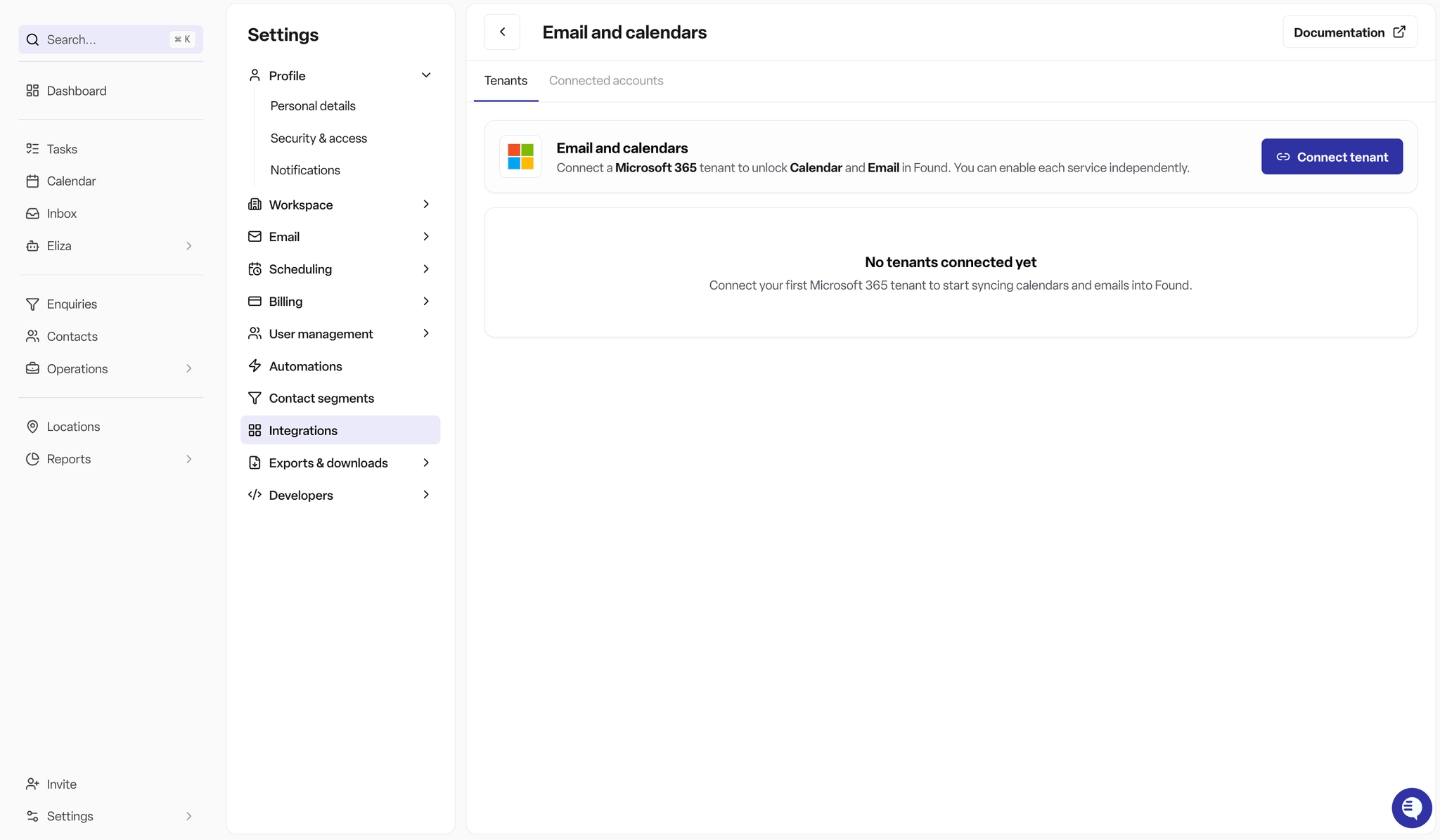
Go to Settings → Integrations → Email and calendars.
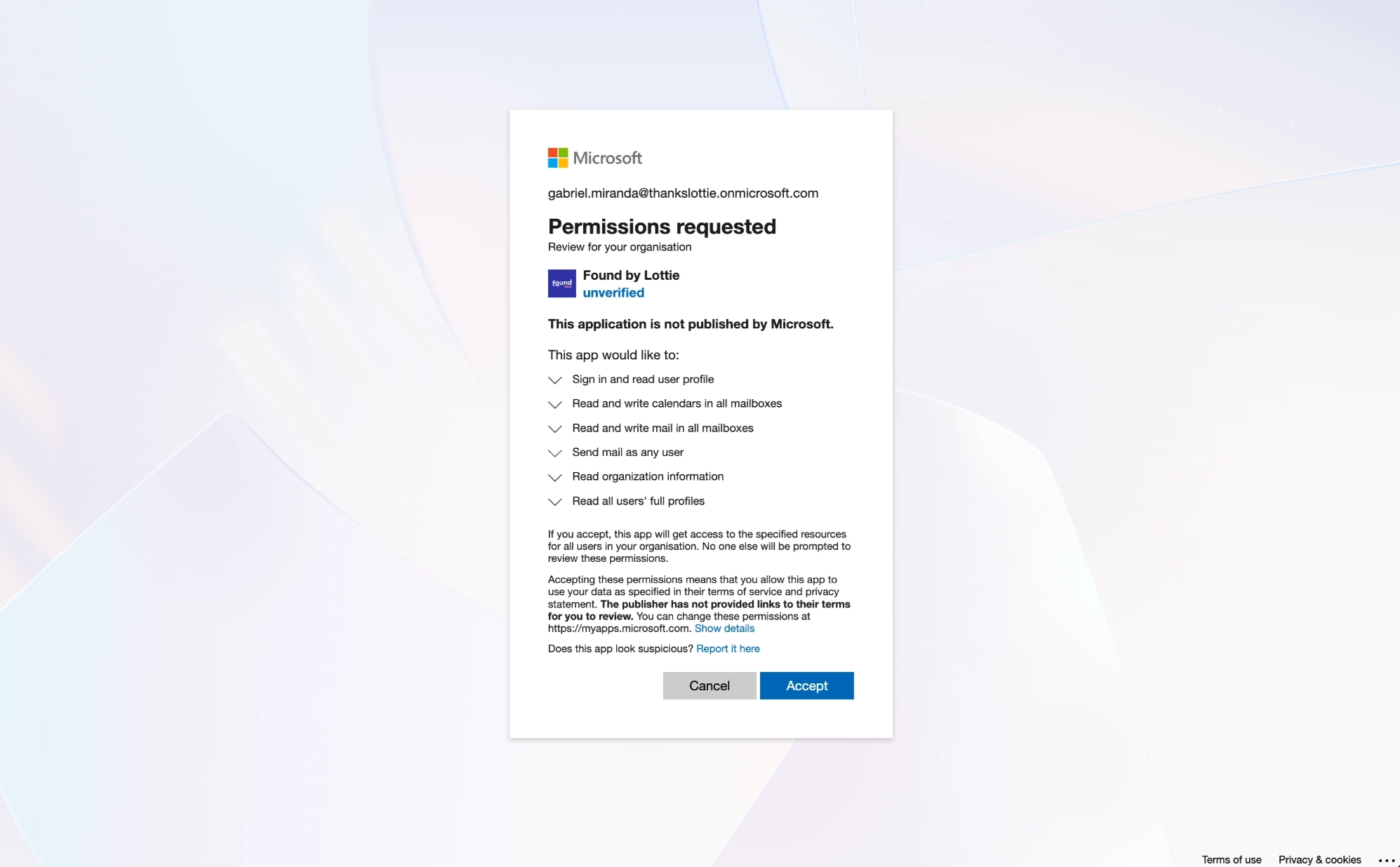
Sign in to your email provider and authorise the requested permissions.
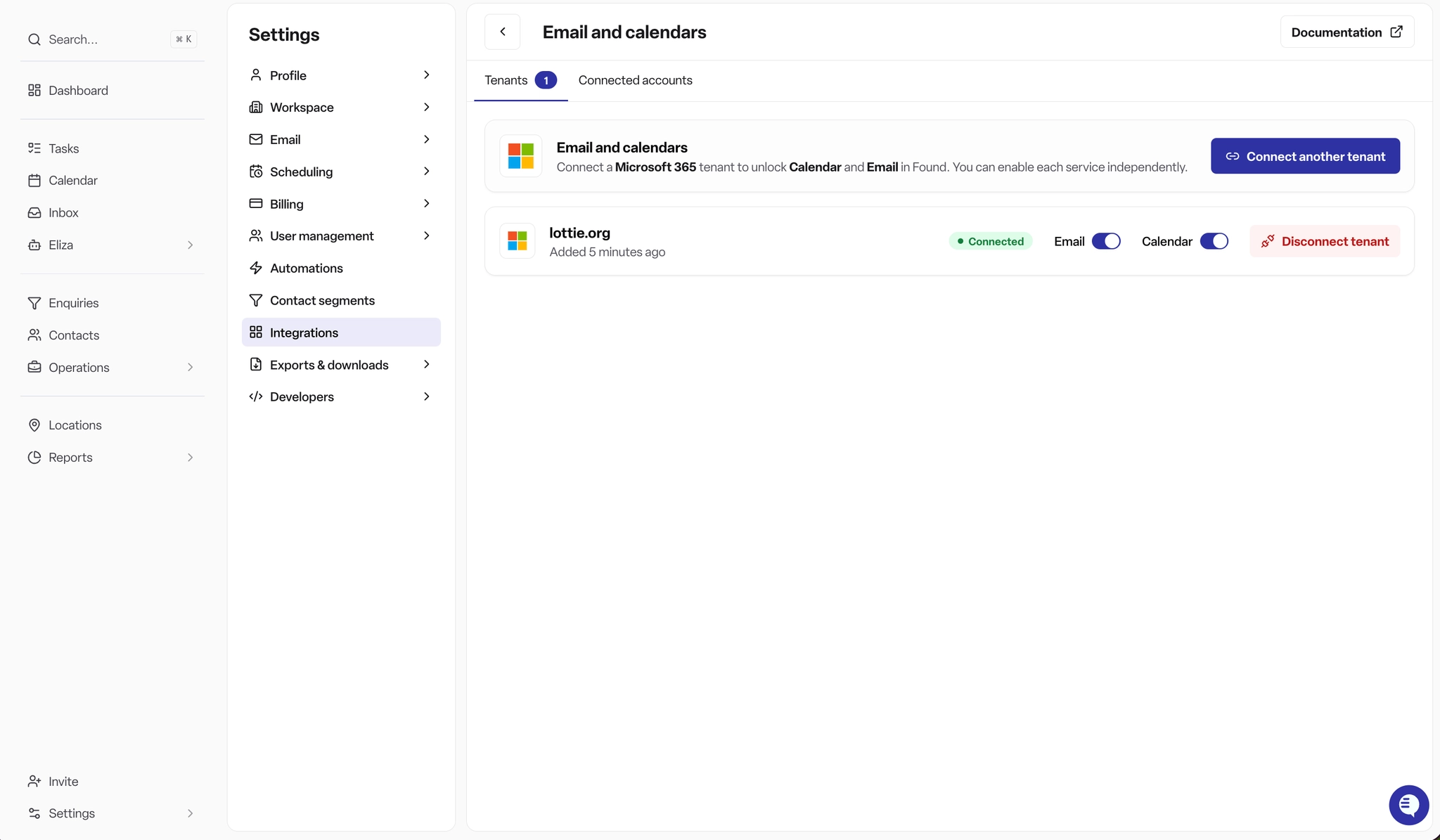
Once authorised, the integration shows as Connected.
Configuring connected accounts
Once a tenant is connected, configure each location's connected account so emails route to the right team.
Open the Connected accounts settings.
Select the shared mailbox address for each location.
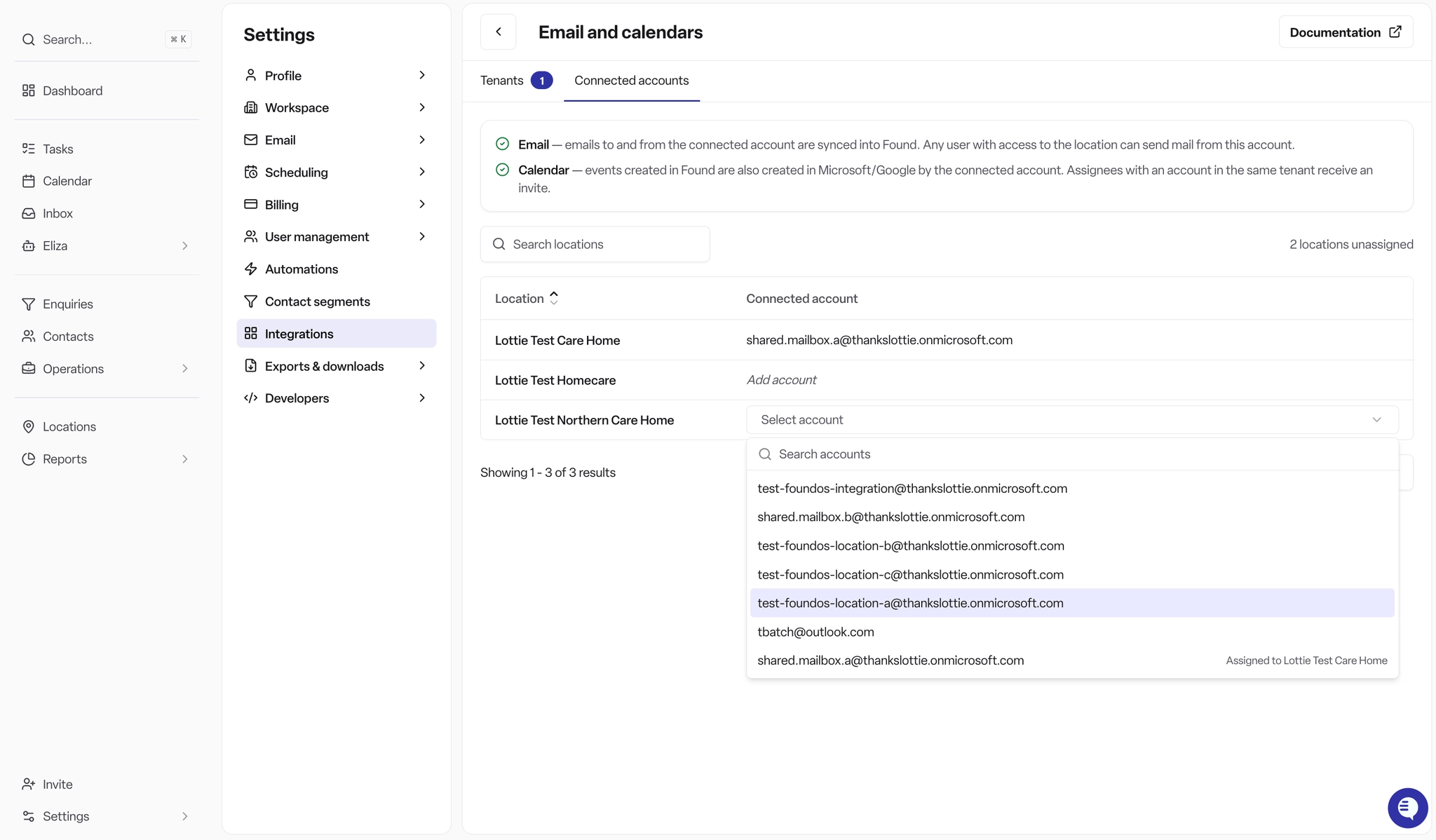
Once a location has a connected account, its emails will sync and be visible to everyone in that location through their inbox.
Linking emails to enquiries
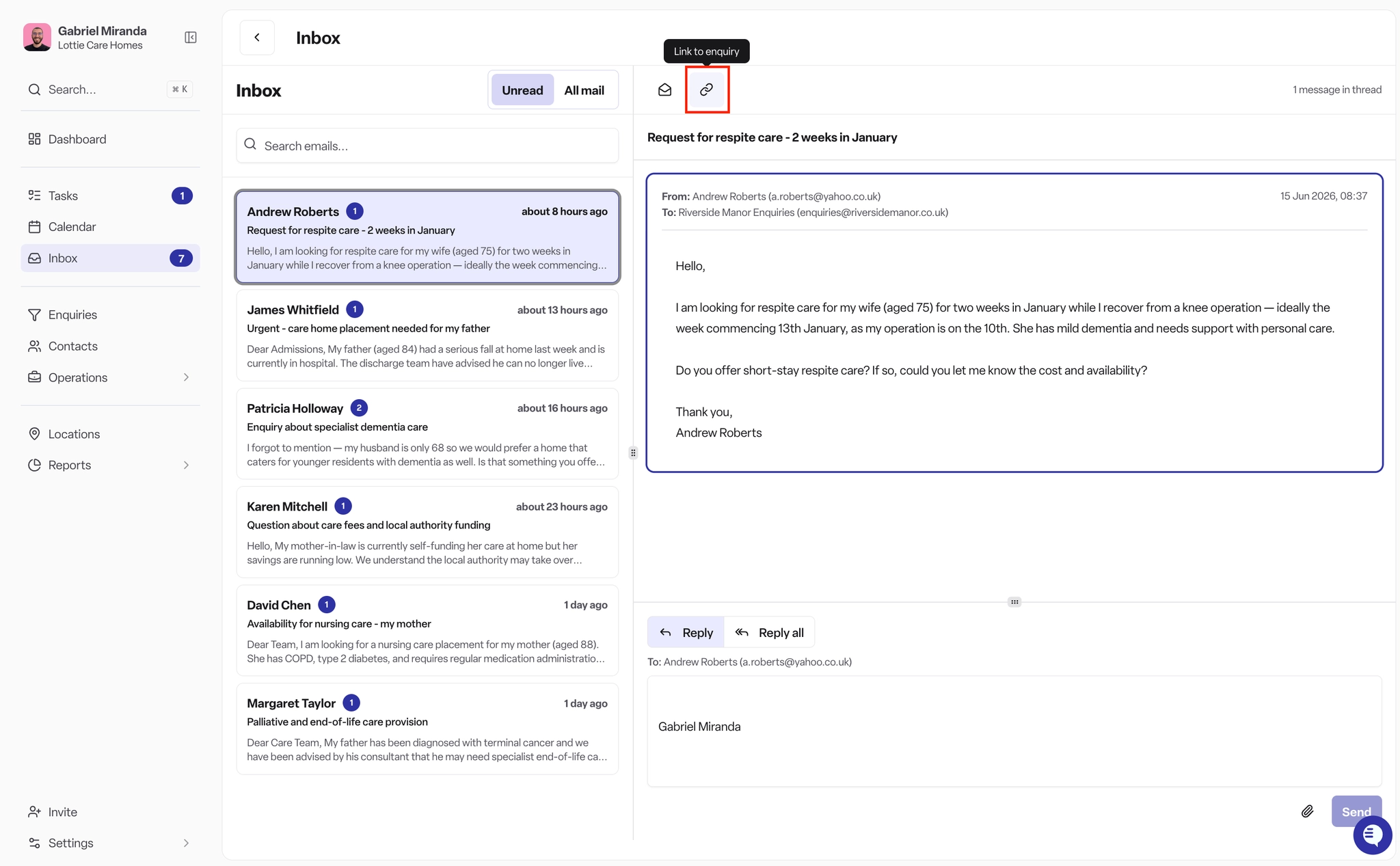
Incoming emails are not linked to an enquiry automatically. Emails can be linked to enquiries, where they will be visible as part of the timeline:
Open the email in the shared inbox.
Select Link to enquiry.
Search for and choose the relevant enquiry.
The email then appears in that enquiry's timeline, visible to everyone with access. Once a thread is linked, later replies on that thread stay linked to the same enquiry.
Sending an email from an enquiry
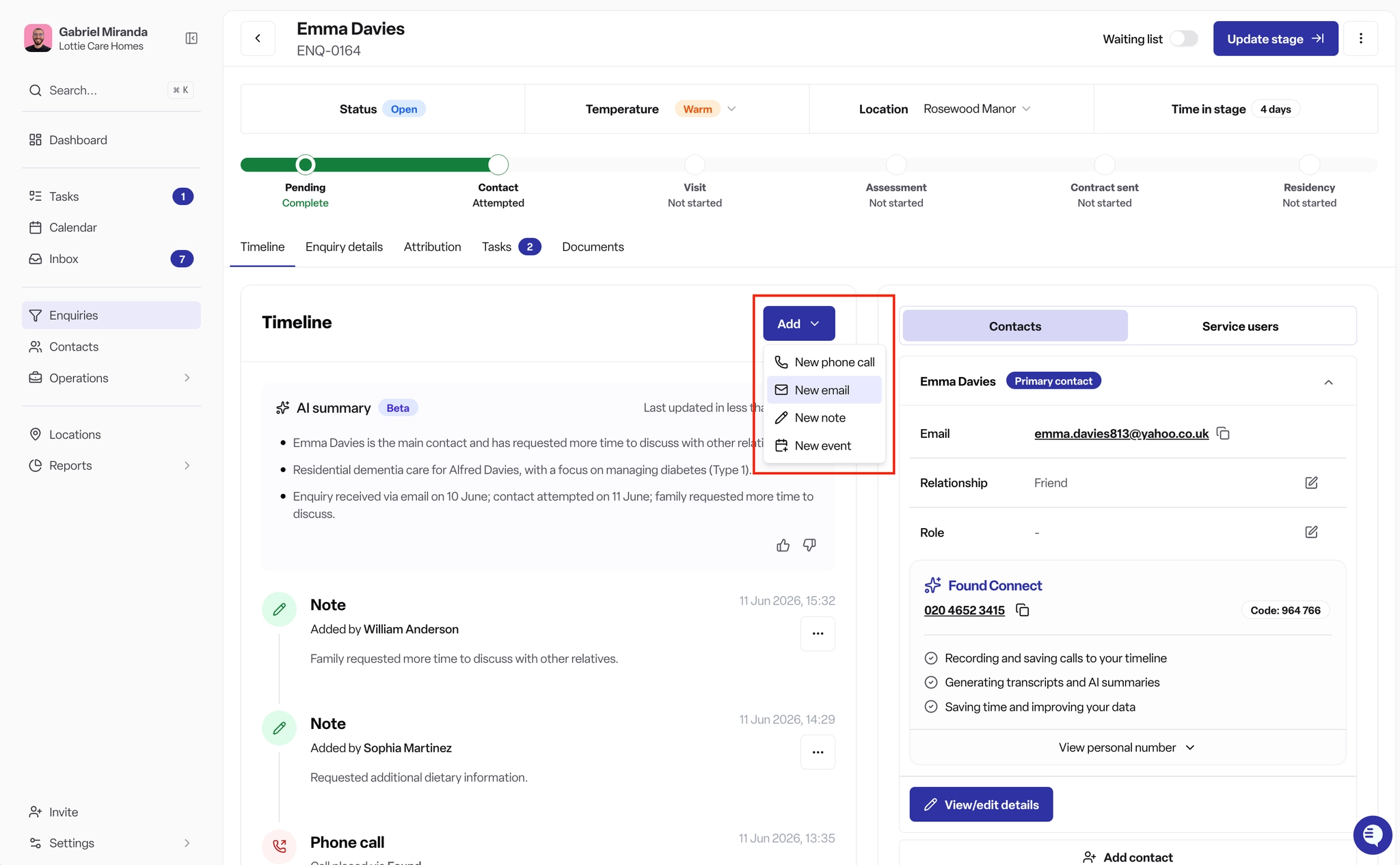
You can start a new email directly from an enquiry, so the conversation is recorded against it from the start.
Open the enquiry.
Select Send email.
Write your message and send. It's sent from the location's shared mailbox and logged on the enquiry.
Microsoft shared mailboxes
Found connects to Microsoft 365 at the organisation level: a Microsoft admin authorises access once for the whole organisation, after which mailboxes can be added to locations without each person signing in separately.
The mailboxes you connect to locations are usually Microsoft 365 shared mailboxes - inboxes that several people can access and which don't need their own licence. You create and manage these in the Microsoft admin centre:
https://admin.cloud.microsoft/?#/SharedMailbox
Frequently asked questions
Q: Which address do emails send from? A: Emails sent or replied to from an enquiry are sent from the location's connected shared mailbox.
Q: Who can see the emails in a connected account? A: Everyone assigned to that location can see the location's inbox.
Q: Are incoming emails linked to enquiries automatically? A: No. Incoming emails arrive in the location inbox and must be linked to an enquiry manually. Once a thread is linked, all subsequent replies on that thread stay with the same enquiry.
Q: Why aren't emails appearing? A: Check that the account is still connected under Settings → Integrations → Email and calendars and that authorisation has not expired — reconnect it if it has been disconnected. Shared mailboxes sync on a regular schedule, so new emails may take a short time to appear.
Q: Do shared mailboxes need their own Microsoft licence? A: No. Microsoft 365 shared mailboxes do not require a licence.