Occupancy targets
Last updated: June 9, 2026
Pro feature: This feature is available on Pro plans only. If you’d like to upgrade your plan, please contact our support team.
Overview
Occupancy targets let you set the percentage of beds you expect to be filled across each home in your workspace, broken down by month or week, for a full year at a time. Once configured, these targets appear as a benchmark line on the Occupancy Rates report and as a target figure on the dashboard, so users can see at a glance whether actual performance is tracking ahead of or behind plan.
Targets are configured per location and per year. You can choose whether the year runs on a calendar (Jan–Dec) or financial basis (Apr-Mar), and whether values are entered monthly or weekly.
Where to find it
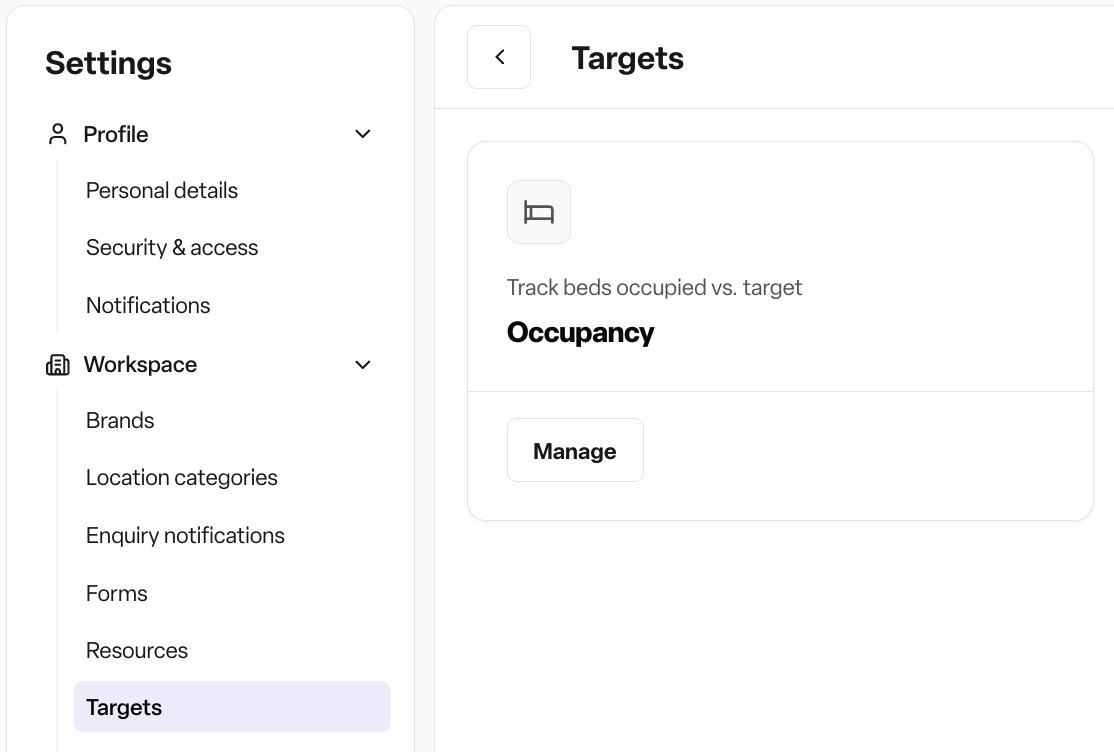
Navigate to Settings → Workspace → Targets → Occupancy.
From the Occupancy targets list, each home in your workspace appears as a row showing whether a target is Set or Not set for the selected year. Click into a location to open the editor.
How it works
Setting up a target
Open Settings → Workspace → Targets → Occupancy, then click Manage.
Select the year you want to plan for using the year switcher.
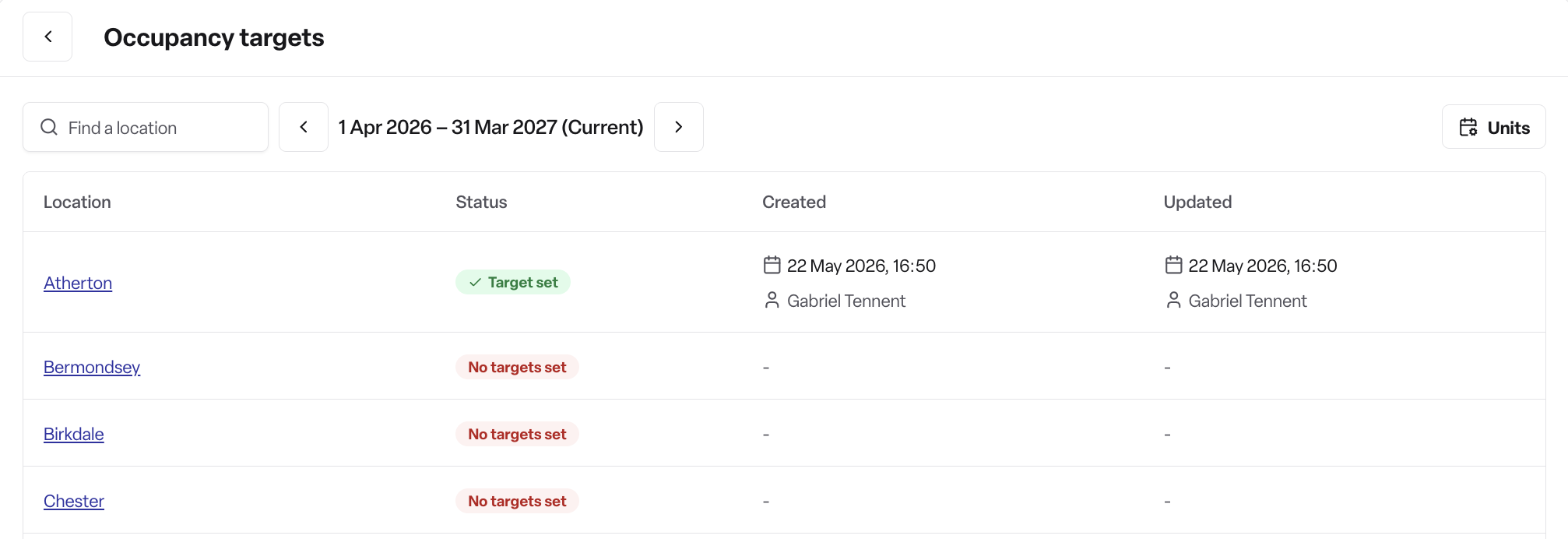
Click a location to open its editor.
Choose the cadence — Monthly or Weekly. Monthly gives you 12 rows; Weekly gives one row per week in the year.
For each period, enter the target occupancy as a percentage (0–100%). You can also enter the equivalent bed count — the two fields stay in sync based on the location's total beds.
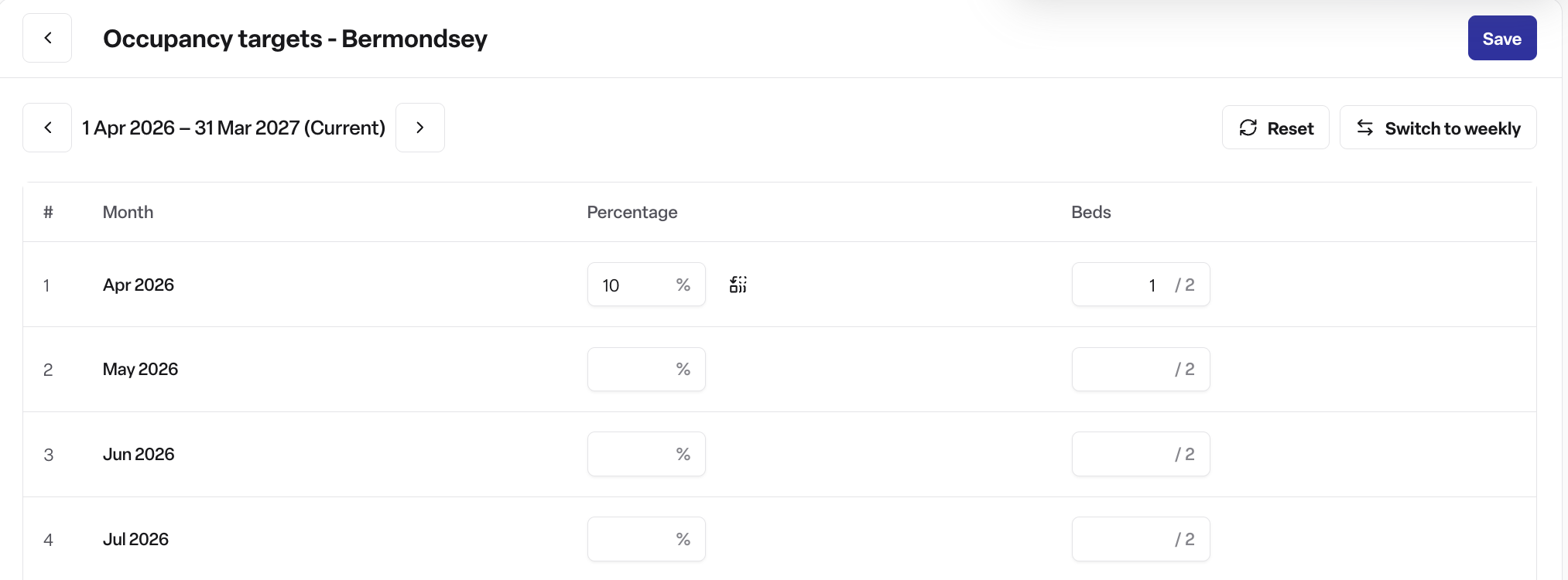
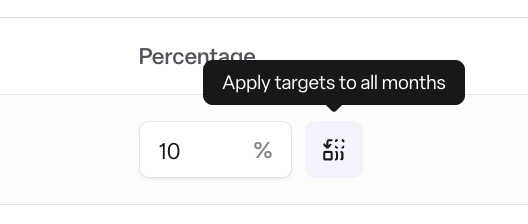
Use the Apply to all action to propagate a value from one period to all later periods if your target is flat across the year.
Save your changes.
Year type (calendar vs financial)
The workspace decides whether occupancy targets follow the calendar year or the financial year. This is set once per workspace under the target settings and applies to every location. Changing the year type affects how periods are generated and how the chart aligns dates.
Where targets show up
Occupancy dashboard — the current target rate (and the equivalent bed count) is displayed alongside today's actual occupancy.
Occupancy Rates report — the target is overlaid as a line on the bar chart and shown as a column in the table, so you can compare planned vs actual at a glance.
If no target is set for a location and period, the dashboard and report simply omit the target value — nothing breaks.
Rules
A target spans a full year. You cannot create a partial-year target.
Periods within a target cannot overlap, and every period must fall inside the target's start and end dates.
Occupancy values must be between 0% and 100%.
Switching cadence (Monthly ↔ Weekly) on an existing target replaces the period rows, so you'll be asked to confirm.
Navigating away with unsaved changes triggers a confirmation prompt.
Deleting a target is a soft delete — historical records are retained.
Permissions
This is a Found Pro CRM module feature. Access is controlled through CASL abilities on the Target subject and is location-scoped: a user can only view or edit targets for the locations they already have access to.
View target — required to open the Targets section and see existing values.
Create target — required to set a target for a location that doesn't yet have one.
Edit target — required to update or delete an existing target.
If you cannot see Targets under Settings → Workspace, or the location you need is missing from the list, ask your workspace administrator to check your role and your location access.
Feature availability
Occupancy targets are gated behind the Occupancy targets feature flag. If the menu item is not visible in your workspace, the feature has not been enabled for you — contact your account manager or workspace admin to request it.
Frequently asked questions
Q: Where do I set occupancy targets? A: Settings → Workspace → Targets → Occupancy, then click into a location.
Q: Can I set targets for the whole workspace in one go? A: No. Targets are set per location. Each home has its own editor and its own annual plan.
Q: Can I enter targets weekly instead of monthly? A: Yes. Use the cadence toggle in the editor to switch between Monthly and Weekly. Switching cadence on an existing target will reset the period rows.
Q: I want the same target every month — do I have to type it 12 times? A: No. Enter the value in the first period and use the Fill down action to apply it to the remaining periods.
Q: Should I enter a percentage or a bed count? A: Either. The two fields are linked and update each other based on the location's bed count, so use whichever is more natural to you.
Q: Does the year run January to December? A: That depends on the workspace's year type setting. Targets can be configured to follow either a calendar year or a financial year — this is set once at the workspace level.
Q: Where do I see my targets in action? A: On the Occupancy dashboard (today's target alongside today's actual) and on the Occupancy Rates report (overlaid as a line on the chart and as a column in the table).
Q: What happens if a location has no target for a given period? A: The dashboard and report simply omit the target value for that period. There is no error and actuals continue to display normally.
Q: Why can't I see the Targets section in Settings? A: Either the Occupancy targets feature is not enabled for your workspace, or your role does not have the permission to view targets. Speak to your workspace administrator.
Q: Why can't I see a particular home in the Targets list? A: Target permissions are location-scoped. You can only see targets for locations you have access to. Ask an administrator to grant you access to the missing location.
Q: Can I edit last year's targets after the year has ended? A: Yes, if you have edit permission. Use the year switcher in the editor to move between years.
Q: What happens if I delete a target? A: The target is soft-deleted — it is hidden from the editor and reports, but the underlying record is retained.
Q: Does changing a target affect historical reports? A: Yes. Targets are used as the benchmark whenever the report is loaded, so updating a target updates the line shown on past periods too.