Networking timeline
Last updated: May 18, 2026
Pro feature: This feature is available on Pro plans only. If you’d like to upgrade your plan, please contact our support team.
Overview
The networking timeline is a chronological log of all professional interactions recorded against a contact in Found. It gives your team a single, shared view of every email, phone call, meeting, and note that has taken place with a professional contact, making it easy to understand the full history of a relationship at a glance.
The networking timeline is only available on contacts marked as Professional type. It does not appear on personal or other contact types.
What the networking timeline shows
The timeline displays a reverse-chronological list of activities. Each entry shows:
The date and time the activity took place
The activity type (email, phone call, meeting, or note)
Direction or outcome where relevant (for example, whether a call was answered or went to voicemail)
The notes or content recorded against the activity
Who logged it and which location it was logged against
At the very bottom of the timeline (when no filters are active), a "Contact added" entry shows when the contact record was first created and by whom.
Activity types
Type | What it captures |
|---|---|
An outbound email exchange | |
Phone call | An inbound or outbound call, with an outcome: answered, voicemail left, or unanswered |
Meeting | A face-to-face or virtual meeting |
Note | A free-text note about the contact or interaction |
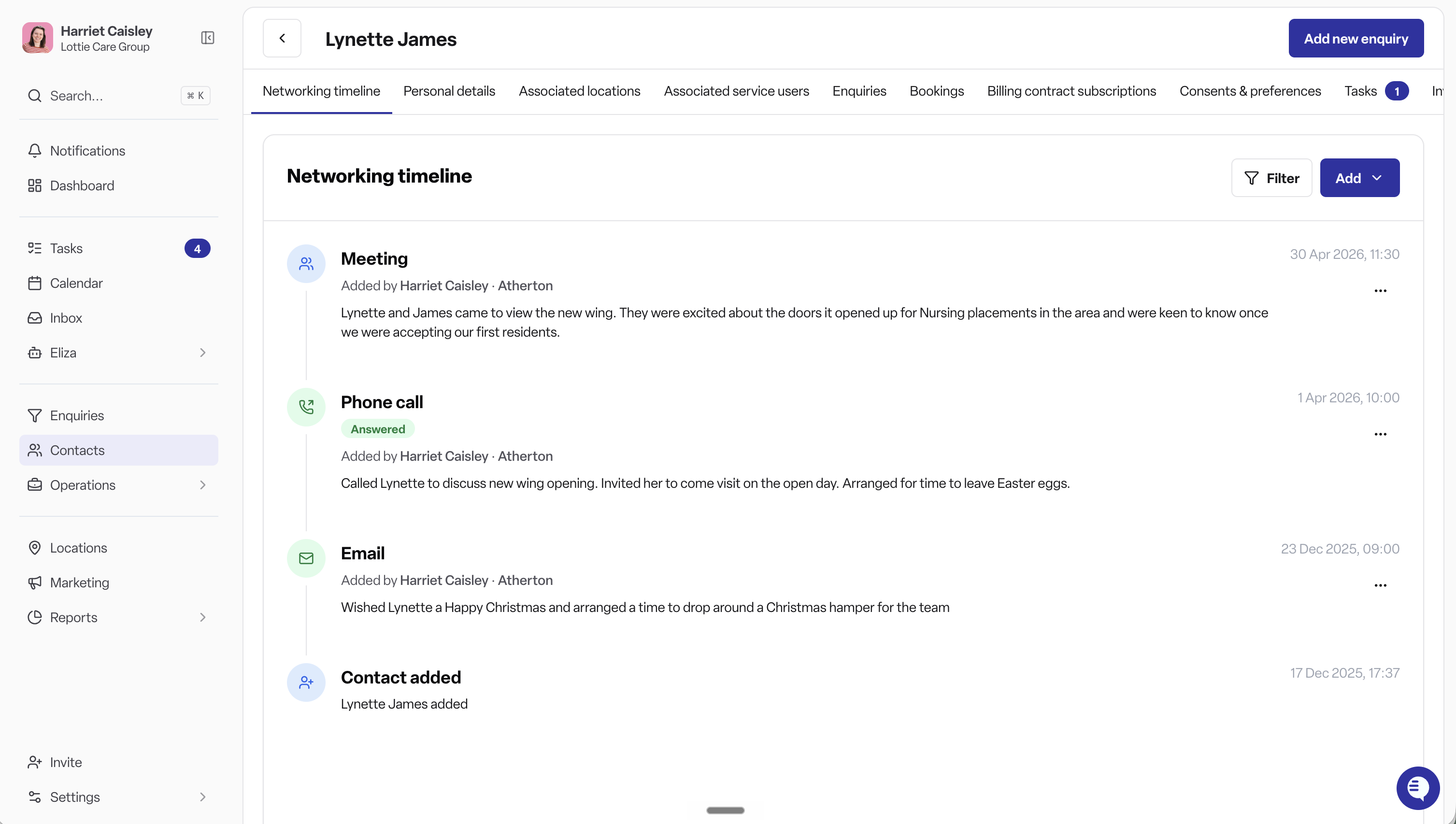
How to use the networking timeline
Viewing the timeline
Open a professional contact's profile and select the Networking timeline tab. Activities load automatically, with the most recent shown first. Scroll down to load older entries.
Logging a new activity
Click the Add button at the top of the timeline.
Select the activity type from the dropdown (email, phone call, meeting, or note).
Complete the form:
Location — select the location this interaction relates to. If your account only has one location this is filled in automatically.
Date and time — select when the activity happened. Future dates cannot be selected. This field is not shown for notes — the time is recorded automatically when you save.
Direction — for phone calls only, select whether the call was inbound or outbound.
Outcome — for phone calls only, select whether the call was answered, a voicemail was left, or it went unanswered.
Notes — add a description or summary of the interaction. This field is required.
Click Save.
When you save an activity against a location that is not already linked to the contact, Found will automatically create that link.
Editing an activity
Click the three-dot menu on any activity you logged yourself and select Edit. You can update all fields except the activity type. Click Save to apply your changes.
Deleting an activity
Click the three-dot menu on any activity you logged yourself and select Delete. You will be asked to confirm before the activity is removed.
Filtering the timeline
Use the filter bar at the top of the timeline to narrow down what is shown:
By activity type — filter to show only emails, phone calls, meetings, or notes (you can select multiple).
By location — filter to activities logged against a specific location (you can select multiple).
Click the × next to any active filter to remove it, or Clear all to remove all filters at once. Note that the "Contact added" entry at the bottom is hidden when any filter is active, but returns when filters are cleared.
How to get my team to add networking activities
The networking report is only as useful as the data behind it. If your team is not logging activities consistently, the report will not reflect the true level of engagement happening on the ground.
Set clear expectations
Let your team know that logging networking activities in Found is the expected way to record all professional contact interactions, not an optional extra. Make it part of your standard process for follow-ups, meetings, and calls.
Log activities as you go
Encourage your team to log an activity immediately after a call, email, or meeting rather than trying to recall it at the end of the week. The form only takes a few seconds and the date and time can be adjusted if needed.
Start with the most common activity types
Phone calls and emails are the highest-frequency touchpoints for most teams. Getting into the habit of logging these first will build the majority of your data before extending to meetings and notes.
Use the networking timeline in team check-ins
When reviewing a professional contact with your team, open their networking timeline together. This normalises checking the log as part of regular contact management and surfaces contacts that have had no interaction for some time.
Lead by example
If managers and senior team members log their own activities consistently, it sets the tone for the rest of the team.
Review the report regularly
When your team knows the networking report is reviewed by management, logging activities becomes more habitual. Sharing it in team meetings gives the data a visible purpose and reinforces why logging matters.
Rules and restrictions
Professional contacts only. The networking timeline tab only appears on contacts with a type of "Professional". It is not available on other contact types.
You can only edit or delete your own entries. You can view all activities logged by your team, but you can only edit or delete activities that you personally created.
Dates must be in the past. When logging an activity, the date and time cannot be set to a future date or time.
Notes are required. Every activity must include at least one character of content in the notes field.
Activity type cannot be changed after creation. If you select the wrong type, delete the entry and create a new one with the correct type.
Feature availability. The networking timeline is controlled by a feature flag. If you cannot see the tab on a professional contact, contact your system administrator to confirm the feature is enabled for your workspace.
Networking reports
The activities you log in the networking timeline feed directly into the Networking report, found under Reports > CRM. This gives your team an aggregated view of networking activity across contacts and locations over time. See the Networking report article for full details.
Frequently asked questions
Q: Why can't I see the networking timeline tab on a contact? A: The tab only appears on contacts where the type is set to "Professional". Check the contact's type in their profile details. If the contact is professional but the tab is still missing, the feature may not be enabled for your workspace — speak to your administrator.
Q: Can I log an activity against a personal contact? A: No. Networking activities can only be logged against professional contacts. If you need to track interactions with a personal contact, consider whether their contact type should be updated to "Professional".
Q: Why can't I edit or delete an activity logged by a colleague? A: You can only edit or delete activities that you created yourself. If a correction is needed to a colleague's entry, ask them to make the change.
Q: Can I log an activity with today's date and time? A: Yes, you can select any date and time up to and including the current moment. Future dates are not permitted.
Q: What happens if I select a location that is not already linked to the contact? A: Found will automatically link the contact to that location when the activity is saved. You do not need to manually add the location link first.
Q: Can I change the type of an activity after I've saved it (for example, change a note to a phone call)? A: No. The activity type is fixed at creation and cannot be changed. Delete the incorrect entry and create a new one with the right type.
Q: What does "voicemail left" mean for a phone call outcome? A: It means your team member made an outbound call that was not answered, and they left a voicemail message for the contact.
Q: Does filtering the timeline hide any entries permanently? A: No. Filters only affect what is displayed on screen. Clearing the filters restores the full timeline. Note that the "Contact added" entry at the bottom is hidden while any filter is active, but returns when filters are cleared.
Q: Who can see the networking timeline? A: All team members with access to professional contacts and the networking feature enabled can view the full timeline, including entries logged by others.
Q: Is the networking timeline available on a mobile device? A: The networking timeline is part of the standard Found interface. Availability on mobile depends on your organisation's access setup.