Professional contacts and organisations
Last updated: July 28, 2026
Pro feature: This feature is available on Pro plans only. If you’d like to upgrade your plan, please contact our support team.
Overview
Professional contacts in Found allow you to track and manage your relationships with referral sources, industry partners, and other professional connections. This feature helps you:
Distinguish between personal contacts (service users and their families) and professional contacts (referrers and partners)
Track which professionals refer enquiries to your organisation
Organise professional contacts by their affiliated organisations
Manage organisation information efficiently
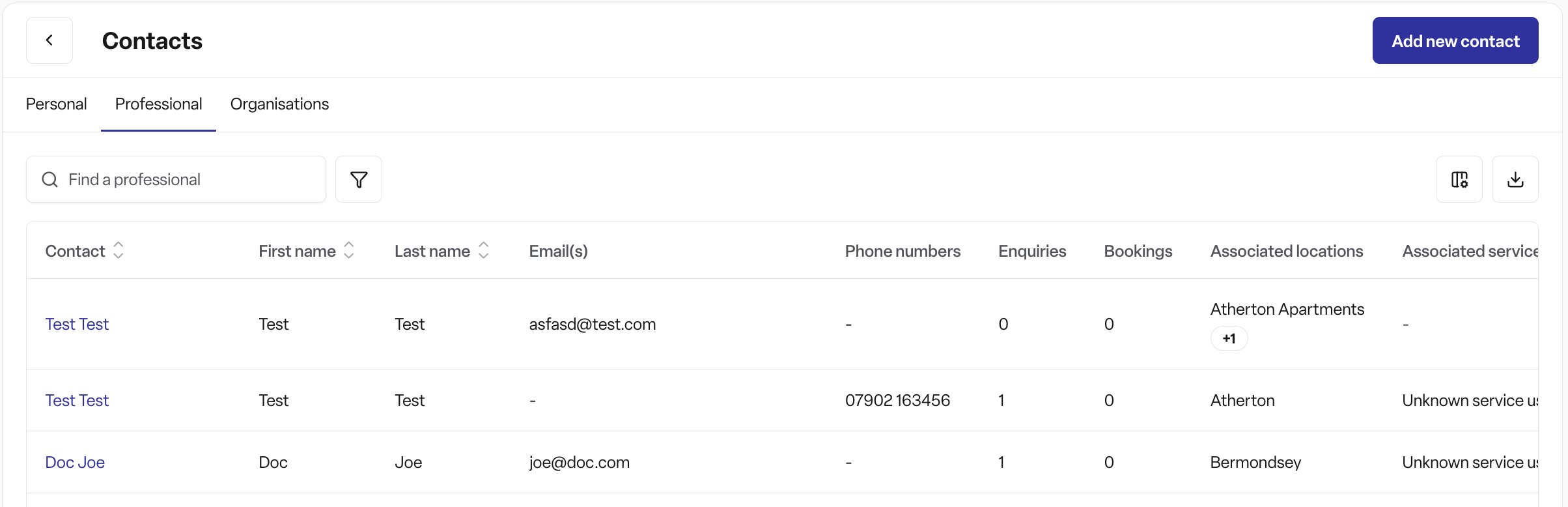
How to make a contact a professional
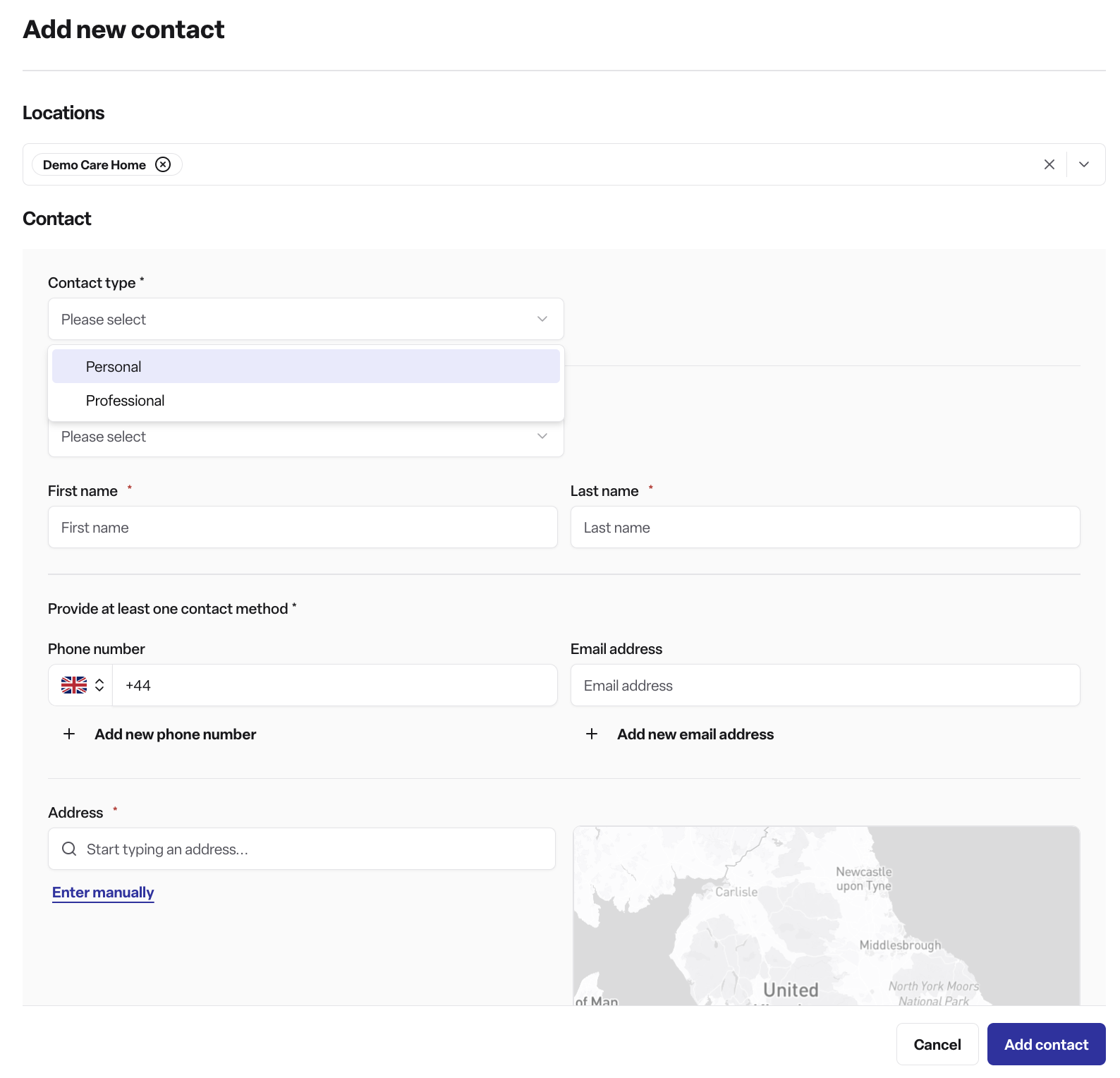
Creating a new professional contact
Navigate to contacts
Go to the Contacts section in Found
Click the "Add new contact" button
Select contact type
At the top of the contact form, you'll see a contact type selector
Choose "Professional" (the default is "Personal")
Note: You'll only see this option if you have permission to create professional contacts
Complete personal details
Enter the contact's Title (Mr, Ms, Mrs, Miss, or Other)
Enter their First name and Last name
Add professional details When you select "Professional" as the contact type, additional fields appear:
Job role (required) - Enter the person's professional role (e.g., "Social Worker", "GP", "Care Coordinator")
Organisations - Select one or more organisations this professional is affiliated with
Use the search box to find existing organisations
You can select multiple organisations if the professional works for more than one
Add contact methods
Enter at least one email address or phone number
You can add multiple email addresses and phone numbers if needed
Add address (optional)
Add the professional's address if relevant
Set communication preferences (optional)
Configure their privacy and marketing consent preferences
Save the contact
Click "Add contact" to save
If Found finds an existing contact with the same email or phone number, it will alert you to prevent duplicates
How to assign a referral to a professional
When creating or editing an enquiry, you can record which professional contact referred the enquiry to you.
Steps to assign a referral
Create or edit an enquiry
Navigate to the enquiry form
Open marketing attribution section
Scroll to the "Marketing attribution" section
This is where you record how the enquiry came to you
Set contact details
Select the contact date and time when the enquiry was made
Choose the contact method (e.g., Phone call, Email, Contact form)
Select marketing source
Choose the marketing source from the dropdown menu
Sources are grouped by category
Assign the professional contact
When you select a marketing source under the "Professional Referral" source group (within the "Referral or recommendation" category), a new field appears: "Professional contact"
Use the search box to find and select the professional who made the referral
Note: This option only appears for sources in the Professional Referral group specifically — other sources in the same "Referral or recommendation" category (e.g. Personal Referral, Word of Mouth) will not show this field. It also only appears when the professional contacts feature is enabled
Automatic referral detection
If you've already added a professional contact to the enquiry (in the enquiry's contact section) before reaching this step, Found will try to detect the referral automatically
It looks at that professional's organisation and, if it can match it to a "Professional Referral" source, pre-fills both the marketing source and the "Professional contact" field for you
An info banner ("We've detected a professional referral...") appears when this happens
You can still change the pre-filled source or contact manually if it's not correct
Save the enquiry
Complete the rest of the enquiry form and save
The referral assignment is now recorded
How to set up your organisations
Organisations represent the companies, charities, NHS trusts, local authorities, and other entities that your professional contacts work for.
Creating a new organisation
Navigate to organisations
Go to Contacts → Organisations in the main navigation
Click "Add organisation"
A form will open on the right side of your screen
Enter organisation details
Name (required) - Enter the full name of the organisation
Example: "NHS Birmingham and Solihull Integrated Care Board"
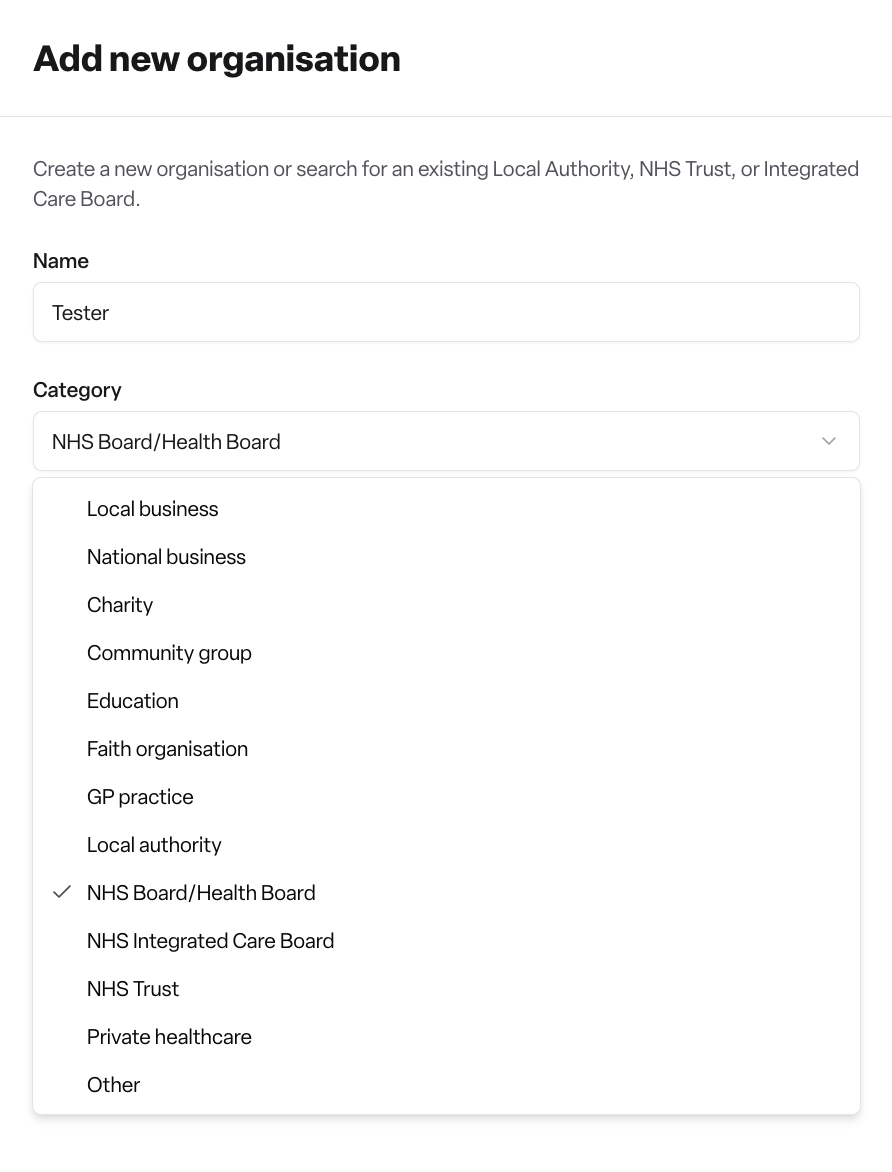
Category (required) - Select the type of organisation from the dropdown:
Business (Local) - Local business or company
Business (National) - National or multi-regional business
Charity - Charitable organisation
Community group - Community or voluntary group
Education - School, college, or university
Faith - Religious organisation
GP - GP surgery or practice
Local authority - Council or local government
NHS Board/Health Board - NHS regional health board
NHS Integrated Care Board - NHS ICB
NHS Trust - NHS hospital or community trust
Private healthcare - Private healthcare provider
Other - Any other type of organisation
Save the organisation
Click "Add organisation" to save
The organisation is now available when creating or editing professional contacts
Editing an organisation
Find the organisation in your organisations list and click its name to open it
On the Details tab, update the fields you need (name, category, reference, email addresses, phone numbers, addresses)
Click "Save" in the top right to save your changes
Note: There is no "Edit" option in the three-dots menu next to an organisation in the list — that menu only offers "Merge" and "Archive" (or "Restore" for an archived organisation). Editing is done directly on the organisation's own page.
How to merge organisations
Sometimes you may have duplicate organisations or need to consolidate organisations. The merge feature allows you to combine two organisations while preserving all professional contact relationships.
When to merge organisations
Duplicates - You've accidentally created the same organisation twice
Organisational changes - Two organisations have merged in real life
Consolidation - You want to simplify your organisation list
Steps to merge organisations
Identify your organisations
Decide which organisation will be the source (the one that will be removed)
Decide which organisation will be the target (the one that will remain)
Navigate to organisations
Go to Contacts → Organisations
Start the merge
Find the source organisation (the one you want to remove)
Click the three dots menu next to it
Select "Merge"
Select target organisation
A form will appear showing your source organisation at the top
Use the dropdown to search for and select the target organisation
The source organisation will not appear in the list (you can't merge an organisation with itself)
Complete the merge
Click "Merge" to proceed
All professional contacts from the source organisation will be moved to the target organisation
The source organisation will be removed
What happens during a merge
All professional contacts from the source organisation are transferred to the target organisation
The source organisation is removed from your organisation list
Any professional contact that was linked to both organisations will remain linked to the target organisation (duplicates are handled automatically)
Enquiry history is preserved - any enquiries attributed to professionals from that organisation remain unchanged
Important notes
Merges cannot be undone, so make sure you select the correct target organisation
Only professional contacts are linked to organisations (personal contacts are not affected)
Tips and best practices
Managing professional contacts
Keep job roles up to date - When professionals change roles, update their contact record
Use clear organisation names - Make it easy to search and find organisations (e.g., "Birmingham City Council" rather than "BCC")
Review regularly - Periodically check for duplicate organisations and merge them
Organisation categories
Choosing the right category helps with:
Reporting - Analyse referrals by organisation type
Filtering - Quickly find organisations of a specific type
Avoiding duplicates
Before creating a new organisation:
Search existing organisations first
Check for variations in naming (e.g., "NHS" vs "National Health Service")
Use the merge feature if you find duplicates after creation