Branding
Last updated: July 9, 2026
Overview
Themed brands let admins apply a distinct visual identity — logo, colour, and font — to each brand within a workspace. A workspace can have more than one brand (for example, if it operates under several trading names), and every location belongs to exactly one brand. Each brand's theme controls how that brand's public-facing scheduler and enquiry widgets appear to prospective clients.
Where it is
Settings > Workspace > Brands.
This page lists the brands available to your workspace. Selecting a brand opens its theme editor.
How it works
Go to Settings > Workspace > Brands.
Select the brand you want to update from the list.
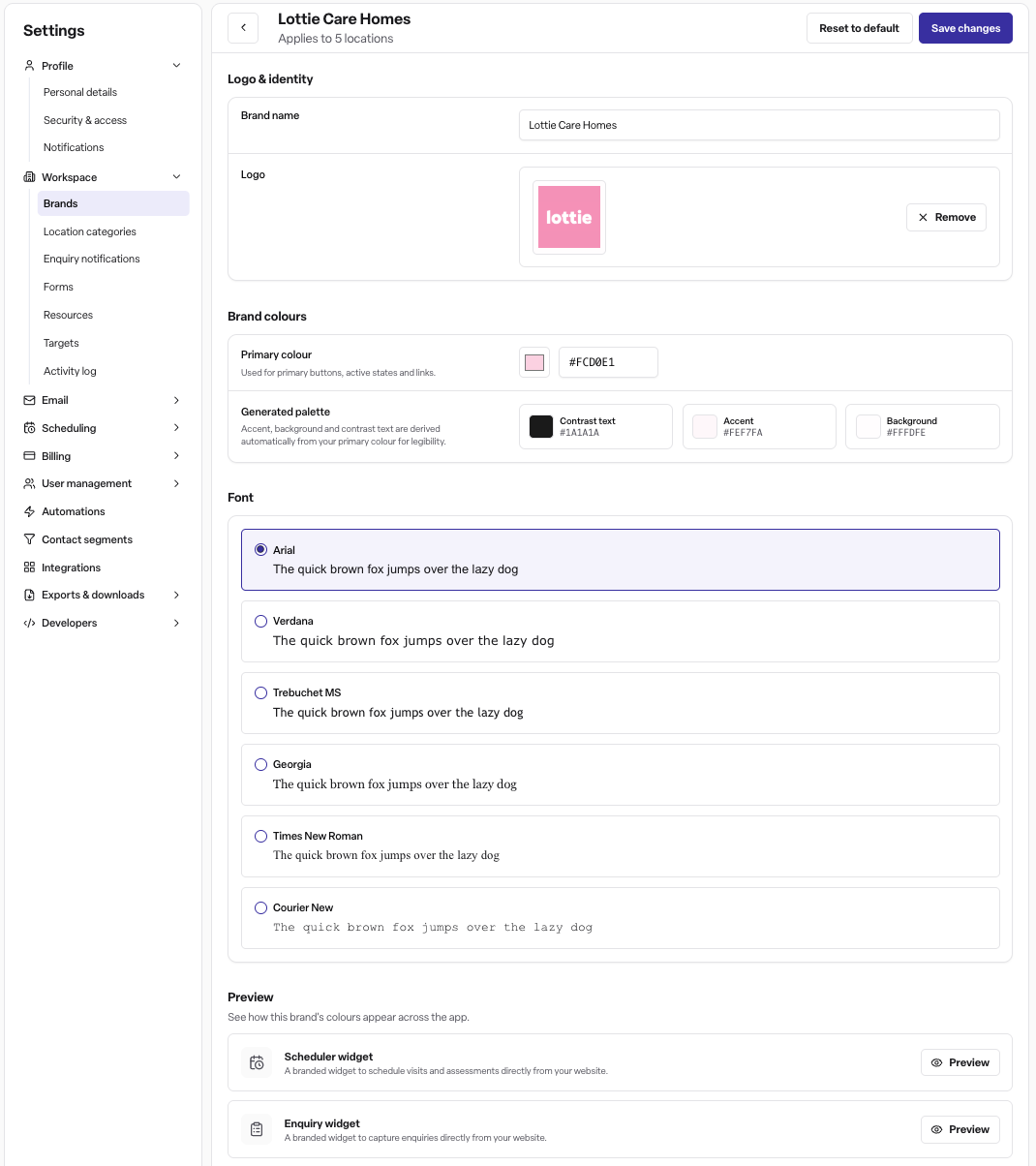
On the brand's theme page, you can update:
Name
Logo (PNG or SVG, minimum 240 x 240 pixels)
Primary colour — a full colour palette is generated automatically from this one colour
Font — choose from Arial, Verdana, Trebuchet MS, Georgia, Times New Roman, or Courier New
Use the preview panel to check how the theme looks before saving.
Save your changes, or select "reset to default" to revert to the brand's original theme.
What the theme actually applies to today: the brand's public scheduler widget and enquiry widget. The preview panel also shows email signatures, email templates, and the Eliza chat widget, but these are marked "coming soon" and are not live yet — don't rely on brand theming showing up in emails or chat at this time.
Creating or deleting a brand isn't self-service. New brands are set up by the Lottie team. Contact Lottie support if you need a new brand added or an existing one removed.
Permissions
Plan: Found Pro
Module: CRM, Occupancy and Billing
Roles: Admin only — Admins can view and edit brand themes. Manager and Staff users do not have access to this page.
Frequently asked questions
Q: Can I create a new brand myself? A: No. Brands are set up by the Lottie team — contact Lottie support if you need one added.
Q: Can a workspace have more than one brand? A: Yes. A workspace can have multiple brands, each with its own theme. Every location belongs to exactly one brand.
Q: Who can access themed brands? A: Only users with the Admin role can view or edit brand themes. Manager and Staff users don't have access.
Q: What can I customise on a brand? A: The brand's name, logo, primary colour (which auto-generates a full palette), and font.
Q: Where does the brand theme actually show up? A: Currently, on the brand's public scheduler widget and enquiry widget. Email signatures, email templates, and the Eliza chat widget appear in the preview but are coming soon — not yet live.
Q: Can I link a brand to a specific location or embeddable form? A: Every location is assigned to one brand automatically. Embeddable forms can optionally be linked to a brand in the form builder's General tab, so the form picks up that brand's theme.
Q: What are the logo file requirements? A: PNG or SVG, at least 240 x 240 pixels.
Q: What happens if I don't set a theme? A: The brand uses its default theme until an Admin customises it.
The research already completed and I used it to write the full article above — it's already displayed with the overview, "How it works," permissions, and the Frequently asked questions section in Q/A format. Nothing further is pending from the agent. Let me know if you'd like any edits (tone, more FAQs, or an artifact version for sharing).