Understanding the enquiries tab
Last updated: July 15, 2026
Some features on the Enquiries tab are available on Pro plans only. If you’d like to upgrade your plan, please contact our support team.
Overview
The enquiries tab is your central workspace for managing potential customer enquiries throughout their entire journey - from initial contact through to either becoming a resident (closed won) or deciding not to proceed (closed lost). It provides a complete view of each enquiry with tools to track progress, schedule visits and assessments, manage tasks, and move enquiries through your workflow stages.
The enquiries list gives you powerful filtering and search capabilities to quickly find specific enquiries, whilst the detailed enquiry view provides everything you need to manage individual enquiries including timeline activities, care requirements, tasks, and documents.
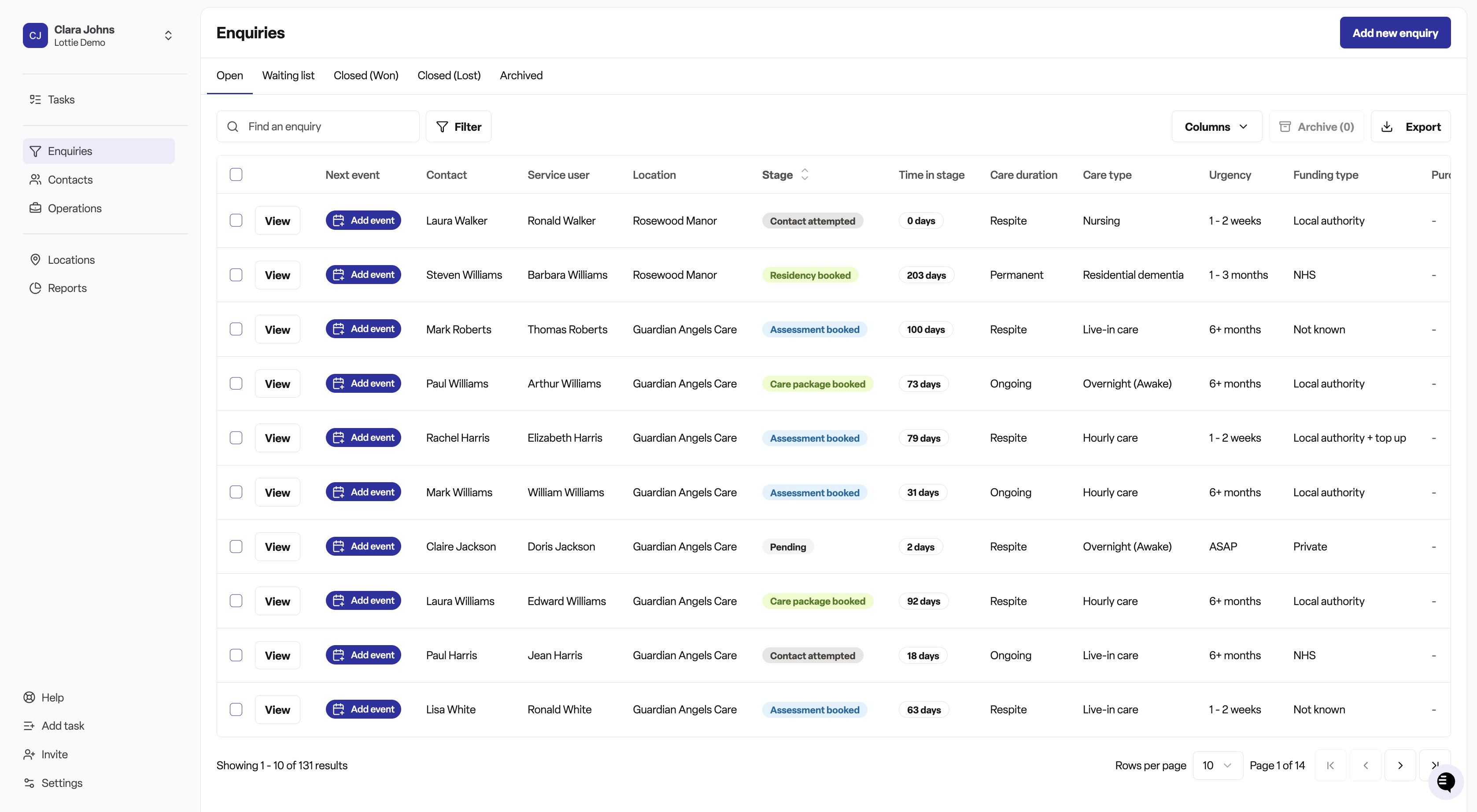
How to navigate to the enquiries tab
Click on Enquiries in the main navigation menu
You'll automatically land on the Open tab, which shows all active enquiries
Use the tabs at the top to switch between:
Open — Active enquiries currently in progress that are not on the waiting list
Waiting list — Active enquiries that have been added to the waiting list (this is a Found Pro feature — CRM module — contact our support team if you would like to upgrade)
Closed (Won) — Enquiries that successfully converted to residents
Closed (Lost) — Enquiries that didn't proceed
All — Every enquiry regardless of status
Archived — Enquiries you've archived (only visible if you have permission to delete enquiries)
Key features
Viewing and managing your enquiry list
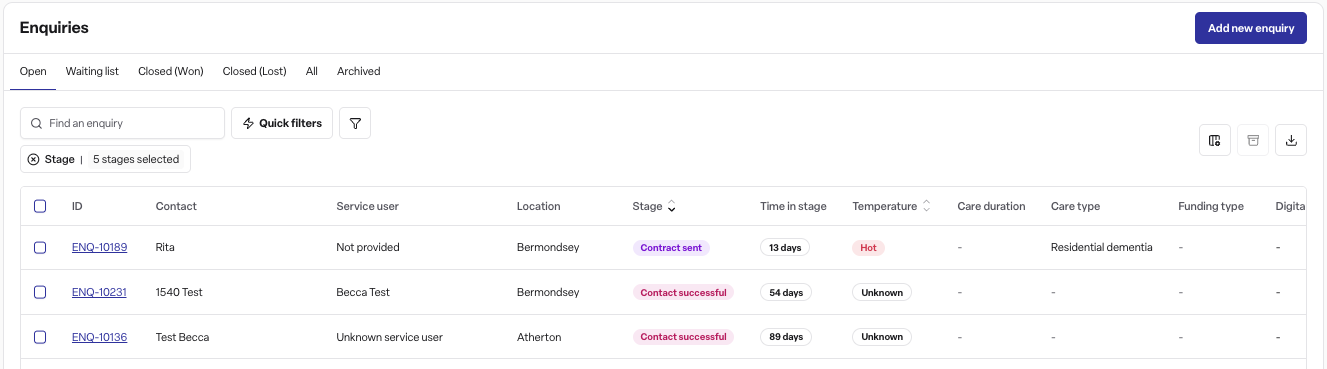
The enquiry list displays key information in columns including ID, contact name(s), service user, location, status, current stage, days in stage, care type, duration, funding type, urgency, and attribution (digital or self-reported). A "Next event" column showing upcoming visits and assessments is also available — this is a Found Pro feature (CRM module). You can customise which columns appear and drag to reorder them; your preferences are automatically saved for next time.
Use the search box to find enquiries by name or details, and combine multiple filters to narrow your list — location, stage, care type, duration, funding, urgency, time in stage, attribution source, contact method, temperature, specialist requirements, and more, plus quick filters like "Stale enquiries" and "No tasks". The export button lets you download your currently filtered list as a CSV file.
Adding a new enquiry
Click the Add enquiry button in the top right to create a new enquiry. You can either create an enquiry with a new contact or link it to an existing contact in your system (the form will flag potential duplicate contacts). The form guides you through capturing locations, workflow stage, service user details, care requirements, notes, and attribution.
Working with individual enquiries
Click View on any enquiry to open the detailed view, which includes:
Timeline tab — See all activity, notes, visits, and assessments in chronological order
Enquiry details tab — View and edit service user information and care requirements
Attribution tab — View how the enquiry was sourced
Tasks tab — Manage tasks associated with the enquiry (this is a Found Pro feature — System module — contact our support team if you would like to upgrade)
Documents tab — Store and access relevant documents (this is a Found Pro feature — CRM module — contact our support team if you would like to upgrade)
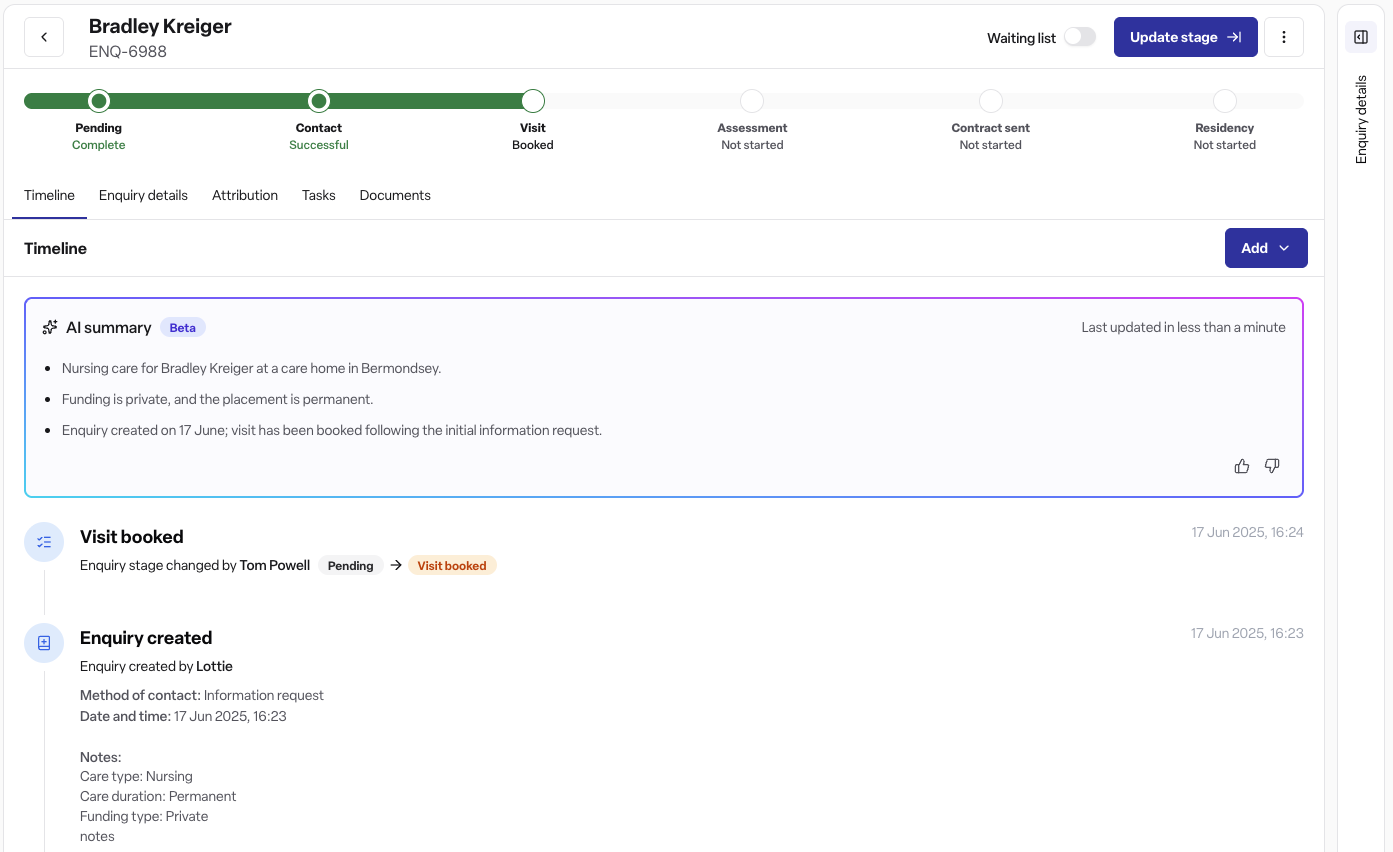
Alongside the tabs, a summary sidebar on the right-hand side (on desktop) always shows key details at a glance — status, location, temperature, days in stage, care type, duration, and funding — along with contacts and service user information. You can update the location and temperature directly from this sidebar without needing to open a tab.
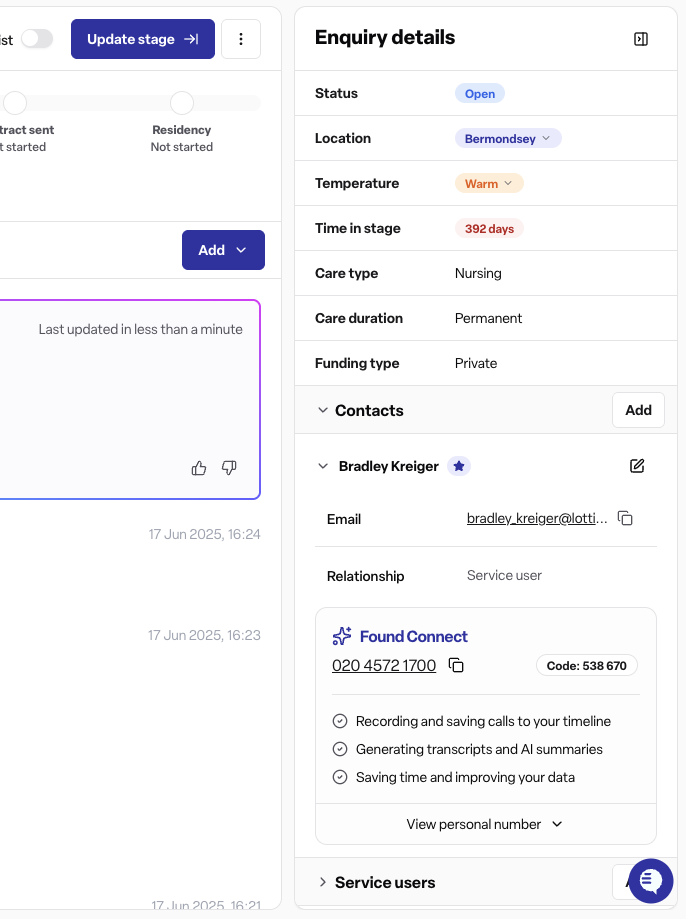
Progressing enquiries through your workflow
Each enquiry moves through customisable workflow stages specific to each location type. The visual progress bar shows where the enquiry sits in your process. Click Update stage to move an enquiry forward — at certain stages (e.g. moving to Visit booked or Assessment booked) you may be prompted to schedule a visit or assessment; scheduling is a Found Pro feature (CRM module).
Track the likelihood of conversion using the temperature indicator (hot, warm, cold) which you can update by clicking the temperature badge in the summary sidebar.
Scheduling visits and assessments
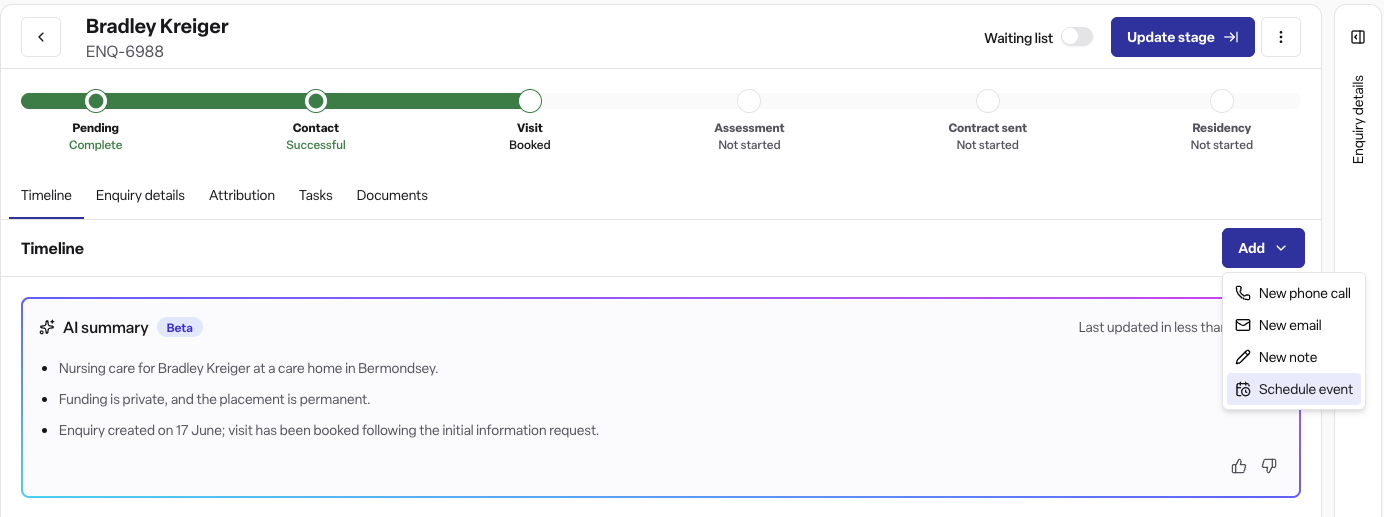
Add visits and assessments from the timeline tab's "Schedule event" option, or when prompted during certain workflow stage updates. This is a Found Pro feature (CRM module). Scheduled events appear in the Next event column of your enquiry list, helping you see upcoming activities at a glance.
Closing enquiries
An enquiry is closed in one of two ways:
Closed (Won) — This happens automatically once the enquiry's workflow reaches a winning stage (such as Residency started, Care package started, or Sale, depending on location type). If your workspace has the Occupancy module enabled, reaching the Residency booked or Residency started stage prompts you to create a room booking directly from the enquiry.
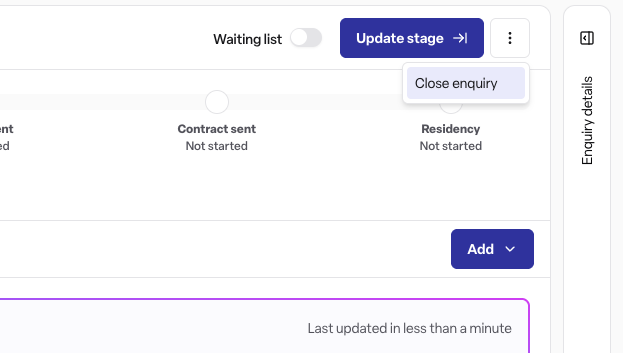
Closed (Lost) — Use the Close enquiry action to mark the enquiry as lost. You'll need to select a closure reason category (and a more specific reason, where applicable) to help track why enquiries don't convert.
Frequently asked questions
Q: How do I find a specific enquiry quickly?
A: Use the search box at the top of the enquiry list to search by name or details. You can also combine multiple filters (location, stage, care type, etc.) to narrow down your list. Your filter selections remain active until you change them.
Q: What does "days in stage" mean?
A: This shows how long an enquiry has been in its current workflow stage. It helps you identify enquiries that may need attention or follow-up if they've been in a stage for longer than expected.
Q: How do I customise which columns appear in my enquiry list?
A: Click the column visibility button in the table header to show or hide specific columns. You can also drag column headers to reorder them. Your preferences are automatically saved for next time.
Q: What's the difference between hot, warm, and cold enquiries?
A: The temperature indicates how likely an enquiry is to convert. Hot enquiries are highly likely to proceed, warm enquiries show interest but need nurturing, and cold enquiries are less likely to convert. Update the temperature by clicking the temperature badge in the enquiry header.
Q: Can I export my enquiry list?
A: Yes, click the export button in the table header. This will export your currently filtered list, so apply any filters first to export specific enquiries.
Q: What happens when I move an enquiry to "residency booked" stage?
A: When you update an enquiry to the residency booked stage (or residency started), you'll be prompted to create a room booking for the resident. This connects your enquiry directly to your occupancy management.
Q: How do I add someone to the waiting list?
A: Open the enquiry detail view and click the Waiting list toggle button in the top right. The enquiry will move from the Open tab to the Waiting list tab. To remove an enquiry from the waiting list, click the toggle again and it will return to the Open tab.
Q: Why do I need to provide a reason when closing an enquiry as lost?
A: Closure reasons help you understand why enquiries don't convert, allowing you to identify patterns and improve your conversion rates over time. Select the most relevant category and specific reason when closing an enquiry.
Q: Can I see all activity on an enquiry in one place?
A: Yes, the timeline tab in the enquiry detail view shows all activity, notes, visits, assessments, and changes in chronological order. This gives you a complete history of the enquiry journey.
Q: How do I know which enquiries need my attention?
A: Look at the "next event" column to see upcoming visits and assessments. You can also filter by "days in stage" to find enquiries that have been waiting for a long time, or filter by "urgency" to prioritise enquiries that need care immediately.