How to close an enquiry
Last updated: May 21, 2026
Overview
When an enquiry is no longer viable or the prospective service user has chosen not to proceed, you can formally close it in Found. Closing an enquiry creates a permanent record of why it didn't convert, which helps track performance and understand trends.
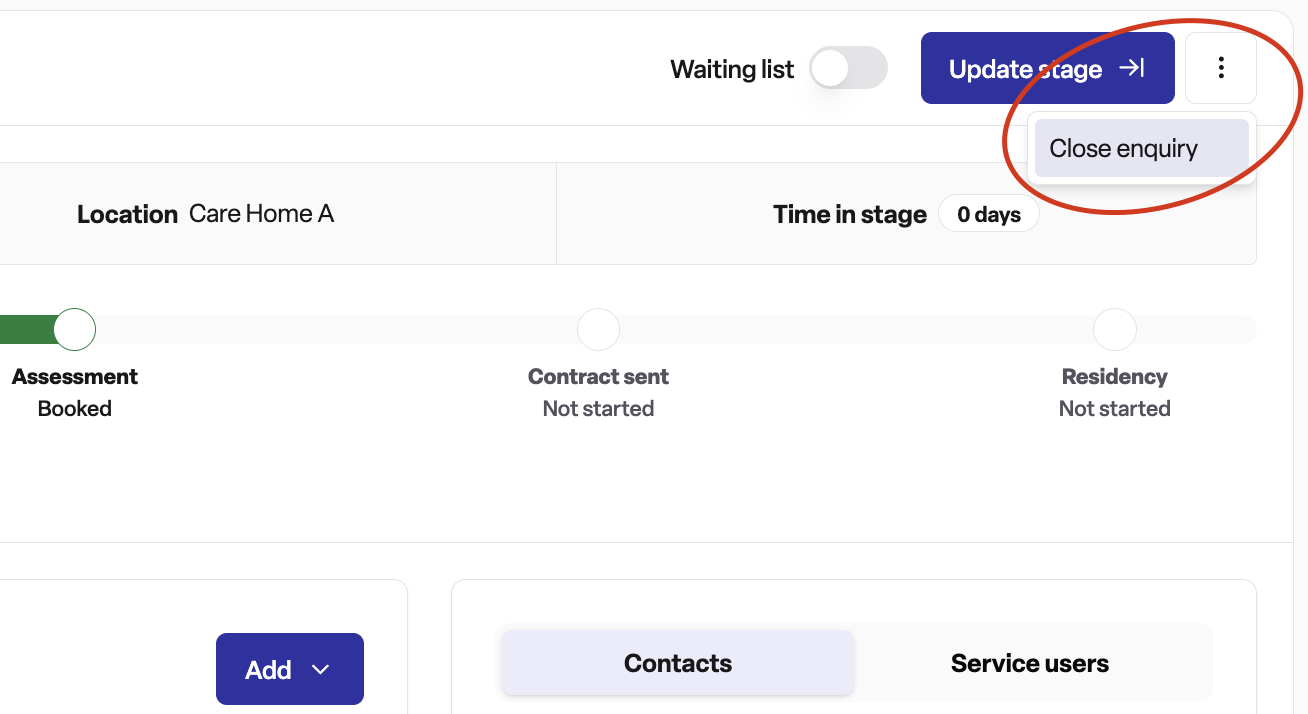
How to close an enquiry
Step 1: Open the enquiry
Navigate to the enquiry you want to close from your enquiry list.
Step 2: Access the actions menu
Click the three dots (⋯) button in the top-right corner of the enquiry details page.
Step 3: Select 'Close enquiry'
From the dropdown menu, select "Close enquiry". This will open the closure form.
Step 4: Choose a closure reason
Select the primary reason category that best describes why the enquiry is being closed. You must choose from the available options.
Step 5: Select a specific reason (if applicable)
Most categories will ask you to choose a more specific reason. This helps provide detailed reporting on why enquiries don't convert.
Step 6: Add additional information (optional)
Depending on your selection, you may be able to add extra details:
Required for 'Other': You must explain what happened if you select "Other" as your closure reason
Optional for some reasons: Some specific reasons allow you to add context (e.g., naming which competitor they chose)
Step 7: Confirm closure
Click the "Close enquiry" button to finalise. You'll see a confirmation message, and the enquiry status will update to "Closed - Lost".
Closure reason options
When closing an enquiry, you'll choose from 9 main categories:
1. Change in circumstances
The prospective service user's situation has changed, making care with you no longer needed or appropriate.
Specific reasons:
Prospective service user has improved
Prospective service user is staying in hospital
Prospective service user has moved to end of life care
Prospective service user is deceased
Change in financial circumstances
2. Requirements not met
Your care home cannot meet the prospective service user's needs for various reasons.
Specific reasons:
We don't have availability
We are too expensive
We cannot support care requirements
We do not have suitable facilities
We are not in a suitable location
We do not meet their regulator requirements
3. Chosen a different provider/solution
The prospective service user has decided to go with another care option.
Specific reasons:
Chose a sister location (you can enter which location)
Chose a competitor's care home (you can enter which location)
Chose a different paid care solution (you can enter which solution)
Chose to manage with family and/or friends
4. Enquiry unrelated to care
The person contacting you wasn't actually seeking care services.
Specific reasons:
Job seeker
Entertainment
Journalist
Service provider (e.g. hair, nails, feet)
Selling something (e.g. beds)
5. Unable to contact
You couldn't establish or maintain contact with the enquirer.
Specific reasons:
Contact never responded
Contact stopped responding
Removed consent for contact
6. Not ready to progress conversations
The enquirer wasn't ready to move forward with actual care arrangements.
Specific reasons:
Looking for care in the future
Understanding prices
Mystery shopper
7. Duplicate enquiry
This enquiry is a duplicate of another enquiry already in the system.
(No sub-options required)
8. Test/human error/spam
The enquiry was created incorrectly or fraudulently.
Specific reasons:
Test enquiry
Enquiry created due to human error
Spam enquiry
9. Other
None of the above reasons fit your situation.
Required: You must provide a detailed explanation of why you're closing the enquiry.
Important: If you choose “Other”, the system uses AI to review the provided note and will automatically re-categorise the entry when a relevant category is identified.
What happens after closure
Once you close an enquiry:
Status changes: The enquiry status updates to "Closed - lost".
Timeline updated: A status change entry is added to the enquiry timeline, recording who closed the enquiry, when, the reason category and specific reason selected, and any additional information or note provided.
Removed from the waiting list: If the enquiry was on a waiting list, it is removed automatically and the removal is recorded on the timeline.
Hidden from active views: The close action is no longer offered, and the enquiry drops out of your active pipeline.
Reporting: The closure reason feeds into closed-enquiry insights so you can track trends across categories.
Re-openable: A closed enquiry can be reopened by moving it back into an open stage — see below.
How to reopen a closed enquiry
If a closed enquiry becomes active again:
Open the enquiry.
Click Update stage.
Select an open stage from the dropdown.
Click Update to confirm.
The enquiry status returns to "Open", a status change is recorded on the timeline, and the enquiry rejoins your active pipeline. The original closure information remains on the timeline, so you keep the full history of why it was closed and when it was reopened.
The same flow applies to a won enquiry that needs to move back to an earlier point in the pipeline — moving it to a non-winning stage returns the status to open.
Permissions
Closing and reopening an enquiry both require the Edit enquiry permission. Users without this permission won't see the close action or the update stage button.
Frequently asked questions
Q: Can I close an enquiry that's already closed?
A: No. Once an enquiry is closed, the close action is hidden. If you need to revisit a closed enquiry, reopen it first by changing its stage.
Q: Can I reopen a closed enquiry?
A: Yes. Use the Update stage button to move the enquiry into an open stage, and the status will return to "Open".
Q: What happens to the original closure reason when I reopen an enquiry?
A: It stays on the timeline. Reopening adds a new status change entry alongside the original closure, so you keep the full history.
Q: Do I have to choose a specific reason as well as a category?
A: Only when the category you pick has sub-reasons. If it doesn't, the category alone is enough.
Q: When is the "Additional information" field required?
A: When you select the "Other" category — this field captures the detail that doesn't fit the standard reasons.
Q: What's the difference between "Closed - lost" and "Closed - won"?
A: "Closed - lost" is the result of manually closing an enquiry from the actions menu. "Closed - won" is set automatically when the enquiry reaches a winning stage such as Residency started, Care package started, or Sale.
Q: Will closing an enquiry remove it from the waiting list?
A: Yes. If the enquiry was on a waiting list, it's removed automatically when you close it, and the removal is recorded on the timeline.
Q: Who can close or reopen an enquiry?
A: Any user with the Edit enquiry permission.
Q: Will closure reasons appear in reports?
A: Yes. The reason category is used in closed-enquiry insights so you can spot trends in why enquiries don't progress.
Q: I picked "Other" — why is the system suggesting a different category?
A: Found reviews the note you've written and suggests an existing category if it looks like a better fit. This keeps reporting consistent — you can accept the suggestion or stick with "Other".