Found and Nourish Care two-way integration
Last updated: September 9, 2026
Pro feature: This feature is available on Pro plans only. If you’d like to upgrade your plan, please contact our support team.
Overview
The Found and Nourish integration allows you to seamlessly share data between platforms, removing the need to manually enter resident details in both systems. Once connected, key information is automatically synced between Found and Nourish to keep records accurate and reduce admin effort.
This guide outlines how to set up the integration, how syncing works, and how to manage linked profiles across enquiry and resident journeys.
What details are automatically synced?
The integration syncs the following service user details between Found and Nourish Care:
Personal details:
Title (Mr, Mrs, Ms, Miss)
First name and last name
Preferred name (known as)
Date of birth
Gender
Marital status
Health and identification:
NHS number (health number)
National Insurance number (tax ID)
Nationality
Address:
Residential address (postcode, street, town, county)
How it works
The integration operates bidirectionally:
From Found to Nourish Care: When you update a linked service user's details in Found, the changes automatically sync to their Nourish Care profile
From Nourish Care to Found: When updates are made in Nourish Care, those changes sync back to the service user's profile in Found
The integration also tracks the service user's status in Nourish Care and displays this information alongside the last sync timestamp in Found.
Setting up the integration
Before you can link service users, your administrator needs to configure location mappings. This tells Found which Nourish Care service (location) corresponds to each of your Found locations.
Navigate to Settings > Integrations > Nourish Care.
Open the Location Mappings tab.
For each location, enable the integration by selecting the three-dot menu and clicking Enable.
Copy the Location Token.
Log in to Nourish as a Superuser.
Go to Administration > Extensions > Found CRM.
Toggle the integration On and paste the Location Token provided by Found.
Return to the Location Mappings tab in Found.
Use the three-dot menu to Test Connection and verify that the token is working.
Linking a service user
Once location mappings are configured, you can link service users to Nourish Care from either an enquiry or a booking.
Prerequisites
Before linking, the service user must have:
First name
Last name
Date of birth
NHS number (health number)
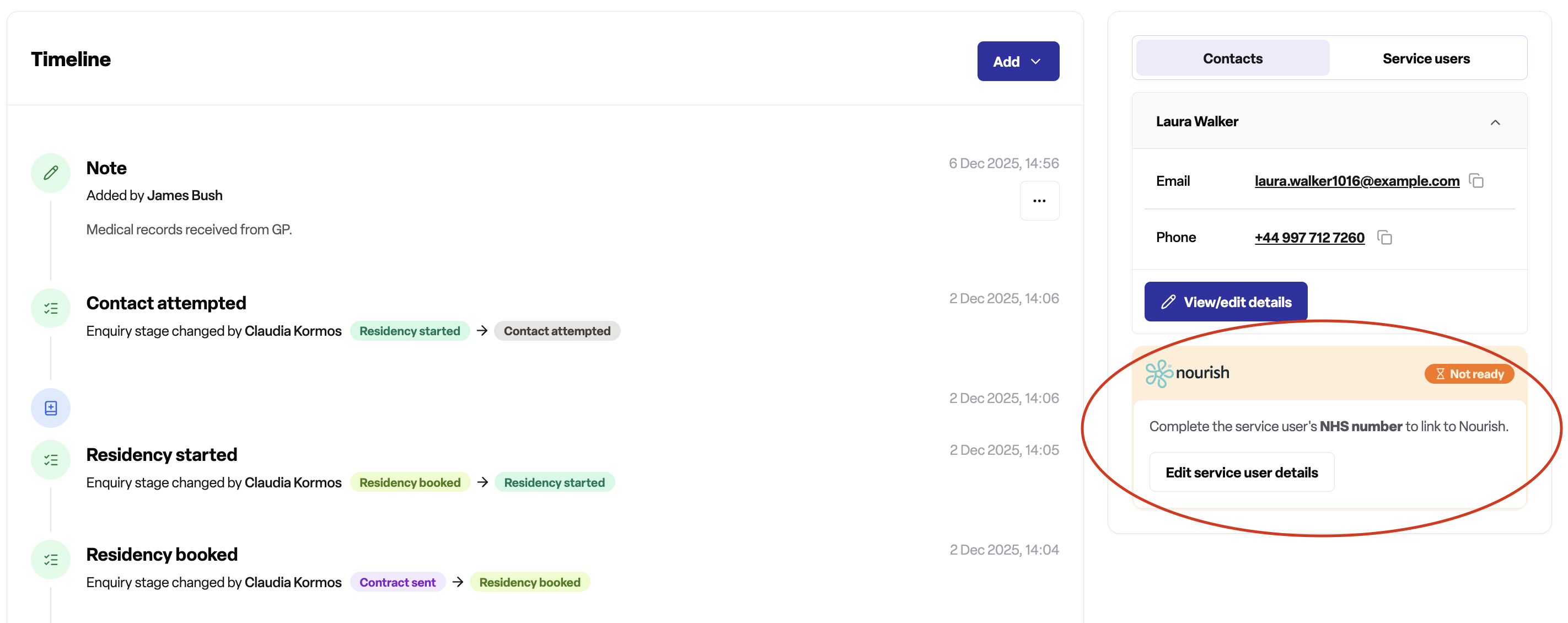
If any of these fields are missing, Found will display a "Not ready" card prompting you to add the required information.
Linking process
Open the service user's profile from an enquiry or booking
Look for the Nourish Care card in the sidebar
If the service user has all required fields, you'll see a Link to Nourish button
Click the button to initiate the link
When you link a service user:
Found searches for an existing Nourish Care client with matching NHS number and date of birth
If found, Found updates that client's details and links to it
If not found, Found creates a new client in Nourish Care
The initial status is set based on the booking start date:
Pre-assessment if no booking exists yet (enquiry stage)
Onboarding if the booking starts in the future
Enrolled if the booking has already started
Multiple Nourish Care clients
If multiple Nourish Care clients exist with the same NHS number and date of birth, the link will fail. You'll need to resolve the duplicate clients in Nourish Care before linking.
Using the integration
Once linked, the Nourish Care card shows:
The current status in Nourish Care
The location name
When the profile was last synchronised
A View in Nourish button to open the full profile
Any changes you make to the service user's details in Found will automatically sync to Nourish Care. Similarly, changes made in Nourish Care will sync back to Found.
Unlinking a service user
If you need to stop syncing a service user's profile, you can unlink them directly from Found.
Open the service user's profile from an enquiry or booking
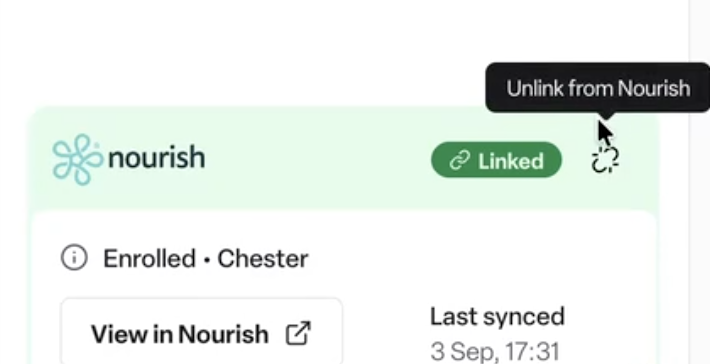
In the Nourish Care card, select the unlink icon
Confirm that you want to unlink the profile
When you unlink a service user:
Found and Nourish Care stop syncing changes for that profile
The Nourish Care profile itself is not deleted — only the connection between the two systems is removed
You can link the service user again at any time from the enquiry or booking
You'll need edit permission on the service user to unlink a profile.
Frequently asked questions
Q: What happens if I update a service user in both systems at the same time?
A: The most recent change will take effect. However, we recommend making changes in one system at a time to avoid conflicts.
Q: Can I link a service user to multiple Nourish Care locations?
A: A service user can have Nourish Care profiles at multiple locations, but only one can be actively synchronising at a time. When you link from a new booking at a different location, the previous link is deactivated.
Q: What does "last synced" mean?
A: This shows when the profile was last updated between Found and Nourish Care. Updates happen automatically whenever changes are made in either system.
Q: Can I unlink a service user from Nourish Care?
A: Yes. Open the service user's profile and select the unlink icon on the Nourish Care card, then confirm. This stops syncing between Found and Nourish Care but doesn't delete the Nourish Care profile — you can link again later if needed.
Q: What happens if a client is deleted in Nourish Care?
A: When a client is permanently deleted (marked as "Left" status and removed from all services), Found receives a notification and handles the deletion accordingly.
Q: Do I need to manually sync profiles?
A: No, synchronisation happens automatically whenever changes are made. You don't need to take any action.
Q: What if required fields are missing?
A: Found will display which fields need to be completed. Click Edit service user to add the missing information, then return to link the profile.
Q: Can I see the sync history?
A: The Nourish Care card displays the last sync timestamp. For detailed sync history, please contact support.
Q: What if I see a sync error?
A: The Nourish Care card will show if there's a sync problem. You can try viewing the profile in Nourish Care to check for issues, or contact support for assistance.