Person Centred Software (PCS) integration
Last updated: January 13, 2026
Pro feature: This feature is available on Pro plans only. If you’d like to upgrade your plan, please contact our support team.
Overview
The Person Centred Software (PCS) integration allows you to sync service user profile data from Found to PCS, when you're ready to onboard them into your care management system.
⚠ Important: This is a one-time sync. Once a service user profile is sent to PCS, any future updates must be made directly in Found & PCS.
What gets synced
When you link a service user to PCS, Found sends the following information:
Title, first name, last name, and known as (preferred name)
Date of birth
Gender
NHS number
Current room assignment (if they have an current or future booking)
Start date (from their booking)
Setting up the PCS integration
Prerequisites
You'll need your PCS community ID and API key for each location
Configuration steps
Navigate to the PCS settings
Go to Settings → Integrations → Person Centred Software
Click Settings on the PCS card
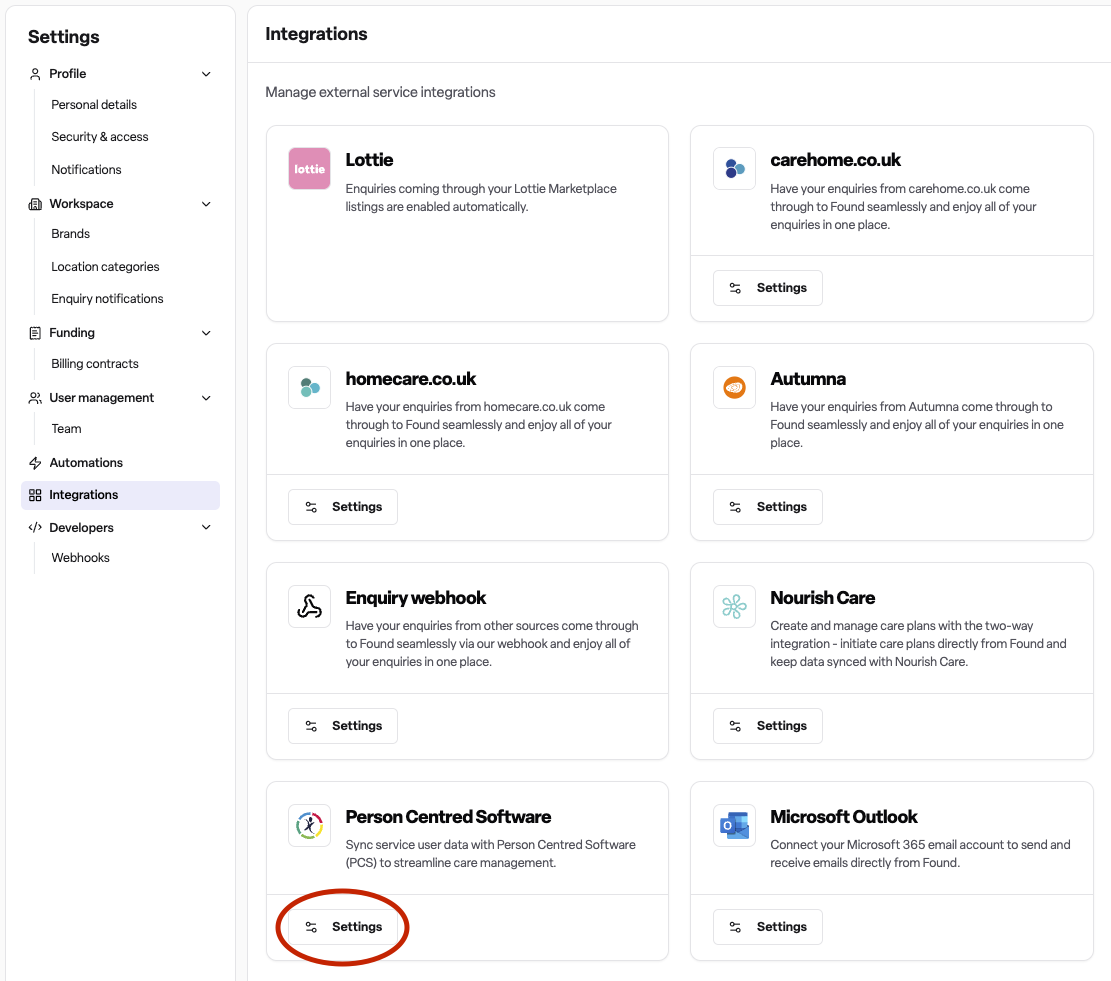
Configure each location
For each of your care home locations, you'll need to add:
PCS community ID: This is the unique identifier for your location in PCS
PCS API key: This is your authentication key to connect to PCS
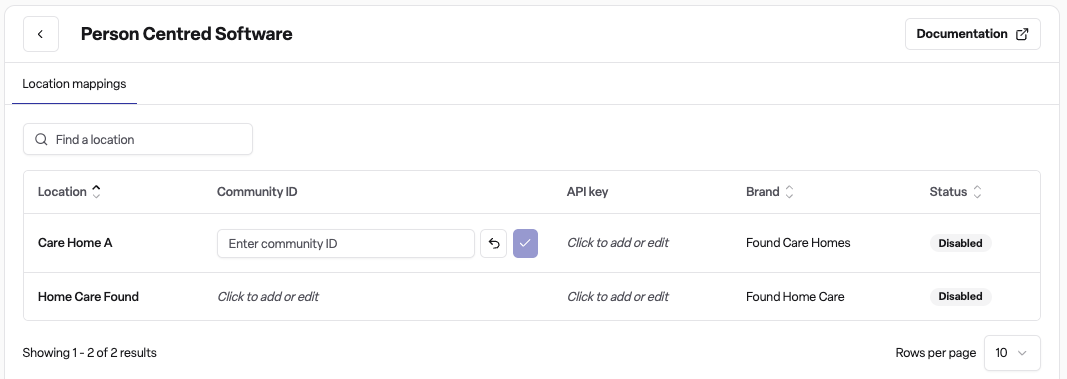
Once both values are entered, the integration is automatically enabled for that location
Save your settings
Your configuration is saved automatically
You can edit or remove the settings at any time
Using the PCS integration
Checking sync status
You'll see a PCS card on service user profiles that shows their current sync status:
Not ready (grey): The service user is missing required information (first name, last name, or date of birth)
Ready to link (blue): All required information is complete and you can send to PCS
Sent (green): Successfully synced to PCS with a link to view their profile in PCS
Unable to link (red): This person already exists in PCS or there was an error
Multiple profiles: This service user has been synced to PCS in multiple locations
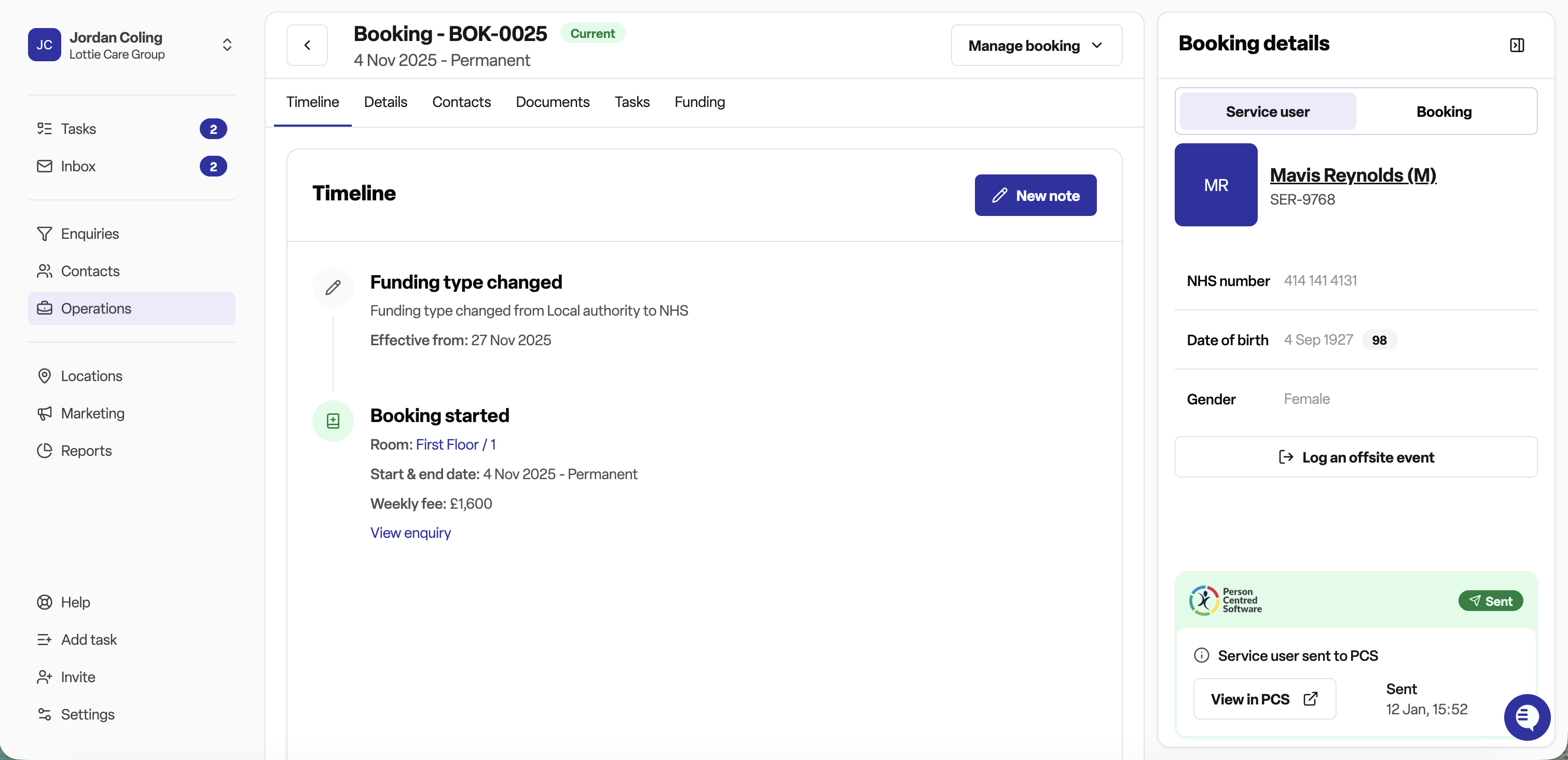
Linking a service user to PCS
You can link service users from the booking profile following it's creation.
Open the booking details for a service user
Find the PCS card
If the status shows 'Ready to link', click the 'Link with PCS' button
Found will send their profile information including their room assignment and admission date
Viewing service users in PCS
Once a service user has been successfully linked:
Find the PCS card on their booking profile
Click the 'View in PCS' link
This will open their profile directly in Person Centred Software
Frequently asked questions
Q: Does the PCS integration sync automatically?
A: No, the PCS integration requires you to manually click the 'Link with PCS' button for each service user when you're ready to sync them. This gives you control over when profiles are sent.
Q: Will updates in Found sync back to PCS?
A: No, this is a one-way sync from Found to PCS. Once a service user is linked, any updates must be made directly in PCS.
Q: What information is required before I can link a service user?
A: At minimum, you need the service user's first name, last name, and date of birth. Without these three fields, the sync cannot proceed.
Q: Can I link the same service user to PCS multiple times?
A: Yes, if a service user moves between different locations, you can link them to PCS separately for each location. Each location will have its own PCS profile.
Q: What happens if I delete the API key from a location?
A: Deleting the API key will disable the PCS integration for that location. You won't be able to link new service users to PCS until you add the API key again. Existing synced profiles in PCS are not affected.
Q: Can I unlink a service user from PCS?
A: No, once a service user is linked to PCS, the connection is permanent in Found.
Q: What should I do if the sync fails?
A: The PCS card will show an error message if the sync fails. You can try again by clicking the retry button. If the problem persists, check that your API key is correct in the location mappings settings.