How to manually add an enquiry
Last updated: November 13, 2025
Overview
This guide explains how to add a new enquiry in Found. An enquiry captures information about someone interested in your services, including their contact details, care requirements, and how they found you.
Before you start
Have the following information ready:
Contact details (name, phone number or email address)
The location(s) they're enquiring about
Their relationship to the person needing care
Basic care requirements
Note: You can add an enquiry with just the essential details and update it later.
Step-by-step instructions
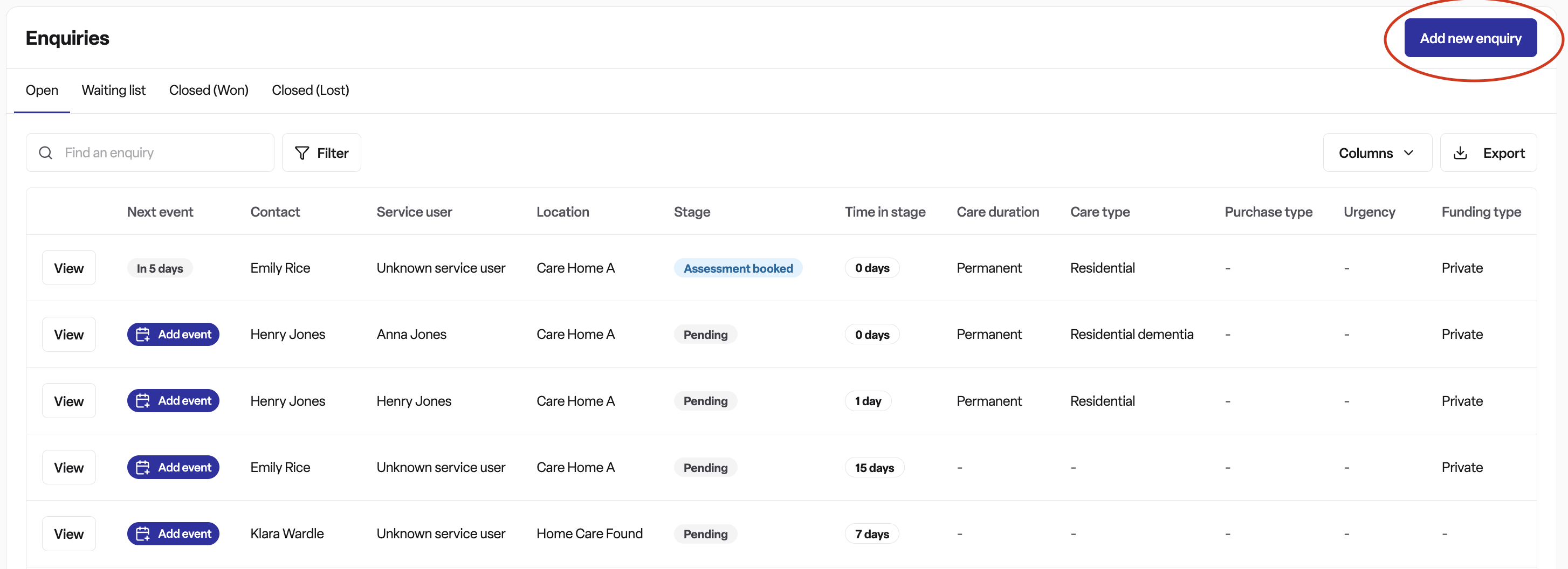
1. Open the add enquiry form
Navigate to the Enquiries page in Found
Click the add enquiry button in the enquiries table
A form panel will slide out from the bottom of your screen (or side on desktop)
2. Select location(s)
Choose which of your locations the person is enquiring about.
Click the locations field to see your available locations
Select between 1 and 5 locations
All selected locations must be the same type (e.g., all care homes or all home care services)
💡 Tip: If you only have one location in your workspace, it will be selected automatically.
⚠ Important: The form adapts based on location type, showing only relevant fields.
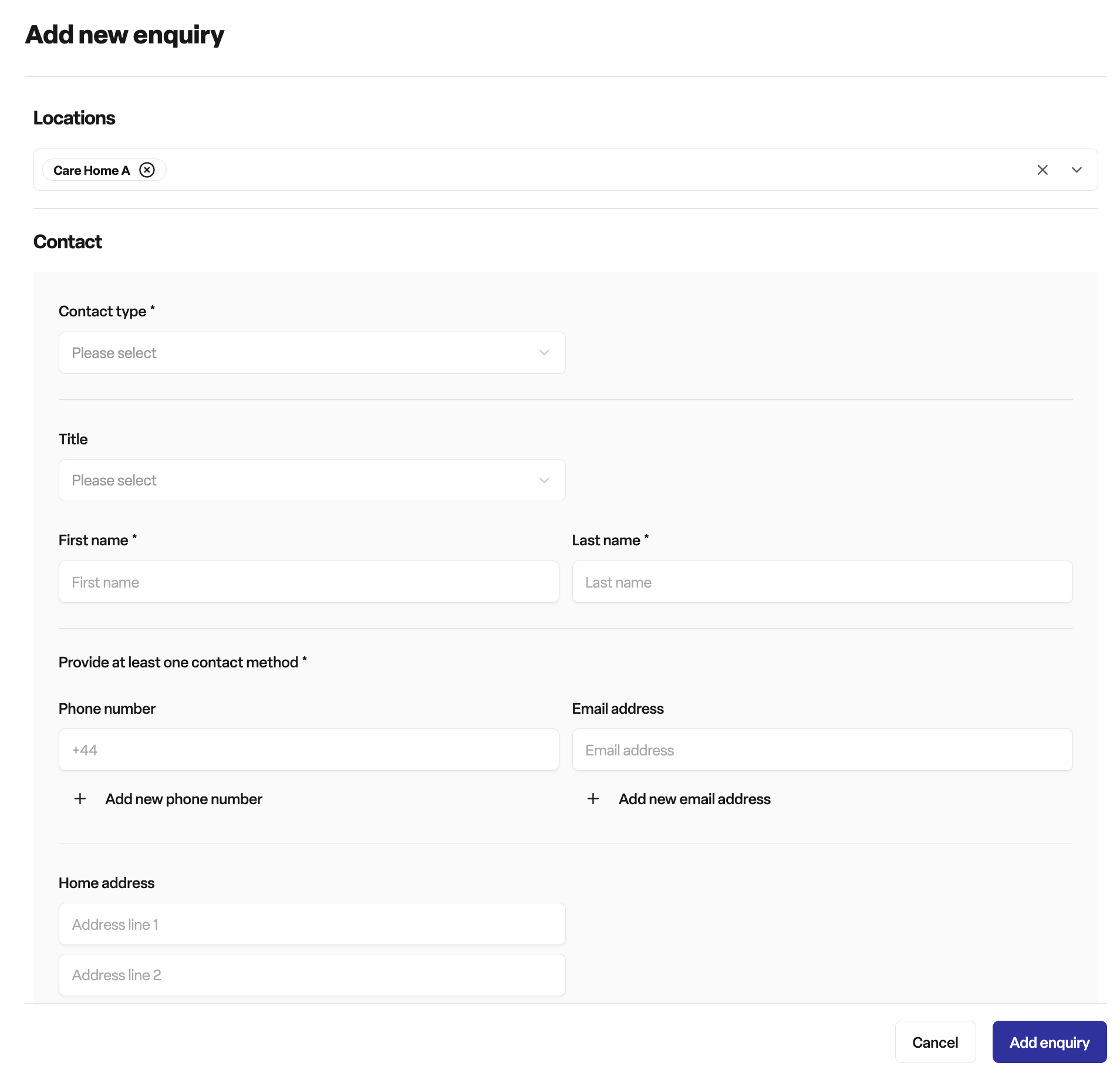
3. Add contact information
This section captures details about the person making the enquiry.
Contact type
Personal: For enquiries from individuals or family members
Professional: For enquiries from social workers, hospital discharge teams, or other professionals (only shown if you have permission to create professional contacts)
Personal details (required)
Title (optional)
First name (required)
Last name (required)
Professional details (shown only for professional contacts)
Job role (required for professional contacts)
Organisations (optional)
Contact methods (required)
You must provide at least one phone number OR one email address.
Add one or more phone numbers
Add one or more email addresses
💡 Tip: Adding multiple contact methods gives you more ways to reach them.
Address (optional)
Address line 1
Address line 2
City
County
Post code
Consents (optional)
Record any consents the contact has given:
Health consent
Privacy consent
Marketing communications (when selected, additional communication preferences become available)
4. Add enquiry details
This section captures information about the person who needs care.
Relationship to contact (required)
Select how the contact is related to the service user (e.g., self, parent, spouse, professional).
Service user personal details (optional)
Title
Known as (preferred name or nickname)
First name
Last name
💡 Tip: If the relationship is "self", you can leave these fields blank as they're the same as the contact.
5. Specify care requirements
This section appears when you've selected locations of the same type.
The available options vary depending on your location type:
Care duration: The length of care needed
Care type: The specific type of care required
Funding type: How the care will be funded
The system will show appropriate options based on whether you've selected care home, home care, or retirement living locations.
6. Add additional details (optional)
This section appears when you've selected locations of the same type.
Available fields vary by location type and may include:
General information
Service user date of birth
Current residency type
Current residential address
Care-specific information
Depending on your location type, you may see fields for:
Enquiry reason
Care specialisms
Move-in or start date
Budget information
Visit requirements (for home care)
Carer preferences (for home care)
7. Record attribution information (optional)
This section appears when you've selected locations of the same type.
Track how this enquiry came to you:
Date: When the enquiry was received
Stage: The current stage of the enquiry
Contact method: How they reached you (e.g., phone, email, website)
Marketing source: The specific marketing source if tracked
💡 Tip: Recording this information helps you understand which marketing channels work best.
8. Save the enquiry
Review the information you've entered
Check that all required fields are complete
Click the save button at the bottom of the form
The enquiry will be added to your enquiries list
Common scenarios
Scenario 1: Phone enquiry from a family member
A daughter calls enquiring about care home places for her mother.
Quick steps:
Select your care home location
Contact type: Personal
Enter daughter's name and phone number
Relationship: Select the appropriate family relationship
Add mother's name in the service user section
Select care requirements
Record contact method as phone
Save
Scenario 2: Professional referral
Pro feature: This feature is available on Pro plans only. If you’d like to upgrade your plan, please contact our support team.
A social worker emails about a client needing home care.
Quick steps:
Select your home care location
Contact type: Professional
Enter social worker's details and job role
Add their email address
Relationship: Professional
Add service user details if known
Record contact method as email
Add any known care requirements
Save
Scenario 3: Self-enquiry
Someone enquires about retirement living for themselves.
Quick steps:
Select your retirement living location
Contact type: Personal
Enter their name and contact details
Relationship: Self
Skip service user details (same person)
Add care requirements
Record contact method
Save
Tips and best practices
Do
Capture as much information as possible during first contact
Record the marketing source if they mention how they found you
Add multiple contact methods when available
Update the enquiry later as you learn more information
Use the "known as" field for preferred names
Don't
Skip required fields (marked with an asterisk)
Mix location types (e.g., care home and home care together)
Worry if you don't have all information—you can add it later
Frequently asked questions
Q: What if I don't know all the information?
A: You only need the contact's name and at least one way to reach them. Add more details later.
Q: Can I add an enquiry for multiple different types of locations?
A: No, all selected locations must be the same type. Create separate enquiries for different location types.
Q: What happens after I save the enquiry?
A: The enquiry appears in your enquiries list where you can track it, add notes, and manage follow-ups.
Q: Can I edit the enquiry later?
A: Yes, you can open and update the enquiry at any time.
Q: Why do some fields disappear when I select certain locations?
A: The form adapts to show only fields relevant to the selected location type.