Tradeshift integration
Last updated: October 9, 2026
Overview
Many NHS integrated care boards (ICBs) receive invoices through Tradeshift, an e-invoicing network.
With the Tradeshift integration, you can send invoices from Found straight to an ICB's Tradeshift account. You don't need to retype them or upload them by hand.
You can send invoices one at a time or in bulk. Before anything is sent, Found checks each invoice and shows you exactly where it's going. If you'd like to review an ICB's invoices in Tradeshift before they're sent in Tradeshift, you can choose to send them as drafts to Tradeshift.
Each invoice's timeline shows who sent it, which account it was sent from, and the ICB's response.
What it is
The Tradeshift integration connects Found to your Tradeshift account so you can send invoices to NHS ICBs. It has three parts:
Connections: your Tradeshift company accounts, linked to Found with your Tradeshift API credentials.
Locations: each of your locations is assigned to the Tradeshift account its invoices are sent from.
Recipients: each ICB is linked to its Tradeshift company, so Found knows where its invoices go.
Where it is
Task | Where |
|---|---|
Connect accounts, assign locations, link recipients, set drafts | Settings > Integrations > Tradeshift |
Set Tradeshift as the delivery method | On the billing contract template, the subscription or the invoice |
Send one invoice | On the invoice: Send via Tradeshift |
Send several invoices | On the invoices list: select the invoices, then Send via Tradeshift |
See what happened to an invoice | The invoice timeline |
How to do it
1. Connect your Tradeshift account
In Tradeshift, go to All apps > App Store, search for "API", then activate and open API Access To Own Account.
In Found, go to Settings > Integrations > Tradeshift and select Add Tradeshift connection.
Paste in the Consumer key, Consumer secret, Token and Token secret from your Tradeshift app.
Select Add connection. Found checks the credentials with Tradeshift before saving them.
Each connection shows as Verified or Not verified. If a connection isn't verified, select Re-verify connection from its actions menu.
2. Assign your locations
In the connections list, open the account's actions menu and select Assign locations.
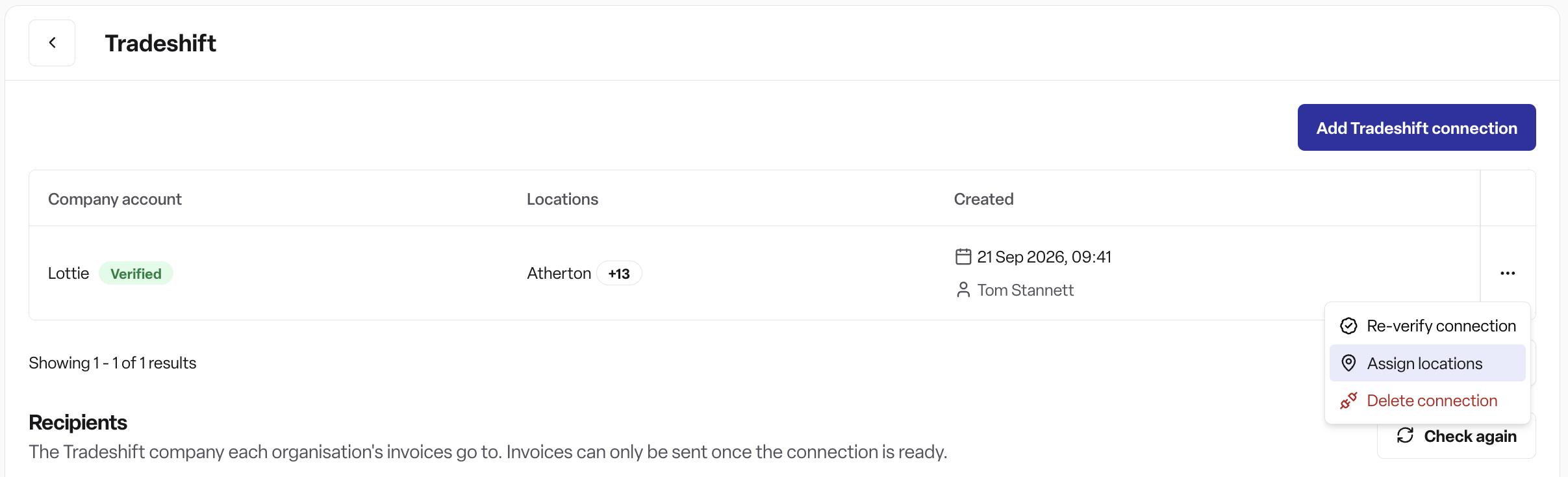
Choose the locations whose invoices should be sent from this account, then select Save.
A location can only send from one Tradeshift account.
3. Link each ICB to its Tradeshift company
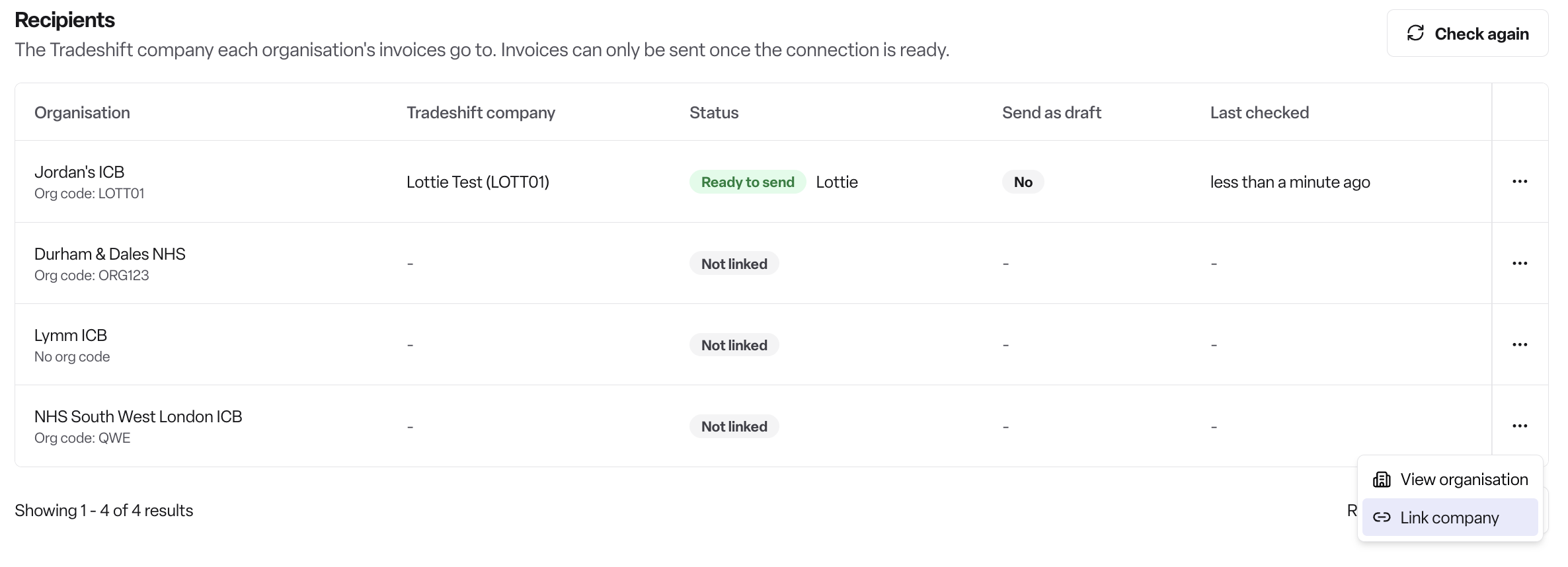
An ICB appears in the Recipients list once funding is enabled for it. The list appears after a verified account has at least one location assigned.
Next to the ICB, select Link company.
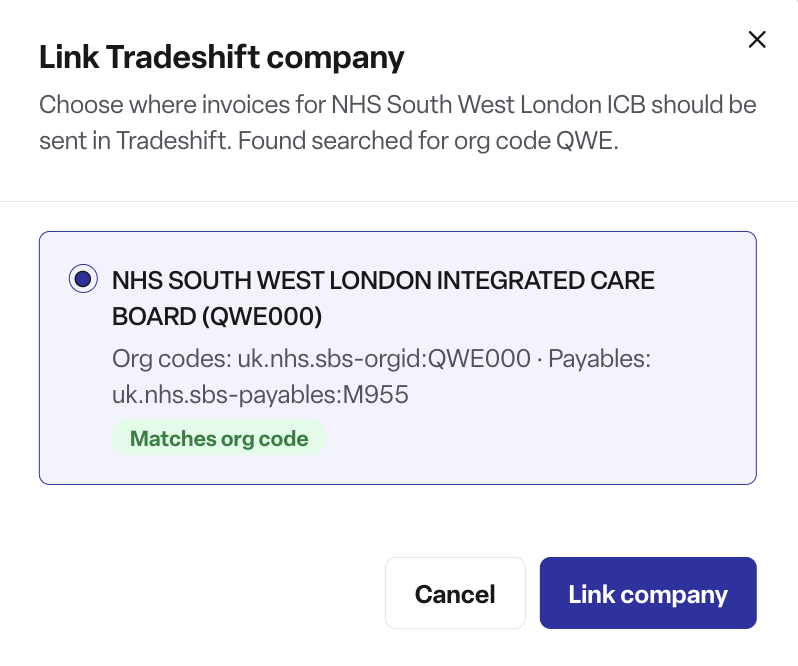
Found searches Tradeshift using the ICB's org code:
Matches org code: a company with that org code was found.
More than one company carries the org code: choose the right one.
No exact match: you can still choose a company, but check it carefully first.
Choose the company, then select Link company.
Each recipient has one of these statuses:
Ready to send: the connection is accepted in Tradeshift.
Not accepted yet: the connection request is still waiting. It may be waiting on you or on the ICB, so check in Tradeshift.
Not connected: your account has no connection to that company in Tradeshift. Set one up there first.
To refresh a status, select Check again.
4. Choose whether to send as drafts (optional)
You can choose to send an ICB's invoices to your Tradeshift account as drafts instead of straight to the ICB. This lets you check an invoice in Tradeshift before it's delivered.
In Recipients, open the ICB's actions menu and select Send as drafts.
Confirm.
The Send as draft column then shows Yes for that ICB. To go back to sending invoices straight to the ICB, select Don't send as drafts.
This setting is off by default. It applies to one ICB at a time, so you can use drafts for some ICBs and not others.
5. Set the delivery method to Tradeshift
Set the invoice delivery method to Tradeshift on the billing contract template, the subscription or the invoice. You can only choose Tradeshift when the invoice is billed to an NHS ICB.
6. Send invoices
One invoice:
Lock the invoice.
Select Send via Tradeshift.
Check the invoice number, the ICB it's going to and the account it's sent from.
Select Send. If the ICB is set to send as drafts, select Store as draft instead.
Several invoices:
On the invoices list, select the invoices.
Select Send via Tradeshift.
Found tells you how many invoices can be sent and how many will be stored as drafts. For any it will skip, it explains why.
Select Send [number] invoices.
How it works
Checks before sending: Found checks every invoice first. If one can't be sent, Found tells you exactly what to fix.
One send per invoice: an invoice can only be sent once. Tradeshift doesn't accept duplicate invoice numbers.
Drafts: a draft is stored in your Tradeshift account and only reaches the ICB once someone sends it from Tradeshift. When it's sent, Found updates the invoice timeline.
What Found sends:
The ICB's purchase order number.
The funder's address.
The resident's invoice organisation ID, such as a CHC or FNC reference, when the template prints it on invoices. It appears in Tradeshift as "Person Reference". Found only sends it when every placement on the invoice has the same ID.
Delivery status:
Sent: the invoice has reached Tradeshift. This includes invoices stored as drafts.
Failed: the invoice didn't reach Tradeshift.
Timeline: shows who sent the invoice and from which account, or that it was stored as a draft. It also shows the ICB's response: Delivered, Accepted by the NHS organisation, Rejected by the NHS organisation or Delivery failed, with a reason.
Filtering: use the Tradeshift quick filter on the invoices list to see invoices sent via Tradeshift.
Deleting a connection: this removes the stored credentials and unassigns its locations. Invoices already sent aren't affected.
Rules
An invoice can only be sent via Tradeshift when:
Its delivery method is Tradeshift.
It's locked.
It has an invoice number and at least one line.
It's billed to an NHS ICB.
Its location is assigned to a verified Tradeshift account.
The ICB is linked to a Tradeshift company, and that company's status is Ready to send.
It covers only one purchase order, and every placement on it has a purchase order number.
It hasn't already been sent via Tradeshift.
Permissions
Plan: Found Pro, with the billing module.
Setting up the integration: Admin users.
Sending invoices: Admin, Manager and Staff users with permission to send invoices.
Frequently asked questions
Q: Where do I find my Tradeshift API credentials?
A: In Tradeshift, go to All apps > App Store, search for "API", then activate and open API Access To Own Account.
Q: Can I send invoices to any funder through Tradeshift?
A: No. Tradeshift is only available for invoices billed to an NHS integrated care board.
Q: Why can't I see an ICB in the recipients list?
A: Check that funding is enabled for the ICB. The list also only appears once a verified Tradeshift account has at least one location assigned.
Q: Can I check invoices in Tradeshift before they reach the ICB?
A: Yes. Set that ICB to Send as drafts. Its invoices will be stored as drafts in your Tradeshift account, and will only reach the ICB once someone sends them from Tradeshift.
Q: If I turn off drafts, what happens to drafts already in Tradeshift?
A: They stay in Tradeshift as drafts until someone sends them from there. New invoices go straight to the ICB.
Q: My invoice shows as Sent, but it's a draft. Is that right?
A: Yes. Sent means the invoice has reached Tradeshift. The timeline shows whether it was stored as a draft and when it was sent on to the ICB.
Q: The recipient says "Not accepted yet". What do I do?
A: The connection between your account and the ICB's company hasn't been accepted in Tradeshift. Check in Tradeshift, then select Check again in Found.
Q: Why won't my invoice send?
A: Found tells you the reason and what to do next. Common reasons are that the invoice isn't locked, its delivery method isn't Tradeshift, its location isn't assigned to an account, or the ICB isn't linked to a Tradeshift company.
Q: Can I resend an invoice?
A: No. An invoice can only be sent once, because Tradeshift doesn't accept duplicate invoice numbers.
Q: How do I know whether the ICB has accepted my invoice?
A: Check the invoice timeline. It shows when the invoice was delivered, accepted or rejected, and the reason for any rejection.