Xero integration
Last updated: September 15, 2026
Overview
Xero is a cloud accounting platform used by many care providers to manage their finances. Found's Xero integration connects your workspace directly to your Xero organisation(s), so invoices and credit notes created in Found can be sent to Xero in a single click — instead of exporting a CSV, importing it into Xero, and repeating that process every billing run.
Once connected, Found also matches or creates the right Xero contact for each funder, lets you configure how Found's information maps onto Xero's fields, and shows the status of every transaction and funder so your team can see at a glance what has made it into Xero.
Permissions
Requires Found Pro, as part of the Integrations module.
Only Admin users can connect, disconnect or reconfigure Xero. Manager and Staff users don't have access to this setup — but once it's set up, they can still send invoices to Xero from their normal screens if they have access to those.
Setting up the connection
Connect Found to Xero
Click Settings, then Integrations.
Find the Xero tile and click Settings.
Click Add Xero organisation.
Log in to Xero with the account you want to connect. Select every organisation you want to link to Found, then approve.
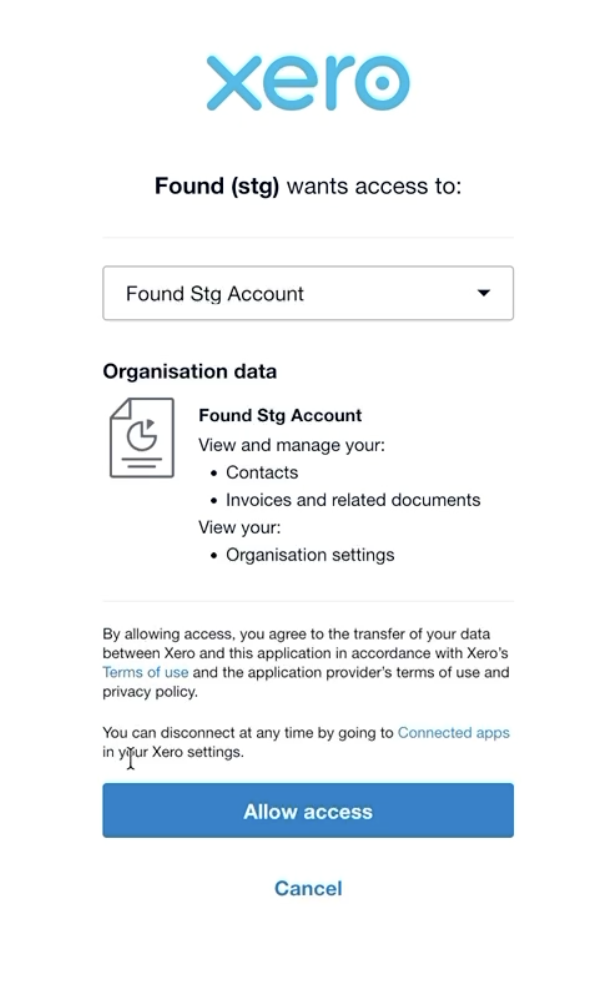
You'll be brought back to Found, where each organisation you approved now appears in a list.
Tip: connect using a shared finance email address rather than one person's individual login. That way the connection keeps working even if that person later leaves or loses their Xero access.
Link locations to each Xero organisation
Invoices can only be sent to Xero once their location has been linked to a Xero organisation.
On the Organisations tab, find the organisation you want to set up.
Click the menu next to it and select Assign locations.
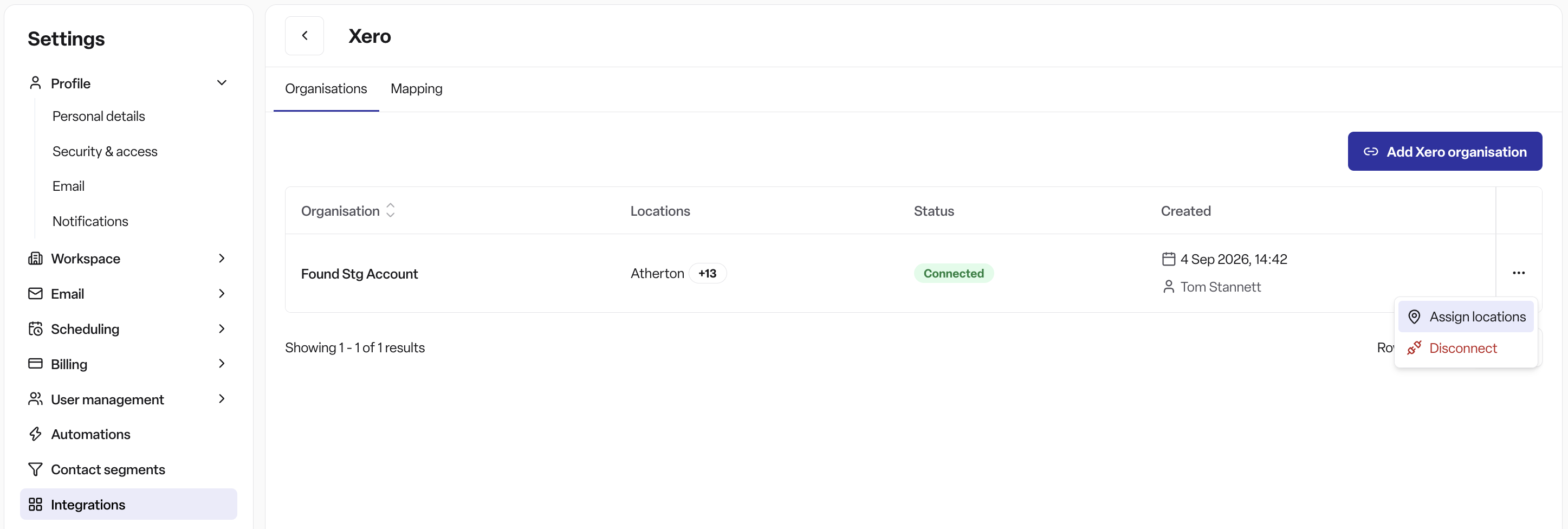
Choose every Found location whose invoices should go to this organisation.
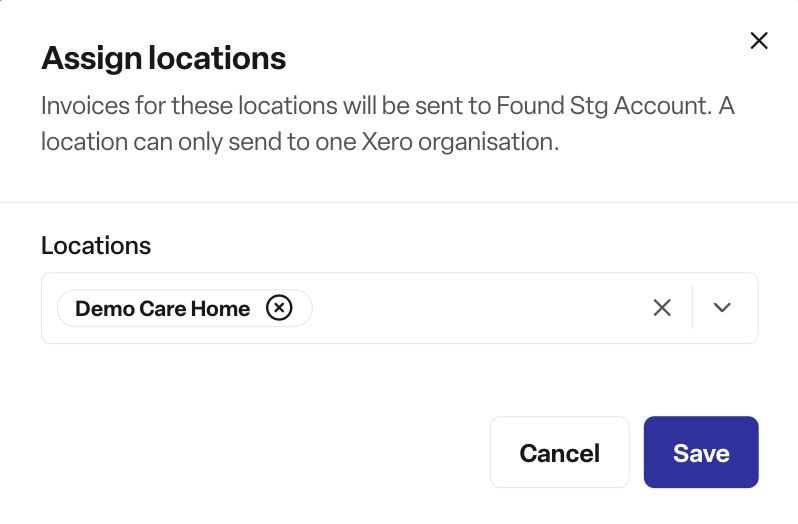
Click Save.
Repeat for each other organisation you've connected.
Note: each location can only be linked to one Xero organisation at a time.
Set up mapping (optional)
Found sets sensible defaults automatically when you connect, so you only need this if you want to customise it.
On the Xero Integration page, click the Mapping tab.
Choose the organisation you want to configure.
Check the Contact details — how the funder's name, email, phone and address will appear in Xero.
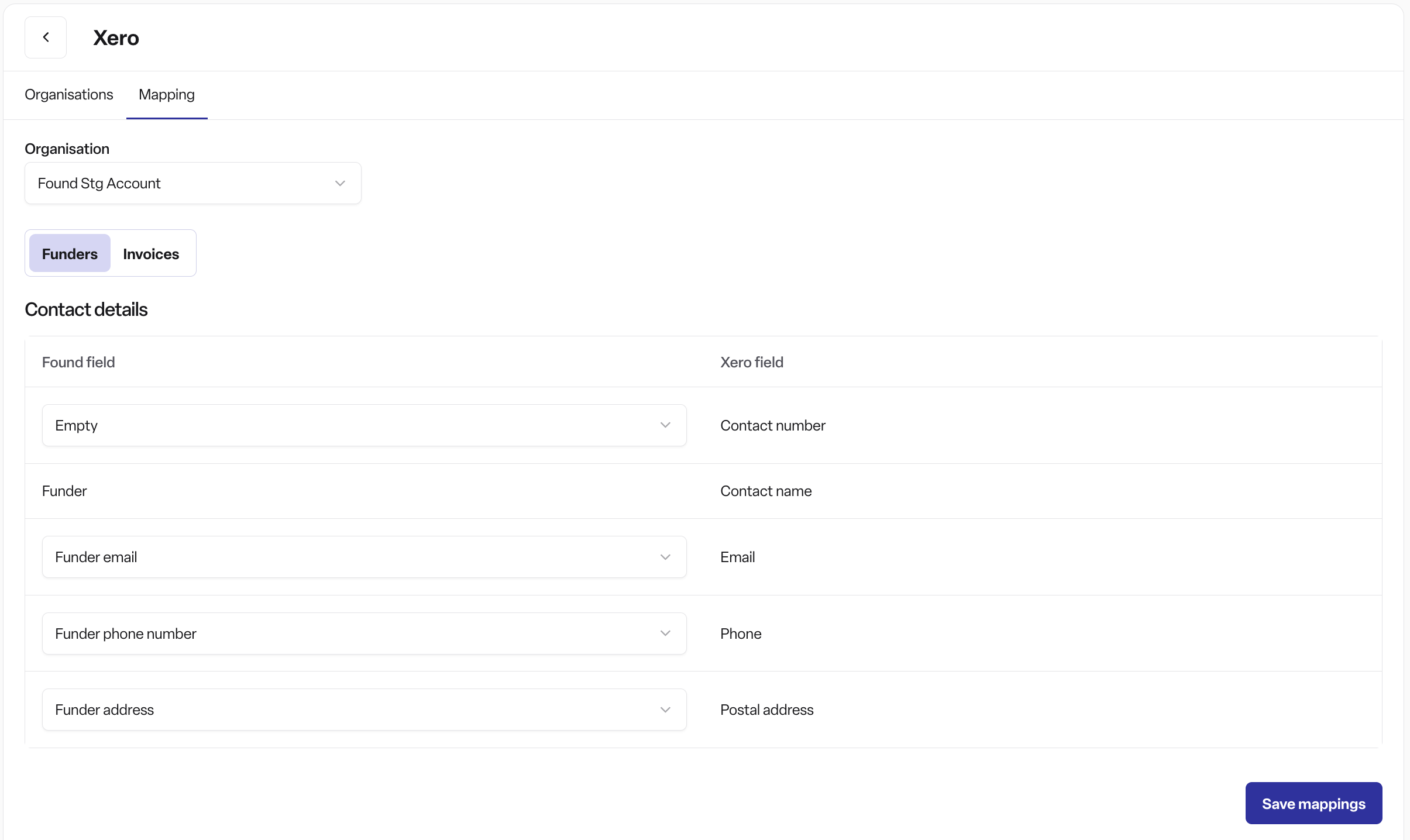
Set the Invoice details — what's used as the invoice reference.
Set the Transaction details — nominal code, tax code, tracking categories, and how the line description is built (for example, combining the service user's name with the service type).
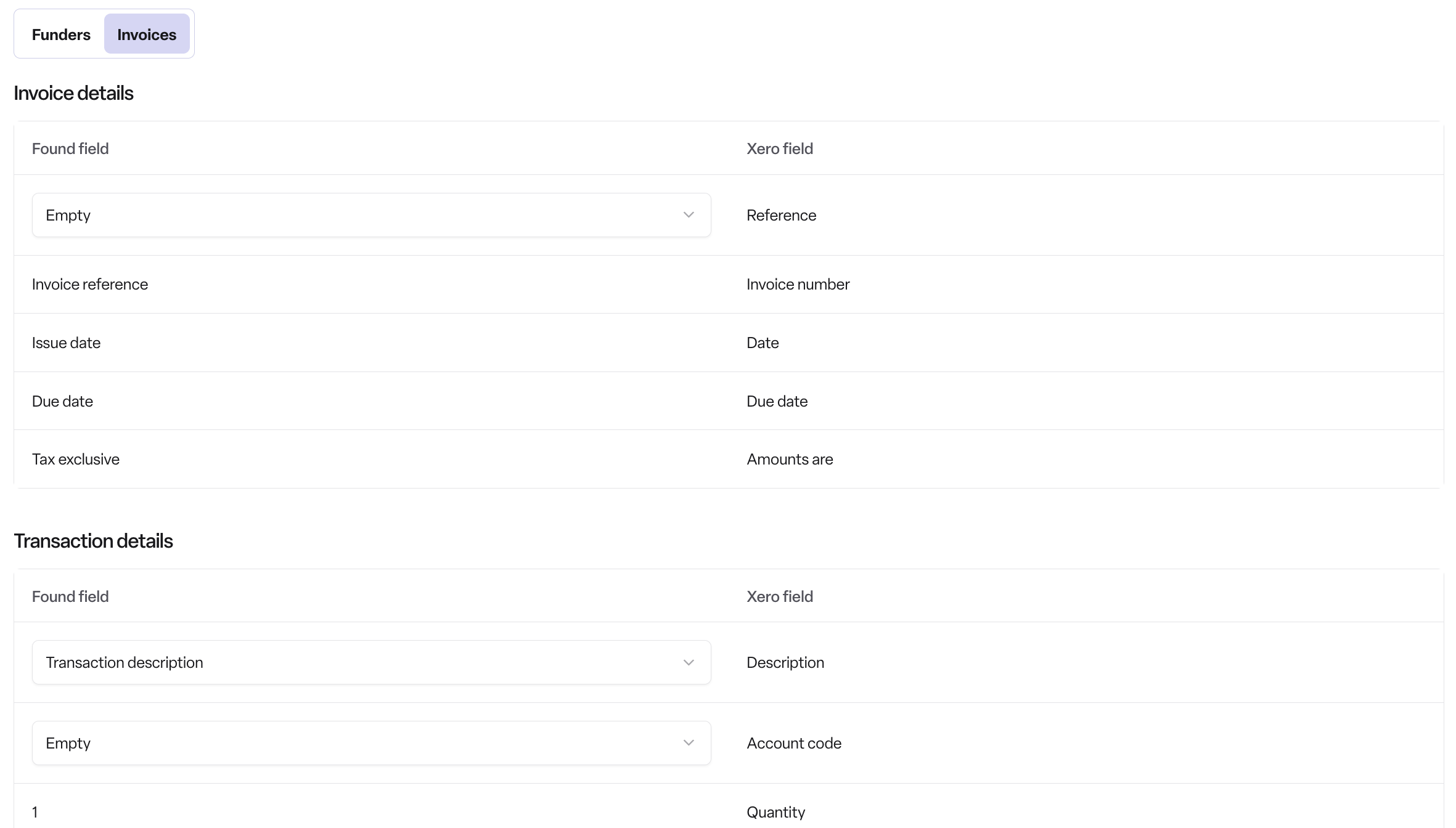
Click Save mappings.
Repeat for any other organisation, as mappings are set up separately for each one.
Sending to Xero
Click Operations in the main navigation, then Invoices.
Click the Transactions tab.
Click Send to Xero, in the top right above the table.
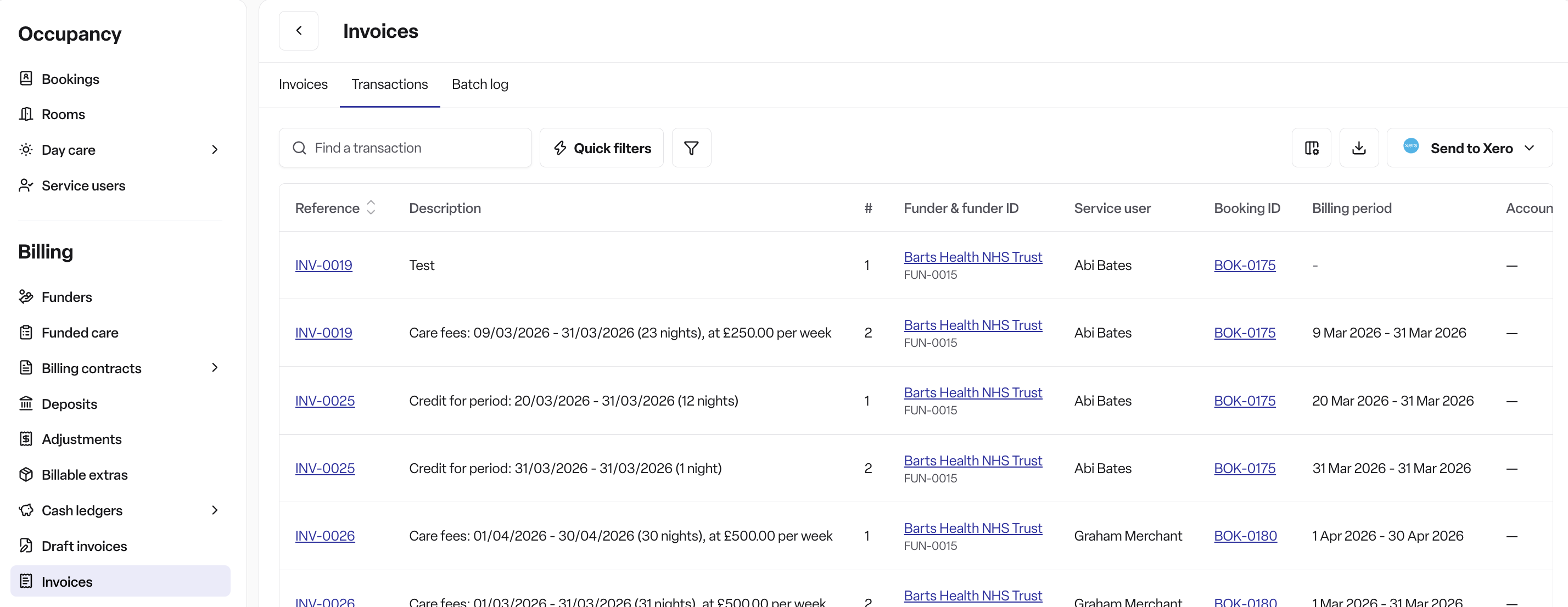
Choose what to send — everything new since you last sent, or everything currently shown on your screen.
Review the summary that opens: how many items are ready to send, how many have already been sent, and any warnings (for example, a location that isn't linked to a Xero organisation yet).
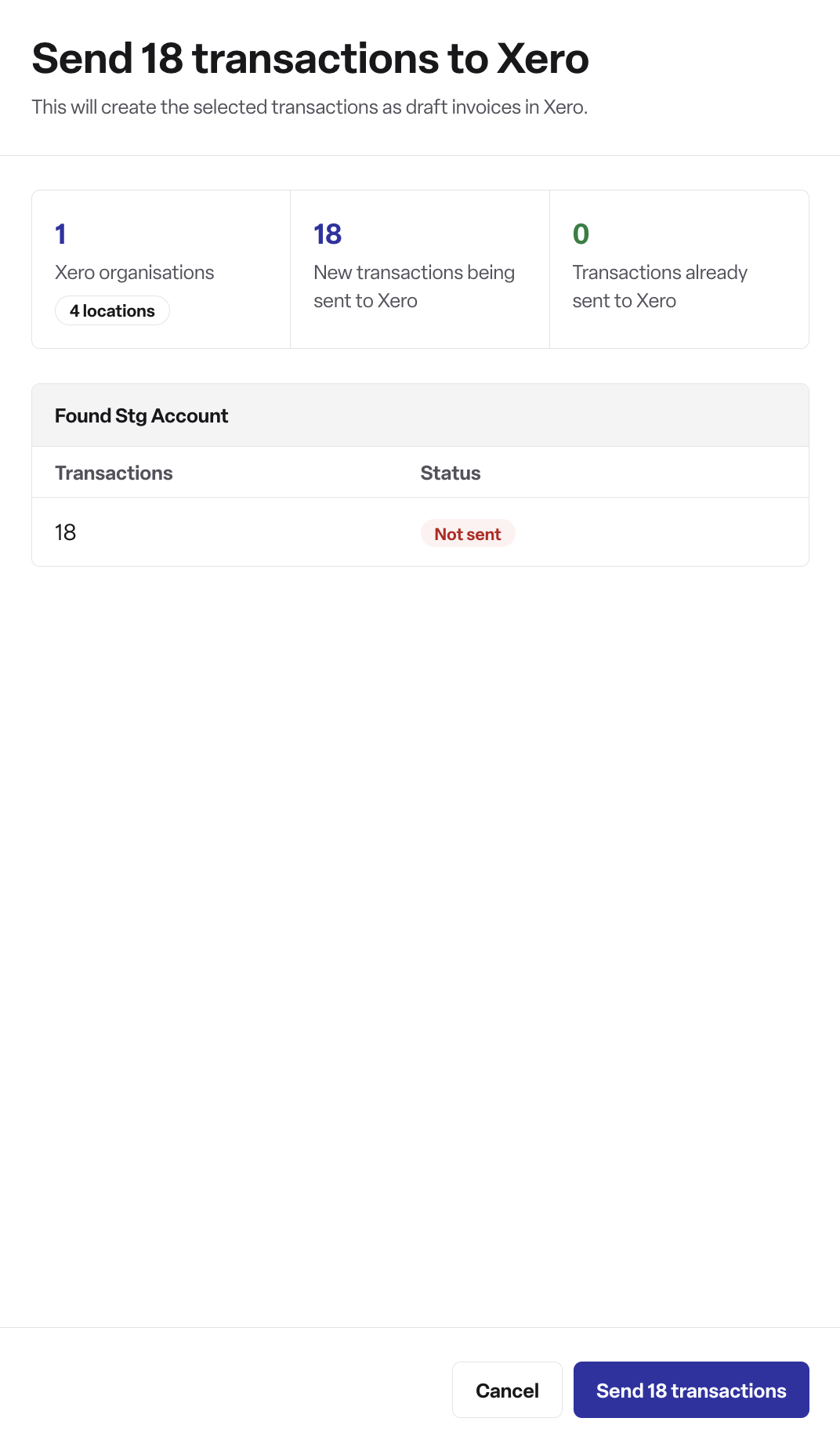
Click Send to confirm.
Check the result: if everything went through, click Open Xero to see the drafts straight away. If anything failed, the reason is shown next to it — resolve it and repeat from step 3.
What happens when you send:
Found automatically matches each funder to the right Xero contact, or creates a new one if it doesn't exist yet — you don't send funders separately.
Invoices and credit notes are created in Xero as drafts — nothing is posted or paid automatically, so your finance team still reviews and approves them in Xero as usual.
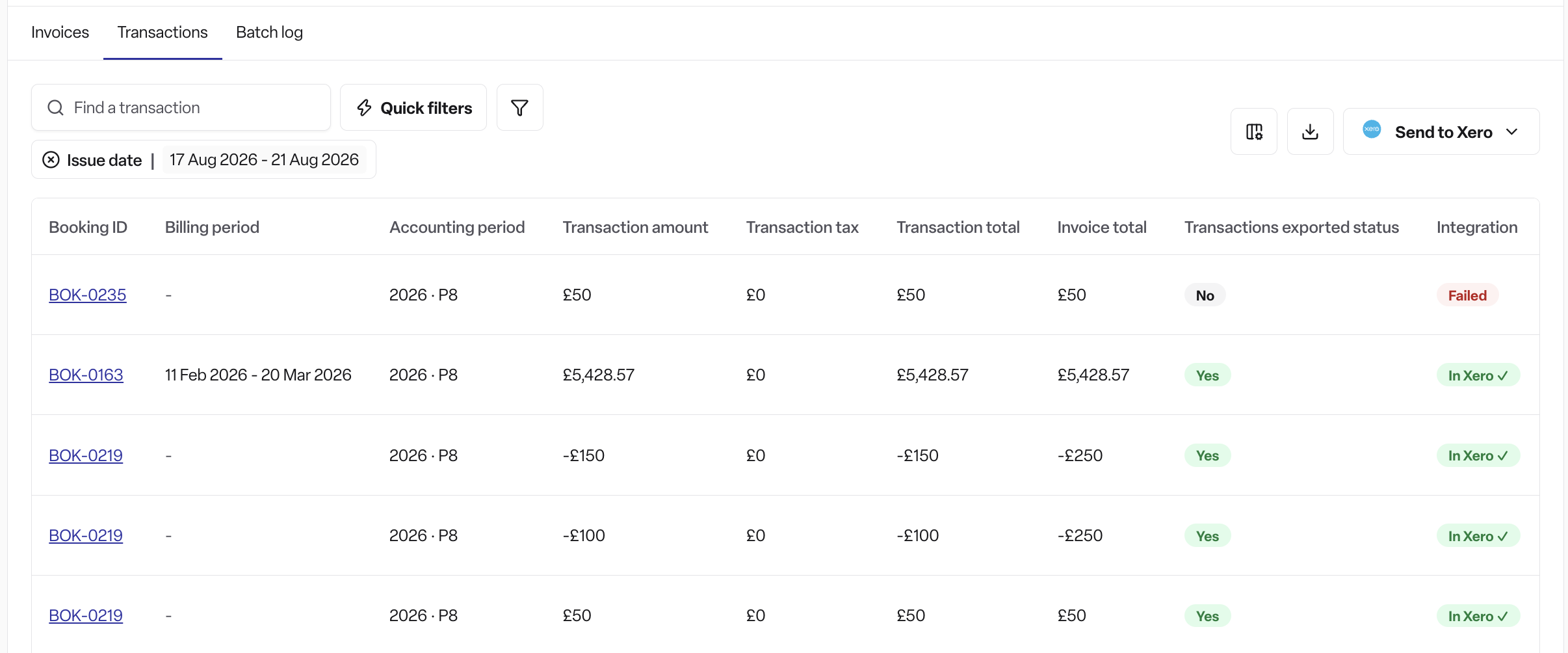
Once something has been sent successfully, it shows an "In Xero" label in Found.
Frequently asked questions
Q: Where do I go to connect Xero? A: Settings → Integrations → "Settings" on the Xero tile → "Add Xero organisation".
Q: I can't find Xero under Integrations. What's wrong? A: Your workspace may not have the integration turned on, or you may not be on Found Pro. Contact your Found account manager.
Q: I'm a Manager or Staff user and can't see Integrations at all.
A: That's expected — only Admin users can set up and manage the Xero connection. Sending to Xero itself (from Operations → Invoices → Transactions) is available to Admin and Manager users; Staff accounts don't have access to that screen.
Q: My connection didn't work — what does the error mean? A: A few common messages you might see:
"That Xero organisation is already connected to another workspace" — that Xero organisation is already linked elsewhere and can only be connected once.
"That Xero login had no organisations we can send invoices to" — the Xero account you logged in with doesn't have access to any organisations, or none were selected.
Any other message — just try connecting again.
Q: Can one Xero login cover more than one organisation? A: Yes. Select every organisation you want when logging in to Xero — they'll all appear as separate entries afterwards.
Q: What decides which Xero organisation an invoice goes to? A: The location the invoice belongs to. Each location is linked to one Xero organisation. If a location isn't linked to any organisation, its invoices can't be sent until you assign it.
Q: Does sending an invoice to Xero post it straight away? A: No. It's created as a draft in Xero, so your finance team still needs to review and approve it there.
Q: What happens to funder contacts when I send an invoice? A: Found matches the funder to the right Xero contact automatically, or creates one if it's new — you don't need to set up contacts in Xero yourself.
Q: Do I need to set up the mapping before I can send anything? A: No. Found sets this up automatically with sensible defaults when you connect. You'd only visit the Mapping tab if you want to change things like nominal codes, tax codes, or how descriptions appear.
Q: Something failed to send — what should I do? A: Open "Send to Xero" again from the same screen and check the reason shown. It's usually either a location that isn't linked to an organisation yet, or a code that needs mapping. Fix it, then send again.
Q: The Organisations screen shows "Reconnect required" — what do I do? A: This means the connection has stopped working, usually because the person who originally connected it lost their Xero access. Click reconnect and log in again — this restores every organisation on that connection at once.
Q: Why would the connection ever break? A: Xero connections are tied to the person who logged in to set it up. If that person leaves or loses their Xero access, the connection stops working and needs reconnecting. This is why we recommend using a shared finance login when you first connect.