How to update your task notifications
Last updated: December 2, 2025
Pro feature: This feature is available on Pro plans only. If you’d like to upgrade your plan, please contact our support team.
Overview
Task notifications help you stay on top of your work by alerting you when tasks are assigned to you and reminding you about upcoming deadlines. This guide explains how to customise your task notification preferences.
What task notifications are available?
Found offers two types of task notifications:
1. Task assignments
Receive an email whenever someone assigns a task to you.
System description: "Notify me when I'm assigned a task"
2. Daily task reminders
Receive a daily email summary each morning if you have tasks that are due today or overdue.
System description: "Sent every morning if any tasks are due today or overdue"
Note: Daily reminders are sent between 8 AM and 6 PM UK time, and only on days when you have due or overdue tasks.
How to update your notification settings
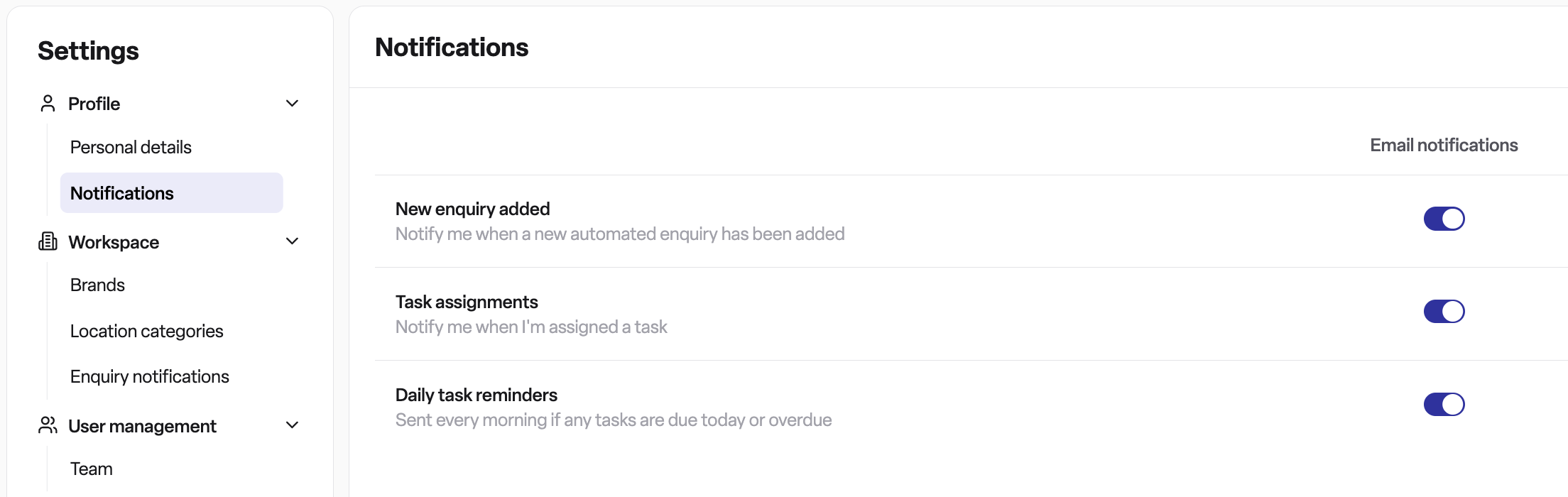
Step 1: Navigate to notification settings
Click on Settings in the main navigation menu
Select Notifications from the settings options
Step 2: Find the task notification options
In the notifications settings page, you'll see a table listing different notification types. Look for:
Task assignments - Notify me when I'm assigned a task
Daily task reminders - Sent every morning if any tasks are due today or overdue
Step 3: Toggle email notifications
Each notification type has an Email toggle switch:
Switch ON to receive email notifications
Switch OFF to stop receiving email notifications
Your preferences are saved automatically when you toggle the switches.
When you'll receive notifications
Task assignment notifications
You'll receive an email notification when:
A colleague assigns a new task to you
Someone adds you as an assignee to an existing task
You won't receive a notification if you assign a task to yourself.
The email includes:
Task title
Priority level (High, Medium, or Low)
Category
Due date
Who assigned the task
Number of other team members assigned to the task
Daily task reminder notifications
If enabled, you'll receive an email each day (between 8 AM and 6 PM UK time) that includes:
All tasks due today
All overdue tasks that haven't been completed
If you have no due or overdue tasks, you won't receive a reminder that day.
Frequently asked questions
Q: Can I receive notifications through channels other than email?
A: Currently, task notifications are delivered via email only.
Q: Will I receive notifications for tasks I create?
A: No. When you create a task and assign it to yourself, you won't receive a notification. You'll only be notified when someone else assigns a task to you.
Q: Can I customise the time I receive daily reminders?
A: Daily reminders are sent between 8 AM and 6 PM UK time according to the system schedule. Individual time customisation is not currently available.
Q: What happens if I don't set my notification preferences?
A: By default, all task notifications are enabled. You can disable any notifications you don't want by following the steps above.
Q: I'm not receiving notifications even though they're enabled. What should I do?
A: Check your email spam/junk folder and ensure your email address is correctly set in your user profile. If the issue persists, contact your system administrator.