Understanding tasks
Last updated: July 28, 2026
Pro feature: This feature is available on Pro plans only. If you’d like to upgrade your plan, please contact our support team.
Overview
Tasks in Found help you and your team stay organised by tracking work that needs to be completed. Whether you're following up with a contact, progressing an enquiry, or managing general to-dos, tasks keep everything in one place with clear due dates, priorities, and assignments.
Key benefits:
Track actionable items linked to contacts, enquiries, and bookings
Assign tasks to team members and monitor progress
Organise tasks by priority, category, and tags
Receive daily reminders for tasks due today
View your personal tasks or monitor team workload
Accessing your tasks
Click Tasks in the left sidebar to open the Tasks area. There's no separate "Add task" item in the sidebar — Tasks is the one sidebar entry, and creating a task is done with the "Add Task" button on the Tasks page itself (see "Creating a new task" below).
My tasks vs team tasks
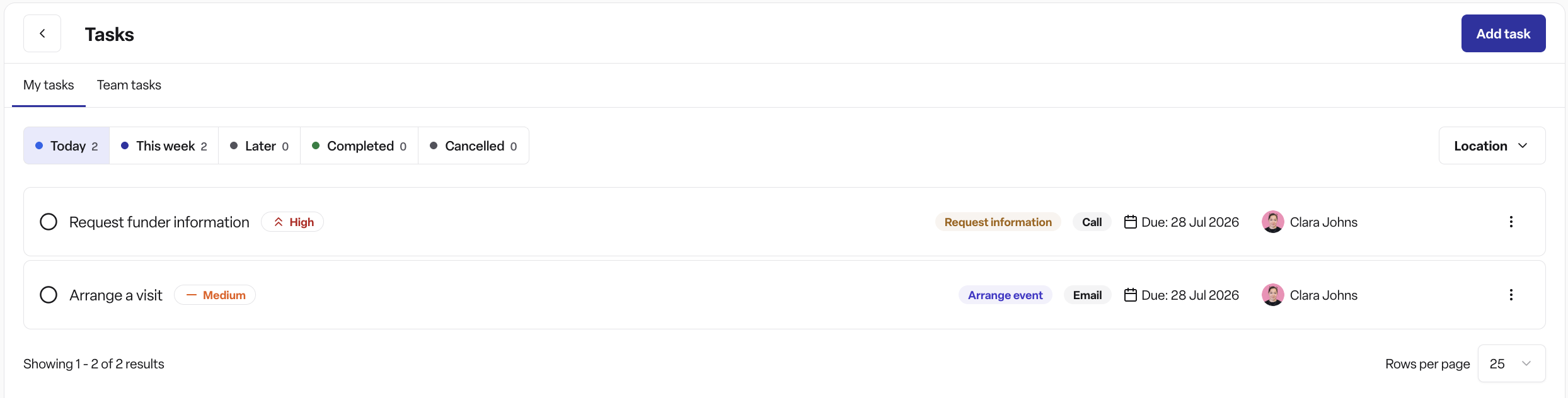
Once you're on the Tasks page, you'll see two tabs:
My Tasks - Shows only tasks assigned to you. This is your personal to-do list where you can focus on your own workload without distractions.
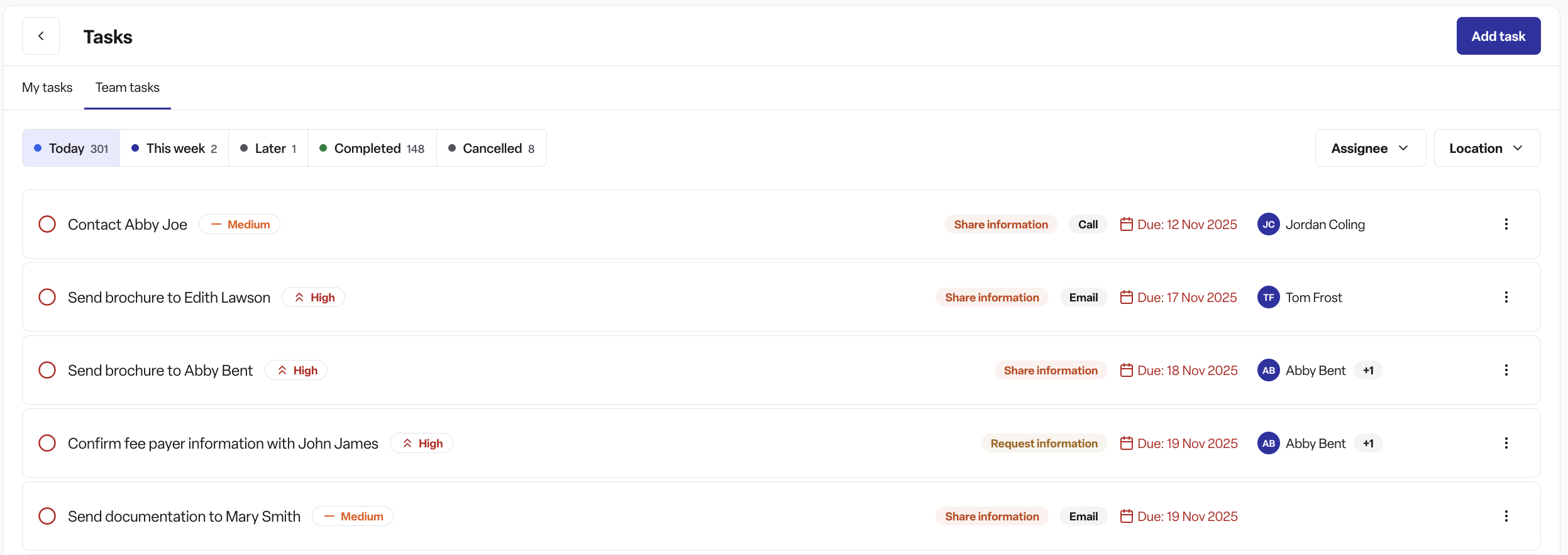
Team Tasks - Shows tasks assigned to your team members. What you see depends on your role:
Administrators see all tasks across the organisation
Managers see tasks for team members in their locations
Staff members see only their own tasks (same as My Tasks)
Task counts
A badge in the navigation menu shows the number of incomplete tasks due today, helping you quickly see your daily workload.
Understanding task sections
Tasks are automatically organised into five sections based on their due date, completion, and cancellation status:
1. Today
Contains incomplete tasks due today or overdue.
2. This week
Contains incomplete tasks due Monday through Sunday of the current week.
3. Later
Contains incomplete tasks due after this week.
4. Completed
Contains all tasks you've marked complete, regardless of when they were completed or when they were originally due.
Note: There's no separate handling for "completed today" — as soon as you complete a task it moves straight to Completed, whether that's today or any other day. You won't see it under Today just because you completed it today.
5. Cancelled
Contains tasks that have been cancelled (see "Cancelling a task" below) rather than completed.
Tasks automatically move between sections as their due dates approach and when you complete or cancel them.
Creating a new task
Basic steps
On the Tasks page, click "Add Task" in the top right hand corner.
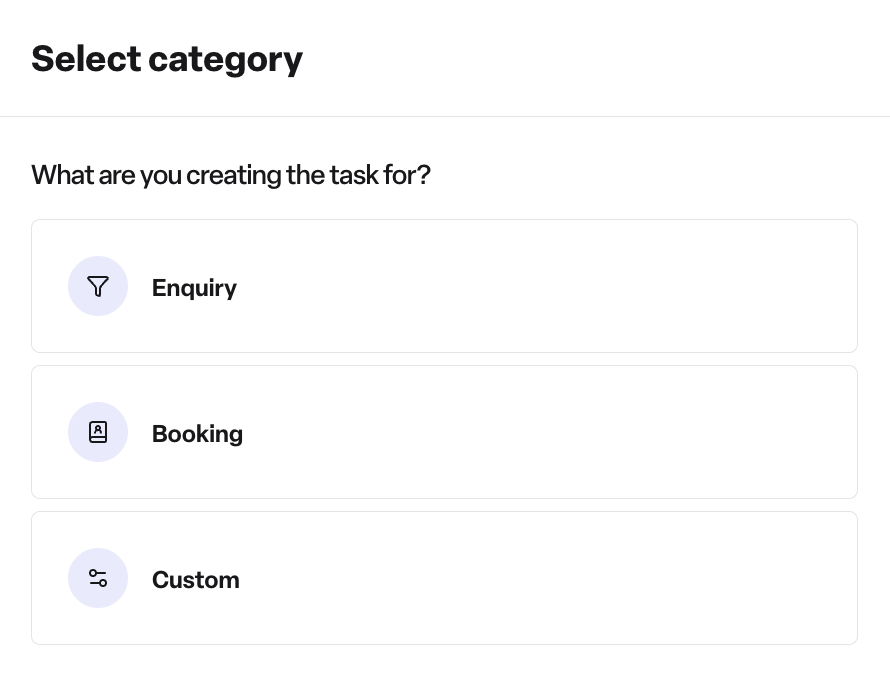
Choose what the task relates to: Enquiry, Booking (where enabled), or Custom (a general task not tied to a specific enquiry or booking)
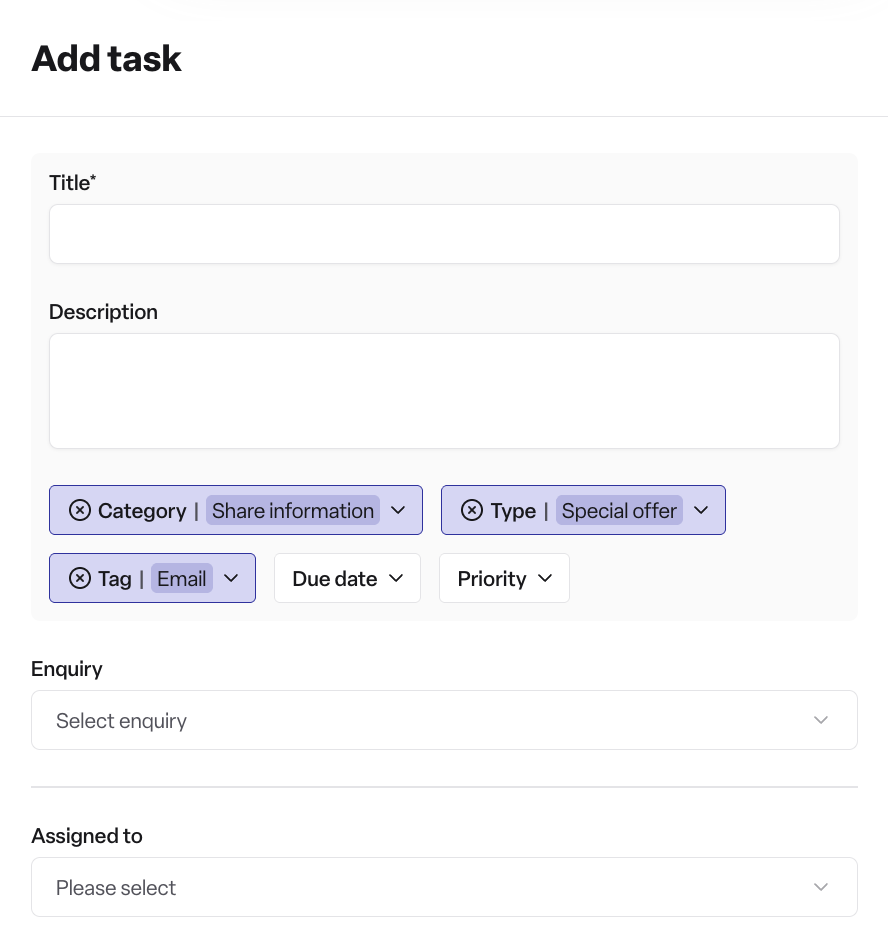
Fill in the required information:
Title - Clear, actionable description (e.g., "Call Sarah about booking enquiry")
Due Date - When the task needs to be completed
Priority - High, Medium, or Low
Category - Type of task (explained below)
Assignees - Who should complete the task (you can assign multiple people)
Add optional details:
Description - Additional context or instructions
Tag - Organise the task with a relevant label
Enquiry / Booking - Link to a specific enquiry or booking, depending on what you chose in step 2
Click "Add Task"
Note: There's no option to search for and link a contact when adding a task this way. To link a task to a contact, create the task directly from that contact's page instead (see below).
Context-aware task creation
You can create tasks directly from:
Contact pages - When viewing a contact, create a task and it will automatically link to that contact. This is the way to link a task to a contact — there's no separate contact-picker in the general Add Task flow.
Enquiry pages - When viewing an enquiry, create a task and it will automatically link to that enquiry.
Booking pages - Where enabled, when viewing a booking, create a task and it will automatically link to that booking.
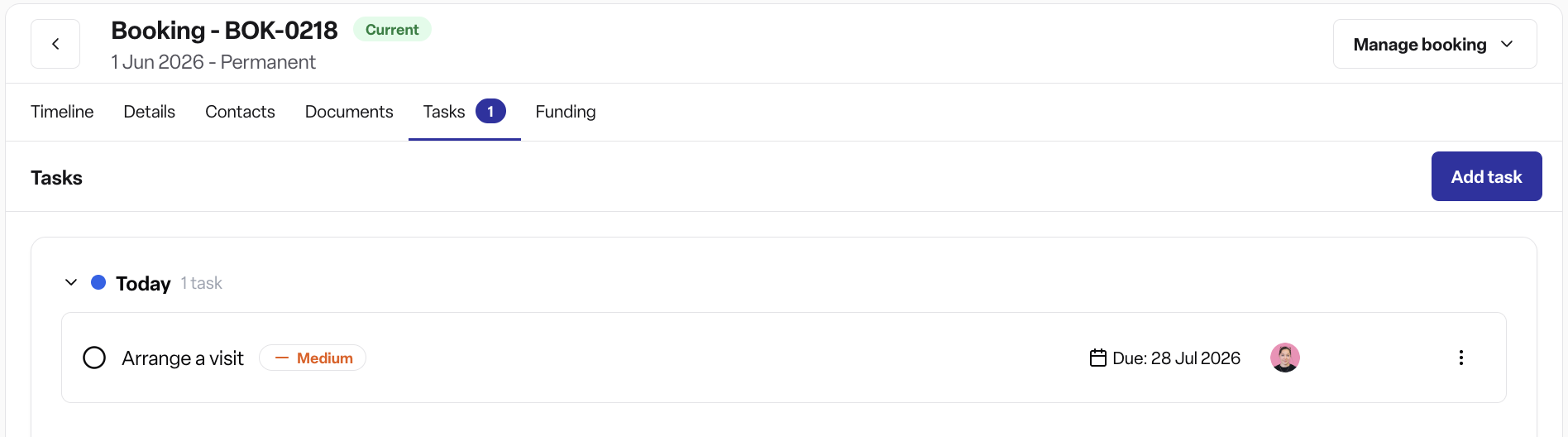
Tasks created this way automatically fill in the contact, enquiry, or booking information.
Task properties explained
Priority levels
Tasks have three priority levels:
High - Urgent or critical tasks
Medium - Important tasks with moderate urgency
Low - Tasks that are not time-sensitive
Categories
Categories help classify the type of work. Your system administrator configures which categories are available. Categories may have a colour to help you quickly identify task types.
Categories can have special features:
Some categories may show the enquiry stage when linked to an enquiry
Some categories may auto-generate task titles based on templates
Tags
Tags provide flexible organisation beyond categories. Your system administrator configures which tags are available.
Note: You can currently only add one tag to a task, not multiple.
Assignees
You can assign tasks to:
Yourself - Personal to-dos
A single colleague - Delegate work to a specific person
Multiple people - Collaborative tasks requiring several team members
What happens when you assign a task?
Assignees receive a notification with the task details
The task appears in their "My Tasks" list
If you add more assignees later, only the newly added people are notified (existing assignees aren't bothered with duplicate notifications)
Managing and editing tasks
Completing a task
Click the circle checkbox next to any task to mark it complete. The task will:
Move to the "Completed" section
Show a timestamp of when you completed it
Display a visual indicator (filled circle or checkmark)
You can uncheck a completed task if you marked it by mistake - it will return to the appropriate section (Today, This Week, or Later) based on its due date.
Cancelling a task
If a task is no longer needed at all (rather than done), open its actions menu (⋮ on the task card) and choose Cancel task. After confirming, it moves to the Cancelled section. This doesn't require administrator involvement — anyone who can edit the task can cancel it.
Editing a task
Click on any task card to open the task details and make changes:
Update the title or description
Change the due date or priority
Modify the category
Add or remove assignees
Update the tag
Link or unlink an enquiry or booking (and, once created, a contact can be linked/unlinked while editing)
Changes are saved immediately. If you change the due date, the task will automatically move to the correct section.
Reassigning tasks
When you edit a task's assignees:
You can add new people
You can remove people who no longer need to be involved
Only newly added assignees receive a notification
Working with contacts, enquiries, and bookings
Viewing tasks on contact pages
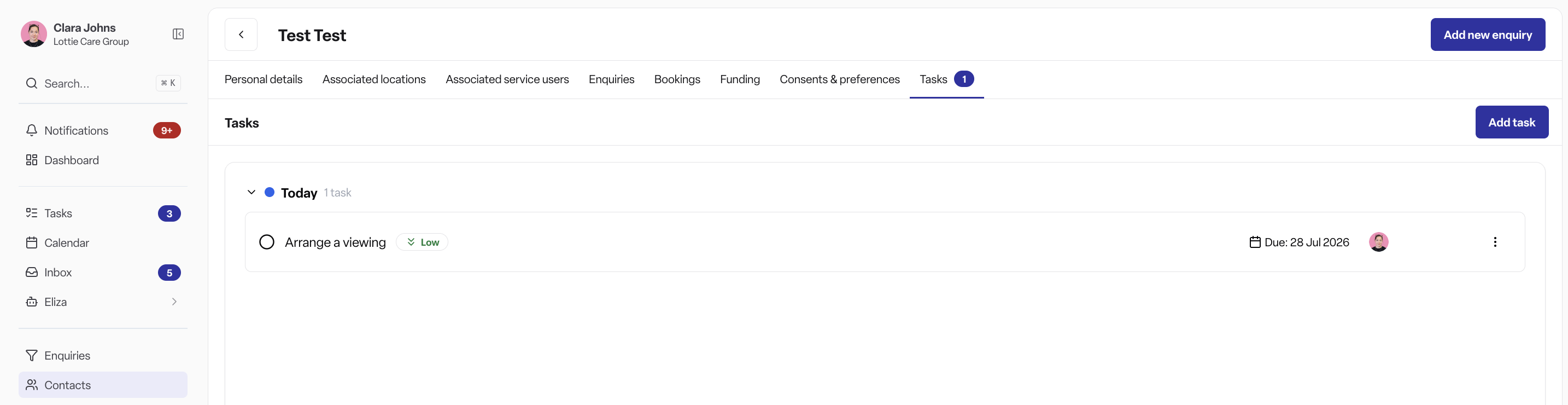
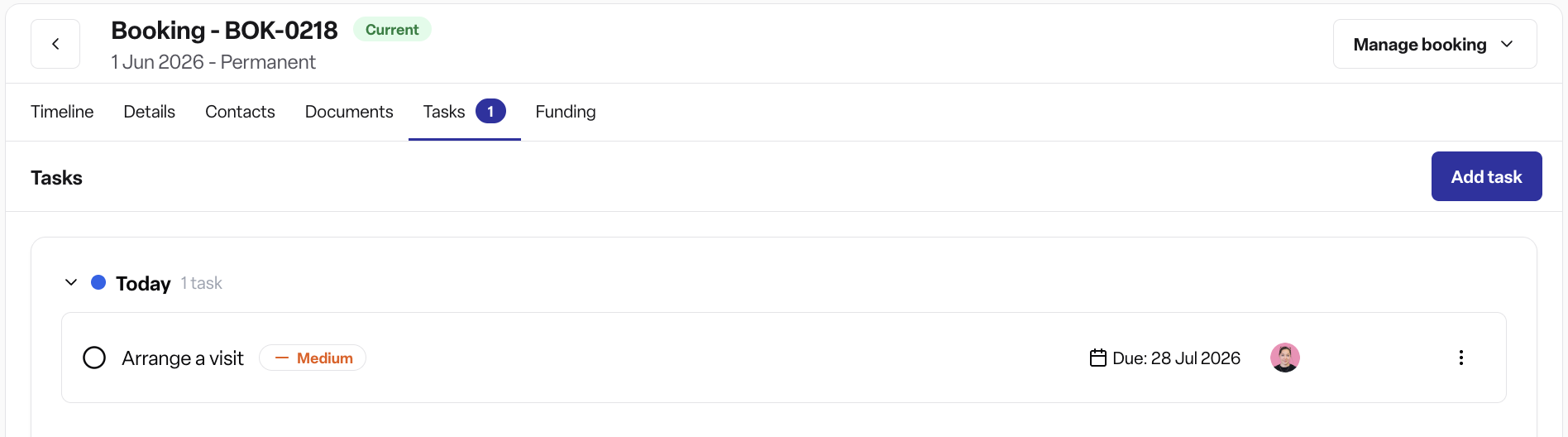
When you open a contact's detail page, navigate to the Tasks tab to see all tasks linked to that contact, organised into the same sections (Today, This Week, Later, Completed, Cancelled).
Viewing tasks on enquiry pages
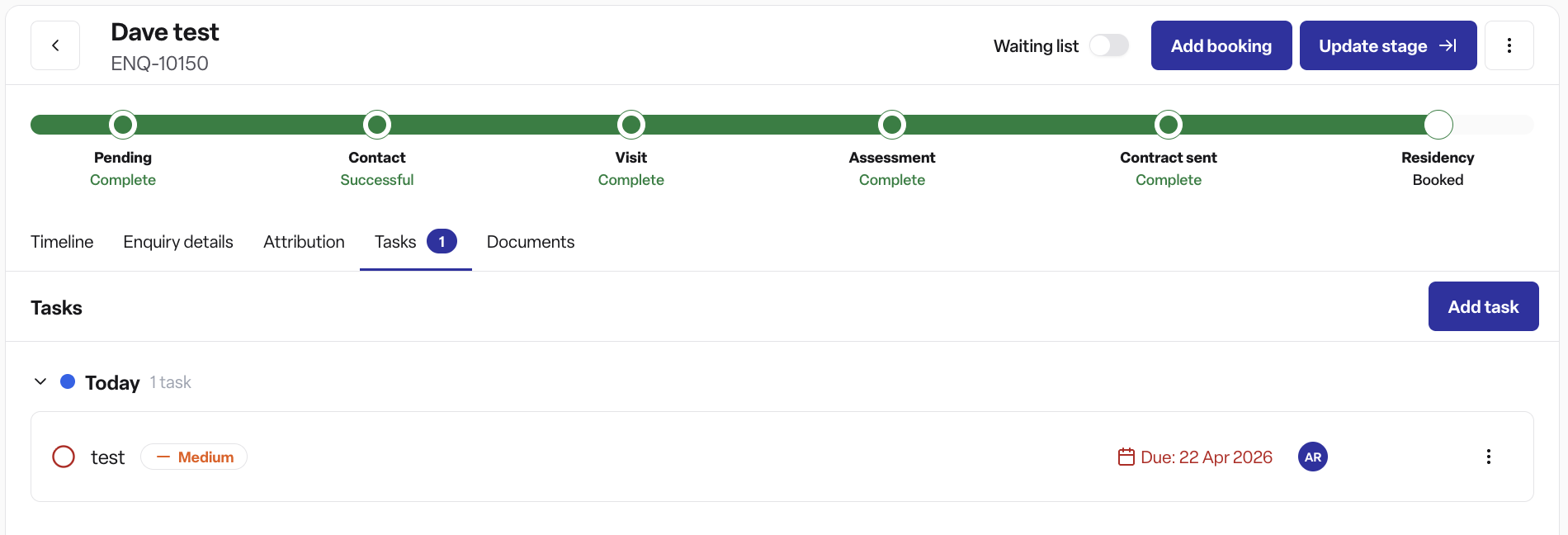
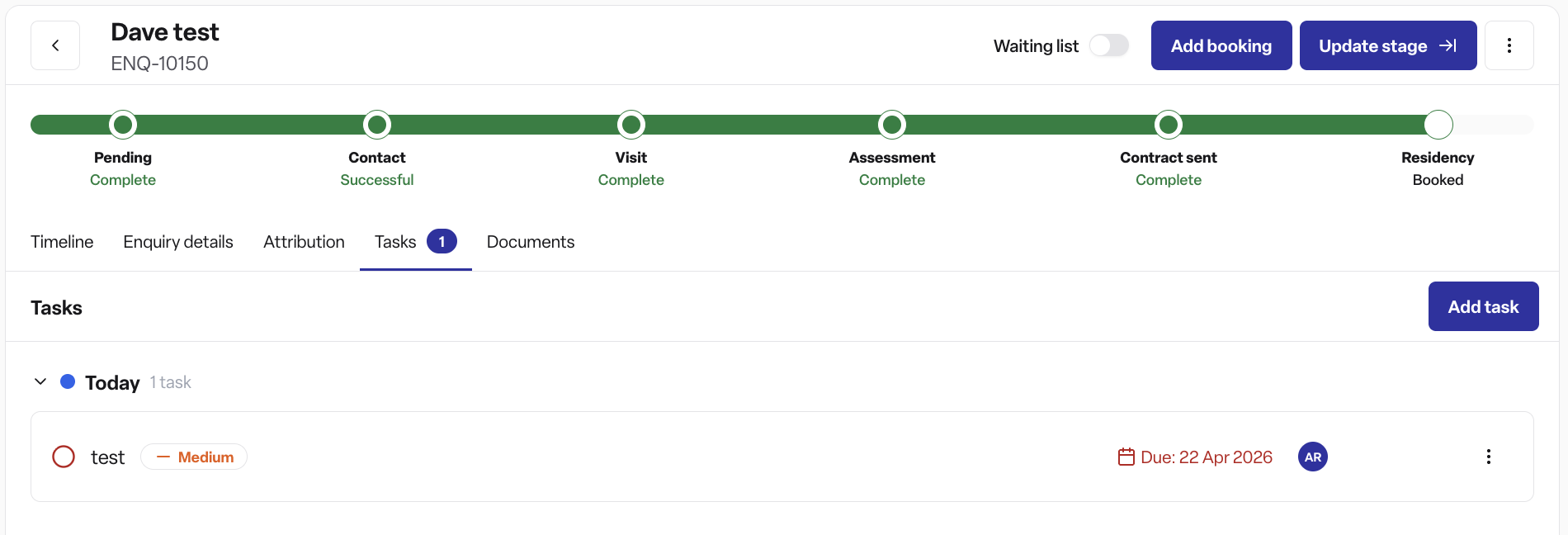
Enquiry pages have a Tasks tab showing all tasks linked to that enquiry, organised by section.
Viewing tasks on booking pages
Where enabled for your workspace, booking pages also have a Tasks tab showing all tasks linked to that booking.
Daily task reminders
The system sends automatic daily reminders:
What you receive:
Email reminder each day listing your incomplete tasks due today
Grouped by priority
Includes task details: title, priority, category, and due date
When you receive it:
Sent automatically each morning
Only includes tasks that are incomplete and due today
No reminder if you have no tasks due
Team collaboration with tasks
Delegating work
As a manager, you can:
Create tasks and assign them to team members
Monitor team tasks in the "Team Tasks" tab
See what's overdue, due today, or coming up
Collaborative tasks
You can assign multiple people to a single task when the task requires input from different team members.
Visibility and accountability
Tasks create transparency:
Everyone knows who's responsible for what
Due dates are clear to all team members
Completed tasks show team productivity
Filtering and finding tasks
Automatic filtering
The system automatically filters tasks based on:
Which tab you're viewing (My Tasks vs Team Tasks)
What page you're on (Contact Tasks vs Enquiry Tasks vs Booking Tasks vs All Tasks)
Your role (Admins see everything, Managers see their locations, Staff see their own)
Sorting
Within each section, tasks are automatically sorted by:
Due date - Earlier deadlines appear first
Priority - Tasks with the same due date are ordered High → Medium → Low
This means you always see your most urgent and important tasks at the top of each section.
Permissions
Tasks (the whole feature) – Found Pro only. If Tasks isn't showing at all, your workspace likely doesn't have this enabled.
Linking tasks to bookings / the Tasks tab on booking pages – requires a separate add-on flag beyond core Tasks, enabled per workspace on request. Not every Pro workspace with Tasks enabled will have this.
Creating, viewing, and editing tasks – available to Admin, Manager, and Staff equally by default once Tasks is enabled; this isn't restricted by role.
What you see under "Team Tasks" – does vary by role: Admins see all tasks workspace-wide, Managers see tasks for their accessible locations, Staff only see their own (same as My Tasks).
Best practices and tips
Creating effective tasks
Do:
Use clear, actionable titles
Set realistic due dates
Add descriptions for complex tasks
Link tasks to contacts/enquiries for context
Avoid:
Vague titles
Creating tasks without assignees
Managing your daily workload
Start your day by reviewing the "Today" section
Handle high-priority tasks first
Mark tasks complete as you finish them
Review "This Week" to plan ahead
If a task can't be completed, update the due date
Frequently asked questions
Q: Can I delete a task? A: You can't permanently delete a task, but you can cancel it yourself (via the task's actions menu) if it's no longer needed — no need to contact an administrator. Cancelled tasks move to the "Cancelled" section rather than being removed entirely.
Q: Can I see tasks from last month? A: Yes! The "Completed" section shows all tasks you've completed, regardless of how long ago — including ones completed today.
Q: What if a task is assigned to someone who's on holiday? A: Edit the task and add another team member as an assignee, or change the due date to when they return.
Q: Can I create recurring tasks? A: Not automatically. If you have a task that repeats (e.g., monthly reports), create a new task each month with the appropriate due date.
Q: I marked a task complete by mistake. How do I undo it? A: Click the task to open it and uncheck the completion circle. It will return to the appropriate section.
Q: Why don't I see Team Tasks? A: If you don't have the appropriate role (Manager or Administrator), you'll only see your own tasks. Contact your administrator if you need broader access.
Q: Can I assign a task to someone outside my team? A: You can assign tasks to any active user in your organisation, regardless of location or team (permissions allowing).
Q: How do I link a task to a contact? A: There's no contact-picker in the general Add Task flow. Instead, open the contact's own page and create the task from there — it'll link automatically.
Troubleshooting
Tasks not appearing?
Check if the Tasks feature is enabled for your workspace
Verify you have the correct permissions
Check you're looking in the right section (Today vs This Week vs Later vs Cancelled)
If viewing team tasks, confirm the assignee is in a location you have access to
Not receiving daily reminders?
Check your email spam folder
Confirm the email address on your account is correct
Ensure you have incomplete tasks due today
Can't create a task?
Verify you have "Create Tasks" permission
Ensure required fields are filled (title, due date, priority, category, at least one assignee)
Check if the Tasks feature is enabled for your workspace
Task in the wrong section?
Check the due date - tasks automatically move to sections based on this
If a task is completed, it will show in "Completed" — this happens as soon as you complete it, regardless of when
If a task is cancelled, it will show in "Cancelled" instead of "Completed"
Due dates that have passed will show in "Today" as overdue