Named and category destinations
Last updated: July 27, 2026
Eliza feature: This feature is available as part of the Eliza module only. If you'd like to upgrade your plan, please contact your account manager.
Overview
Destinations control where Eliza sends callers when they need to speak to a person. There are two kinds, and they work together:
Named destinations - places a caller can ask for by name, such as a floor, a household or unit, or an external line like your head office.
Category destinations - automatic routing based on the type of call. Eliza categorises every call she answers, and you can send specific categories - job seekers, suppliers, complaints - to a different number, optionally only at certain times.
Both are set up per home. Callers who don't match either are transferred to your home's configured number as normal, so destinations are additions, not a replacement for your main forwarding setup.
Where to find it
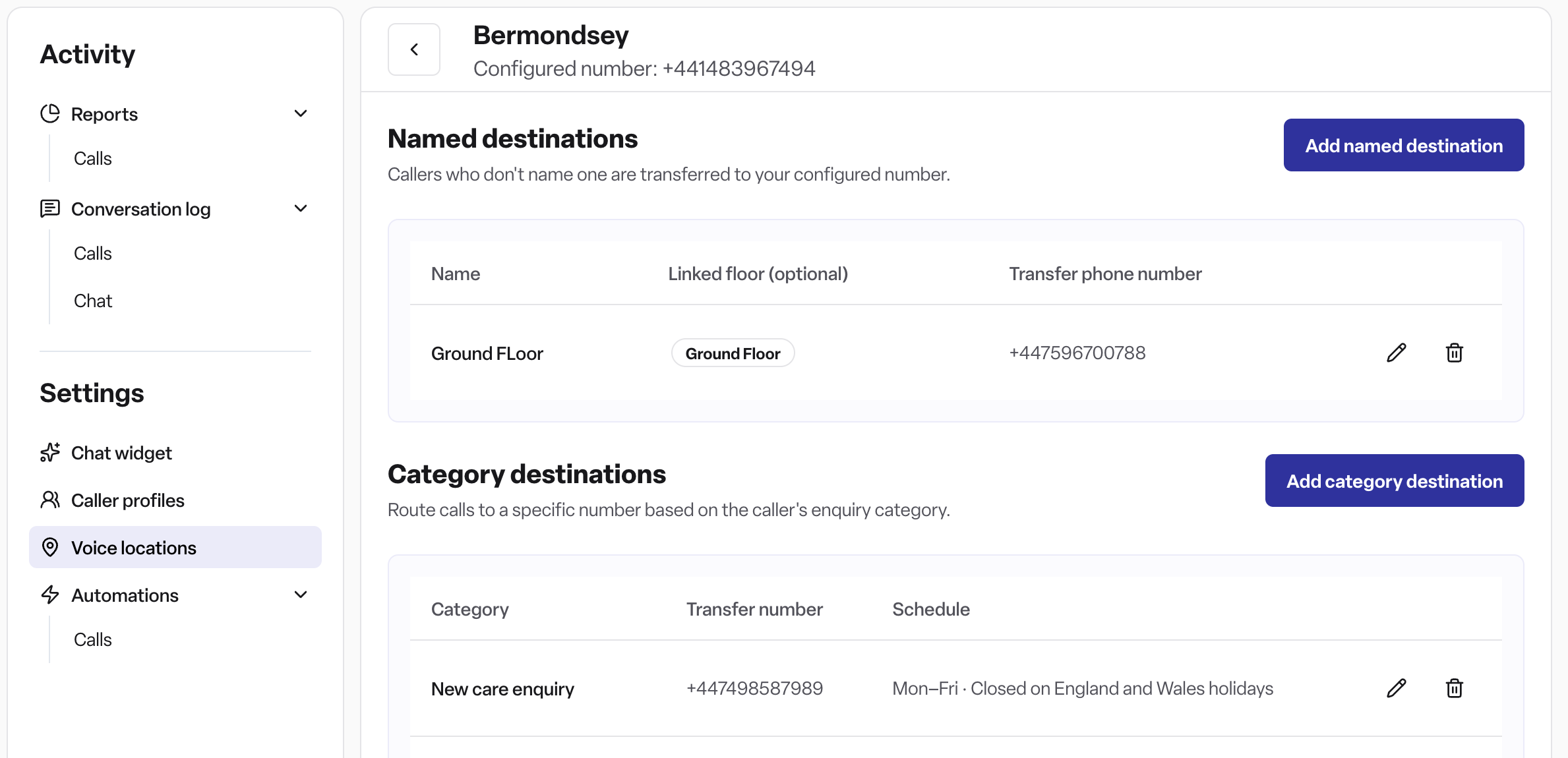
Navigate to Eliza → Voice locations and select a home. The home's page shows its configured number, with a section for each type of destination.
How it works
Named destinations
Named destinations let callers ask to be put through to a specific place. When a caller asks for one by name, Eliza transfers the call to its number; callers who don't name one go to your configured number.
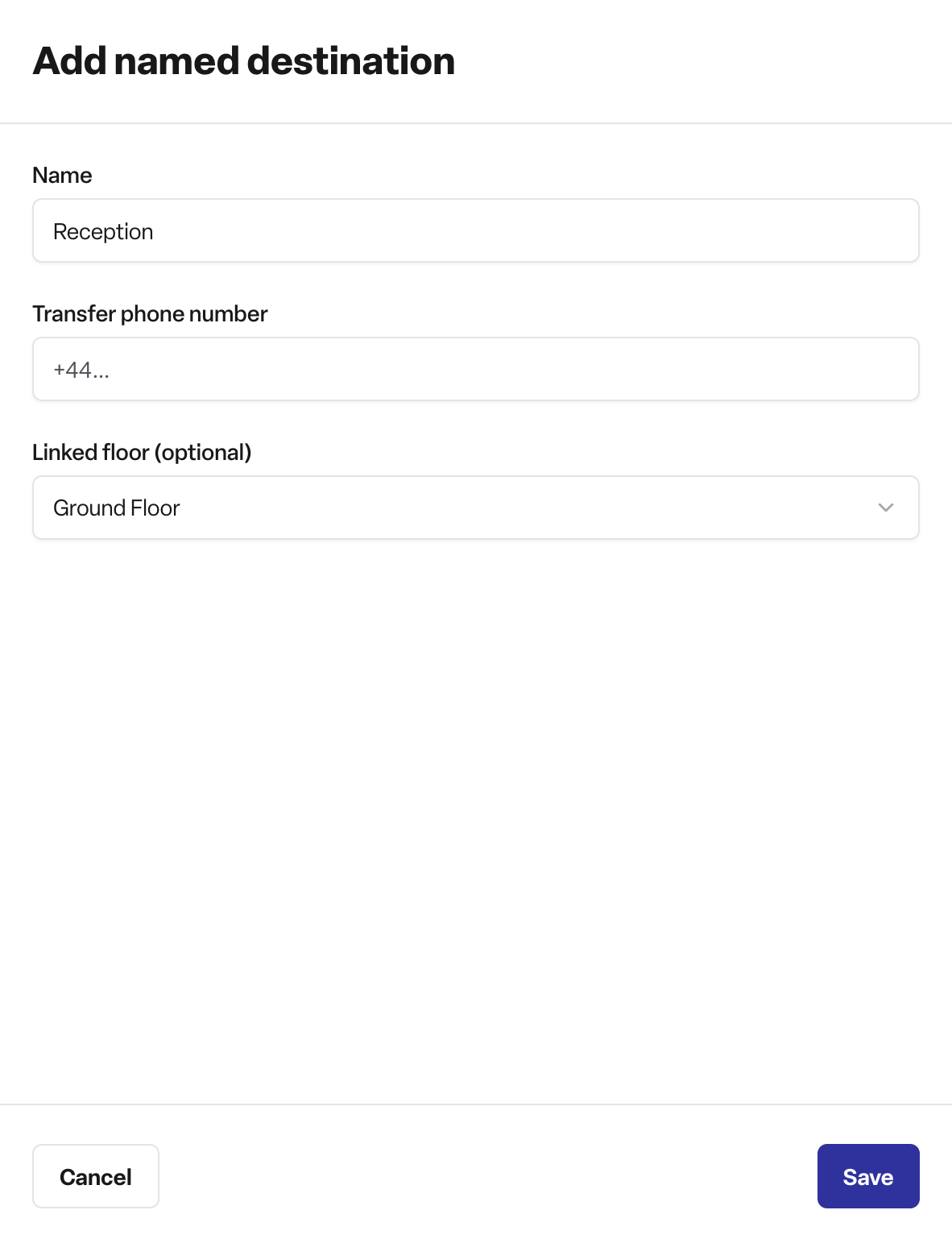
On the home's page, select Add named destination.
Enter the Name - use the words callers actually say, e.g. "Reception", "The Willow unit", "The kitchen".
Enter the Transfer phone number, including the country code, e.g. +44 7700 900123. External numbers are fine.
Optionally choose a Linked floor to connect the destination to one of the home's floors in Found.
Save.
Category destinations
Eliza automatically categorises every call (as a new care enquiry, a job seeker, a supplier, and so on). Category destinations use that to route calls by type: when Eliza puts through a call of a category you've configured, she uses that category's number instead of your configured number.
You can set one destination for each of these categories: New care enquiry, Existing resident or family, Healthcare professional, Commercial or supplier, Staff or HR, Job seeker, Complaint or escalation and Operational or general.
On the home's page, select Add category destination.
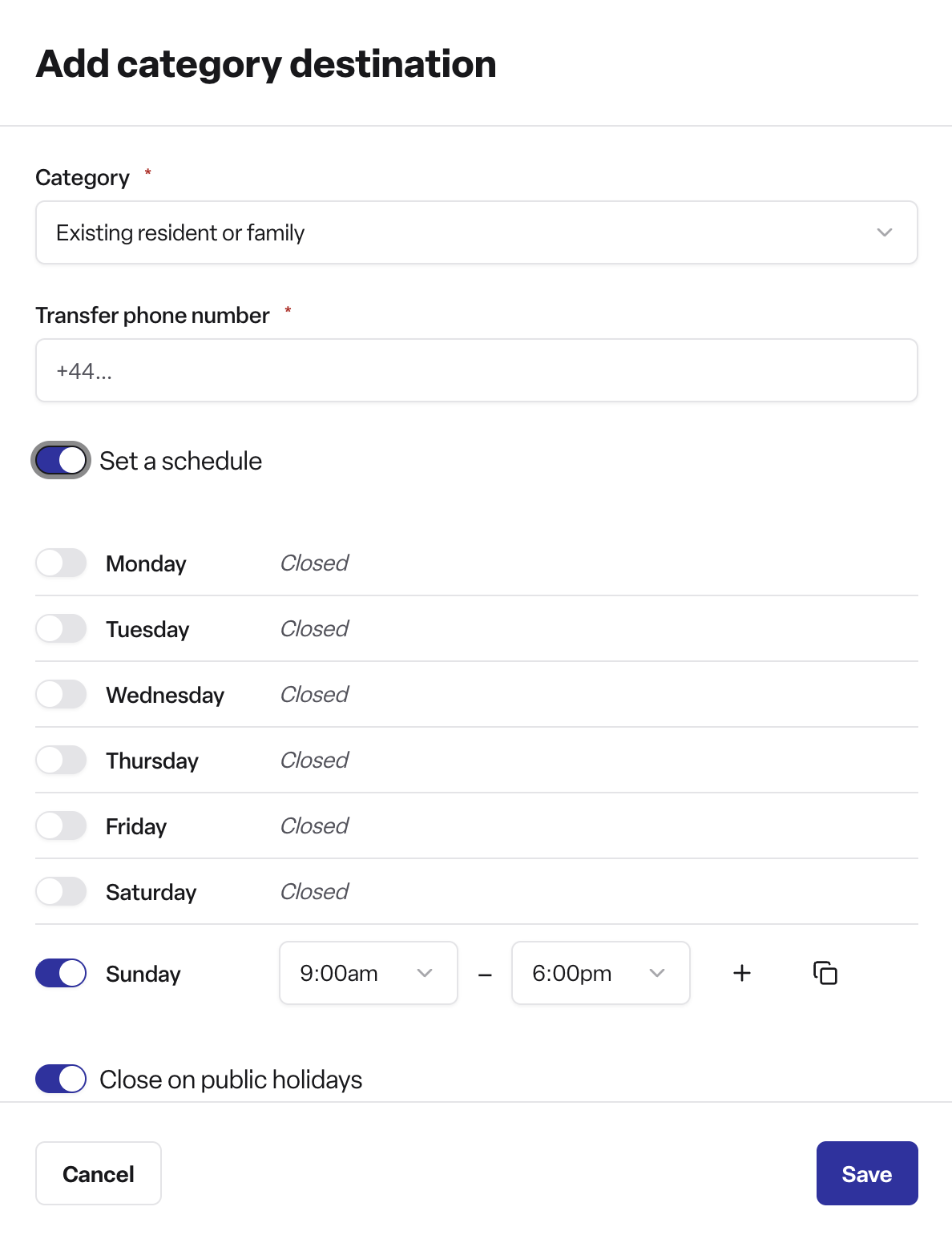
Choose the Category.
Enter the Transfer phone number, including the country code.
Optionally turn on Set a schedule to control when the routing applies (see below).
Save.
Schedules
By default a category destination is Always active. Turn on Set a schedule to make it apply only at certain times - for example, routing to the office on weekdays only.
Set your hours for each day of the week; a day can have more than one time window. The schedule shows in the destinations list, e.g. "Mon–Fri 09:00–17:00".
Optionally turn on Close on public holidays and pick your Public holiday region (England and Wales, Scotland or Northern Ireland) - the destination then won't be used on that region's public holidays.
Outside its scheduled hours, a destination isn't used - calls of that category are handled as normal and transfers go to your configured number.
Permissions
Named destinations can be viewed and managed by Admins and Managers. Staff roles don't see this page.
Frequently asked questions
Q: What happens if a caller doesn't ask for a specific place? A: Nothing changes - they're transferred to your configured number, exactly as if no destinations were set up.
Q: What does "Linked floor" do? A: It connects the destination to one of the home's floors in Found, which helps Eliza relate the destination to that floor. Each floor can only be linked to one destination. It's optional - destinations work without it.
Q: How do I know whether a transfer connected? A: Open the call in your Call log - the call details show the Transfer outcome (for example Completed, Busy or No answer).
Q: Do named destinations apply to all my homes? A: No - they're set up per home. Each home in Voice locations has its own list.