Creating accounting periods
Last updated: July 6, 2026
Overview
An accounting year is a workspace-level date range (for example, calendar year 2026, or UK financial year 2026/27) split into a set of accounting periods — contiguous slices such as monthly periods P1, P2, P3, and so on.
Accounting periods let finance teams attribute invoices to a specific period for reporting, and lock a period once it's closed so its figures can no longer change. Once a period is locked, it's frozen for attribution — any transaction dated inside a locked period is pushed forward to the next unlocked period instead.
Accounting periods drive the period fees report (reports > billing), and each invoice is attributed to a period so it can be reported on correctly.
Where to find it
Settings > billing > accounting periods.
This page only appears in the settings navigation if your workspace has the fee summary report feature enabled and you have permission to view accounting periods (see permissions below).
How it works
Creating an accounting year
Go to settings > billing > accounting periods and select "create year".

Choose a year type:
Calendar year — 1 January to 31 December.
Financial year — 1 April to 31 March the following year (UK financial year).
Custom — pick your own start and end dates.
Enter a label (defaults to something like "2026" or "FY2026/27" for calendar/financial years; custom years need a label typed manually).
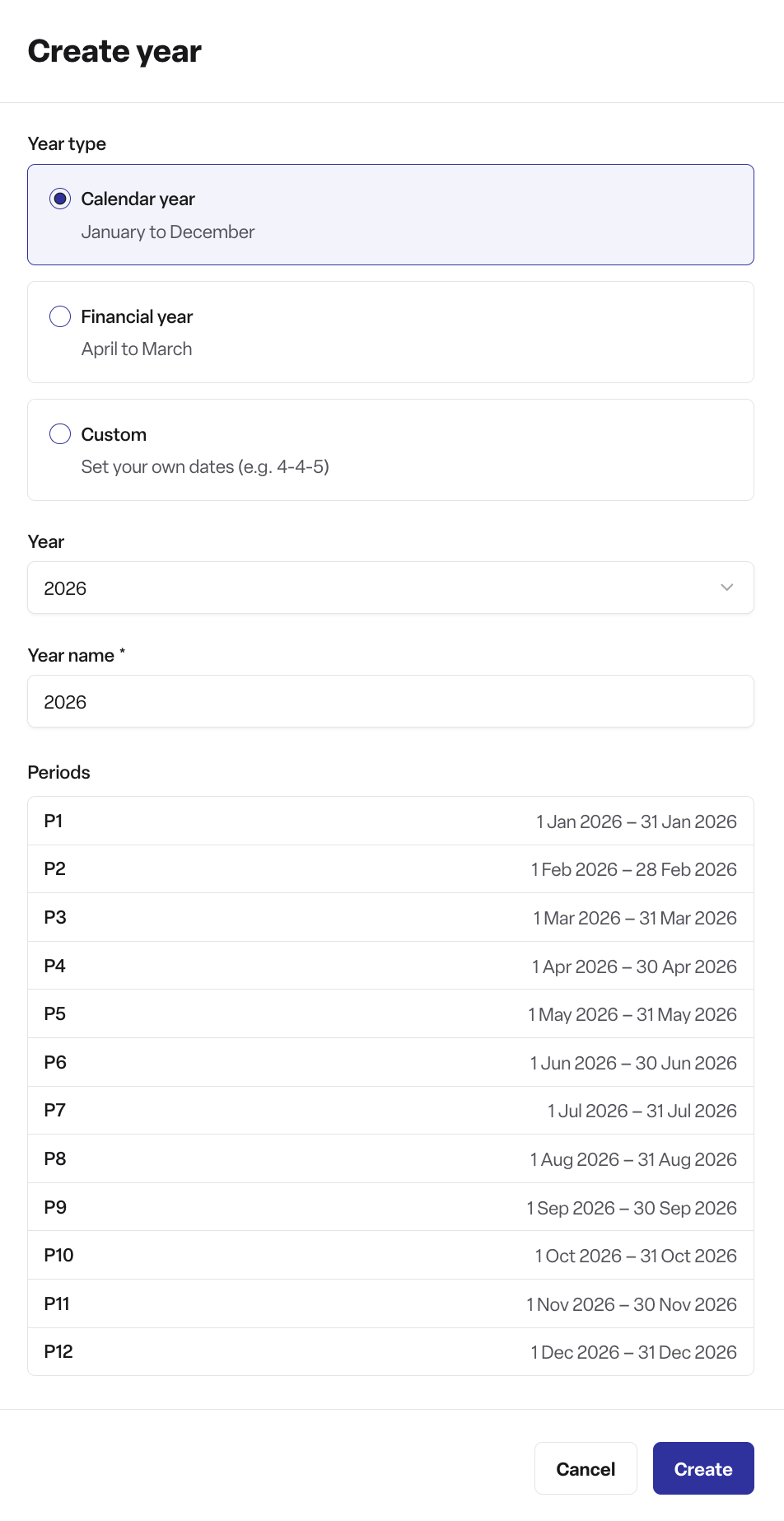
For calendar or financial years, periods are generated automatically on a monthly cadence and shown as a preview before you save. For custom years, a single period covering the whole year is created initially, which you can then split up.
Select "create". You'll be taken to the new year's detail page.
New accounting years can't overlap an existing one — the dates must fall outside every other accounting year already in the workspace.
Editing periods within a year
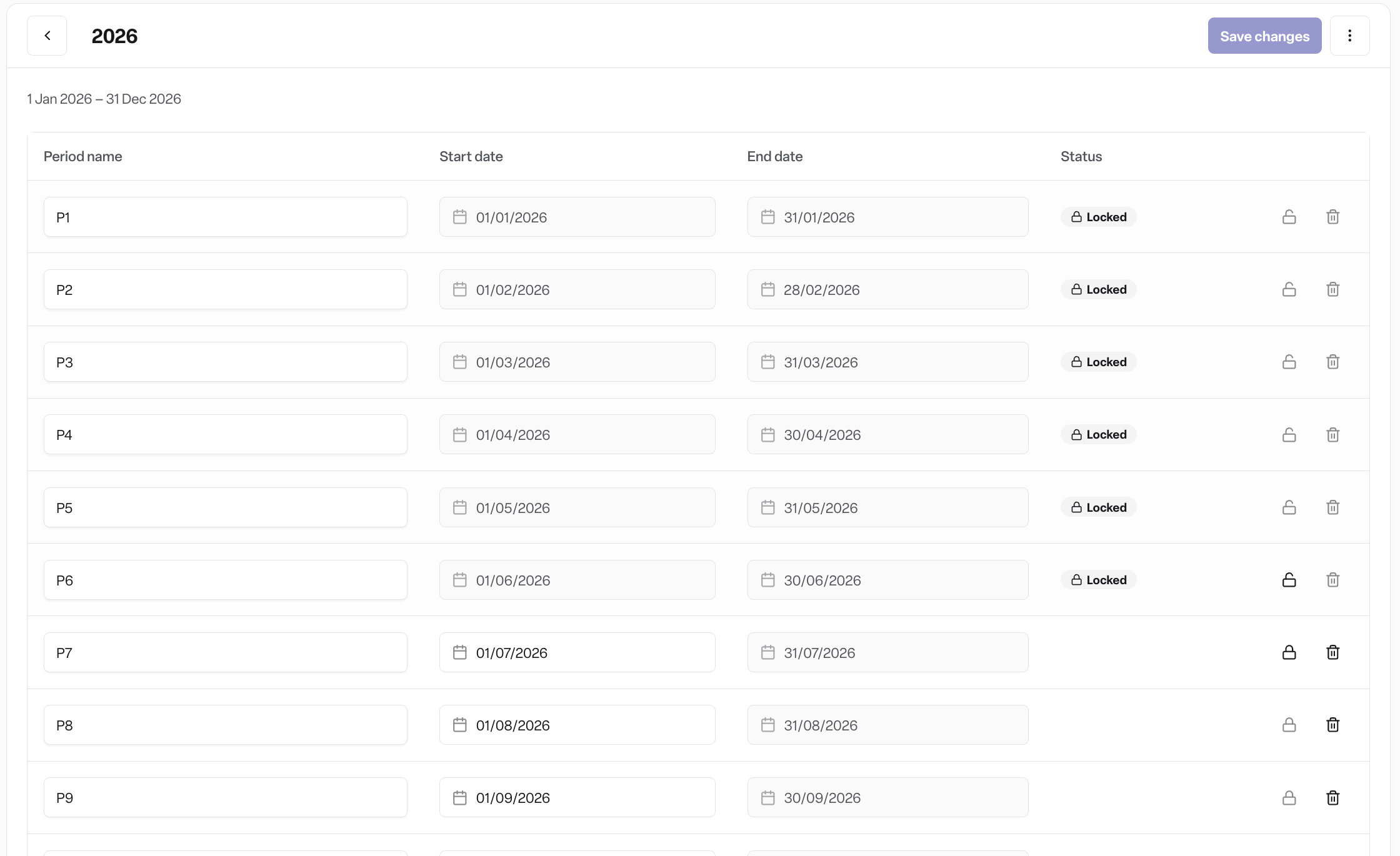
From a year's detail page, you can:
Add a period (the new period starts on the 1st of the month after the current last period).
Rename a period.
Change a period's start date — its end date is derived automatically from the next period's start (or the year's end date, for the last period).
Delete a period, as long as it isn't locked and isn't the only period left in the year.
Periods must be non-overlapping and gapless, and must together cover the whole accounting year — the system validates this and blocks saving otherwise.
Locking a period
Locking freezes a period so its dates can't be edited and it can't be deleted or have new invoices attributed to it.
Periods must be locked in date order — you can't lock a period while an earlier period (by start date) is still unlocked.
Periods must be unlocked in reverse order — you can't unlock a period while a later period is locked.
Locking and unlocking are separate actions available from the period row, each with a confirmation step.
Editing or deleting a year
From the year detail page's actions menu you can edit the year's label and dates, or delete the whole year (soft delete).
Frequently asked questions
Q: Can two accounting years overlap? A: No. Creating or saving a year is blocked if its dates overlap an existing accounting year.
Q: Can periods within a year have gaps or overlap each other? A: No. Periods must be contiguous and non-overlapping, and together must cover the whole accounting year — saving is blocked otherwise.
Q: What happens if an invoice falls inside a locked period? A: It can't be attributed there. Attribution spills forward to the next unlocked period instead.
Q: Can I lock periods in any order? A: No. Periods must be locked in date order — you can't lock a period while an earlier period is still unlocked.
Q: Can I unlock a period once it's locked? A: Yes, but only in reverse order — you can't unlock a period while a later period is still locked.
Q: Can I delete the last period in a year? A: No. A year must always have at least one period.
Q: Can I delete an accounting year entirely? A: Yes, from the year's actions menu. This is a soft delete.
Q: Who can create or edit accounting periods? A: Admin and manager users, when the Found Pro billing module is enabled for the workspace. Staff users don't have access.
Q: Who can lock or unlock a period? A: Admin users only.