Setting up annuity funding for a resident
Last updated: July 31, 2026
Overview
Annuity is a funding source in Found used when a resident's care fees are paid from an annuity plan, rather than through a local authority, NHS, or standard private contribution route. Annuity funding is set up in two stages: first, it's added as an available funding source on a billing contract template, and second, the resident's booking is subscribed to that template with a contribution amount, payment method, and start date.
How it works
Funding sources are defined on a billing contract template. They control which type of funder can pay against that template and how invoices are generated.
Annuity is only available on:
Individual (private) billing contract templates, and
Organisation billing contract templates where the organisation category is "Business national".
Annuity is not available for local authority, NHS trust, NHS board, or NHS integrated care board templates.
A resident's booking is linked to funding through a subscription — this is where the actual contribution amount, payment method, and dates are recorded against a template that includes annuity funding.
Where it is
Part 1: Add annuity to a billing contract template
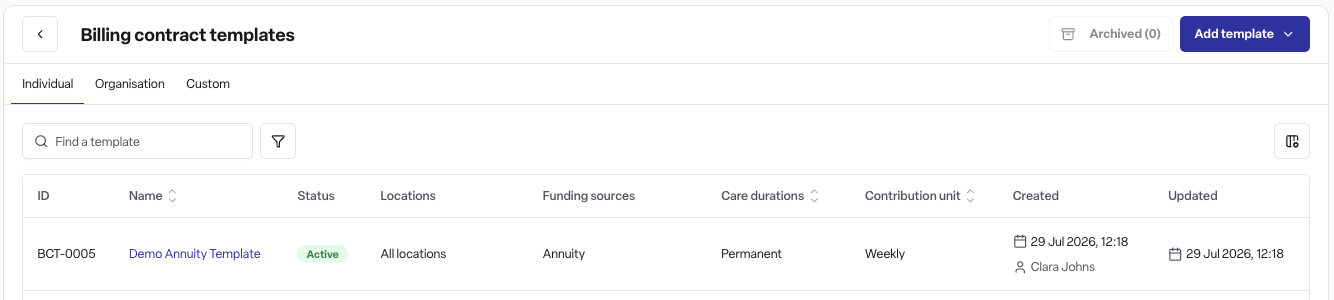
Go to Operations → Billing contracts → Templates.
Click Add template (or open an existing template to edit it).
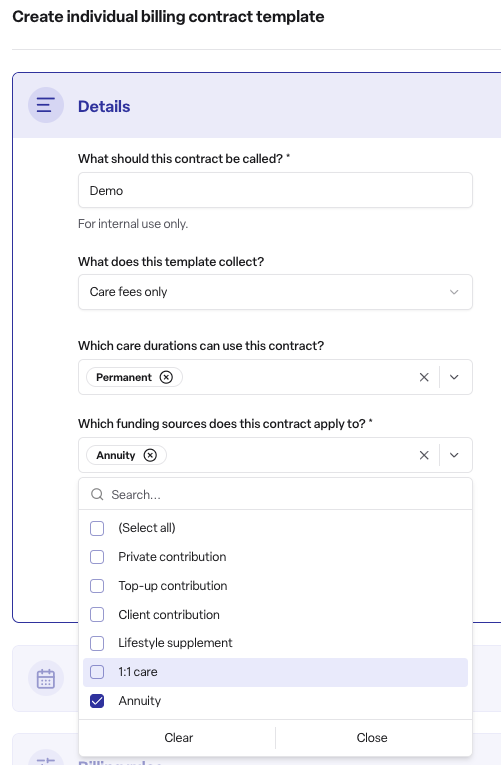
In the field "Which funding sources does this contract apply to?", select Annuity.
Click Add billing contract template to save the template.
Part 2: Apply annuity funding to a resident's booking
Prerequisite — check the resident has a funder:
Open the resident's booking and go to the Contacts tab.
Find the contact who will be paying. If they're not listed, add them as a contact first.
Open their action menu (⋮) and select Enable funding (this creates a funder profile for them).
If the contact already has funding enabled elsewhere, you'll see Add funder ID instead — use that to link or create a funder ID.
Then subscribe the booking:
Go to the Funding tab, then the Subscriptions sub-tab.
Click Add subscription, then choose Individual billing contract or Organisation billing contract — this must match the type of template you created in Part 1.
Select the template that includes annuity funding from the list.
Enter the contribution amount, payment method, and a start date (and end date, if the funding is time-limited).
Save the subscription.
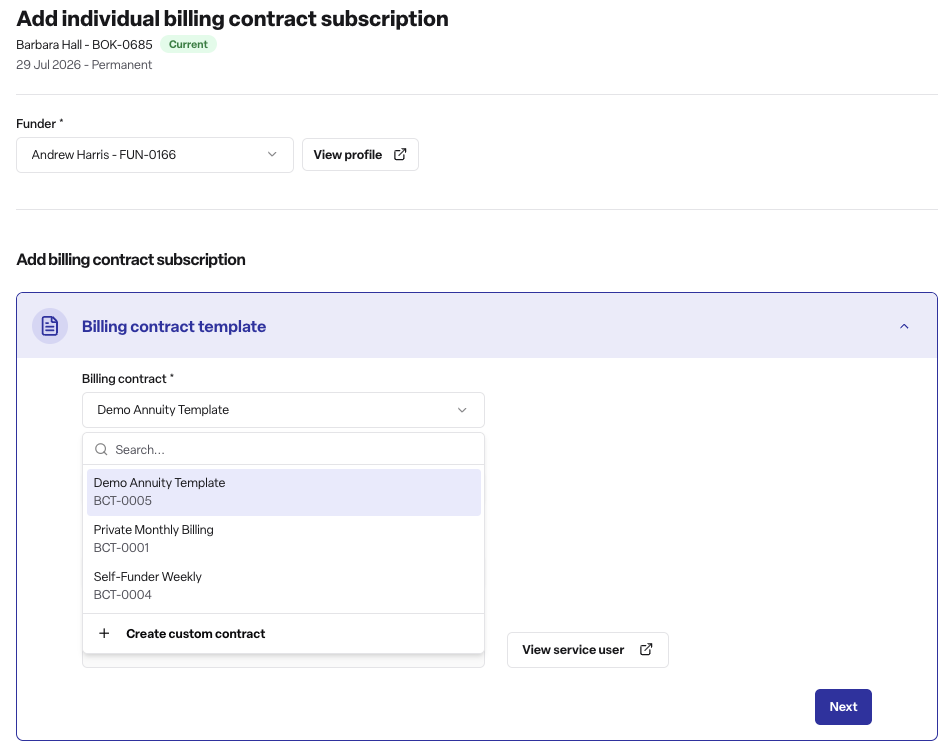
If your template doesn't appear at step 7, check the following back on the template itself:
Type — an individual template only appears under "Individual billing contract"; an organisation template only appears under "Organisation billing contract".
Locations — if the template has specific locations selected, the resident's location must be one of them. Leave locations blank to make it available everywhere.
Care durations — if the template has specific care durations selected (e.g. Respite only), the resident's booking must match one of them. Leave this blank to make it available for any care duration.
Once saved, invoices for that resident will be generated automatically according to the template's billing rules.
Rules to note
Annuity can only be chosen on individual (private) templates or Business national organisation templates — it won't appear as an option for local authority or NHS-linked funders.
Funding sources are set at the template level, not per resident — a resident is linked to annuity funding by being subscribed to a template that already has it enabled.
A resident can hold more than one active subscription at a time (for example, annuity for care fees alongside a separate template for billable extras).
Permissions
Requires Found Pro
Requires the occupancy and/or billing module to be enabled for the workspace
Admin, manager, and staff users can all manage billing contract templates and subscriptions by default (this can be adjusted per role by a workspace admin)
Please Note
If you need to link this annuity as a deduction to the resident's private or main funding account, refer to the Linked Accounts article for guidance on setting that up.
Frequently asked questions
Q: What is annuity funding? A: It's a funding source in Found for recording that a resident's care fees are being paid from an annuity plan.
Q: Where do I add annuity as a funding source? A: Go to Operations → Billing contracts → Templates, then add or edit a template and select Annuity in the funding sources field.
Q: How do I apply annuity funding to a specific resident? A: Open the resident's booking, click the Funding tab, then Subscriptions. Click Add subscription and choose a template that includes annuity as a funding source.
Q: Can I add annuity funding to any organisation's template? A: No. Annuity is only available on individual (private) templates and on organisation templates where the organisation category is "Business national". It isn't offered for local authority or NHS-linked funders.
Q: Why can't I see "Annuity" in the funding sources list? A: Check that the template is an individual template or a Business national organisation template, and that your workspace has Found Pro with the occupancy and/or billing module enabled.
Q: Can a resident have annuity funding as well as another funding type? A: Yes. A resident's booking can hold more than one active subscription at the same time, for example annuity for care fees and a separate template for billable extras.
Q: Who can set up or edit annuity funding? A: Admin, manager, and staff users all have this permission by default, though a workspace admin can restrict it per role.