Setting up the Eliza chat widget
Last updated: September 30, 2026
Eliza feature: This feature is available as part of the Eliza module only. If you'd like to upgrade your plan, please contact your account manager.
Overview
This article walks you through setting up Found's Eliza chat widget for your website — what you need in place first, who's allowed to configure it, how to set it up step by step, and how to embed it on your site. It also covers the current rules and limitations, so you know what is and isn't configurable today.
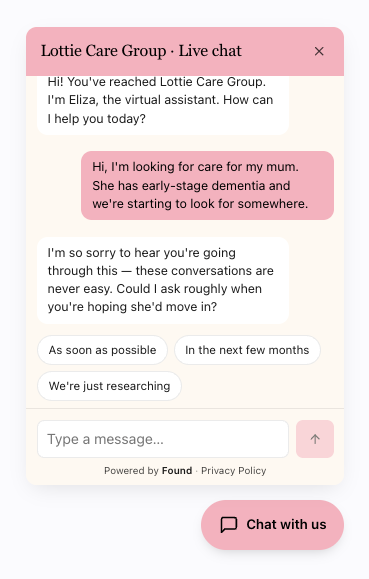
Before you start
Three things need to be in place before you can configure the chat widget:
Eliza chat must be switched on for your account. This is arranged by your Found contact — if you can't see the chat widget option, this is the most likely reason.
You must be logged in as an admin. Managers and staff can't view or edit chat widget settings (see below).
At least one brand or location profile must already be set up for your account. This is arranged by your Found contact. If none exists yet, the page will show a message telling you there's nothing to configure until one is added.
Who can set this up
Access depends on your user role:
Role | View chat widget settings | Edit chat widget settings |
|---|---|---|
Admin | Yes | Yes |
Manager | No | No |
Staff | No | No |
This is deliberate — only admins can change how the widget looks or which websites it's allowed to appear on.
Step-by-step setup
Part 1: configure your widget in Found
Open the chat widget page. Go to Eliza > Chat widget.
Select a brand. If your account covers more than one, choose the one to set up first from the selector at the top of the page — you'll repeat these steps for each. If you only have one, skip straight to step 3.
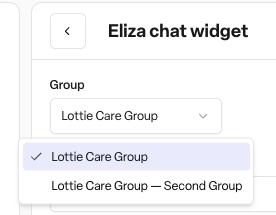
Set your colour.
Primary colour — the main colour used for the widget (e.g. your logo or brand colour)
This is entered as a colour code (e.g.
#FFA73E8). Check with whoever manages your website or marketing materials if you're unsure of your exact brand colours.Add your website address(es). Under allowed websites, list every site you want the widget to appear on (e.g.
www.yourbusiness.com). This matters: the widget will only load on sites listed here. If you have more than one site — a main site and a landing page, for example — add them all, or the widget won't show up.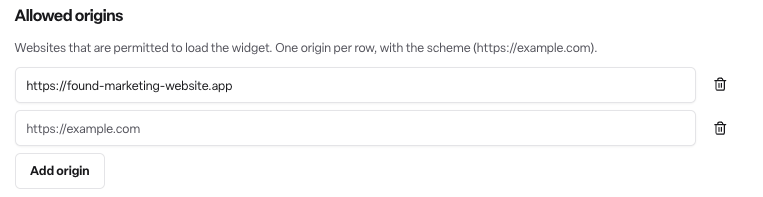
Choose whether the widget opens automatically. Turn "open by default" on if you want the chat panel to pop open as soon as someone lands on your site. Leave it off if you'd rather it wait as a small icon until a visitor clicks it.

Check the preview. Use the live preview to see how the widget will actually look before you commit to your settings.
Save your changes. Your settings are now stored in Found — but the widget won't appear on your website yet. That's Part 2.
Part 2: add the widget to your website
Copy the embed code. Once saved, Found displays a short snippet of code specific to your brand or location.
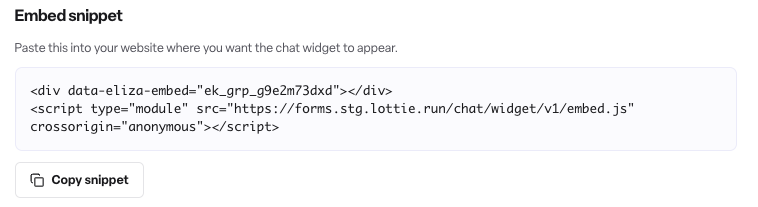
Send it to whoever manages your website. This snippet needs to be added to your site's page code — typically just before the closing
</body>tag — by a developer or whoever manages your site, whether that's an internal team member or an external agency. It's self-contained and doesn't require any other changes to your site.Check it's live. Visit your website and confirm the widget appears as expected, matching the colours and open/closed behaviour you set in Found.
If you manage more than one brand or location, repeat both parts separately for each one — settings and embed codes are unique per brand or location.
Rules and limitations
If you manage more than one brand, each one is set up separately — colours and allowed websites for one won't carry over to another.
The allowed websites list is a hard restriction: the widget will not appear on a site that isn't on the list.
At present, you can't set business hours, write a custom greeting message, hand a conversation off to a real person, or choose a language from this screen. If you need any of these, speak to your Found contact — they aren't self-serve options today.
Frequently asked questions
Q: Why can't I see the Eliza chat widget option in Found? A: Either Eliza chat hasn't been switched on for your account yet, or you're not logged in as an admin. Check with your Found administrator, or contact Found if you're not sure.
Q: I'm an admin but the page says there's nothing set up yet. What do I do? A: This means a brand or location profile hasn't been created for your account yet. Contact your Found representative to get one set up — this isn't something you can do yourself from the settings screen.
Q: Can I have a different widget for each of our brands? A: Yes. If you manage more than one, you'll see a selector at the top of the page to switch between them, and each one is set up and embedded separately.
Q: Can managers or staff set up the chat widget? A: No. Only admins can view or edit chat widget settings.
Q: What does the allowed websites setting control? A: It's the list of website addresses the widget is allowed to appear on. Add every website you want it to show up on — it won't work anywhere else.
Q: What does "open by default" mean? A: It controls whether the chat panel opens automatically when someone visits your site, or stays closed until they click to open it.
Q: Who needs to add the code to our website? A: Whoever manages your website's code — this could be an internal team member or an external web developer/agency. You just need to give them the snippet from the Found chat widget page.
Q: Can I set business hours or write a custom welcome message for the widget? A: Not currently — these aren't available to configure from the chat widget settings screen today.
Q: Can visitors be handed off from Eliza to a real member of staff during a chat? A: Not from this screen — there's no handoff-to-a-person option in the current chat widget settings. If this is something you need, raise it with your Found contact.
Q: Is the chat widget the same as Eliza's phone feature? A: No. Eliza covers both phone calls and website chat, but they're set up separately. This article only covers the website chat widget.