Deposit management
Last updated: June 9, 2026
Overview
Deposit management in Found is the workflow for capturing, holding, returning, and transferring deposits taken against bookings.
It gives operations and billing teams a single place to see what is outstanding, what is held, what has been returned, and what has been forfeited — at both a workspace level and on each individual booking.
Every change is recorded, every status transition is enforced, and deposits can be carried over when a resident moves to a future booking.
What it is
A deposit in Found represents money taken from a contact at the start of a booking and held until it is resolved. Each deposit has:
A status: pending, held, returned, partially returned, or forfeited. The list view also surfaces a derived overdue state for deposits still held after the booking has ended.
An amount, recorded in pounds, with the contact who paid, payment date, and payment method (BACS, cash, cheque, direct debit, pending direct debit, or standing order).
Notes (up to 2000 characters).
Resolution details when closed: returned amount, forfeited amount, resolution date, forfeited reason, and return method.
A link to the booking, which can be carried over to a successor booking if the resident moves.
Where it is
Deposit management appears in two places:
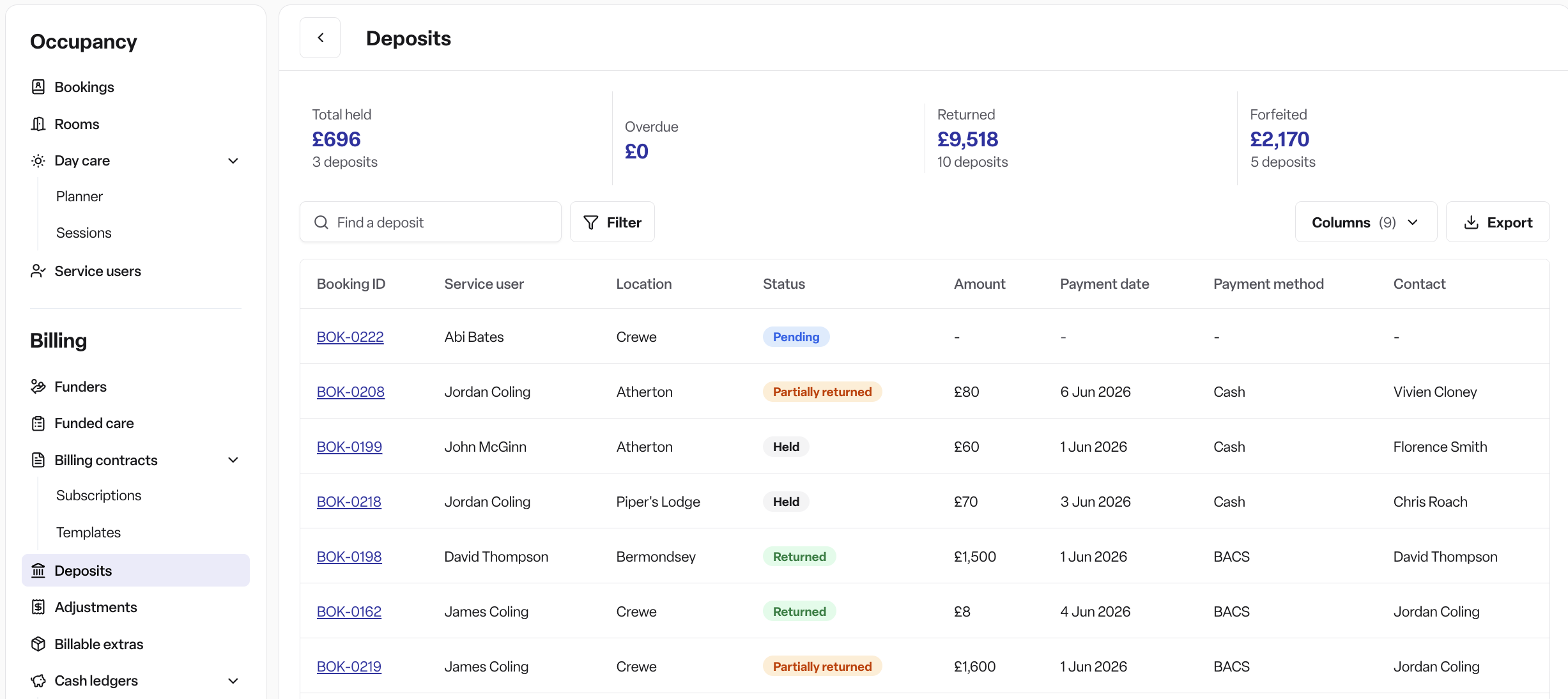
Operations → Deposits — the global list of all deposits across the workspace, with metric tiles for Total held, Overdue, Returned, and Forfeited.
Booking → Funding → Deposits — the per-booking section where a deposit is collected, recorded, edited, returned, transferred, or cleared.
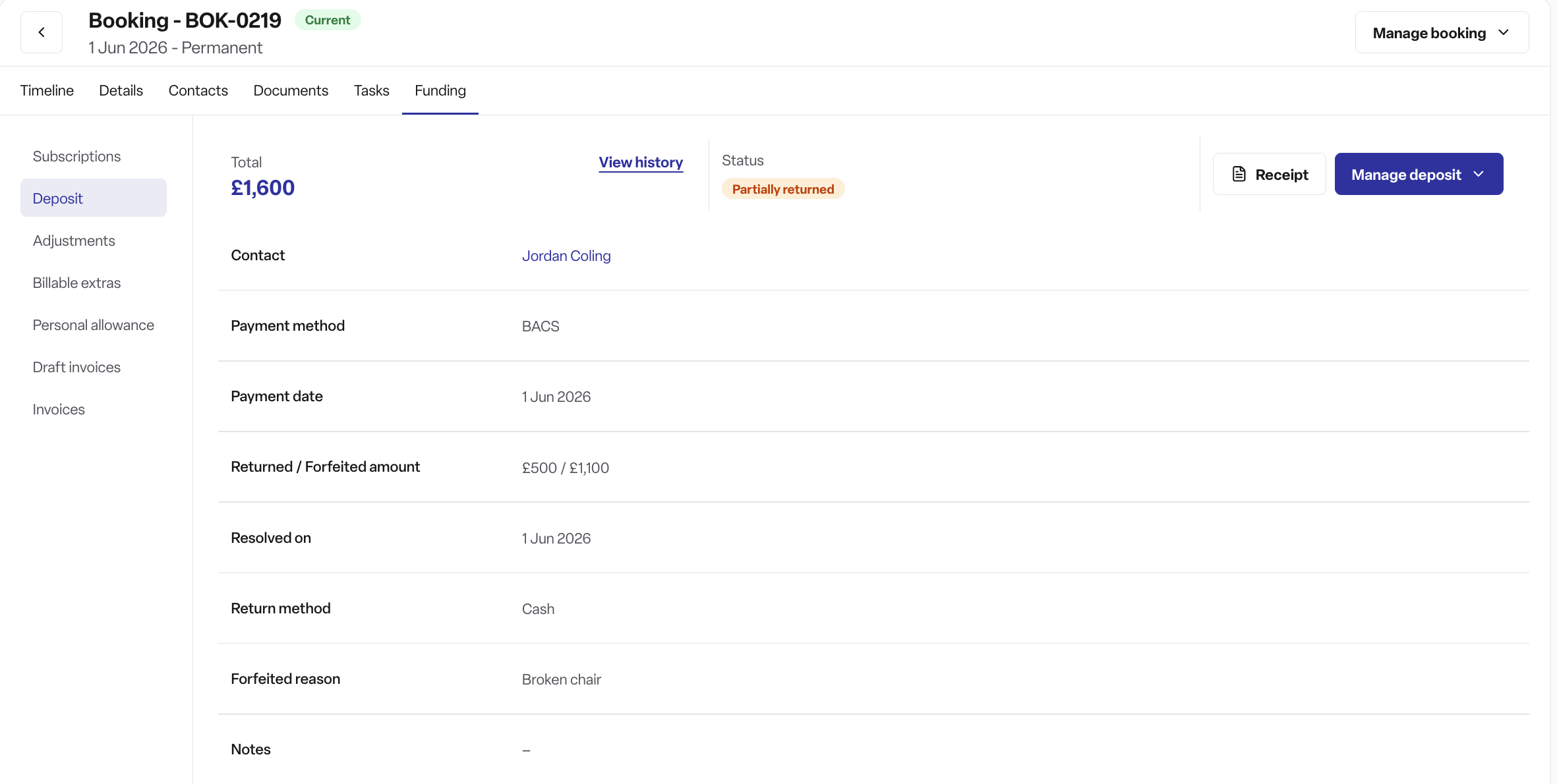
On the global list you can also access View history and Receipt for an individual deposit.
How to use it
Find your deposits
In the left sidebar, click Operations, then Deposits.
Review the metric tiles across the top: Total held, Overdue, Returned, and Forfeited.
Use the Find a deposit search to look up a booking or contact with an existing deposit.
Click Filters to filter by status, contact, payment method, care type, funding type, location, booking status, location category, payment date, or resolved date.
Collect and record a deposit
Open the booking and go to Funding → Deposits.
Turn on the Collect a deposit for this booking toggle. This creates a placeholder deposit in Pending.
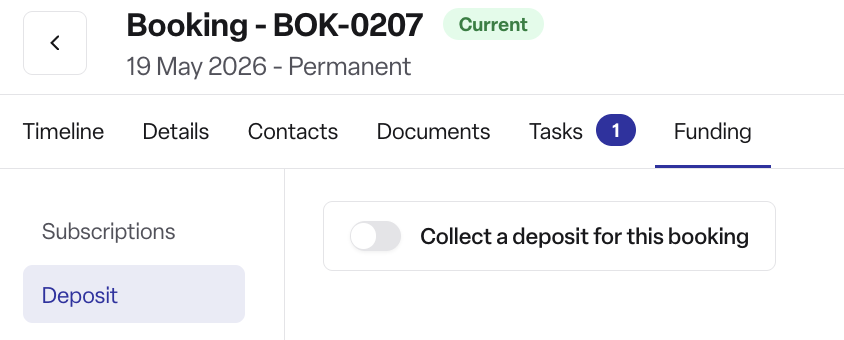
Click Add deposit to open the deposit form.
Complete the fields:
Amount
Select contact who paid (required — if there are no contacts on the booking, add one first)
Payment date
Payment method (optional)
Notes (optional)
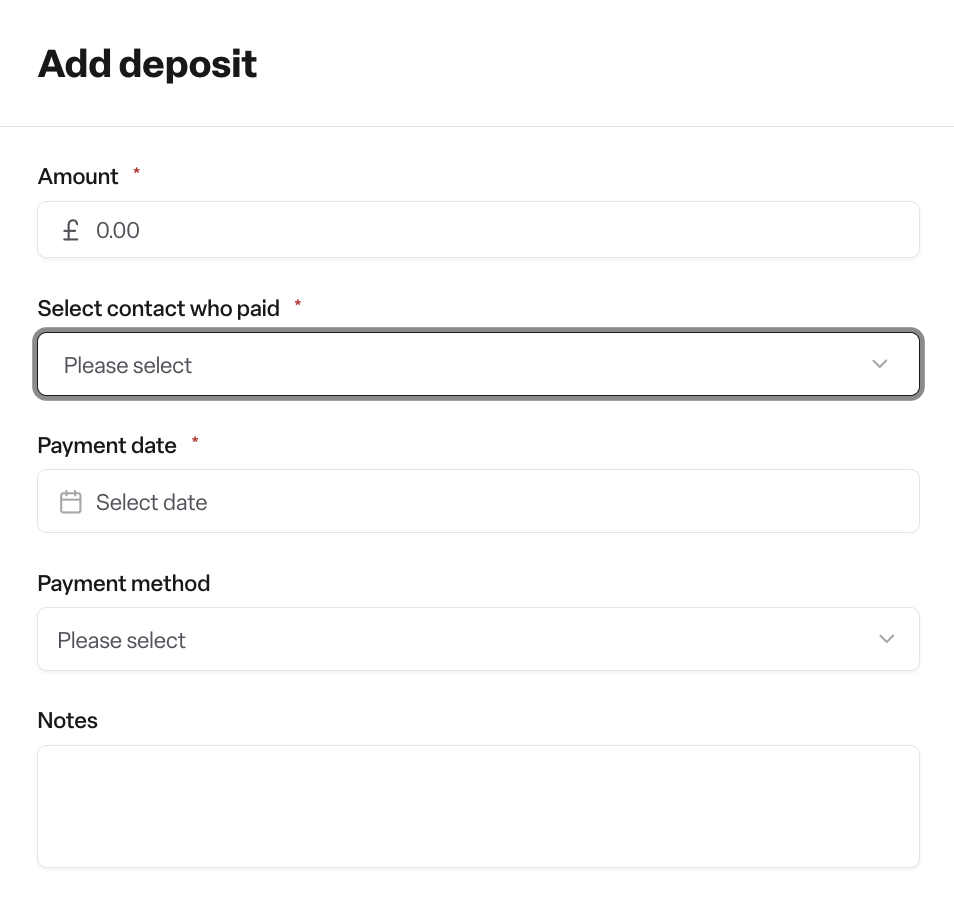
Click Save. The deposit moves to Held and a "Deposit recorded" confirmation appears.
Return or forfeit a deposit
Click Manage deposit, then Return deposit.
In the Confirm return dialog, enter:
Amount to return to the contact.
Payment date (the resolution date).
Payment method (optional).
Forfeited reason — required if any portion is being forfeited.
If the return amount is less than the held amount, a notice shows how much will be forfeited.
Click Save. The deposit moves to Returned, Partially returned, or Forfeited depending on the split, and a "Deposit returned" confirmation appears.
Transfer a deposit to a successor booking
If the resident moves to a new booking, the deposit can be carried over:
On the original booking, click Manage deposit, then Transfer deposit.
In the side panel, use Transfer to booking to select the successor booking. The list shows booking references with the service user's name.
Click Save. The deposit, including its full history, moves to the selected booking and a "Deposit transferred" confirmation appears. The original booking shows a read-only notice that the deposit has been transferred.
If a successor booking is created and the predecessor still holds the deposit, the successor's deposit section shows a notice pointing back to the original booking so the transfer can be completed.
Clear a deposit
Use this to remove a deposit that should not have been recorded. The deposit will still appear in the audit log.
Click Manage deposit, then Clear deposit.
In the Clear this deposit? dialog, enter a Reason.
Click confirm. A "Deposit cleared" confirmation appears.
Frequently asked questions
Q: What's the difference between collecting and recording a deposit? A: Collecting a deposit (the toggle on the booking) creates a placeholder in Pending, signalling that a deposit is expected. Recording a deposit fills in the amount, contact, payment date, and method, which moves it to Held.
Q: Why can't I record a deposit — the contact dropdown is empty? A: A deposit must be linked to a contact on the booking. The form will tell you to add a contact to the booking first.
Q: What does "Overdue" mean? A: A deposit that is still Held after the booking's end date. It's a derived flag in the list view to help you spot deposits that need resolving.
Q: Can I return only part of the deposit and keep the rest? A: Yes. Enter a return amount lower than the held total in the Confirm return dialog. The remainder will be marked as forfeited and the deposit will end up in Partially returned. A forfeited reason is required.
Q: Can I undo a return or a forfeit? A: No. Returned, partially returned, and forfeited are terminal statuses. If the record is wrong, clear it (which keeps it in the audit log) and record a new deposit.
Q: A resident is moving to a new booking — do I need to refund and re-collect? A: No. Use Transfer deposit to move the held deposit (and its full history) to the successor booking.
Q: What if I started recording a deposit on the wrong booking? A: Use Clear deposit with a reason. The deposit is removed from the booking but stays in the audit log.
Q: Can I see all deposits across every location in one place? A: Yes — Operations → Deposits shows every deposit in the workspace, with metric tiles, filters, search, and export columns for location, booking status, booking start, booking end, care duration, and amount.
Q: Can I give the contact a copy of the deposit details? A: Yes. Click Receipt on the deposit to generate a PDF statement.
Q: Why can't I see deposits in my workspace? A: The DEPOSITS feature flag must be enabled for your workspace, and your role must grant the view ability on deposits. Staff roles have no access by default.
Q: Why can I see deposits but not act on them? A: Recording, editing, returning, transferring, and clearing require the edit ability, and turning on Collect a deposit or transferring requires create. Ask an admin to adjust your role.