Recurring billable extras
Last updated: August 10, 2026
Overview
A recurring billable extra is a billable extra that Found generates automatically on a set cadence (daily, weekly, or monthly), instead of someone adding it manually every time. A common example used in Found itself is a weekly newspaper charge.
How it works
The feature works in two layers:
Schedule template — a reusable, workspace-level definition of the expense type and cadence (e.g. "weekly," "every 2 weeks," "monthly"). Set up once by an admin, then reused across multiple bookings.
Booking schedule — an instance of a template attached to a specific booking, where you set the price, start date, optional end date, and description. This is what actually generates the recurring charges.
Once a schedule is running, Found creates the individual billable extra charges for you automatically overnight, on the cadence you set, until the schedule ends.
Each generated charge moves through the same lifecycle as any billable extra: Pending → Scheduled → Complete. A schedule itself shows as Current or Ended, and a template shows as Active or Archived.
How to set it up
Make an expense type schedule-eligible (admin, one-off setup). Go to Settings → Billing → Expense catalogue, open or create the expense type (e.g. "Newspaper"), confirm it's available as a billable extra, and turn on the Schedule eligible toggle.
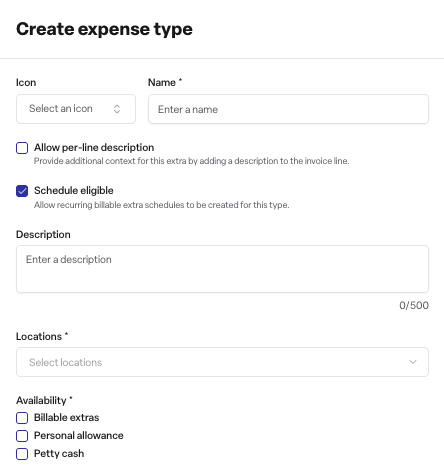
Create a schedule template (admin, one-off setup per charge type). Go to Operations → Billable extras → Schedules tab → Add schedule. Choose the expense type and set the cadence (daily, weekly, or monthly, plus the interval — e.g. every 2 weeks).
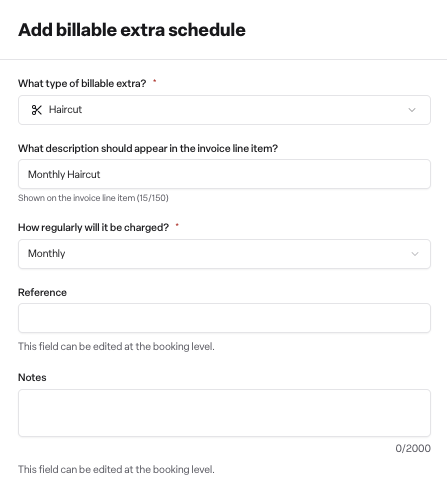
Attach a schedule to a booking (admin or manager, per resident). Open the booking → Funding tab → Billable extras sub-tab → Add billable extras → Schedule repeat charges. Pick the template, then set the price, start date, and (optionally) an end date, description, reference, and notes.
Confirm the booking is set to invoice it. For the generated charges to reach an invoice, a subscription on that booking must be set to collect billable extras (via the "set collection" option on the booking). If no subscription is collecting extras, charges will keep generating but won't be invoiced.
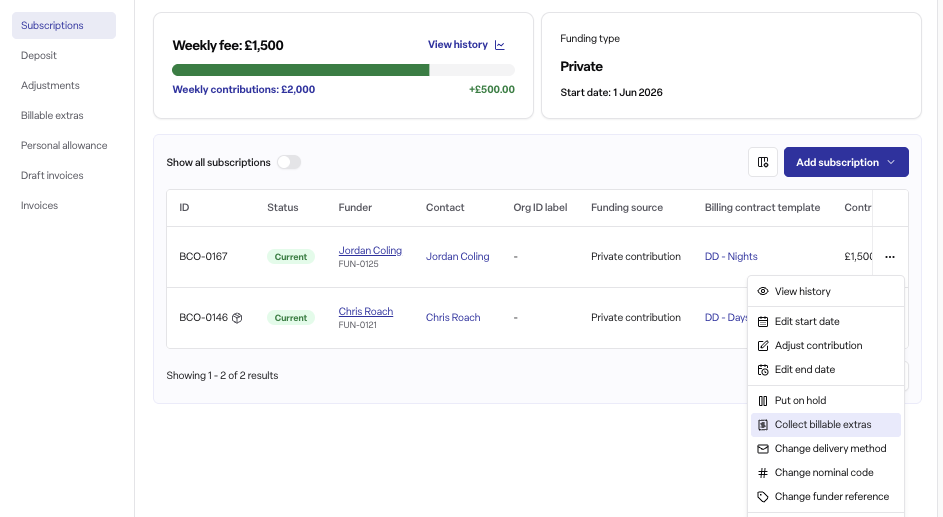
From here, Found takes over — no further manual entry is needed for that resident's recurring charge.
Rules to know
Once a scheduled has been added to the booking, that schedules cadence is locked — to change the frequency, archive the schedule and create a new one.
A schedule cannot be added to a closed or cancelled booking.
If a schedule-generated charge is deleted, it will not regenerate.
Recurring extras only reach an invoice if a subscription on the booking is set to collect billable extras.
Frequently asked questions
Q: What's the difference between a billable extra and a recurring billable extra? A: A billable extra is a single, one-off charge. A recurring billable extra is the same type of charge, but set up once as a schedule so Found generates it automatically on a repeating basis (daily, weekly, or monthly).
Q: Where do I set up a recurring charge for a resident? A: On the booking, go to the Funding tab → Billable extras → Add billable extras → Schedule repeat charges, then pick an existing schedule template.
Q: I can't find a template to choose from — why? A: The expense type hasn't been marked as schedule-eligible yet. An admin needs to go to Settings → Billing → Expense catalogue and turn on Schedule eligible for that expense type, then create a template under Operations → Billable extras → Schedules.
Q: Can I change how often an existing schedule charges once it's live? A: No. Once a booking has subscribed to a template, its cadence is locked. Archive the template and create a new one with the correct frequency.
Q: Why isn't my recurring extra showing up on the invoice? A: A subscription on the booking must be set to "collect billable extras." Check the collection setting on the booking — if no subscription is collecting extras, generated charges won't be billed.
Q: Can I add a schedule to a booking that's closed or cancelled? A: No, schedules cannot be added to closed or cancelled bookings.
Q: What happens if I delete a charge that was generated by a schedule? A: It's removed and will not be regenerated — the schedule continues generating future occurrences as normal.
Q: Who can use this feature? A: It requires the Found Pro billing module. Admin and Manager users can add and manage schedules on bookings; only Admin users can manage the reusable schedule templates. Staff users have no access.