Caller Profiles
Last updated: July 27, 2026
Eliza feature: This feature is available as part of the Eliza module only. If you'd like to upgrade your plan, please contact your account manager.
Overview
Caller profiles let you put a name to the phone numbers that call your homes. A profile attaches a display name, notes for your team and an optional Bypass Eliza setting so regular callers such as GPs, pharmacies and families members so trusted callers can skip Eliza and ring straight through to the team.
Caller profiles are shared across your workspace, so a caller saved once is recognised at every home.
Where to find it
Navigate to Eliza → Settings → Caller profiles.
The page has two tabs:
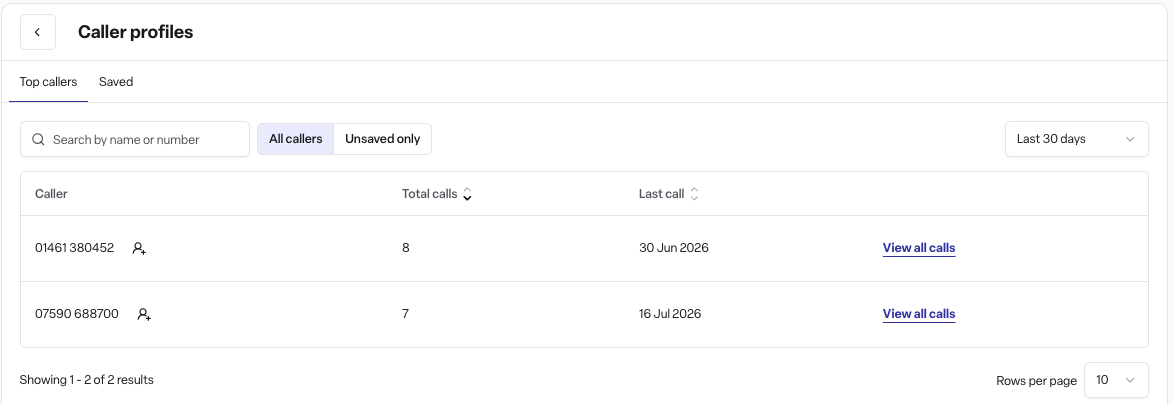
Top callers - your most frequent callers over the last 7, 30 or 90 days whether saved or not
Saved - every caller profile you've created with a Bypass Eliza toggle
How it works
Saving a caller
You can save a caller from the Top callers tab from any row in the call log or with the Add caller button on the Saved tab:
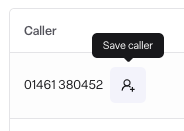
Select the Save caller icon next to a number (or click Add caller on the Saved tab)
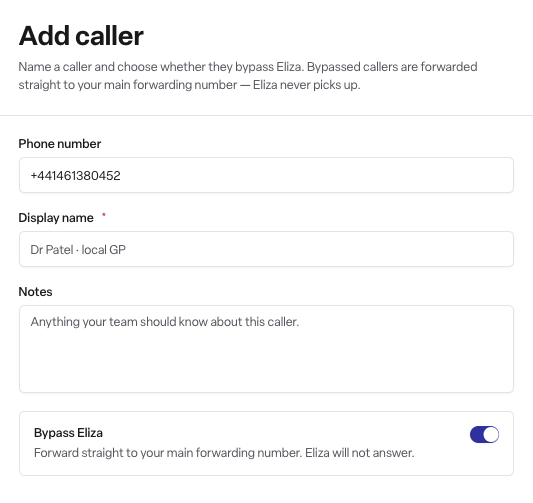
Confirm the phone number
Give the caller a display name, e.g. "Dr Patel - Local GP"
Add Notes - anything your team should know about this caller
Choose whether to turn on Bypass Eliza then Save
Bypass Eliza
Turning on Bypass Eliza means calls from that number are forwarded straight to your main forwarding number, Eliza never picks up. Use it for callers who should always reach a person directly: healthcare professionals, regular family contacts, or your own staff. You can toggle bypass on or off at any time from the Saved tab.
Editing and deleting a profile
Select any profile on the Saved tab to edit its name, notes or bypass setting. The phone number itself can't be changed - to correct a number, delete the profile and create a new one. Deleting a profile removes the name, notes and bypass setting for that number; future calls appear as the raw number again and are answered by Eliza as normal.
Permissions
Caller profiles can be viewed and managed by Admins and Managers. Staff roles don't see this page.
Frequently asked questions
Q: Does saving a caller change how Eliza answers them? A: No. The name and notes are for your team's benefit inside Found. The only setting that changes call handling is Bypass Eliza.
Q: Where do bypassed callers go? A: Straight to your main forwarding number for that home — the same number Eliza transfers calls to. Eliza doesn't answer at all.
Q: Does a caller profile apply to all of my homes? A: Yes. Profiles are workspace-wide, so a saved caller is recognised - and bypassed, if enabled - whichever of your homes they ring.
Q: Can two profiles share the same number? A: No. Each phone number can only have one profile in your workspace.
Q: How do I see every call from one caller? A: Select View all calls next to the caller — this opens the Call log filtered to their number.